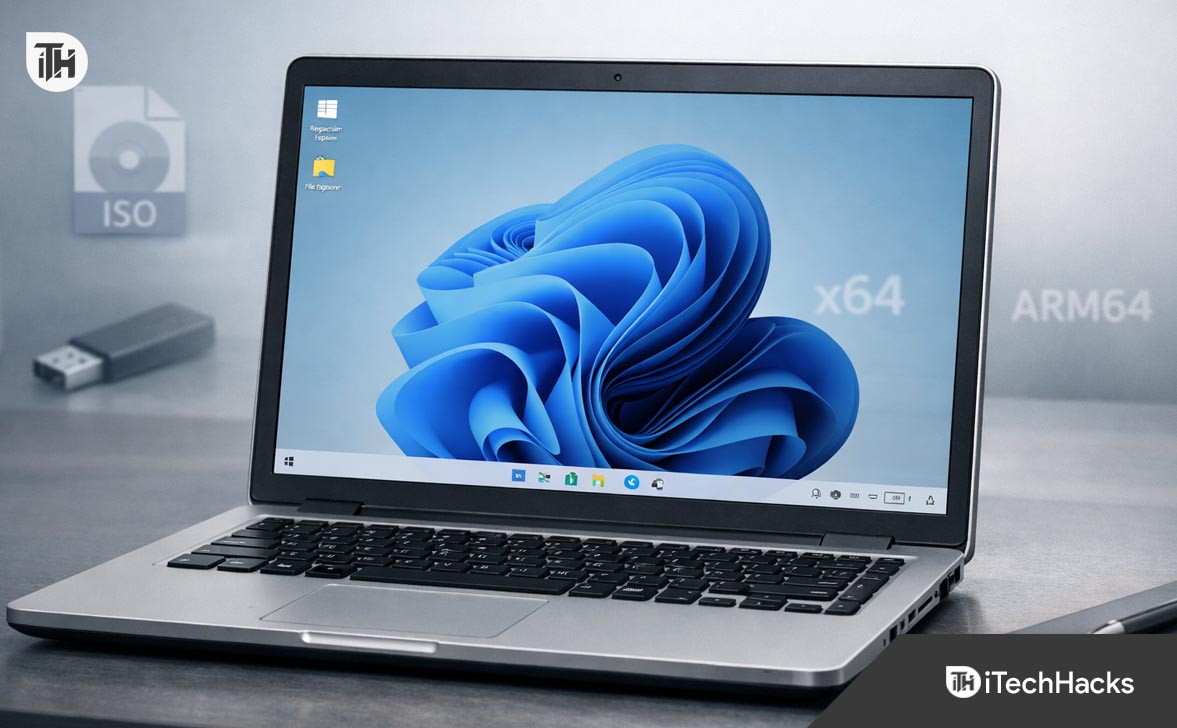
- Tiny11 is a simplified version of Windows 11 made by removing unused features from the original system, aiming to run smoothly on older, less powerful computers with less storage and RAM.
- It supports two main types of processors: x64 for most standard PCs and laptops, and ARM64, which is suitable for some Microsoft devices and Macs using virtual machines, both of which save resources compared to the standard installation.
- To safely download Tiny11, users should only get it from the Internet Archive, following specific steps to ensure they receive the correct, secure version, and can then install it by creating a bootable USB.
In the world of operating systems, Windows 11 has established itself as a robust, feature-rich platform. However, for many users, “feature-rich” is just a polite way of saying “bloated.” With every major update – including the recent 25H2 release – Microsoft adds more telemetry, more pre-installed apps, and higher hardware requirements.
For users with older hardware, limited RAM, or simply a desire for a pure, minimalist computing experience, the standard Windows 11 installer is a nightmare.
Enter Tiny11 .
Developed by the legendary modder NTDEV, Tiny11 has become the gold standard for stripped-down Windows installations. It is Windows 11 without the fat: no Clipchamp, no Edge bloat, no forced Microsoft Account, and significantly reduced disk usage.
This guide covers everything you need to know about the latest Windows 11 25H2 Tiny11 ISO, the differences between the x64 and ARM64 versions, and how to perform a Tiny11 download safely to revitalize your PC.
What is Tiny11 25H2?
Tiny11 is not a “cracked” or “pirated” version of Windows. It is a modification of the official Microsoft ISO. The developer, NTDEV, takes the official installer and uses widely available tools (like OSDBuilder and MSMG Toolkit) to remove unnecessary components before the installation begins.
The result is an operating system that looks and feels exactly like Windows 11 but runs on a fraction of the resources.
The “25H2” Update Context
By early 2026, the 25H2 update (often called the “2025 Update”) introduced new AI integration features and deeper Copilot embedding. While powerful, these features ballooned the installation size.
The Tiny11 25H2 release is crucial because it gives users a choice: it allows you to have the security patches and kernel improvements of the 2026 update without being forced to run the AI services if your hardware can’t handle them.
Key Features of Tiny11 25H2:
- Reduced Storage Footprint: A standard Windows 11 25H2 install can eat up 25GB+ of disk space immediately. Tiny11 fits comfortably in under 10GB.
- Low RAM Usage: While Microsoft recommends 4GB of RAM, Tiny11 can technically boot and run on as little as 2GB (though 4GB is still recommended for smooth web browsing).
- Bypassed Requirements: It automatically skips the TPM 2.0, Secure Boot, and CPU generation checks. This means you can install Windows 11 on a 10-year-old laptop.
- Local Account Support: The “Let’s connect you to a network” screen is gone. You can create a local offline account right out of the box.
x64 vs. ARM64: Which Version Do You Need?
One of the best aspects of the Tiny11 project is that it supports both major processor architectures. When looking for your Tiny11 download, you will see two distinct files. Choosing the right one is critical.
1. Tiny11 x64 (AMD64)
This is the standard version for 99% of traditional PCs and laptops.
- Target Hardware: Intel Core processors (i3, i5, i7, i9) and AMD Ryzen processors.
- Use Case: If you are reviving an old Dell Optiplex, a Lenovo ThinkPad, or building a custom gaming PC, this is the file you want.
2. Tiny11 ARM64
This version is designed for mobile chips and specific types of hardware.
- Target Hardware: Devices running on Snapdragon processors (like the Surface Pro X or newer Surface Laptops) and, most notably, Apple Silicon Macs (M1, M2, M3, M4 chips) running Windows via virtualization (Parallels or UTM).
- Use Case: If you are a Mac user who needs to run Windows 11 in a virtual machine for gaming or specific apps, the Tiny11 ARM64 ISO is vastly superior to the standard ISO because it consumes far less of your Mac’s precious resources.
How to Find the Safe Tiny11 Download
Warning: Because Tiny11 is a community project, many fake websites try to distribute “infected” versions. Never download Tiny11 from random “FreeSoftware.com” style sites.
The only official distribution channel used by NTDEV is the Internet Archive (archive.org) .
- Visit the Internet Archive: Go to archive.org.
- Search for NTDEV: In the search bar, type “ Tiny11 25H2 NTDEV “.
- Verify the Uploader: Ensure the uploader name is strictly “NTDEV” . Do not trust re-uploads by other users.
- Select Your ISO: Look for the file ending in .iso . Check the filename for x64 or arm64 depending on your hardware.
- Torrent vs. Direct: The Internet Archive servers can be slow. It is highly recommended to use the “Torrent” link on the right sidebar for a faster and more reliable Tiny11 download.
Installation Guide: From ISO to Desktop
Once you have your ISO file, you cannot just double-click it. You need to “burn” it to a USB drive to create a bootable installer.
Prerequisites:
- A USB flash drive (at least 8GB).
- The Rufus tool (for x64 PCs).
- Your Tiny11 ISO file.
- Note: Back up all data on the USB drive, as it will be wiped.
Step 1: Create the Bootable USB (x64)
- Download and open Rufus (a free, open-source USB tool).
- Device: Select your USB stick.
- Boot Selection: Click “Select” and choose your Tiny11 25H2 x64 ISO .
- Partition Scheme: Choose GPT for modern computers (UEFI). Choose MBR only if you are using a very old computer (Legacy BIOS).
- Start: Click the Start button.
- Customization: Rufus might ask if you want to bypass TPM/Secure Boot. Since Tiny11 already does this natively, you can uncheck these boxes, but leaving them checked doesn’t hurt.
- Wait for the status bar to reach “READY.”
Step 2: Boot and Install
- Plug the USB into the target PC.
- Restart the PC and press the Boot Menu key (usually F12, F8, or Delete) during startup.
- Select the USB drive from the list.
- The Windows Setup screen will appear. It looks exactly like the normal Windows installer.
- Select Drive: Choose the “Custom: Install Windows only” option. Delete old partitions if you want a clean slate.
- Wait: The installation is significantly faster than standard Windows 11.
For ARM64 Users (Mac/Virtual Machines)
If you are using the ARM64 version for a Virtual Machine (like UTM or Parallels):
- You do not need Rufus.
- Simply open your VM software.
- Create a New Virtual Machine.
- When asked for the “ Install Image ,” select the Tiny11 ARM64 ISO file directly.
- The VM will boot from the ISO file as if it were a DVD.
The Pros and Cons: Is Tiny11 Right for You?
Before you commit to wiping your PC and performing a Tiny11 download, you must understand the trade-offs. Tiny11 is fantastic, but it is not for everyone.
The Advantages (Pros)
- Speed: The responsiveness is noticeable immediately. Menus open faster, and boot times are reduced.
- Gaming: Background processes are minimal, which can lead to slightly more stable frame rates and less stuttering in CPU-intensive games.
- Hardware Life: It breathes new life into laptops that would otherwise be e-waste.
- Privacy: No telemetry, no “Suggested Content,” and no forced cloud integration.
The Disadvantages (Cons)
- No “Repair” Updates: This is the biggest drawback. While Tiny11 can receive security definitions (Defender updates), it often cannot install major “Feature Updates” (like moving from 25H2 to 26H1) via Windows Update. To upgrade to the next major version, you usually have to reinstall the OS cleanly.
- Missing Components: If you rely on specific Microsoft Store apps, Xbox Game Pass integration, or obscure Windows features (like specific accessibility tools), they might be stripped out. You can often reinstall them manually, but they aren’t there by default.
- Trust: You are installing a modified OS. While NTDEV is a trusted figure in the community and the scripts are open-source, corporate environments (enterprise or banking) should generally stick to official Microsoft ISOs for compliance reasons.
Troubleshooting Common Tiny11 Issues
Issue 1: “Windows Update isn’t working.”
Because the component store (WinSxS) is heavily reduced, some cumulative updates might fail to install. This is the price of a tiny OS. Tiny11 is best used as a “static” OS—install it, use it, and do not expect it to update seamlessly forever.
Issue 2: “I can’t find the Microsoft Store.”
In some ultra-light builds of Tiny11, the Store is removed.
Fix: Open PowerShell as Administrator and run the command wsreset -i . This usually triggers the download and reinstallation of the Store framework.
Issue 3: “Activation failed.”
Tiny11 is not pre-activated. It does not contain cracks. You still need a valid Windows 10 or Windows 11 license key to activate it. If your laptop has a key embedded in the BIOS, Tiny11 will usually pick it up automatically.
Conclusion
Windows 11 25H2 is a powerful operating system, but for many, it has become too heavy, too intrusive, and too demanding. Tiny11 offers a liberating alternative: the modern kernel and security of 2026 without the baggage.
Whether you are a gamer looking to squeeze every frame out of your hardware, a Mac user needing a lightweight ARM64 VM, or a recycler saving an old laptop from the landfill, the Tiny11 download is your gateway to a cleaner, faster PC experience.
Just remember: download only from the official NTDEV Internet Archive page, back up your data, and enjoy the speed of a truly personal computer.
How to Share USB Printer on Windows 11 Over Wi-Fi (Complete Setup)
How to Use OOBE BYPASSNRO to Install Windows 11 Without Internet
How to Enable Quick Machine Recovery to Fix Boot Problems on Windows 11
How to Change File Type in Windows 11 Step by Step for Beginners
Windows 11 Refresh Option Missing? Here’s How to Get Refresh Button Back
Both the Host and Client PCs must use a Private network profile with network discovery and file and printer sharing enabled. Leaving the network as Public is the most common reason shared printers never appear.
Errors like 0x0000011b happen because PrintNightmare protections prevent clients from pulling printer drivers from the Host. Installing the printer driver locally on the Client before connecting bypasses this safely without registry hacks.
In the modern home office or small business environment, efficiency is everything. Yet, many of us are still stuck in the “Stone Age” of printing: physically unplugging a USB printer from a desktop, carrying it across the room (or carrying a laptop to the printer), plugging it in, and hoping the drivers load before the deadline hits.
It is inefficient, it is frustrating, and frankly, it is unnecessary.
Why buy multiple printers or constantly swap cables when you can turn your main computer into a Print Server ? By mastering the settings for sharing printer windows 11, you can share a single high-quality USB printer with every laptop, desktop, and tablet on your local Wi-Fi network.
However, setting this up in 2025 isn’t as simple as checking a box. With the increased security protocols in Windows 11 (and the legacy of the “PrintNightmare” security patches), the process of sharing printers in Windows 11 requires navigating through firewalls, network profiles, and advanced sharing permissions.
This comprehensive, step-by-step guide will teach you exactly how to execute sharing printer windows 11 setups successfully. We will cover the prerequisites, the configuration, the connection process, and crucially, how to troubleshoot the stubborn errors that often plague this process.
Understanding the Setup (Host vs. Client)
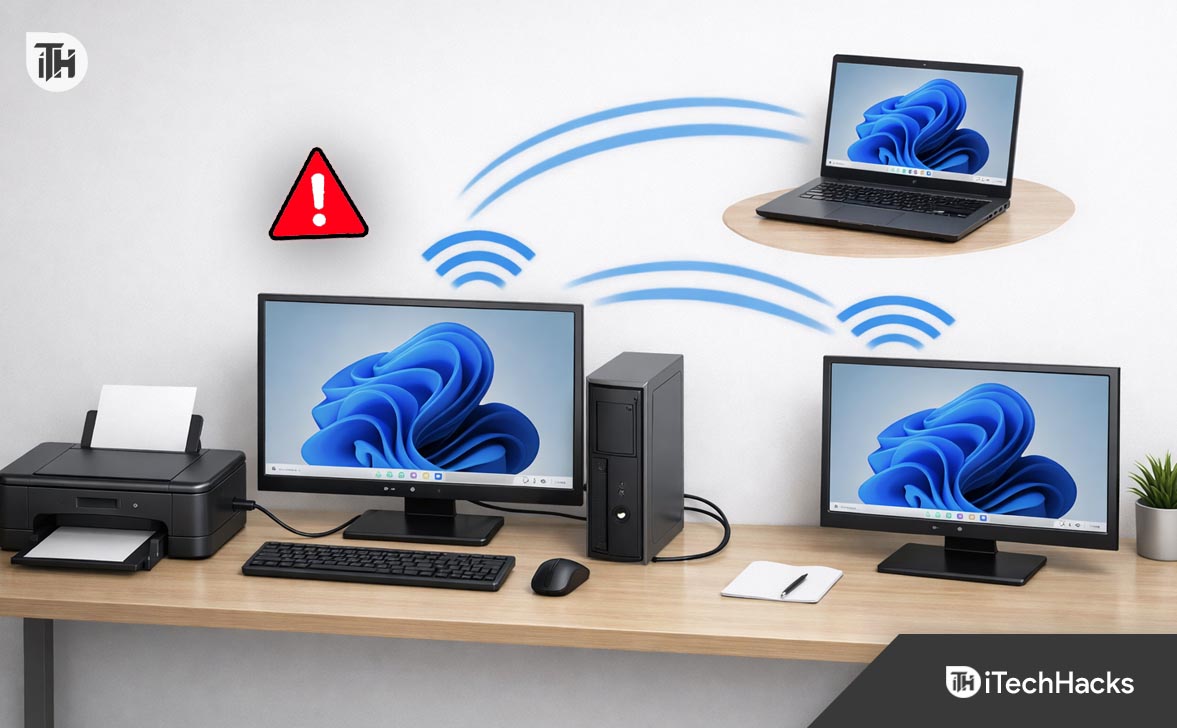
Before we start clicking buttons, it is vital to understand the architecture we are building. Unlike a modern “Network Printer” that plugs directly into your router via Ethernet or connects to Wi-Fi independently, a Shared Printer relies on a computer.
The Host PC (The Server)
- This is the computer physically connected to the printer via the USB cable.
- Crucial Rule: The Host PC must be Turned On and Awake for the printer to work. If the Host PC goes to sleep or is turned off, the printer becomes invisible to everyone else on the network.
The Client PC
- This is any other computer on the network (your laptop in the bedroom, your kid’s PC for homework) that wants to send print jobs to the printer wirelessly.
- The Client sends the data to the Host > The Host processes it > The Host sends it to the Printer.
The Network Foundation (Do Not Skip This)
By default, Windows 11 treats new Wi-Fi connections as “Public.” On a Public network, Windows builds a digital wall around your PC to hide it from hackers at coffee shops or airports. While this is great for security, it makes printer sharing impossible. You must tell Windows that you trust your current network.
Step 1: Set Network Profile to “Private”
You must perform this step on BOTH the Host PC and the Client PC.
- Open the Settings menu by pressing Windows Key + I .
- In the left sidebar, click on Network & internet .
- Click on Wi-Fi (if you are wireless) or Ethernet (if you are wired).
- Click on the properties of your current connection (often labeled with your Wi-Fi name, e.g., “Home_WiFi_5G”).
- Under the “Network profile type” section, you will see distinct options: Public network and Private network .
- Select Private network . What this does: It opens the necessary ports (TCP/UDP) in the Windows Firewall to allow other devices in your home to “see” your computer.
Step 2: Configure Advanced Sharing Settings
Even on a Private network, specific sharing protocols might be turned off by default in Windows 11.
- Go back to Settings > Network & internet .
- Click on Advanced network settings near the bottom.
- Click on Advanced sharing settings .
- Expand “Private networks”: Toggle Network discovery to On . (Check the box “Set up network connected devices automatically”). Toggle File and printer sharing to On .
- Expand “All networks”: Public folder sharing: You can leave this Off (unless you want to share files too). Password protected sharing: Option A (Secure): Leave it On . When you try to print from the Client PC, you will have to type in the Username and Password of the Host PC one time. Option B (Easy): Toggle it Off . Anyone on your Wi-Fi can print without typing a password. For most home users, Off is the preferred setting to avoid authentication headaches.
Configuring the Host PC
Now that the digital roads are open, let’s configure the Host PC to broadcast the printer signal. This is the core step in enabling sharing printer Windows 11 functionality.
- Navigate to Printer Settings: Press Windows Key + I to open Settings. Go to Bluetooth & devices > Printers & scanners .
- Select Your Printer: Click on the printer you wish to share (e.g., “Canon PIXMA” or “Brother HL-L2350”).
- Open Printer Properties: This is the tricky part. Windows 11 has a modern settings menu, but Printer Sharing still lives in the old code. Scroll down and find the link that says Printer properties . Note: Do not click “Hardware properties.” Look specifically for “Printer properties.” A smaller, older-looking window will pop up.
- The Sharing Tab: Click the tab labeled Sharing .
- Activate Sharing: Check the box: Share this printer .
- Name Your Share: Windows will suggest a name. It is highly recommended to change this to something short, simple, and without spaces . Bad Name: “Dad’s Canon Printer in the Office” Good Name: “OfficeCanon” or “HomePrinter” Why? Shorter names with no spaces are easier for older devices and command-line scripts to recognize.
- Render Print Jobs: Ensure the box “Render print jobs on client computers” is checked. This offloads the processing work to the laptop sending the file, which keeps the Host PC running smoothly.
- Finalize: Click Apply and OK .
Your printer is now “live” on the network.
Connecting the Client PC
Now, walk over to the laptop (Client) that needs to print. There are three ways to connect, ranging from automatic to manual.
Method A: The Automatic Discovery (The Happy Path)
If your network is configured perfectly, this is all you need to do:
- On the Client laptop, go to Settings > Bluetooth & devices > Printers & scanners .
- Click the blue Add device button.
- Windows will scan the network. After a few seconds, you should see your shared printer appear in the list, usually labeled as: “PrinterName on ComputerName” (e.g., “OfficeCanon on Desktop-PC”).
- Click Add device .
- Windows will connect to the Host, download the necessary drivers silently, and install the printer. You are done!
Method B: The Manual Directory Path (If Discovery Fails)
If Windows keeps spinning and says “No printers found,” don’t panic. We can force the connection using the specific network address.
Step 1: Find the Host Name
- Go to the Host PC .
- Open Settings > System > About .
- Look for Device name . Let’s say it is Dad-Desktop .
Step 2: Connect on Client
- Go to the Client PC .
- Go to Settings > Bluetooth & devices > Printers & scanners .
- Click Add device .
- Wait for the “The printer that I want isn’t listed” link to appear manually. Click Add manually .
- Select Select a shared printer by name .
- In the text box, type the path using this format: \HostName\ShareName Example: \Dad-Desktop\OfficeCanon
- Click Next .
- Windows will reach out directly to that address and attempt to install the printer.
Advanced Troubleshooting (When It Doesn’t Work)
Sharing printer Windows 11 processes are notorious for errors like 0x0000011b , Access Denied , or Windows cannot connect to the printer . Here is how to fix the most common 2025-era problems.
Fix 1: The “PrintNightmare” Error (0x0000011b)
A few years ago, a major security vulnerability called “PrintNightmare” was discovered. Microsoft patched it, but the patch often blocks legitimate printer sharing because it prevents the Client from downloading drivers from the Host.
The Solution: Install Drivers Locally First Instead of trying to pull the driver over the network, install it manually on the Client.
- Go to the printer manufacturer’s website (HP, Canon, Brother, etc.) on the Client laptop .
- Download the driver for your specific model.
- Run the installer.
- When it asks how to connect, select “My printer is not connected yet” or “Install software without connecting printer.” (If this isn’t an option, just install the basic driver files).
- Once the driver is installed on the Client laptop’s hard drive, try Method B (Manual Directory Path) again.
- Because the driver is already there, Windows won’t need to download it from the Host, bypassing the security block.
Fix 2: The SMB 1.0 Legacy Issue
If you are trying to share a very old printer (10+ years old) or connecting from a Windows 7 machine, you might need to enable an older sharing protocol.
- Click Start , type Turn Windows features on or off , and hit Enter.
- Scroll down to SMB 1.0/CIFS File Sharing Support .
- Check the box and click OK.
- Restart your PC. Warning: Only do this if absolutely necessary. SMB 1.0 is less secure than modern standards.
Fix 3: The Antivirus Firewall
If you use third-party antivirus software (Norton, McAfee, Bitdefender, Kaspersky), their firewalls are often stricter than Windows. They might see the incoming print request as a “hack attempt” and block it.
- Test: Temporarily turn off the Firewall in your antivirus software on the Host PC . Try to connect the Client.
- Result: If it works immediately, you know the antivirus is the culprit. You will need to go into your antivirus settings and set the Network Trust Level to “Private” or “Trusted Home Network.”
Fix 4: Restart the Print Spooler
Sometimes, the background service that handles printing just gets confused. Restarting it is the “Have you tried turning it off and on again?” of the printer world.
- Press Windows Key + R on your keyboard.
- Type services.msc and hit Enter.
- Scroll down the list until you find Print Spooler .
- Right-click it and select Restart .
- Do this on both the Host and the Client PC.
An Alternative Solution (Router Sharing)
If the hassle of sharing printer Windows 11 from a desktop PC that you have to keep turned on annoys you, there is one other way: Through your Router.
Many modern Wi-Fi routers (from brands like ASUS, Netgear, and TP-Link) have a USB port on the back.
- Plug your printer’s USB cable into the router’s USB port.
- Log in to your router’s admin panel (usually 192.168.1.1 or 192.168.0.1 ).
- Look for “USB Application” or “Print Server” settings.
- Enable the Print Server.
- On your PC, you will add the printer using the router’s IP address (TCP/IP Port).
This method allows any computer to print as long as the router is on (which is always), removing the dependency on a Host PC.
Conclusion
Sharing a printer on Windows 11 can feel like a daunting task due to the hidden menus and security layers. However, the convenience is worth the effort. By ensuring your network is set to Private , configuring the sharing printer windows 11 settings correctly, and knowing how to bypass the Driver Download blocks, you can create a seamless printing environment for your home or office.
No more emailing documents to yourself just to print them from the “main computer.” With a few clicks, you can print that report from the comfort of your couch.
- How to Connect HP Printer to New WiFi Network Without Reinstalling
- How to Fix HP Printer Not Showing Up on Network
- How to Fix Windows 11 Printer Spooler Error
- Fix HP Printer Connection Issues After Upgrading to macOS Sonoma
- How to Delete Printer Driver In Windows 11
- How to Install Windows 11 Printer Drivers Easily
