- com.osp.app.signin is a system app found on Samsung devices that helps users sign in to their Samsung account and use various Samsung services
- The package is essential for apps like Samsung Members, Secure Folder, PENUP, Find My Mobile, and Samsung Health to function properly on Samsung phones
- It is completely safe, and if users encounter issues like “Unfortunately, com.osp.app.signin has stopped,” they can clear the cache to resolve the issue. Uninstalling requires root access, which is not recommended due to potential risks.
What is com.osp.app.signin?
Com.osp.app.signin is an Android package found on Samsung devices. But what is this Android package used for? Whenever you switch your Samsung phone, this Android package comes in helpful. With this, you will be able to switch your devices easily.
Not only this, but this package also helps user sign in to their Samsung account and use various Samsung services on their device. You will be able to use the following services on your Samsung phone/tablet with the help of com.osp.app.signin-
- Samsung Members- This is the Samsung community app for Samsung devices where you can connect with other Samsung fans as well as diagnose your phones for any issues.
- Secure Folder- The secure folder is part of the Knox security on Samsung phones/tablets. You can store apps, photos, videos, files, etc, in this secure folder which will be password-protected.
- PENUP- This is the drawing app that comes on Samsung tablets and phones that supports S-Pen.
- Find My Mobile- This is an essential feature with which you track down your lost device as well as take necessary actions like resetting the device, playing a ring, etc.
- Samsung Health- Samsung Health app lets you track your health activities like steps, sports, calories burnt and consumed, etc.
These are some of the apps that demans com.osp.app.signin Android package. If your Samsung device doesn’t have this package then these apps might fail to work properly.
Is com.osp.app.signin Safe?
Wondering whether this Android Package is safe or not? com.osp.app.signin is a system app on Samsung devices and it is completely safe. This is an essential package on Samsung devices and does not contain anything suspicious. If you are thinking of it to be a virus or malware slowing down your phone or draining your phone’s battery, then worry not this package is not behind it.
What to do if com.osp.app.signin has Unfortunately Stopped?
If you keep on getting the “Unfortunately, com.osp.app.signin has stopped” error message due to which certain Samsung apps do not work, then you can clear the cache of the app to fix this issue. You can follow the steps given below to continue with it-
- Open the Settings app on your Samsung phone or tablet.
- Scroll down to Apps and tap on it.
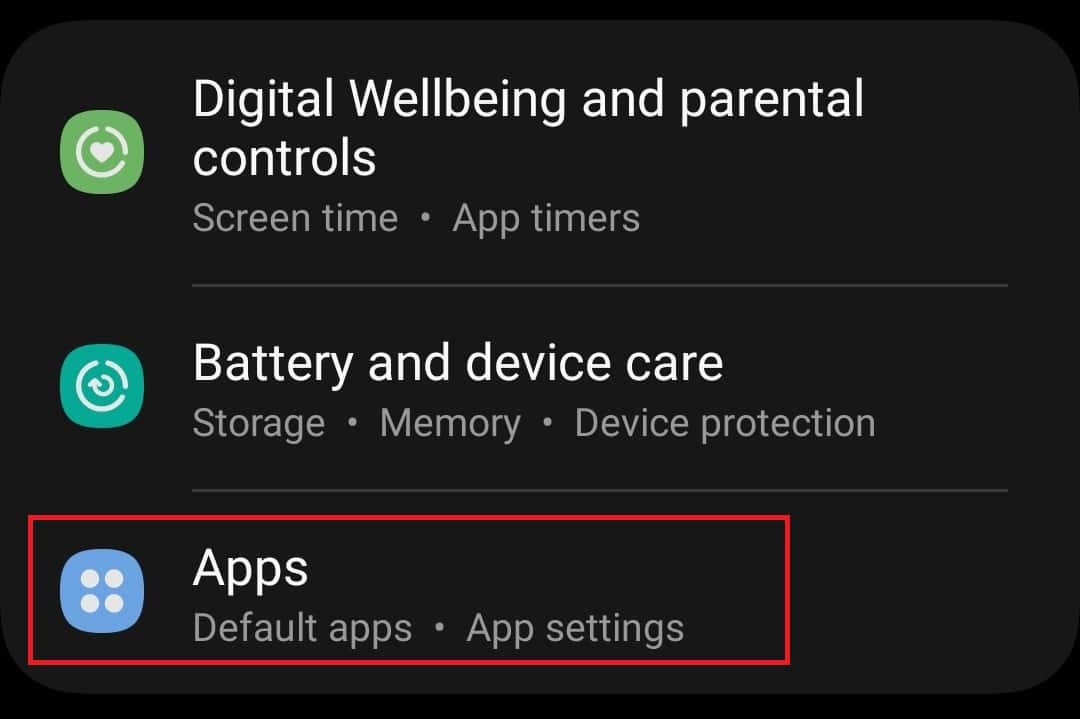
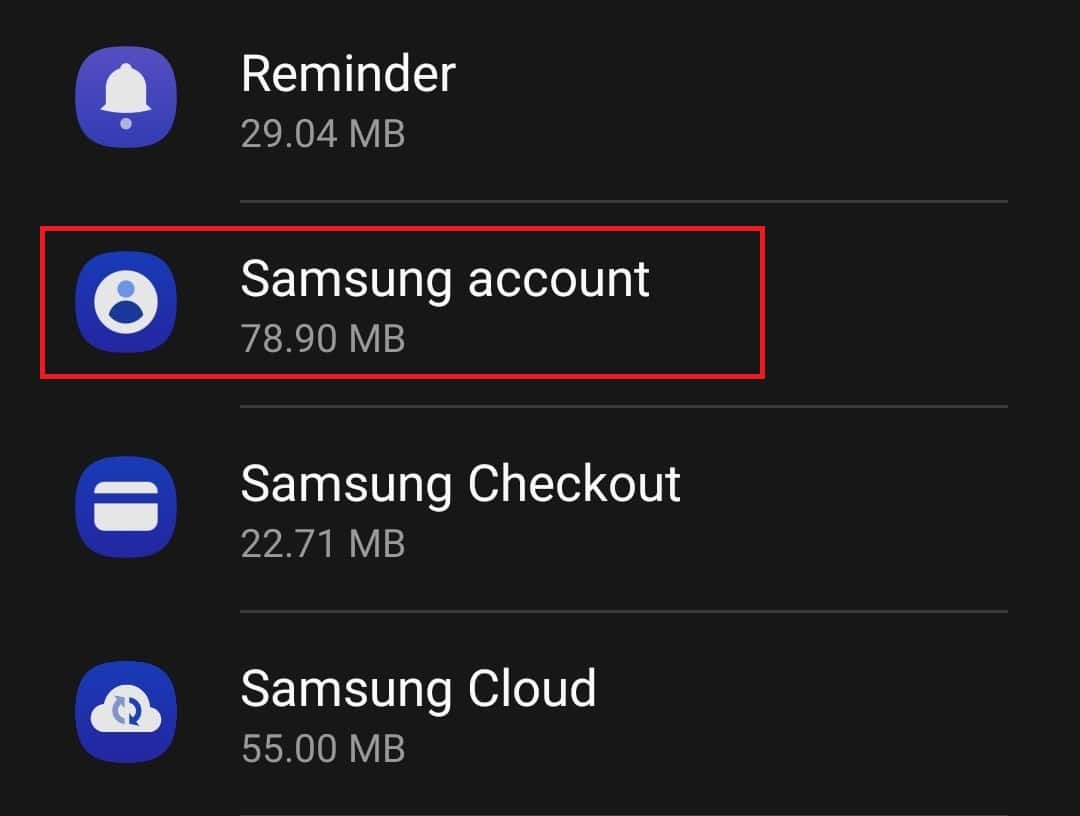
- Here, search for the Samsung Account and open it.
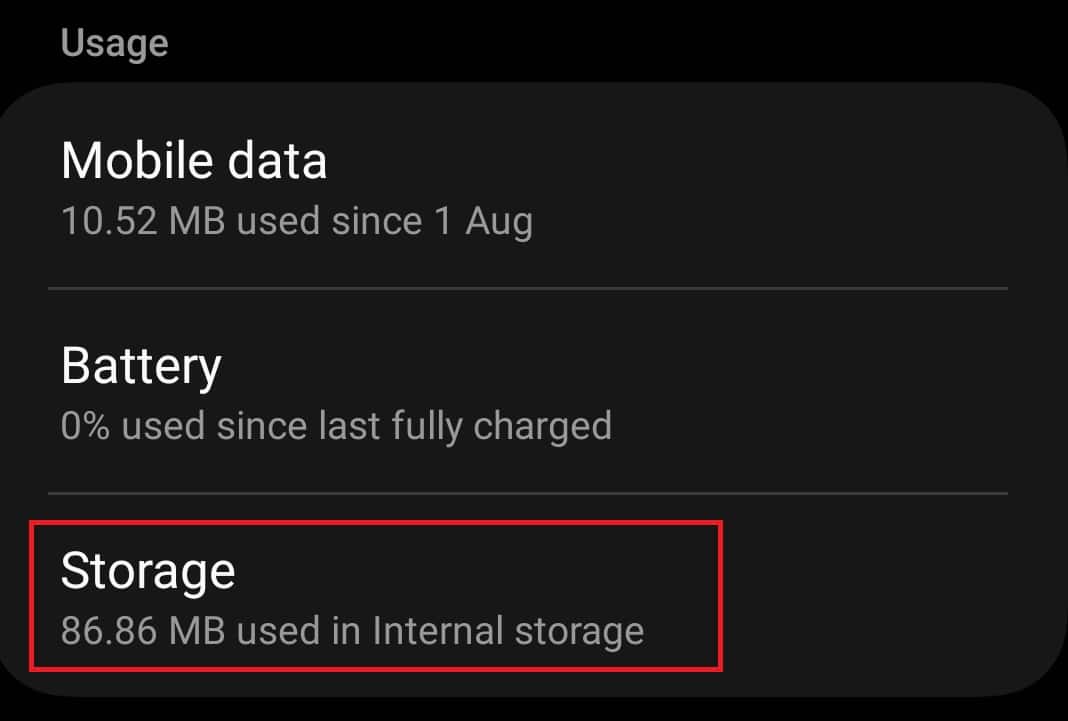
- In the App Info screen, tap on the Storage option.
- Next, tap on the Clear Cache to clear the cache of the app.
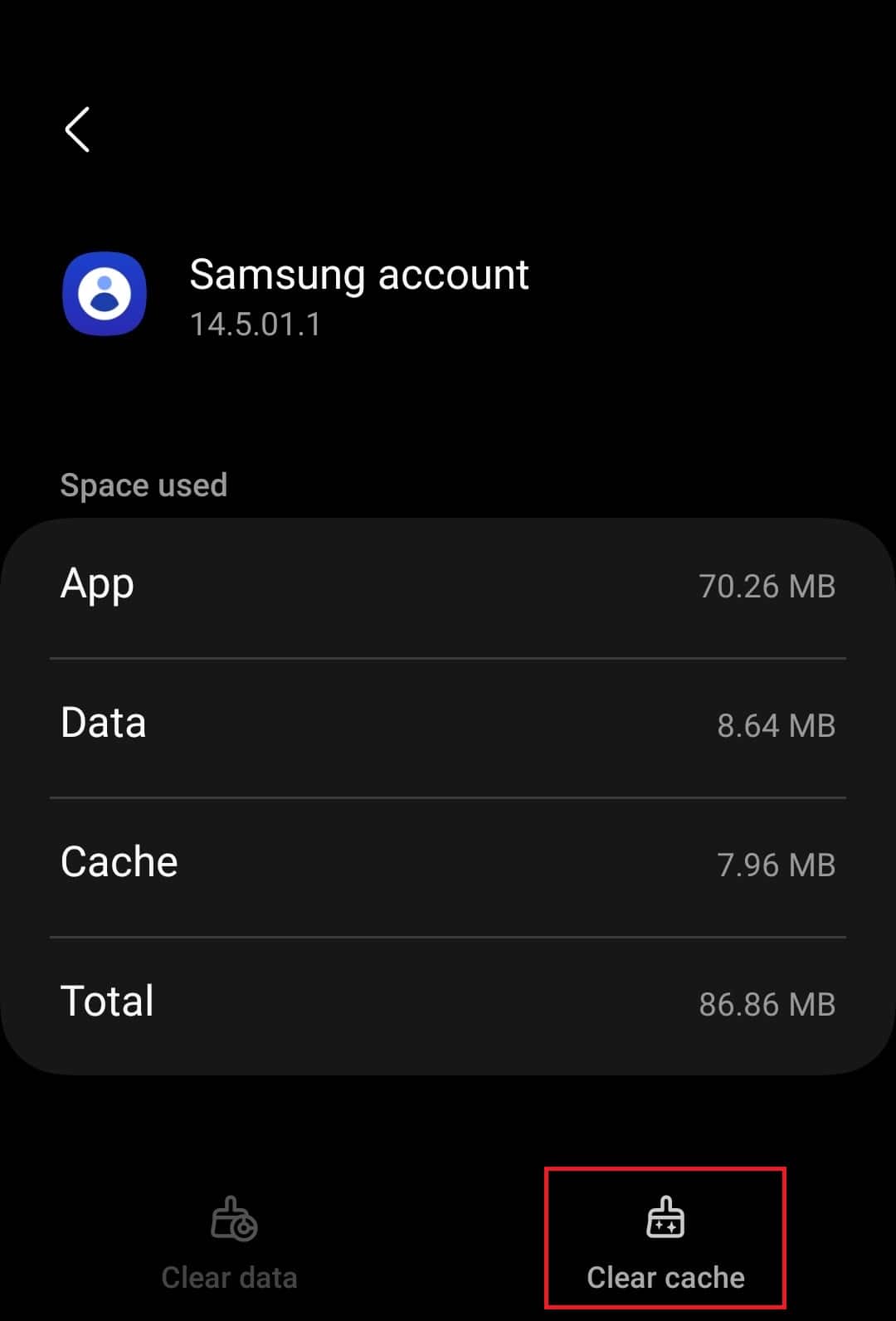
- After you do this, you should no longer face the issue.
How do I Uninstall com.osp.app.signin?
com.osp.app.signin is the part of the Samsung devices. This is essential to Samsung phones and tablets and the Samsung apps may fail to work without it. As this is a system app you cannot uninstall it the normal way. If you want to uninstall it, then you will require root access to your Samsung phone.
We do not suggest you root your phone/tablet as it may void your warranty and sometimes even hard brick the device. If you still want to continue with it then you can follow the steps given below-
Root Device without PC
If you want to root your phone without the PC, then you can follow the steps given below to do it-
- Head to the KingoRoot website and download the app from there.
- After the app has been downloaded, install it on your phone. If asked to allow installation from unknown sources, then give the permission.
- Now, launch the KingoRoot app on your device, and tap on the Root button.
- This will root your device. If your device doesn’t get rooted then you will have to do it again until your device is rooted successfully.
Root Device with PC
If the above step fails then you will have to use your Windows PC to root your Samsung phone/tablet. Here’s how you can do it-
- Open the Settings app on your phone/tablet.
- Scroll down to the bottom of Settings , and tap on About Phone .
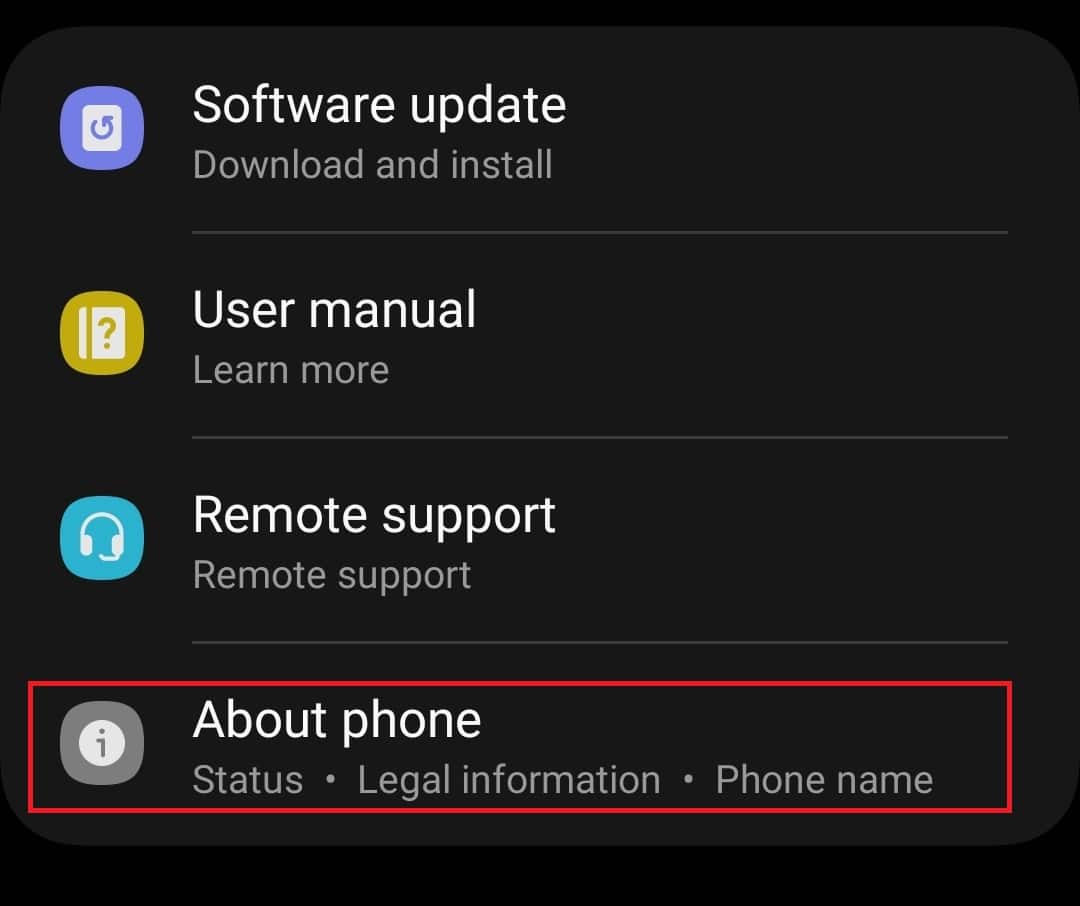
- Here, tap on the Software Information .
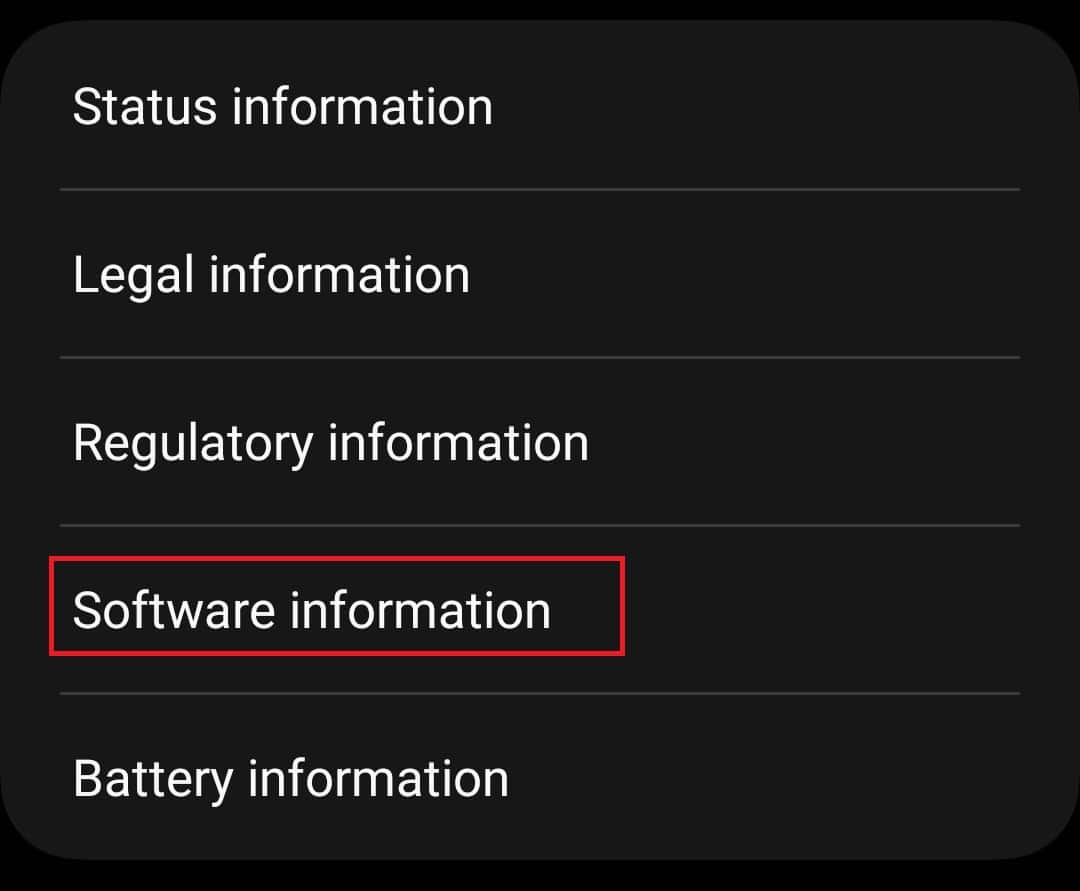
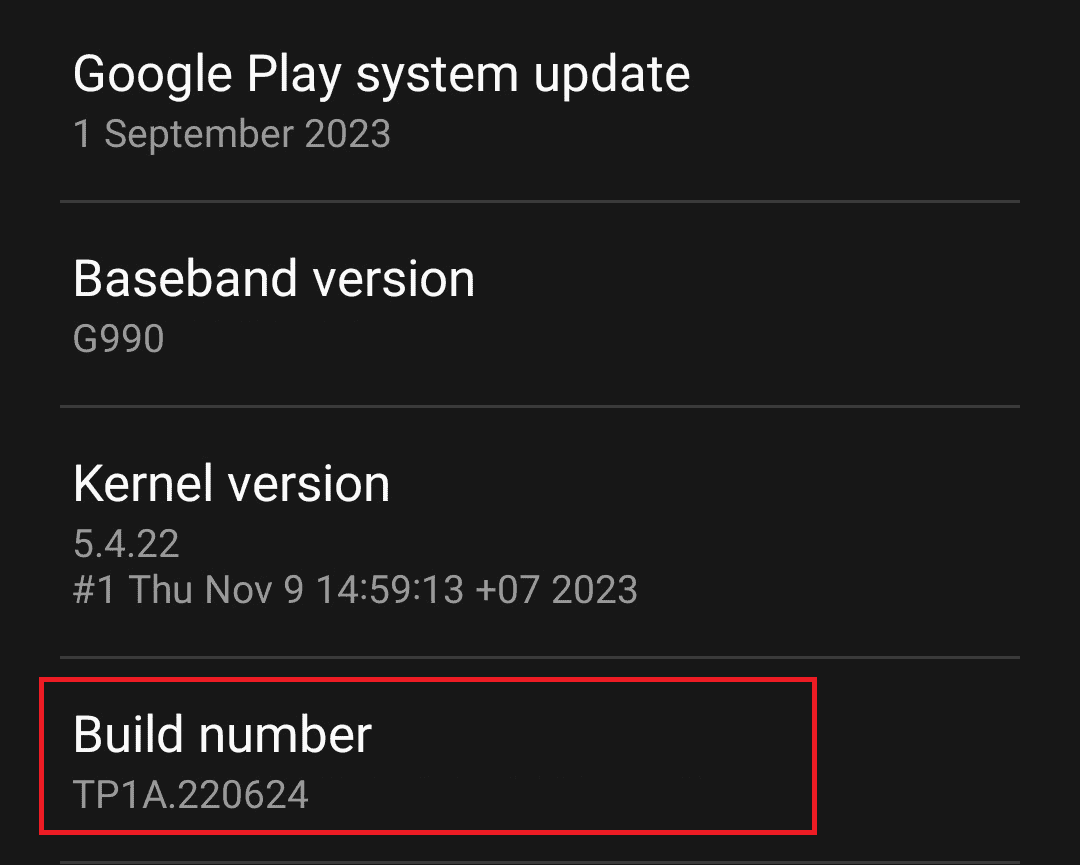
- Tap on Build Number 6-7 times repeatedly and you will be asked to enter your device’s password.
- Head back to the Settings main menu, and tap on Developer Options .
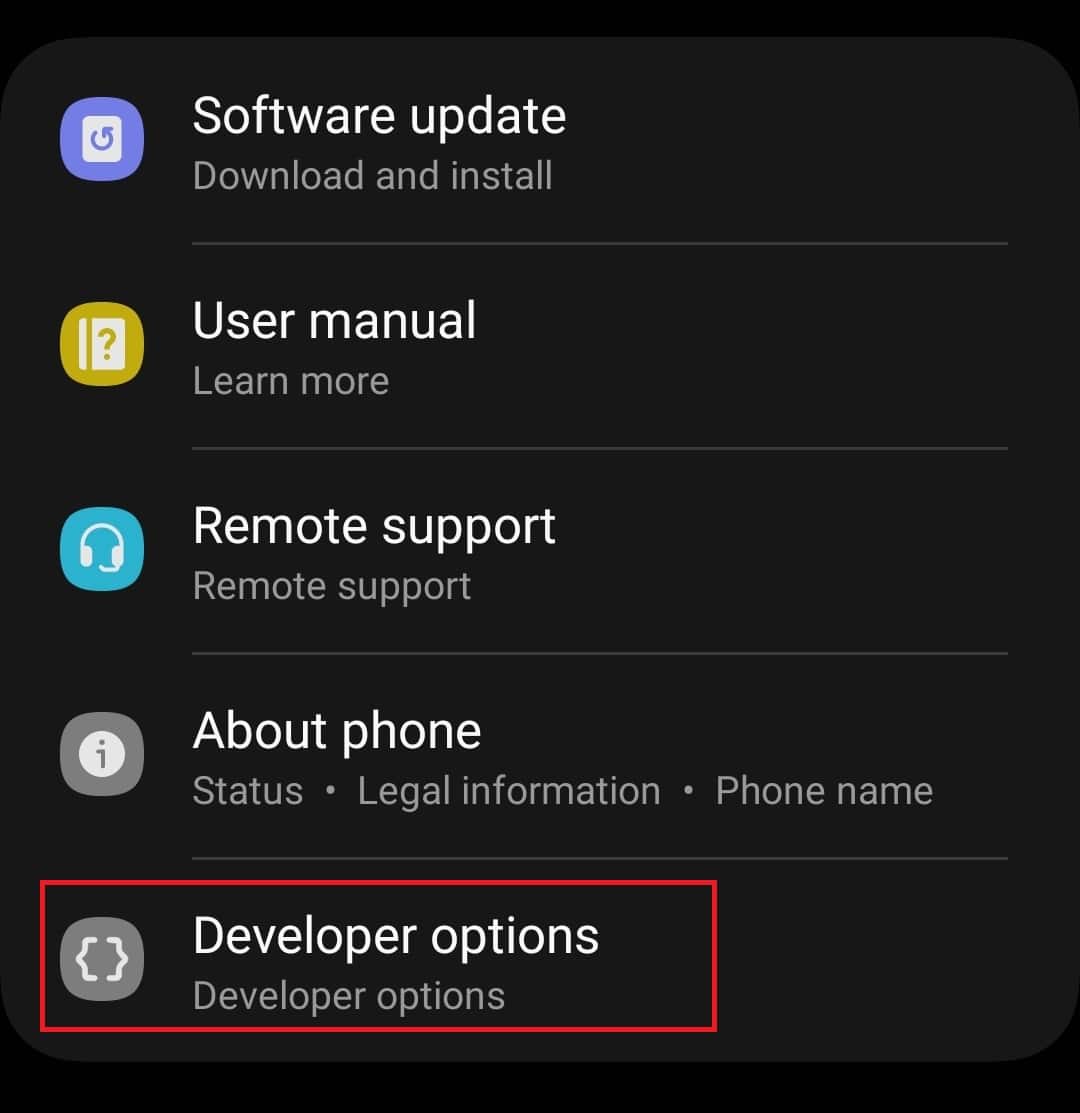
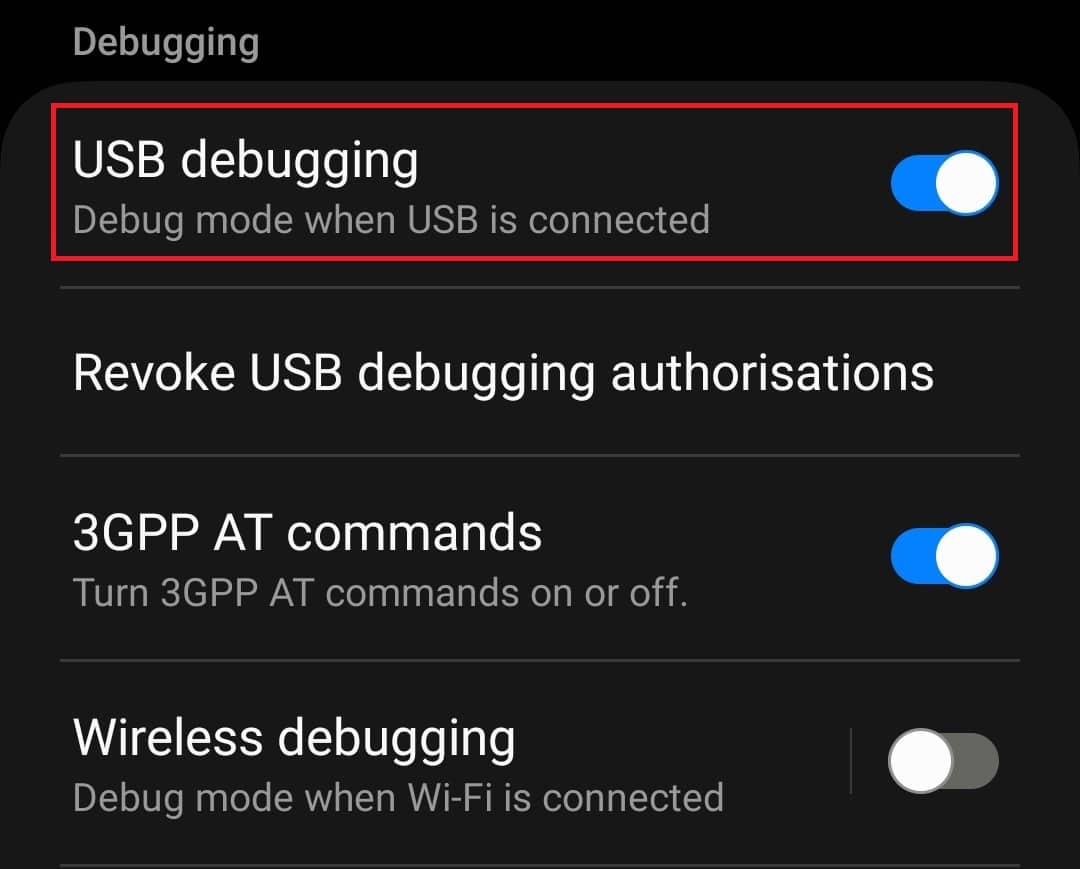
- Here, search for USB Debugging and turn on the toggle next to it. Similarly, turn on OEM Unlocking .
- Now, on your PC head to the official website of KingoRoot and download the software for Windows.
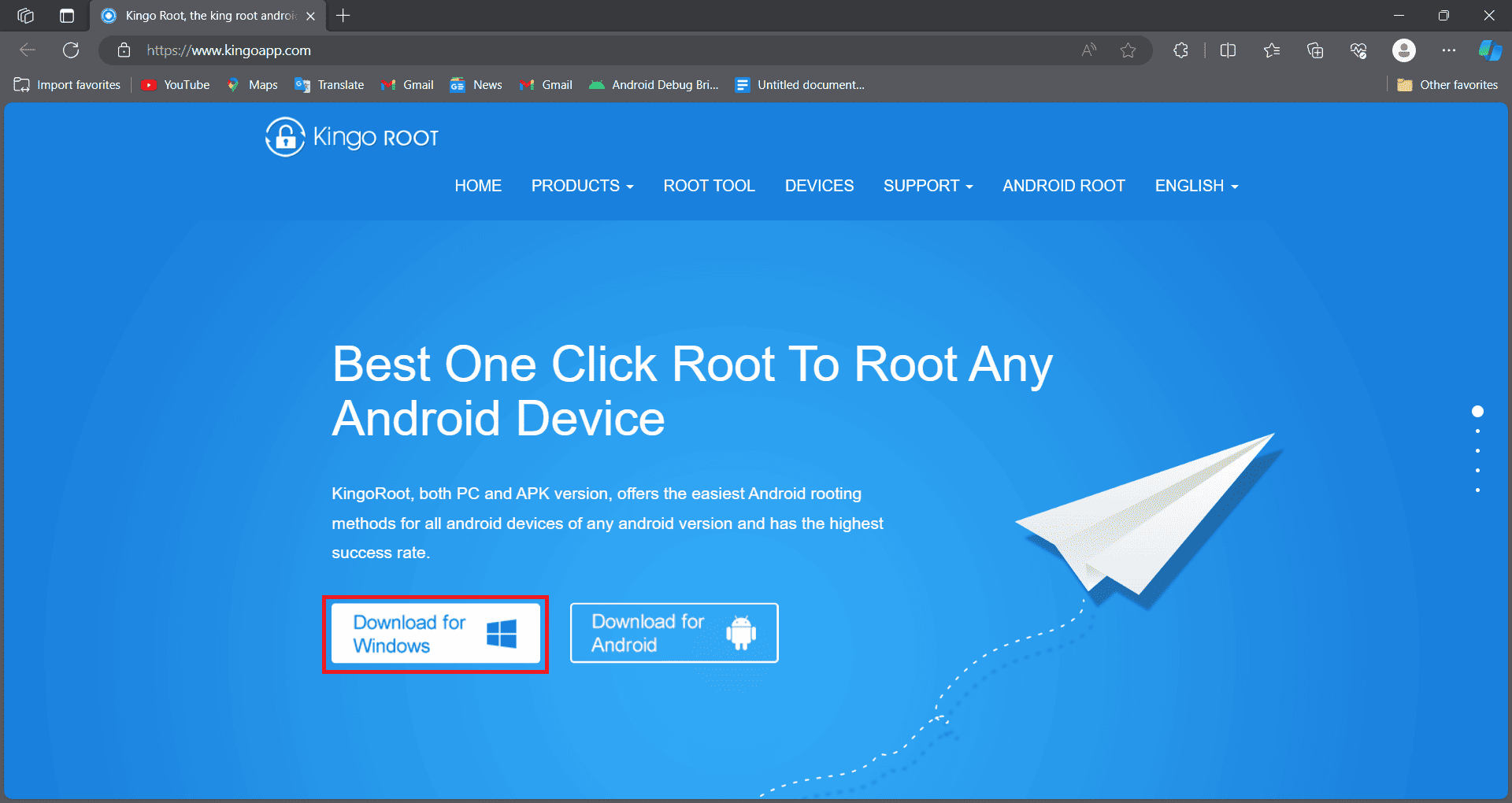
- Install KingoRoot on your PC.
- Now, connect your Samsung phone/tablet to your PC using the USB cable.
- If you are asked to allow USB debugging then do so.
- Launch the KingoRoot app on your PC after you have connected your phone to your PC.
- Now, click on the Root button to root your phone.
- After your phone has been rooted you can disconnect it from your PC.
After you have rooted your phone, you can follow the steps given below to uninstall the app-
- Open the Settings app, and open Apps here .
- Search for Samsung Account and tap on it.
- You will see the Uninstall option here; tap on it to uninstall the app.
Final Words
We hope this article helped you understand everything about com.osp.app.signin Android package. Also, if you want to uninstall this app from your phone you can follow the steps mentioned above to uninstall it.
What is Com Dti Folderlauncher App? How to Fix Android
What is FileRepMalware and How to Remove (If Necessary)
What Is about:blank? How To Remove About Blank Blocked?
What is m.facebook com and Is it Legit to Use in 2023?
Android 14 design cycle retains Material You redesign, offering more manual control than before
Users experiencing fingerprint not working issues after Android 14 update; common causes include dirty fingerprints and outdated software
Fix the Android 14 fingerprint not working problem by downgrading, updating phone software, restarting the device, cleaning with cotton swabs, recalibrating fingerprints, and checking for finger cleanliness.
It’s clear from Android 14 that the Material You redesign that Google made with Android 12 in 2021 still remains a part of the Android 14 design cycle. With Android 14, Google is giving you back a lot of manual control compared to Material You’s initial iteration.
However, the big update comes with big issues. There are many users who started facing fingerprint not working issues on their devices after the Android 14 new patch update. Well, looking into the issue, then it is not very tough to resolve, as you just need to perform the fixes mentioned below.
After Android 14 Update Fingerprint Sensor Not Working – Reasons?
Here are some of the most common causes of the Android 14 Fingerprint Not Working issue. Find out if you belong to one of these categories.
- Fingerprint readers need clean fingers to read the image on your fingertip in order to unlock a device with a fingerprint. To check if your fingerprint is working, wash your hands.
- Especially if scars or hand injuries have been sustained from labor-intensive jobs or hectic occupations, fingerprints can be noticeably altered.
- Furthermore, it is recommended that you clean the fingerprint scanner, as it is similar to your fingerprints. Your figures often touch them, causing them to pick up dirt and grease, hindering scanning.
- Ensure the software on your computer is up-to-date. These updates will ensure that your phones remain current and the fingerprint sensors won’t be problematic.
- If the fingerprint scanner on your device is not working, the fingerprint hardware may not be available.
Ways to Fix Android 14 Fingerprint Not Working Problem
Here are some possible fixes for the Android 14 fingerprint issue:
Downgrade to Android 13
If you want to downgrade to a stable version of Android 13, you should do so. Regardless of whether this is a permanent fix, you will need to unlock the bootloader and erase all your data. This will surely fix the Android 14 fingerprint not working issue.
Update Your Phone Software
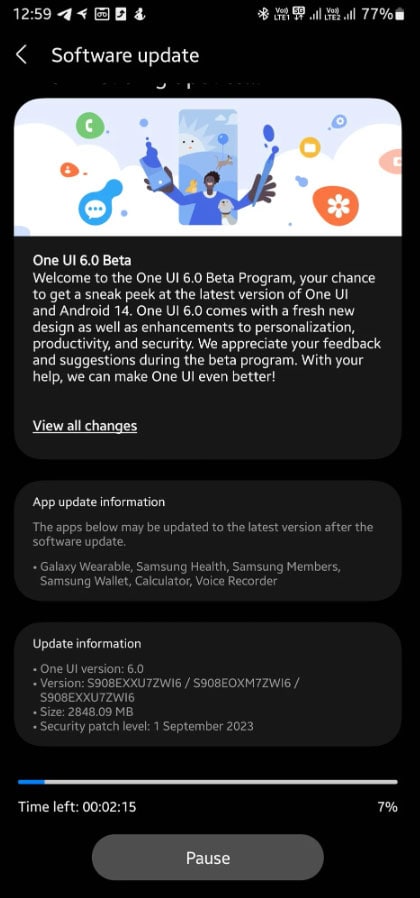
It gets irksome when we receive that constant “ Update Required ” notification. Nevertheless, ignoring that update may be causing your fingerprint sensor to malfunction.
It is common for all operating systems to be affected by software bugs, which affect both the applications and hardware elements of your phone.
In order to ensure your device isn’t being slowed down by old software, get that update over and done with.
It is important to keep in mind that this can have both positives and negatives. There are many times that outdated software can cause problems with your phone, but it is also fairly common for new software to contain bugs, which can also be a problem.
Unfortunately, there isn’t much you can do. It may be necessary to wait for a newer software update to fix the Android 14 Fingerprint Not Working bug, or you may need to contact the support team for your operating system or device.
Restart your device
After you have eliminated the possibility of a dirty finger or module, you should restart your phone. Generally, a problem with “Android 14 fingerprint not working” occurs when your phone has not been restarted in a while.
It’s worth a try for many software-related issues like this, and it can be useful in a variety of situations.
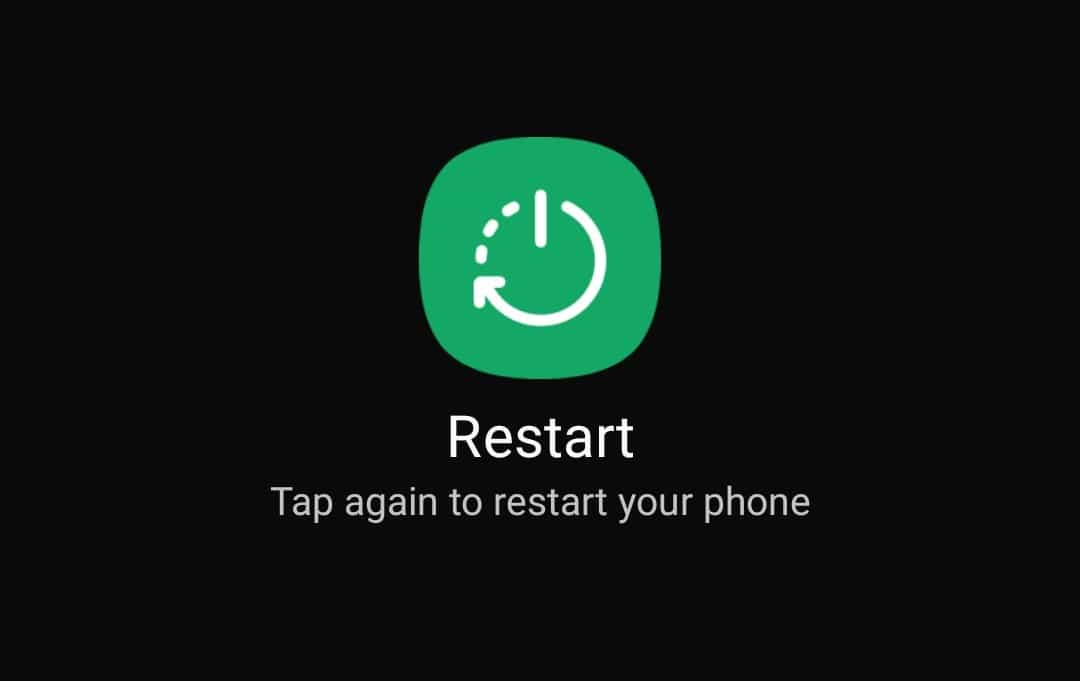
For quick restarting, hold down the power button for a few seconds. If you long-press the power button on an Android phone, your device will reboot automatically.
Use a Cotton Swab for Cleaning
Using cotton swabs to clean your devices’ smaller parts is a great idea because they are inexpensive and easy to use. Moreover, given that your hands get dirty often, so will your fingerprint sensor.
You can stop your fingerprint sensor from working by applying natural oils, moisturizers, dirt, or food to it.
It can also be helpful to use some isopropyl rubbing alcohol to disinfect and clean the sensor more thoroughly if you’re concerned about using liquids, but don’t soak your cotton swab; just dampen it.
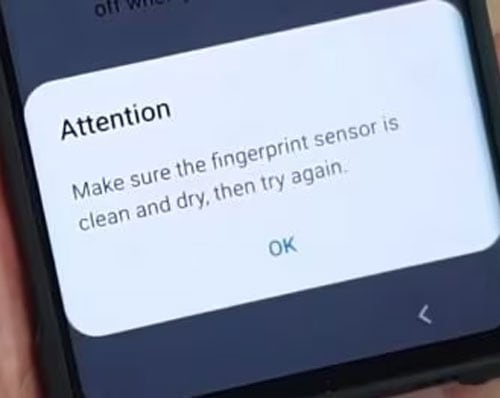
If you do not have cotton swabs on hand, you might try using a microfiber cloth instead or perhaps some kitchen towels as a last resort option (as kitchen towels can leave behind residue or fibers that can affect your sensor calibration).
In addition to dirt, your fingerprint sensor may not be able to read your fingerprint if your fingers are slightly dusty or wet. Whenever you attempt to unlock your phone via your fingerprint sensor, make sure your fingertips are dry and clean.
Recalibrate Your Fingerprint
In order to get your sensor back on track, recalibrating your fingerprint is a good idea. At the time of your phone’s purchase, you might have been prompted to set up a fingerprint identity. On an Android device, click on the biometrics or security section in your settings if you are unsure how to do this.
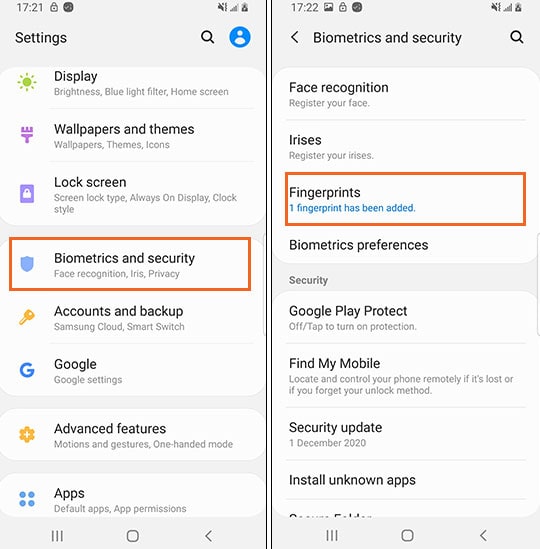
Click on your fingerprints category to view all of your device’s registered fingerprints. Recalibration does not require the removal of fingerprints from your trusted individuals (though removing fingerprints is possible here).
You can also delete a fingerprint registration and add a new one by clicking on the fingerprint you wish to calibrate. You should be able to use your fingerprint scanner again once you’ve added a new fingerprint this will fix the Android 14 Fingerprint Not Working issue.
Check if your finger has any liquid or dirt
If your Android 14 Fingerprint Not Working problem is not related to your fingers, try a different hardware or software solution before concluding it is a hardware or software problem. Just like other biometric devices, your fingerprint must be clean to unlock your phone.
There is a possibility that the fingerprint sensor will not function if your hand is wet, moist, oily, or dirty. If any of these things are present on your finger, your fingerprint might not be able to unlock your phone. You must wash your hands, disinfect them, and allow them to dry before you can get out. It’s time to unlock your phone using our fingerprints.
- List of 10 Android System Apps that are Safe to Disable
- Activate Syfy.com Code Roku, Fire TV, Apple TV, Xbox One, Android
- Top 8 Ways to Fix Android System WebView Won’t Update
- How to Download Amazon Flex App for Android 2024
- How to Fix Android Text Messages Stuck “Downloading” or “Expired”
- How to Fix Cash App Not Working on Android, iPhone, Web
