- macOS Sonoma is still experiencing issues, especially with features like Touch ID on MacBooks
- Users have reported that Touch ID does not work as intended, sometimes requiring additional key presses
- To fix Touch ID issues in macOS Sonoma, users can try restarting the system, cleaning the sensor, checking for software updates, resetting preferences, deleting and re-adding fingerprints, resetting SMC, and resetting NVRAM/PRAM.
The macOS Sonoma is still broken. Even though it is released publicly, there are still many issues. Sonoma isn’t yet compatible with all the features of Macs, especially the MacBooks . One such issue that has come to the surface is the issue with the Touch ID .
Mac users have reported that the Touch ID doesn’t work as it was intended to after the update, and in the worst case, it fails to work at all. Apple community is filled with such complaints regarding the Touch ID after the Sonoma update. Some said the Touch ID only worked when they pressed some key while using it, and it does not unlock with a single Touch.
If, after upgrading to Sonoma, Touch ID stopped working to unlock by a single touch, then that’s a serious issue you have with your Mac and needs to be fixed as soon as possible. Here we are with a guide to help fix this issue that users face with Touch ID after the Sonoma update.

Fix Touch ID Stopped Working to Unlock by Single Touch in macOS Sonoma
This is a major issue that many users are facing after updating to the macOS Sonoma. If you are also facing issues with the Touch ID after the macOS Sonoma update , then here’s what you can do to fix it-
Restart your System

First thing first, you should restart your Mac without any delay. If you are facing this issue after the update, it can be due to some minor glitch caused after the update. A system restart should most probably resolve it, so you should do that. If you have already tried that and it doesn’t seem to fix the issue, try the second step mentioned in this guide.
Clean the Touch ID Sensor
If Touch ID is working but taking some time to recognize your fingerprint or not unlocking in a single touch, then probably your Touch ID sensor is dirty. Dirt and dust on the Touch ID sensor can cause this issue, as the sensor won’t be able to read your fingerprint properly.
You can use a clean microfibre cloth to wipe off any dirt on the surface of the sensor. If the dust is stuck on the surface, then you can use a cleaner like the one that you use for other digital devices.
Also, while using the Touch ID, ensure your finger is clean. If your finger is dirty, then that can also cause. Ensure you clean your fingers and then proceed with using the Touch ID.
Check for Software Update
Apple Developers always work towards fixing the bugs that were in the previous update by releasing new updates frequently. You can try checking for the macOS update and installing the available update if Sonoma Touch ID stopped working to unlock by a single touch. To do so, follow the steps given below to do so-
- Click on the Apple icon at the top left corner and then click on System Settings .

- After this, click on the General tab on the left pane and then select Software Update .

- Your Mac will check for the latest updates available; install the available updates.
Reset Touch ID Preferences
The issue can also be encountered due to the corrupted Touch ID preferences. Updates can often mess up the Touch ID preferences and corrupt them. You can reset the Touch ID preferences to fix this issue. This is how you can do it-
- Click on the Launchpad icon on the dock.
- Search for the Terminal icon on the Launchpad and open it.
- In the Terminal, type the command given below- sudo rm -f /Library/Preferences/com.apple.BiometricKit.plist

- Press Return to execute the above command.
- You will now have to enter your password; do so to continue.
- After executing the command, restart your PC.
Delete and Re-Add Fingerprints
The very next thing that you can try doing is deleting the fingerprints from your Mac and then re-adding them. This resets the Touch ID and gives it a fresh start, solving all the issues. You can do it by following the steps mentioned below-
- Open Spotlight Search by pressing Command + Spacebar .
- Search for System Settings and press Enter to open it.
- Click on the Touch ID & Password on the left pane.
- Now, on the right side, click on the added Touch ID.

- You will have to enter your account password.
- Now, click on Delete to delete the fingerprint. Do the same for all the Touch IDs added to your Mac.

- Once you have deleted all the Touch IDs, click on the Add Fingerprint option and add your fingerprint to the Touch ID.

Reset SMC
SMC or System Management Controller handles various components of your Mac, including power supply, status lights, USB ports, etc. If something goes wrong with the SMC, then that can cause issues with the Touch ID. In that case, you will have to reset the SMC, and the issue will be solved.
If you have a Mac with Apple Silicon, resetting the SMC is not required. A system restart would do the job. However, for Macs with an Apple T2 chip or Intel-based processor, you will have to reset the SMC. Before you continue, you will have to check whether your Mac has an Apple T2 chip or not.
On Mac Desktop Computers (without Apple Silicon)
- First, shut down your Mac.
- After this, unplug the power cord and wait for 15 seconds.
- Now, plug the power cord back into your Mac.
- Turn on your Mac after 5 seconds.
On MacBooks (without Apple Silicon)
- The first step is to shut down your MacBook.
- Once off, press and hold the Control + Option + Shift keys together. While holding these three keys, press and hold down the Power key.

- You must hold the keys for 10 seconds and then release them.
- After you release the keys, press the Power button on your Mac to turn it on.
Reset NVRAM (Or PRAM)
Another thing that you have to do if you cannot solve this issue is resetting the NVRAM (or PRAM). This isn’t generally an issue with the Macs with Apple Silicon; if you are using a Mac based on Intel chips, then you will have to manually reset the NVRAM. Below are the steps to do so-
- First, shut down your Mac.
- Press the Power button on your Mac, and then immediately press and hold the Option + Command + P + R keys together.
- Keep holding the keys for 20 seconds, and then release them. You will get a sign to release them if you get the startup sound or Apple Logo more than once.
Final Words
If, after upgrading to macOS Sonoma, Touch ID is not working or you are facing a problem unlocking it by single Touch, then you should be able to solve this issue through the above steps. If the issue is still not solved, then you can contact Apple support or visit the nearest Apple Service Center and get your issue resolved by the experts.
Top 6 Ways to Force Quit Applications on Mac
Best 6 Ways to Clear System Data Storage on Mac
Top 3 Ways to Clear the Cache on Mac or MacBook
9 Ways to Fix macOS Sonoma Crashes when Playbacking Videos in QuickTime
How to Get Touch Bar Pet on Macbook Pro
Top 10 Ways to Fix macOS Sonoma Battery Draining Fast Issues
Top 11 Ways to Fix App Crashing on macOS Sonoma
Android 14 design cycle retains Material You redesign, offering more manual control than before
Users experiencing fingerprint not working issues after Android 14 update; common causes include dirty fingerprints and outdated software
Fix the Android 14 fingerprint not working problem by downgrading, updating phone software, restarting the device, cleaning with cotton swabs, recalibrating fingerprints, and checking for finger cleanliness.
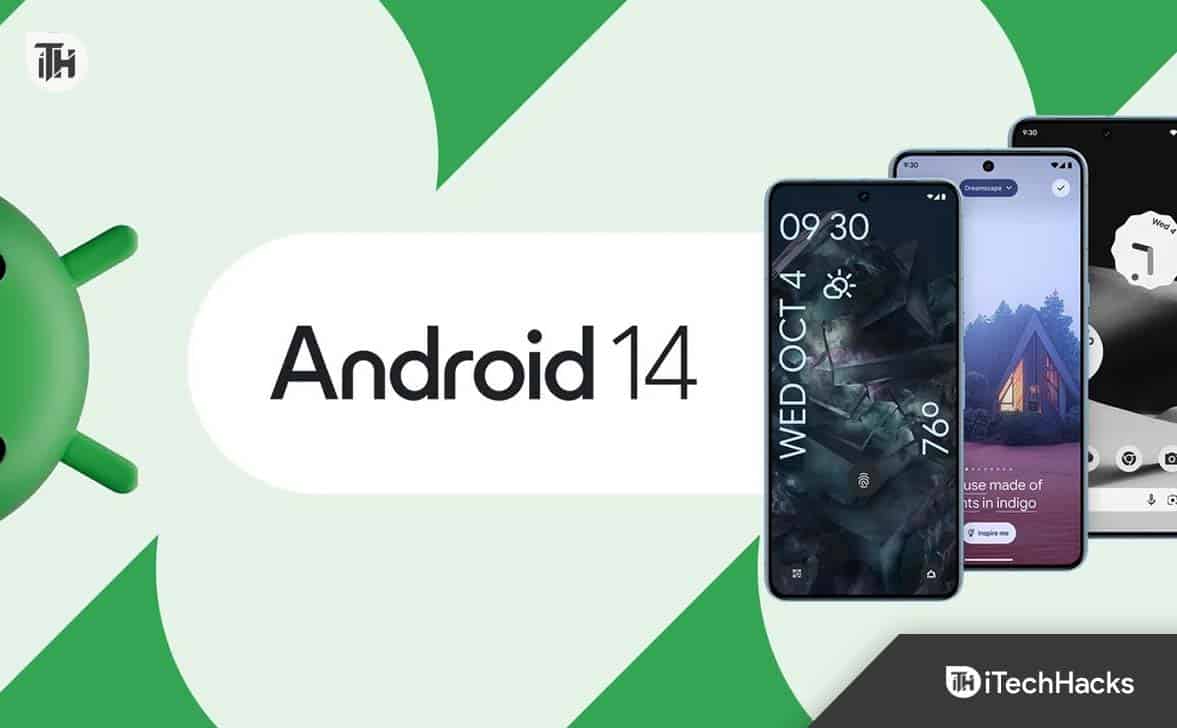
It’s clear from Android 14 that the Material You redesign that Google made with Android 12 in 2021 still remains a part of the Android 14 design cycle. With Android 14, Google is giving you back a lot of manual control compared to Material You’s initial iteration.
However, the big update comes with big issues. There are many users who started facing fingerprint not working issues on their devices after the Android 14 new patch update. Well, looking into the issue, then it is not very tough to resolve, as you just need to perform the fixes mentioned below.
After Android 14 Update Fingerprint Sensor Not Working – Reasons?
Here are some of the most common causes of the Android 14 Fingerprint Not Working issue. Find out if you belong to one of these categories.
- Fingerprint readers need clean fingers to read the image on your fingertip in order to unlock a device with a fingerprint. To check if your fingerprint is working, wash your hands.
- Especially if scars or hand injuries have been sustained from labor-intensive jobs or hectic occupations, fingerprints can be noticeably altered.
- Furthermore, it is recommended that you clean the fingerprint scanner, as it is similar to your fingerprints. Your figures often touch them, causing them to pick up dirt and grease, hindering scanning.
- Ensure the software on your computer is up-to-date. These updates will ensure that your phones remain current and the fingerprint sensors won’t be problematic.
- If the fingerprint scanner on your device is not working, the fingerprint hardware may not be available.
Ways to Fix Android 14 Fingerprint Not Working Problem
Here are some possible fixes for the Android 14 fingerprint issue:
Downgrade to Android 13
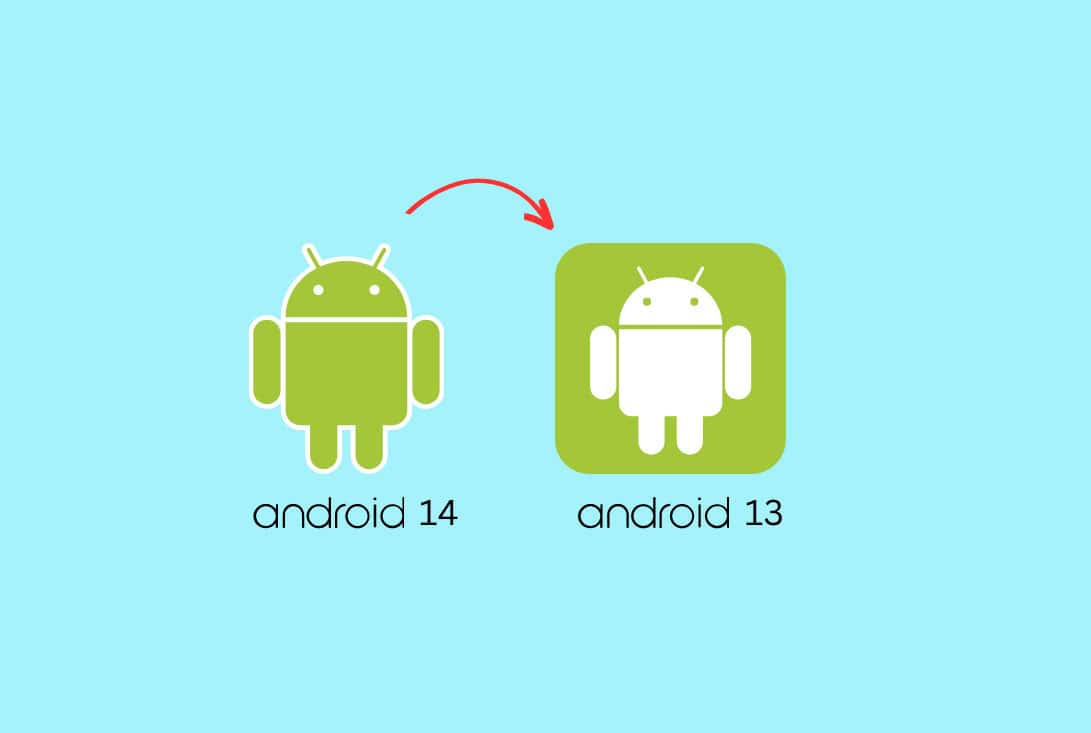
If you want to downgrade to a stable version of Android 13, you should do so. Regardless of whether this is a permanent fix, you will need to unlock the bootloader and erase all your data. This will surely fix the Android 14 fingerprint not working issue.
Update Your Phone Software
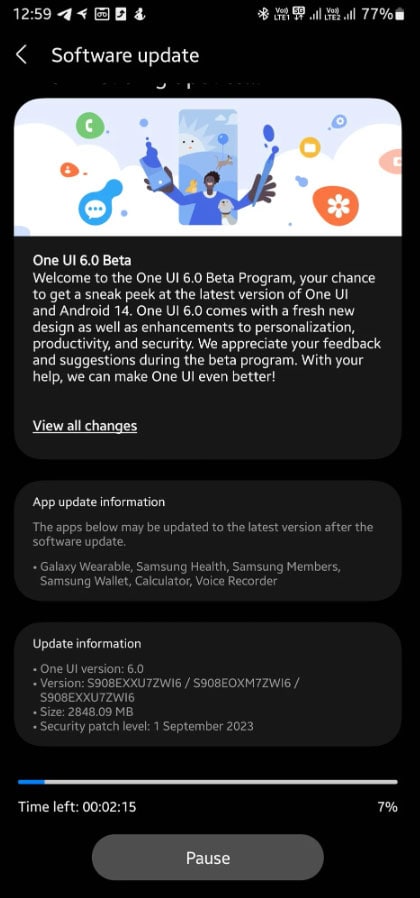
It gets irksome when we receive that constant “ Update Required ” notification. Nevertheless, ignoring that update may be causing your fingerprint sensor to malfunction.
It is common for all operating systems to be affected by software bugs, which affect both the applications and hardware elements of your phone.
In order to ensure your device isn’t being slowed down by old software, get that update over and done with.
It is important to keep in mind that this can have both positives and negatives. There are many times that outdated software can cause problems with your phone, but it is also fairly common for new software to contain bugs, which can also be a problem.
Unfortunately, there isn’t much you can do. It may be necessary to wait for a newer software update to fix the Android 14 Fingerprint Not Working bug, or you may need to contact the support team for your operating system or device.
Restart your device
After you have eliminated the possibility of a dirty finger or module, you should restart your phone. Generally, a problem with “Android 14 fingerprint not working” occurs when your phone has not been restarted in a while.
It’s worth a try for many software-related issues like this, and it can be useful in a variety of situations.
For quick restarting, hold down the power button for a few seconds. If you long-press the power button on an Android phone, your device will reboot automatically.
Use a Cotton Swab for Cleaning
Using cotton swabs to clean your devices’ smaller parts is a great idea because they are inexpensive and easy to use. Moreover, given that your hands get dirty often, so will your fingerprint sensor.
You can stop your fingerprint sensor from working by applying natural oils, moisturizers, dirt, or food to it.
It can also be helpful to use some isopropyl rubbing alcohol to disinfect and clean the sensor more thoroughly if you’re concerned about using liquids, but don’t soak your cotton swab; just dampen it.
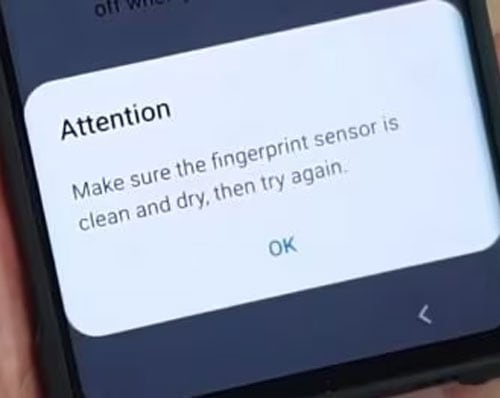
If you do not have cotton swabs on hand, you might try using a microfiber cloth instead or perhaps some kitchen towels as a last resort option (as kitchen towels can leave behind residue or fibers that can affect your sensor calibration).
In addition to dirt, your fingerprint sensor may not be able to read your fingerprint if your fingers are slightly dusty or wet. Whenever you attempt to unlock your phone via your fingerprint sensor, make sure your fingertips are dry and clean.
Recalibrate Your Fingerprint
In order to get your sensor back on track, recalibrating your fingerprint is a good idea. At the time of your phone’s purchase, you might have been prompted to set up a fingerprint identity. On an Android device, click on the biometrics or security section in your settings if you are unsure how to do this.
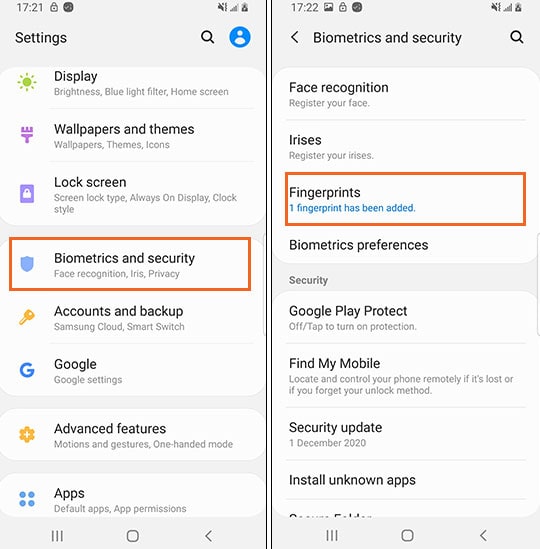
Click on your fingerprints category to view all of your device’s registered fingerprints. Recalibration does not require the removal of fingerprints from your trusted individuals (though removing fingerprints is possible here).
You can also delete a fingerprint registration and add a new one by clicking on the fingerprint you wish to calibrate. You should be able to use your fingerprint scanner again once you’ve added a new fingerprint this will fix the Android 14 Fingerprint Not Working issue.
Check if your finger has any liquid or dirt
If your Android 14 Fingerprint Not Working problem is not related to your fingers, try a different hardware or software solution before concluding it is a hardware or software problem. Just like other biometric devices, your fingerprint must be clean to unlock your phone.
There is a possibility that the fingerprint sensor will not function if your hand is wet, moist, oily, or dirty. If any of these things are present on your finger, your fingerprint might not be able to unlock your phone. You must wash your hands, disinfect them, and allow them to dry before you can get out. It’s time to unlock your phone using our fingerprints.
List of 10 Android System Apps that are Safe to Disable
Activate Syfy.com Code Roku, Fire TV, Apple TV, Xbox One, Android
Top 8 Ways to Fix Android System WebView Won’t Update
How to Download Amazon Flex App for Android 2024
How to Fix Android Text Messages Stuck “Downloading” or “Expired”
How to Fix Cash App Not Working on Android, iPhone, Web
macOS Sonoma is still experiencing issues, especially with features like Touch ID on MacBooks
Users have reported that Touch ID does not work as intended, sometimes requiring additional key presses
To fix Touch ID issues in macOS Sonoma, users can try restarting the system, cleaning the sensor, checking for software updates, resetting preferences, deleting and re-adding fingerprints, resetting SMC, and resetting NVRAM/PRAM.
The macOS Sonoma is still broken. Even though it is released publicly, there are still many issues. Sonoma isn’t yet compatible with all the features of Macs, especially the MacBooks . One such issue that has come to the surface is the issue with the Touch ID .
Mac users have reported that the Touch ID doesn’t work as it was intended to after the update, and in the worst case, it fails to work at all. Apple community is filled with such complaints regarding the Touch ID after the Sonoma update. Some said the Touch ID only worked when they pressed some key while using it, and it does not unlock with a single Touch.
If, after upgrading to Sonoma, Touch ID stopped working to unlock by a single touch, then that’s a serious issue you have with your Mac and needs to be fixed as soon as possible. Here we are with a guide to help fix this issue that users face with Touch ID after the Sonoma update.
Fix Touch ID Stopped Working to Unlock by Single Touch in macOS Sonoma
This is a major issue that many users are facing after updating to the macOS Sonoma. If you are also facing issues with the Touch ID after the macOS Sonoma update , then here’s what you can do to fix it-
Restart your System
First thing first, you should restart your Mac without any delay. If you are facing this issue after the update, it can be due to some minor glitch caused after the update. A system restart should most probably resolve it, so you should do that. If you have already tried that and it doesn’t seem to fix the issue, try the second step mentioned in this guide.
Clean the Touch ID Sensor
If Touch ID is working but taking some time to recognize your fingerprint or not unlocking in a single touch, then probably your Touch ID sensor is dirty. Dirt and dust on the Touch ID sensor can cause this issue, as the sensor won’t be able to read your fingerprint properly.
You can use a clean microfibre cloth to wipe off any dirt on the surface of the sensor. If the dust is stuck on the surface, then you can use a cleaner like the one that you use for other digital devices.
Also, while using the Touch ID, ensure your finger is clean. If your finger is dirty, then that can also cause. Ensure you clean your fingers and then proceed with using the Touch ID.
Check for Software Update
Apple Developers always work towards fixing the bugs that were in the previous update by releasing new updates frequently. You can try checking for the macOS update and installing the available update if Sonoma Touch ID stopped working to unlock by a single touch. To do so, follow the steps given below to do so-
- Click on the Apple icon at the top left corner and then click on System Settings .
- After this, click on the General tab on the left pane and then select Software Update .
- Your Mac will check for the latest updates available; install the available updates.
Reset Touch ID Preferences
The issue can also be encountered due to the corrupted Touch ID preferences. Updates can often mess up the Touch ID preferences and corrupt them. You can reset the Touch ID preferences to fix this issue. This is how you can do it-
- Click on the Launchpad icon on the dock.
- Search for the Terminal icon on the Launchpad and open it.
- In the Terminal, type the command given below- sudo rm -f /Library/Preferences/com.apple.BiometricKit.plist
- Press Return to execute the above command.
- You will now have to enter your password; do so to continue.
- After executing the command, restart your PC.
Delete and Re-Add Fingerprints
The very next thing that you can try doing is deleting the fingerprints from your Mac and then re-adding them. This resets the Touch ID and gives it a fresh start, solving all the issues. You can do it by following the steps mentioned below-
- Open Spotlight Search by pressing Command + Spacebar .
- Search for System Settings and press Enter to open it.
- Click on the Touch ID & Password on the left pane.
- Now, on the right side, click on the added Touch ID.
- You will have to enter your account password.
- Now, click on Delete to delete the fingerprint. Do the same for all the Touch IDs added to your Mac.
- Once you have deleted all the Touch IDs, click on the Add Fingerprint option and add your fingerprint to the Touch ID.
Reset SMC
SMC or System Management Controller handles various components of your Mac, including power supply, status lights, USB ports, etc. If something goes wrong with the SMC, then that can cause issues with the Touch ID. In that case, you will have to reset the SMC, and the issue will be solved.
If you have a Mac with Apple Silicon, resetting the SMC is not required. A system restart would do the job. However, for Macs with an Apple T2 chip or Intel-based processor, you will have to reset the SMC. Before you continue, you will have to check whether your Mac has an Apple T2 chip or not.
On Mac Desktop Computers (without Apple Silicon)
- First, shut down your Mac.
- After this, unplug the power cord and wait for 15 seconds.
- Now, plug the power cord back into your Mac.
- Turn on your Mac after 5 seconds.
On MacBooks (without Apple Silicon)
- The first step is to shut down your MacBook.
- Once off, press and hold the Control + Option + Shift keys together. While holding these three keys, press and hold down the Power key.
- You must hold the keys for 10 seconds and then release them.
- After you release the keys, press the Power button on your Mac to turn it on.
Reset NVRAM (Or PRAM)
Another thing that you have to do if you cannot solve this issue is resetting the NVRAM (or PRAM). This isn’t generally an issue with the Macs with Apple Silicon; if you are using a Mac based on Intel chips, then you will have to manually reset the NVRAM. Below are the steps to do so-
- First, shut down your Mac.
- Press the Power button on your Mac, and then immediately press and hold the Option + Command + P + R keys together.
- Keep holding the keys for 20 seconds, and then release them. You will get a sign to release them if you get the startup sound or Apple Logo more than once.
Final Words
If, after upgrading to macOS Sonoma, Touch ID is not working or you are facing a problem unlocking it by single Touch, then you should be able to solve this issue through the above steps. If the issue is still not solved, then you can contact Apple support or visit the nearest Apple Service Center and get your issue resolved by the experts.
- Top 6 Ways to Force Quit Applications on Mac
- Best 6 Ways to Clear System Data Storage on Mac
- Top 3 Ways to Clear the Cache on Mac or MacBook
- 9 Ways to Fix macOS Sonoma Crashes when Playbacking Videos in QuickTime
- How to Get Touch Bar Pet on Macbook Pro
- Top 10 Ways to Fix macOS Sonoma Battery Draining Fast Issues
- Top 11 Ways to Fix App Crashing on macOS Sonoma
