- Common issues causing Alexa not playing music include connectivity problems, account linking issues, and software glitches.
- Solutions to fix the issue include checking internet connection, restarting the Echo device, checking subscriptions, setting Amazon Music as default, and checking firewall ports.
- Additional methods involve deregistering and re-registering the Echo device, disabling the explicit filter, and troubleshooting step-by-step to resolve the Alexa music playback problem.
Common Issues with Alexa Not Playing Music
- Connectivity Problems: One of the most common reasons Alexa fails to play music is due to connectivity issues. This can range from weak Wi-Fi signals to network congestion.
- Account Linking Issues: If your music streaming accounts are not properly linked to your Alexa device, it can prevent music playback.
- Software Glitches: Occasionally, software bugs can interfere with Alexa’s functionality.
Ways to Fix Alexa Echo Not Playing Music
Method 1: Check your Internet connection.
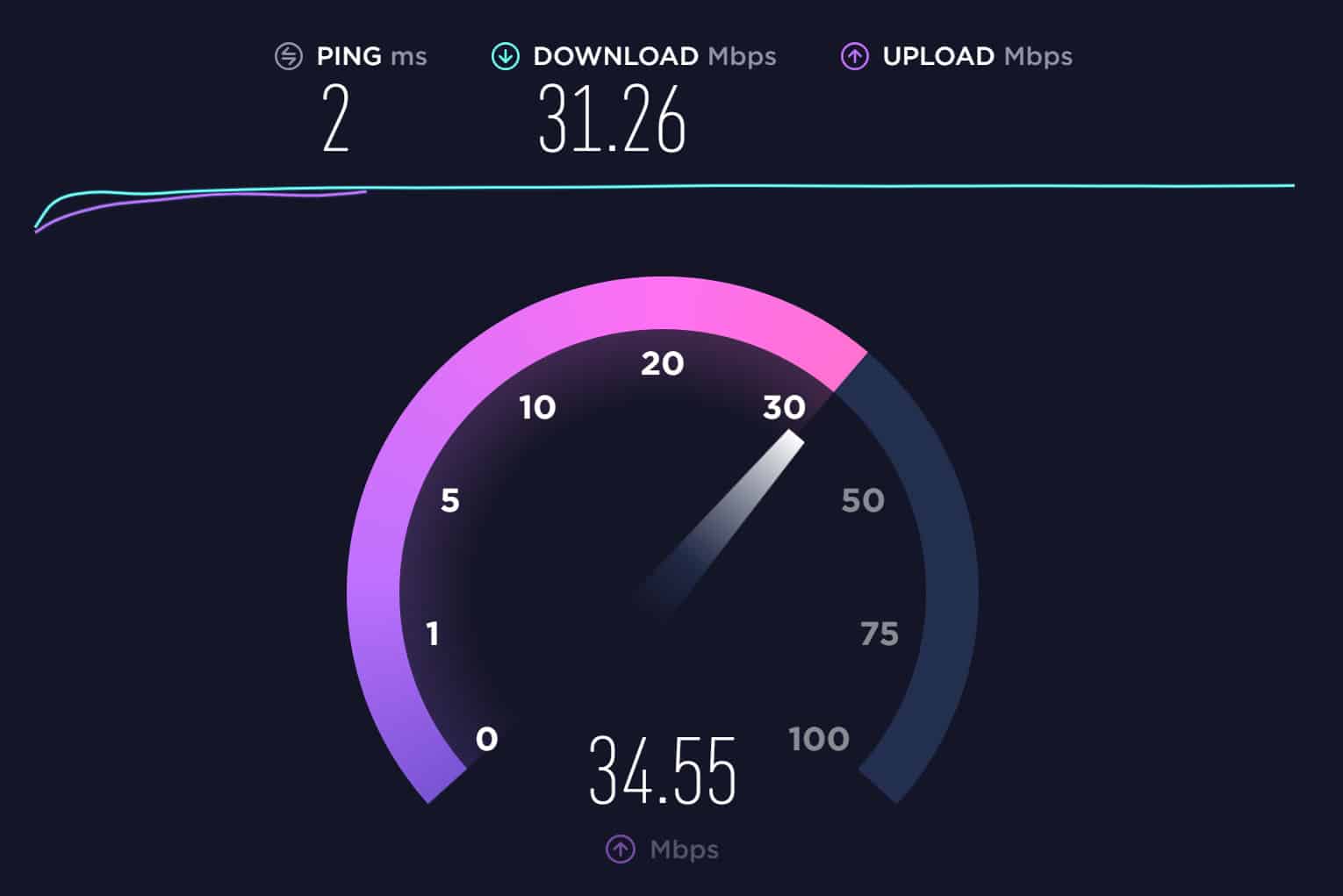
One of the most prominent reasons due to which Alexa cannot play music is a poor internet connection.
Thus, make sure that you have a stable internet connection when trying to play music through Alexa. If you have a good internet connection and still face this error, go to the next method.
Method 2: Make sure that the song is Available
It is possible that the music you are trying to play is not available. You can check if Alexa can play some other music.
If yes, then it is evident that the music you were trying to play earlier is not available. If no, then there might be some other reason, and keep following the methods listed below to fix it.
Method 3: Restart Echo

Sometimes there is a technical error with your echo, causing Alexa not to play music error. Follow the steps listed below to Restart your Echo.
Step 1- Turn off your Echo and disconnect it from the power source.
Step 2- Wait for a minimum of 20 seconds before turning it back on.
Now check if Alexa can play music. If not, go to the next method.
Method 4: Check your Subscription

Step 3- Click on the ‘ Memberships & Subscriptions ‘ option from the drop-down box.
Here, you will get all the information, including your subscription details. If your subscription has expired, you must renew it. But, if you have a subscription, go to the next method listed below.
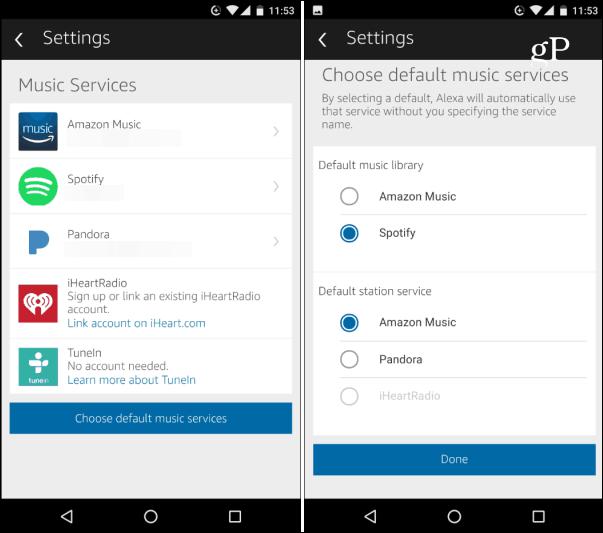
Step 1- Launch the Alexa application.
Step 2- Click on the three vertical dots in this window.
Step 3- Click on ‘Settings’ from the drop-down box. Then, navigate to Music » Default Services.
Now, check if the error has been fixed. If not, go to the next method.
ALSO CHECK: Free Spotify Premium Accounts & Passwords
Method 6: Check Firewall Ports
Alexa requires some ports to be open for it to work efficiently. Follow the steps listed below to open some specific Firewall Ports.
Step 1- On a web browser, open the IP address of your router.
Step 2- Login to your router and search for the Port Forwarding option.
Step 3- Once found, Open the following ports from there.
123


443


4070


5353


33434


40317


49317
Now, check if the Alexa not playing music error has been fixed. If not, go to the next method in this list.
Method 7: Deregister and Re-register your Echo Device
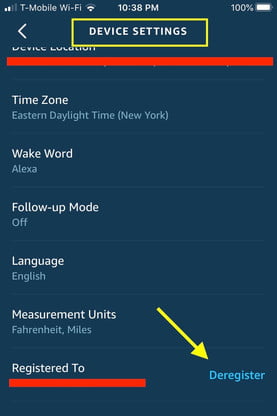
Several users have reported that the error can be fixed by removing and adding your Echo. Follow the steps listed below for this method.
Step 1- Launch the Alexa application.
Step 2- Here, go to the Devices section.
Step 3- Now, navigate to Echo & Alexa » Your device name.
Step 4- Search for the Deregister button and click on it.
Now, re-register your Echo and correctly update its settings including location, time zone, and language. If the error persists, go to the next method.
Method 8: Disable Explicit Filter

The explicit filter is used to block songs containing explicit lyrics. Follow the steps listed below to disable this filter.
Step 1- Launch the Alexa application.
Step 2- Click on the three vertical dots in this window.
Step 3- Click on ‘ Settings ‘ from the drop-down box. Then, navigate to Music » Account Settings.
Step 4- Here, check if the Explicit Filter is off. If not, toggle the switch to disable it.
Now, check if Alexa can play the song you requested.
ALSO CHECK: Spotify Premium Apk Free Download
Q1. Why is Alexa not playing music?
Q2. How to fix Alexa not playing music?
Since fixing Alexa not playing music is a trial and error process, you must start executing the methods in this list from the top and work your way down till it is fixed.
