- Windows 11 updates require updated network drivers for optimal connectivity.
- Ways to update LAN and WLAN drivers include downloading from official manufacturer sites, publishers like Realtek, Qualcomm, and Intel, and using Windows Update.
- An alternative to outdated LAN includes using a USB Wi-Fi dongle for improved connectivity.
Windows 11 is available on the public platform, and anybody can install the update on the compatible machine. Drivers play a crucial role in the consideration list since it is responsible to keep your PC connected to the internet. I’m going to show several ways to update LAN and WLAN drivers in Windows 11 , and I will do it without third-party tool involvement. Yes, you don’t need an additional tool to update network drivers in Windows 11 machines.
Download Updated Drivers from Official Site
Your desktop or laptop manufacturer maintains an update in the “ Support & Drivers ” section. I’m always surprised to find experts suggesting Windows Update as the primary source of drivers update.
I completely refuse it because your PC manufacturer tests the latest drivers of the selected hardware and then puts them on the site. Let me walk you through the network drivers download process for desktop and laptop.
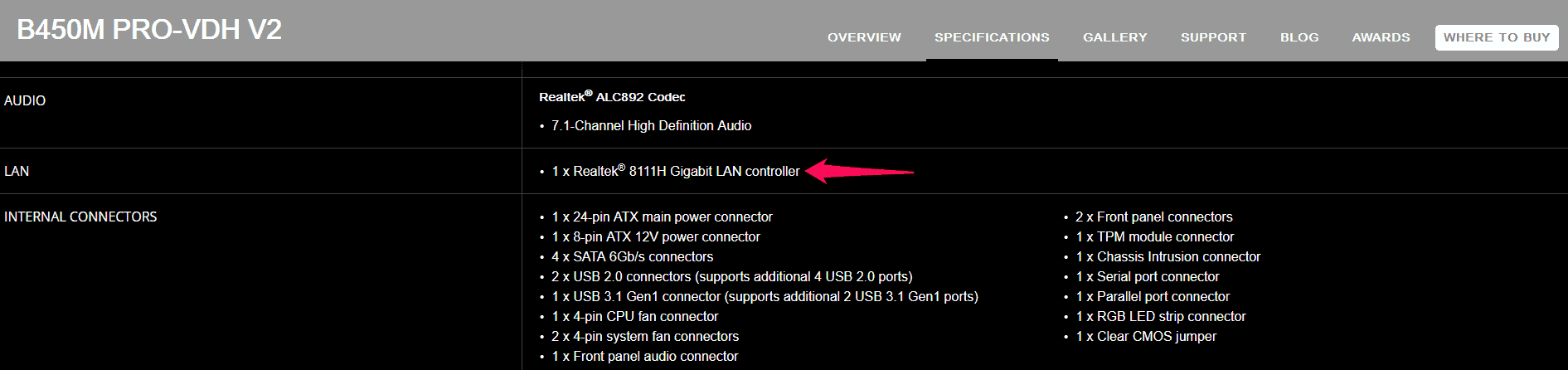
Desktop: I assembled my PC, and it is rocking MSI B450M PRO-VDH V2, so I have to look for updated drivers on the MSI site.
Try CPU-Z, and it displays the motherboard model number.
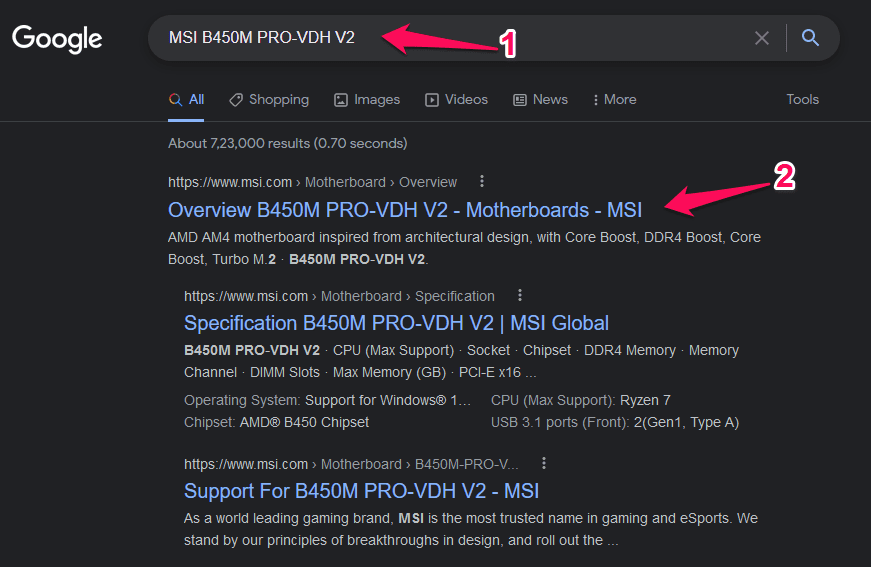
Step 1: Go to Search Engine and lookup for the machine’s hardware and open the official page.
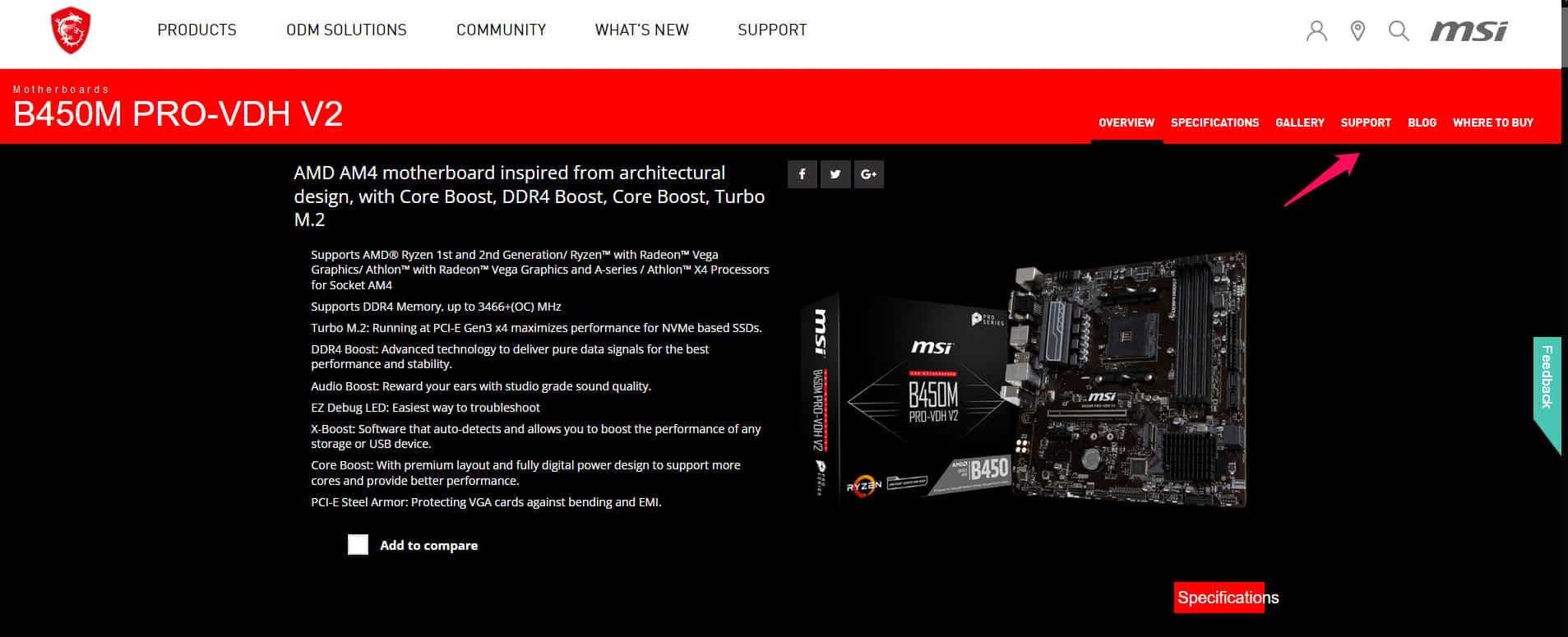
Step 2: Click “ Support & drivers ” to continue.
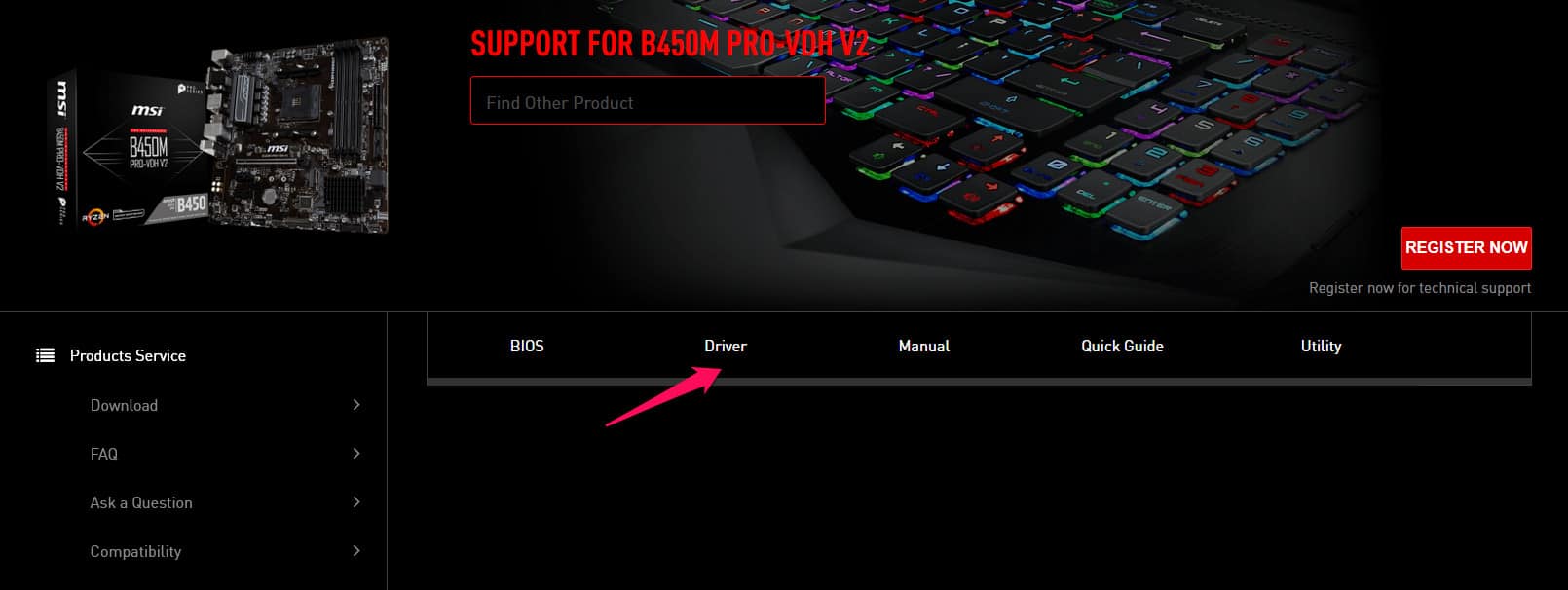
Step 3: Click on “ Drivers ” to continue.
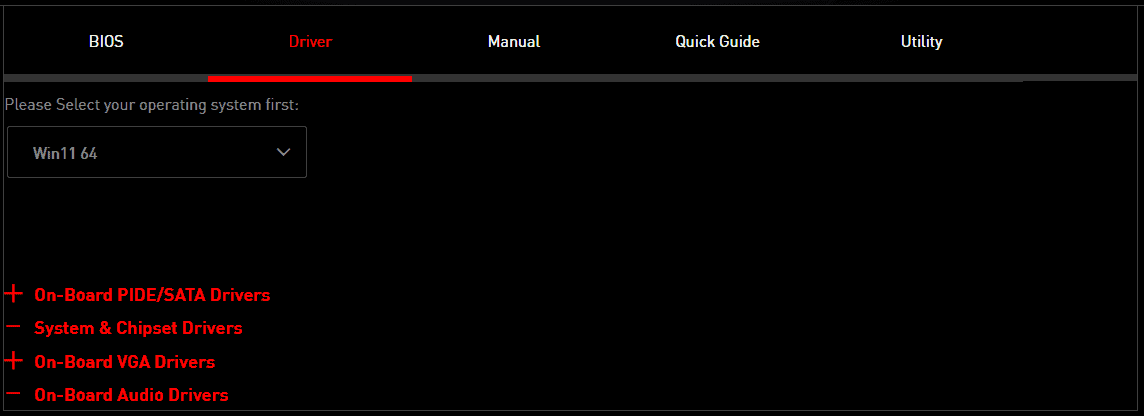
Step 4: Choose an operating system.

Note: If Windows 11 is not listed in the drop-down menu, then your board is discontinued by the manufacturer.
Step 5: Find network drivers from the list.
Step 6: Download the network drivers from the page.

If your board supports WLAN, then you will find wireless network drivers in the same place. I have shown you an alternative below, so you don’t have to worry about network problems due to outdated LAN or WLAN.
Laptop:
Step 1: Go to Search Engine and lookup for the laptop model, and open the official page.
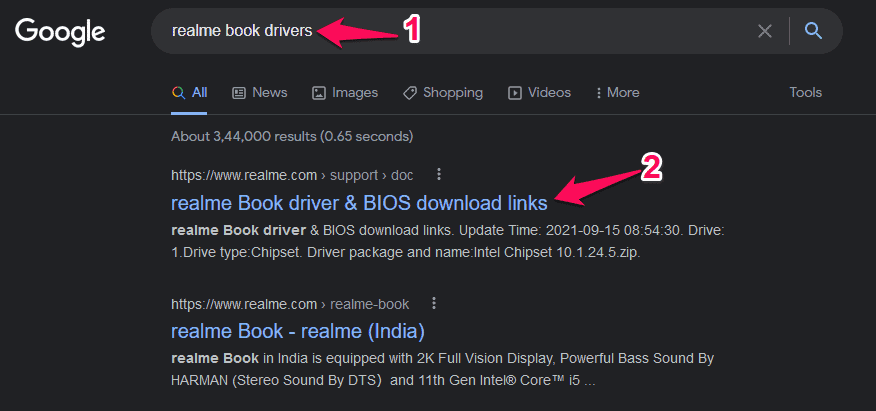
Step 2: The laptop drivers page shows up on the screen.
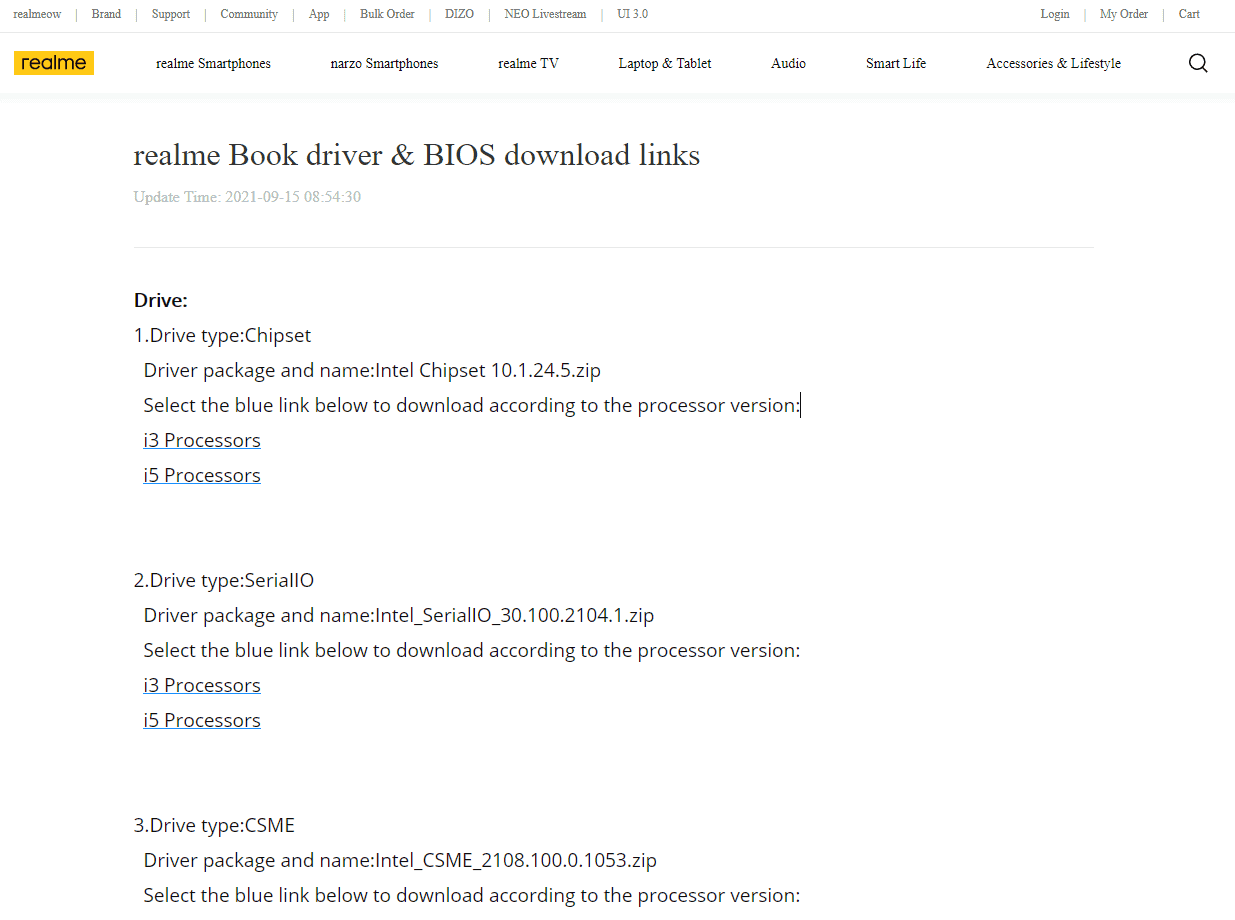
Step 3: Scroll down and find the “ WLAN or LAN ” section.
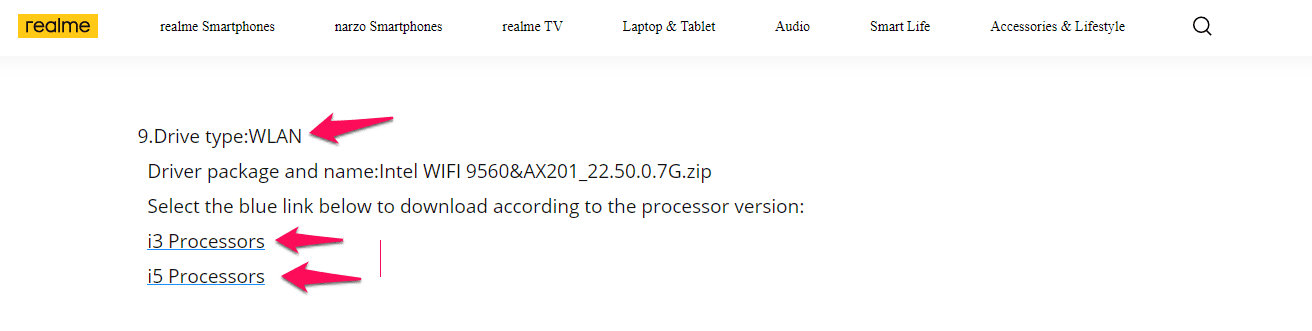
Now, download the network adapter drivers from the page and choose the correct processor variant. I suggested you CPU-Z find the motherboard model, and it will display the processor variant as well. Companies drop outdated hardware support, so if you don’t find Windows 11 in the list, then the manufacturer ended support for it.
Download Updated Drivers from Publisher
Almost all Windows PC has network adapters engineered by Realtek, Qualcomm, and Intel. Fortunately, companies like Realtek releases updated drivers for older boards, and I had one of those in the past. My desktop and laptop have network adapters engineered by
- Press Windows Key + S and then open “ Device Manager ”.
- Let devices load in the new tab.
- Click on “Network Adapters” to reveal more options.
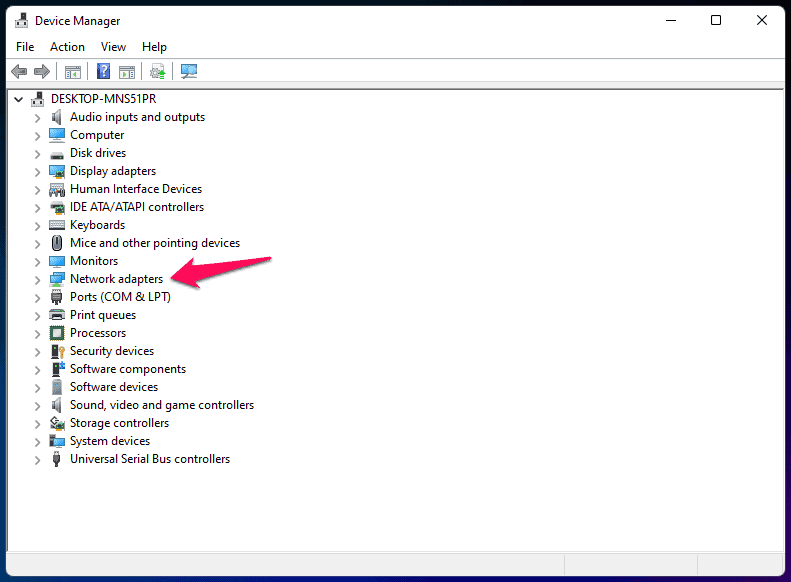
- Note down the network adapter series name, and it is “Realtek PCIe GBE Family Controller #2”, in my case.
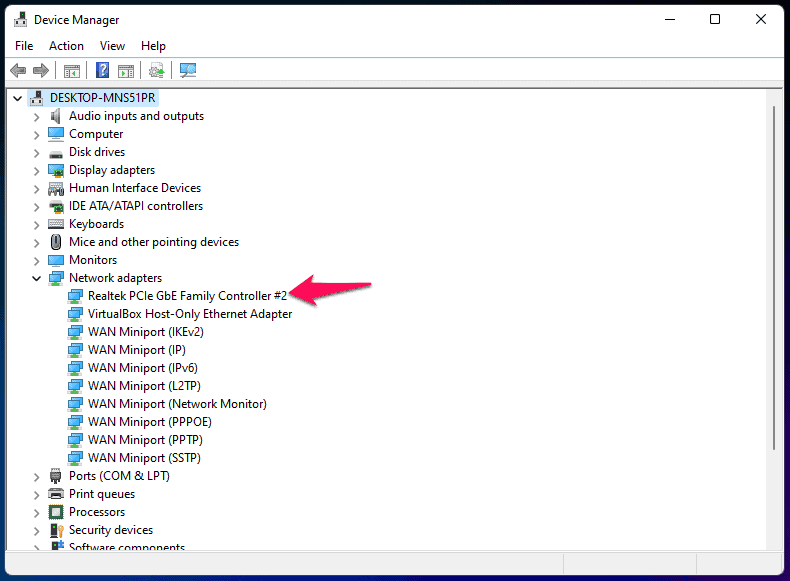
- Search for the name and open the first page from the manufacturer.

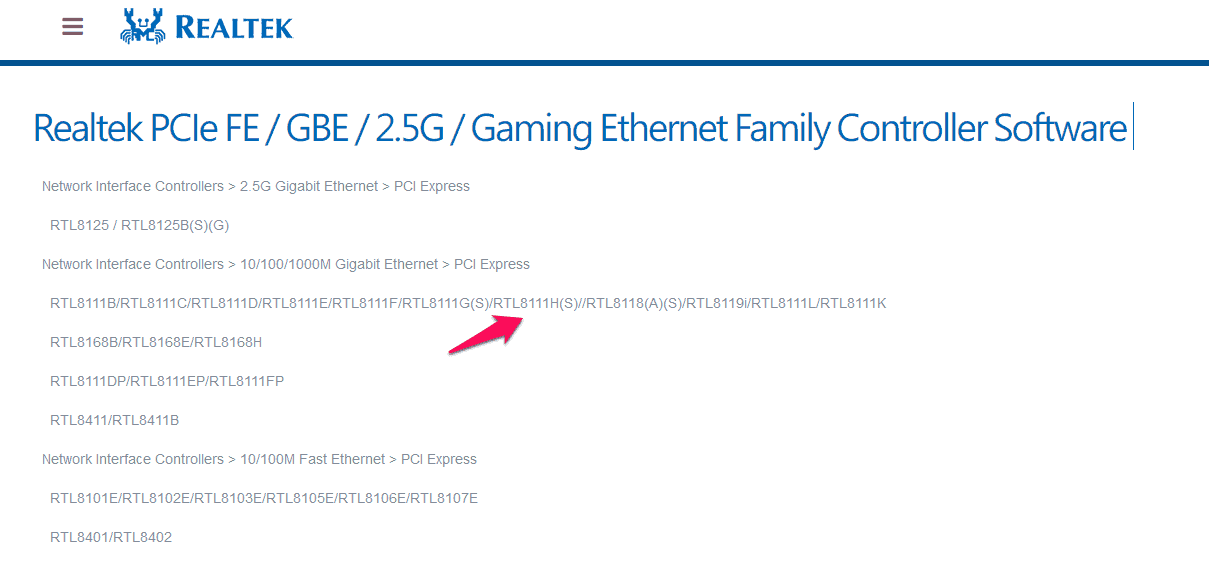
- My motherboard network chip was listed in the product lineup.
- I double-checked the exact model number from the official MSI page.
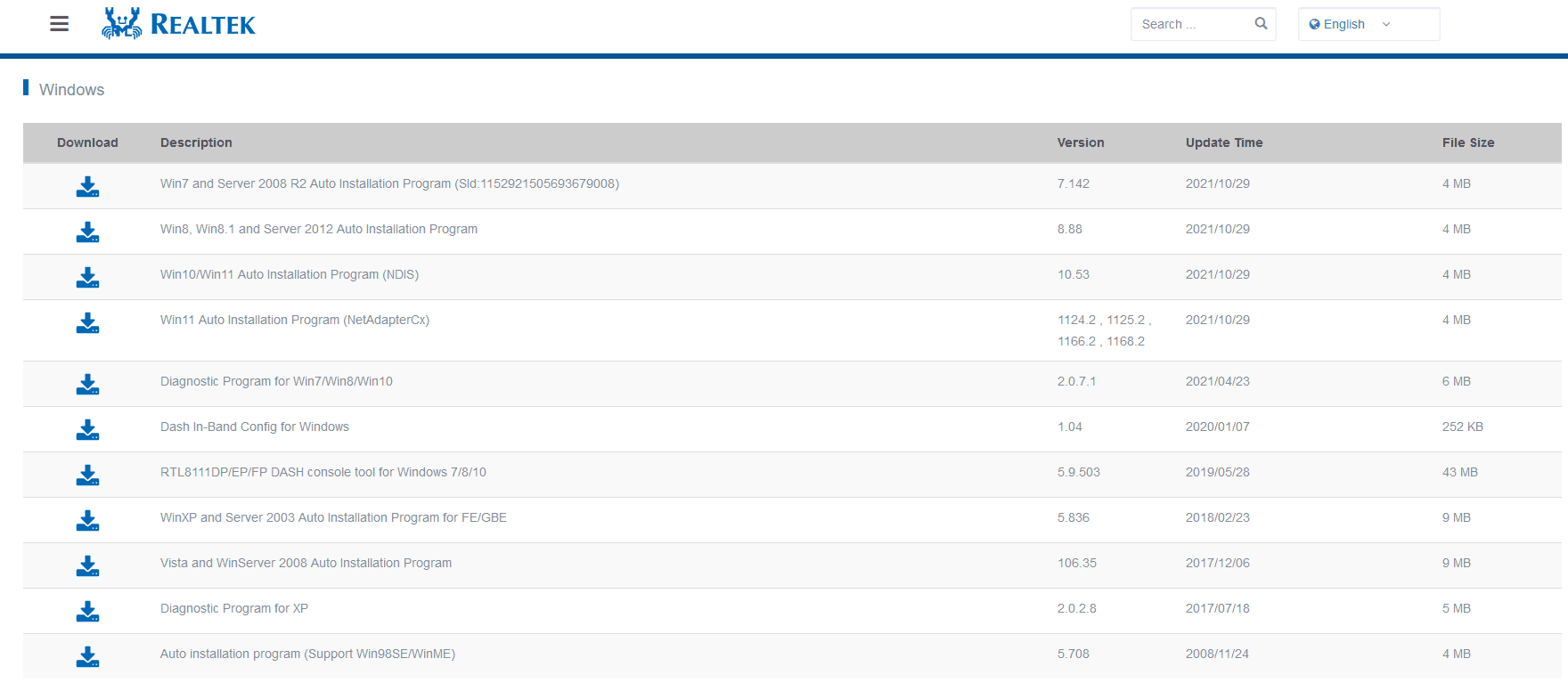
- Save the network adapter designed for Windows 11.
Now, you don’t have to rely on manufacturers to update the section since you learned how to look up the updated network drivers by yourself.
Windows Update to Latest Build
Microsoft collaborated with leading component manufacturers to bring essential drivers in one place. We know that collaboration results in Windows Update, and it is a somewhat reliable source to update drivers in the system .
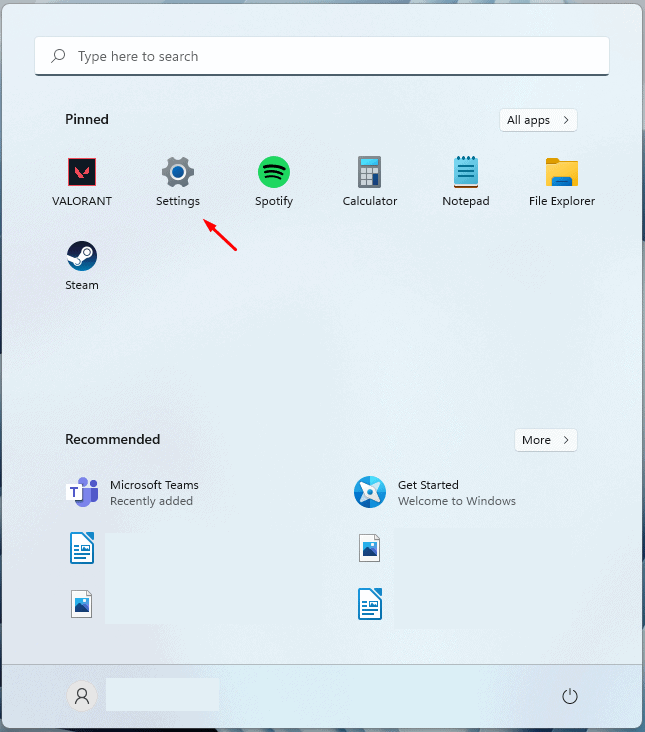
Step 1: Press Windows Key + I, and that will open “ Settings ”.
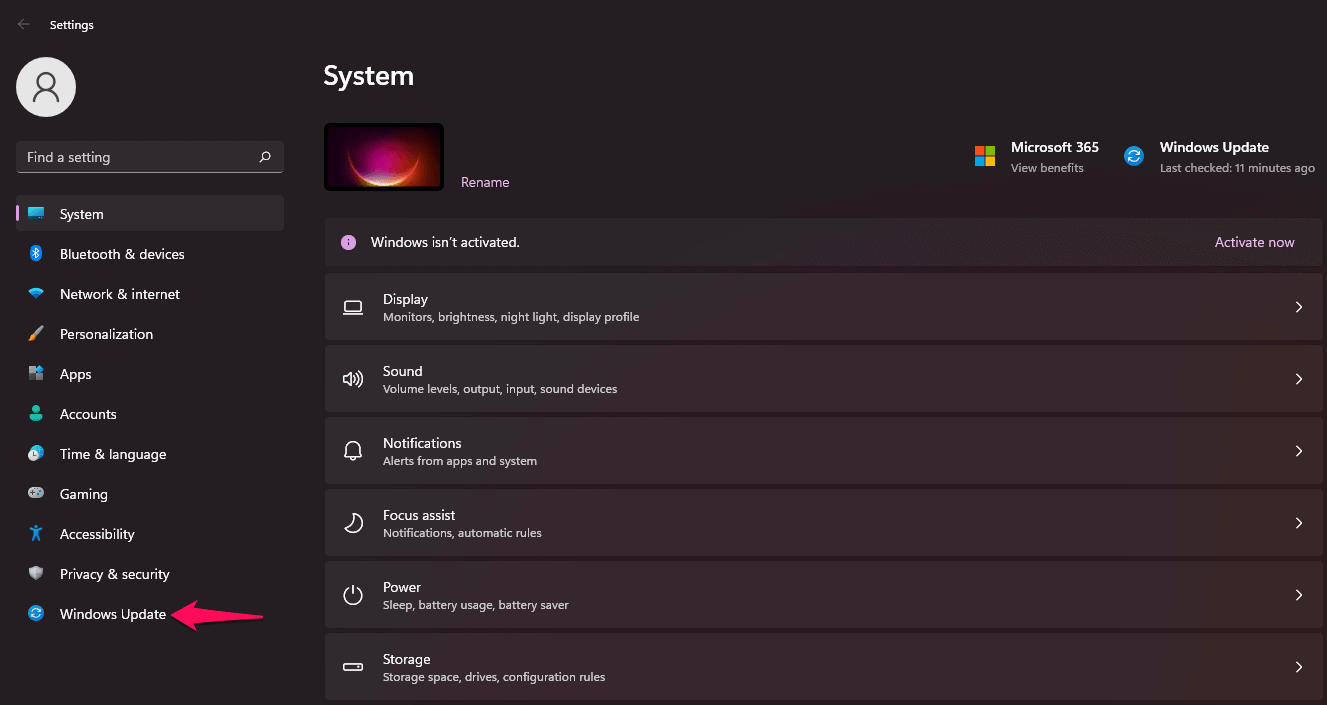
Step 2: Click on “ Windows Update ” located at the left sidebar bottom.
Step 3: Click on “ Check for updates ”.
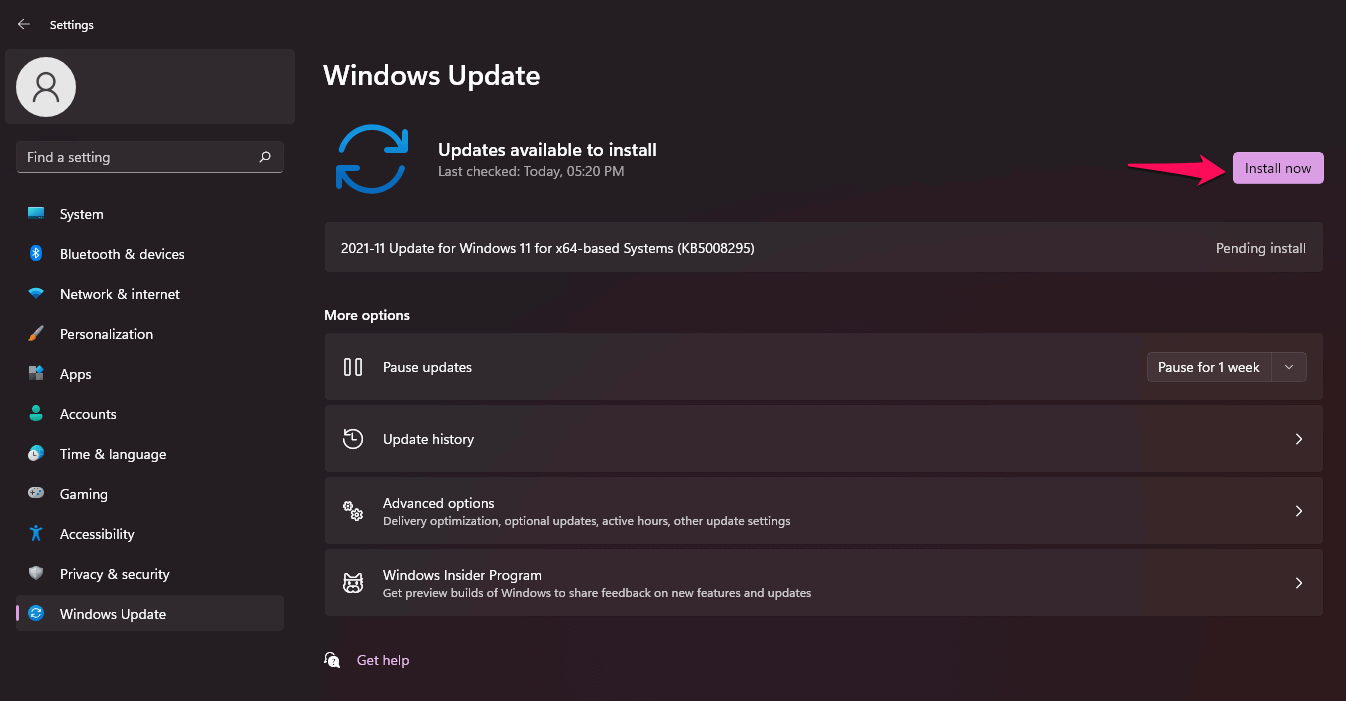
Step 4: Let Windows download the necessary updates, and then click on the “ Install now ” button.
I believe Windows Update has room to improve, but you shouldn’t become a victim of its shortcomings. I implore the readers to create a System Restore point if anything were to go wrong. A restore point will bring back the system into its previous state, which puts you at an advantage.
Alternative to Outdated LAN
Maybe the LAN port has stopped working, or the hardware component has reached its life cycle. Nothing will change the fact that there is an internal problem with the LAN chip. In such cases, you have two options on the table, and you have to make a quick decision.
- Get the board repaired by the manufacturer if it’s under warranty.
- Book an appointment with an authorized engineer for third-party repairs.
- Buy a Wi-Fi dongle.
I would select the third option and buy a USB Wi-Fi dongle instead. My desktop doesn’t have WLAN integrated into the board, so I purchased a USB Wi-Fi dongle (from TP-Link) for under 7 USD.
LAN Cable Speedtest Results:
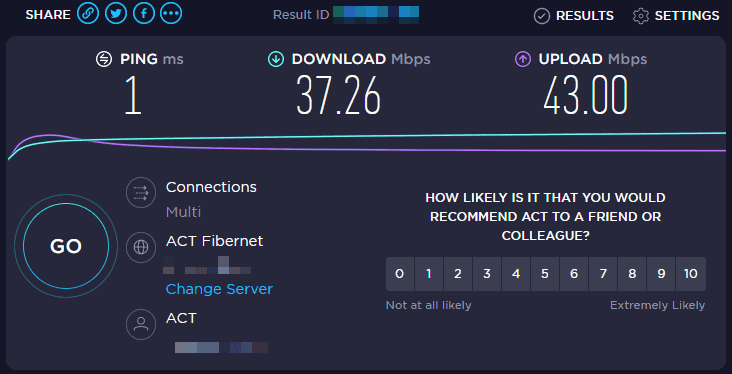
USB Wi-Fi Dongle Speedtest Results:
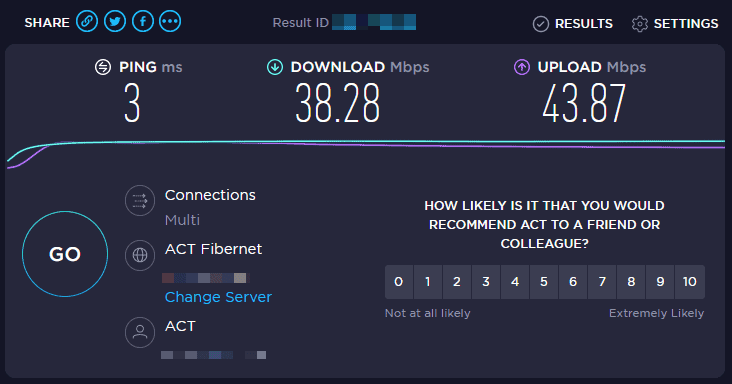
I inserted the Wi-Fi dongle in a USB 3.0 port and maintained only a meter distance to the Wi-Fi router. My Wi-Fi router rests on the top of the desktop cabinet, and it is visible in the photo I shared above.
RELATED GUIDES:
- How To Record Screen In Windows 11
- Bluetooth On/Off Option Is Disappeared Problem In Windows 11
- How To Fix Screen Flickering Issues In Windows 11
- How To Install Windows 11 Printer Drivers Easily
What’s next? – Update Network Drivers in Windows 11
Windows 11 is built on Windows 10 framework, and it won’t ask for updated drivers yet. But, it won’t be the same since Microsoft has proven with the 10th edition that they intend to bring in new features along the way. Windows 10 was working smoothly on older machines during the initial days, but it rammed up the RAM and CPU usage after few years of updates. Let us know which solution helped you to update the network drivers in Windows 11 PC.
- Printer drivers are essential for keeping your printer functional and bug-free.
- Update printer drivers through Windows update by accessing Settings, checking for updates, and installing the driver.
- Other methods include downloading drivers from the official website, using a disk to install drivers, or utilizing third-party driver updater software like Driver Booster.
If you are an office person, student or someone, whose main part of the job is printing, then you will need to have updated your printers drivers. Printer drivers are essential to keep your printer functional and updated with all the latest features. Updating the printer drivers ensures that your printer functions and remains bug-free. There are various ways to update printer drivers, you can do it manually as well as with the help of a third-party driver updater.
How To Install Windows 11 Printer Drivers
In this article, we will be discussing how you can install Windows 11 printer drivers.
Updating Printer Drivers Through Windows Update
The very first way to update printer drivers is through the Windows update. Windows update not only brings the updates for Windows but it also brings all the drivers updates for the hardware installed on your PC. To install Windows 11 printer drivers through Windows update, follow the steps given below-
- Head to the Settings app on your PC. To do so, search for Settings in the Start Menu or press the Windows + I key combo. This is the shortcut key to open the Settings app.
- Now in the Settings, click on the Windows update on the left sidebar.
- On the right side of the Settings, click on Check for updates. You will see all the updates for your PC listed here. You will also see an Option updates section here. Click on it, and this is where you will see the driver update.

- Look for your printer drivers here. Download and install your printer drivers.
- After done, close the Settings app and then restart your PC to make the changes.
Download The Drivers From The Official Website
Another way to do this is by downloading the drivers from the official website of your printer’s manufacturer and then installing it. To do so, follow the steps given below-
- Firstly, visit the official website of your printer. For instance, if you are using the printer from Canon, Epson, HP, or any other website, then head to their official website for the printer.
- Now search for your model of printer, and open it. If you don’t know what is the model of your printer, then you can check for it on the printer box. Generally, the model is mentioned on the body of the printer, so you can check that as well.
- Here, you will see the download section, click on it. You will find the drivers for your printer here.
- Download the driver for your printer.
- Now head to the location where you have saved the file, and run the setup by double-clicking on the file.
- Follow the on-screen instructions to install the drivers for your printer.
Use The Disk To Install Drivers
Whatever printer you are using, will have a disk with all the essential drivers required. You should find it inside the box. To follow this step, you must ensure that your PC has a CD driver, else you won’t be able to install drivers using this method.
- Insert the disk into the disk drive of your PC.
- Now open the file explorer on your PC by pressing the Windows + E key combo. You can either search for File Explorer in the Start Menu and open it.
- Double-click on the Disk Drive icon on the File Explorer to run the setup.
- Follow the on-screen instructions to run the setup, and install the printer drivers on Windows 11.
Using Third-Party Driver Updater
Another way to do this is by using third-party driver updater software. There are various third-party driver updater software like Driver Booster or Driver Pack Solution. You can use either of this software to update or install Windows 11 printer drivers.
Download either the Driver Booster or the Driver Pack Solution from their official website. Download and install any of these apps on your PC. When you run the app, you will see the option to scan your PC for outdated or missing drivers. Click on this button. You will have to connect your PC to a stable internet connection.

After the software scans your PC for all the drivers required to be installed or updated, you will see a list of drivers. Select the printer driver, download it and install it. You will be asked to restart your PC. Restart to make the changes, and you will have successfully installed Windows 11 printer drivers.
RELATED GUIDES:
- How to Get Printer Online Issue on Mac
- How To Fix Windows 11 Printer Spooler Error
- How to Get Printer Online on Windows 10 (Offline to Online)
- How to Fix HP Printer Not Showing Up on Network
- How to Fix Error 740 While Adding Printer on Windows 10/11
This is how you can install Windows 11 printer drivers. We hope this article helps you with installing Windows 11 printer drivers.
