- Windows 11 brings enhanced search options, making searching faster and more efficient compared to Windows 10
- Ways to search in Windows 11 include using Start Menu, keyboard shortcuts, Search icon on taskbar, and File Explorer
- File Explorer search options allow for refining search results based on criteria like folder, date modified, file type, and size
Windows 11 is now available to many PCs worldwide, and it brings various updates to Windows 10. One such update that Windows 11 bring is then enhanced search options. Searching in Windows 11 is now much faster and more efficient when compared to Windows 11, and there are not just one but many ways to search in Windows 11.
How to Search In Windows 11
In this article, we will be discussing all the ways to search in Windows 11.
Searching Using Start Menu
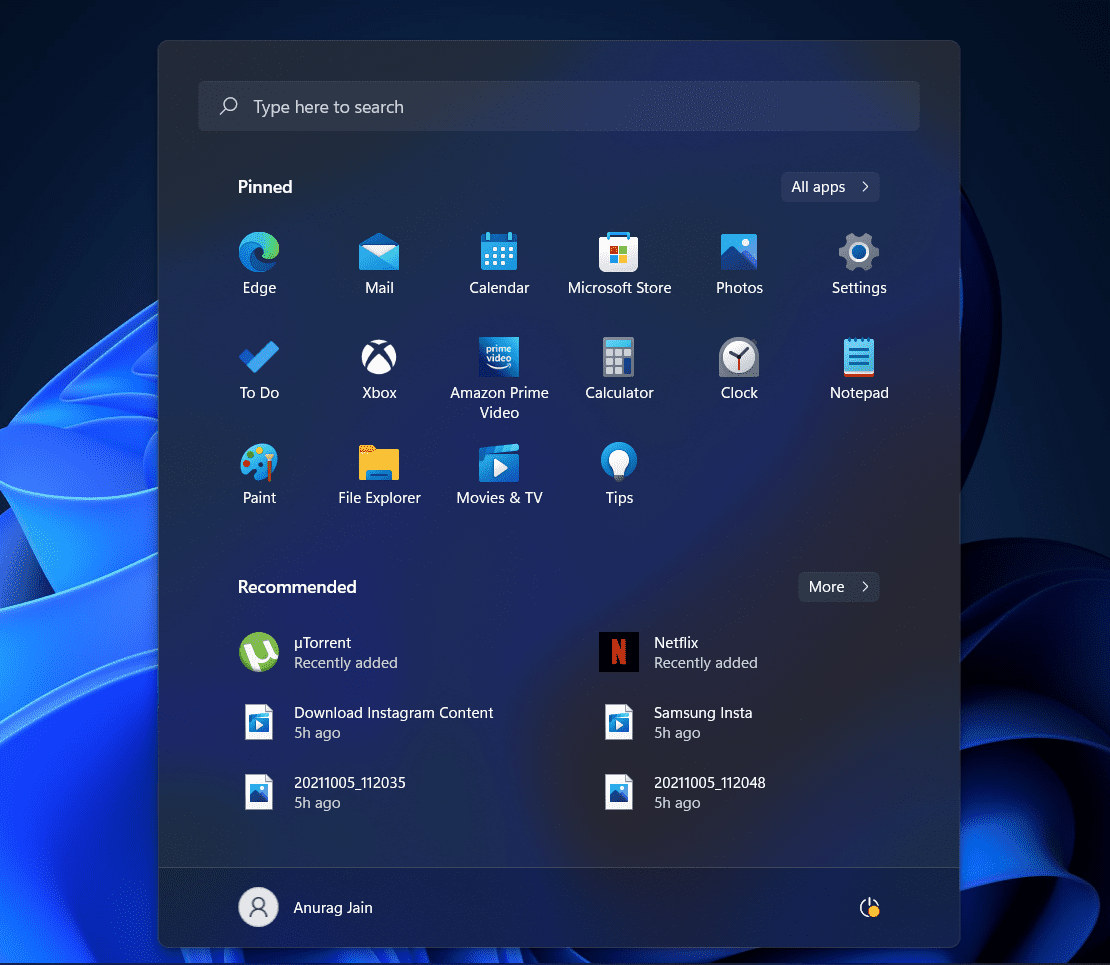
The first way to search in Windows 11 is by using the Start Menu . To do so, press the Windows key on your keyboard, which will open the Start Menu. You can either click on the Start icon on the taskbar to open the Start Menu . You can search for anything you are looking for on your PC from the Start Menu.
Searching Using Keyboard Shortcut
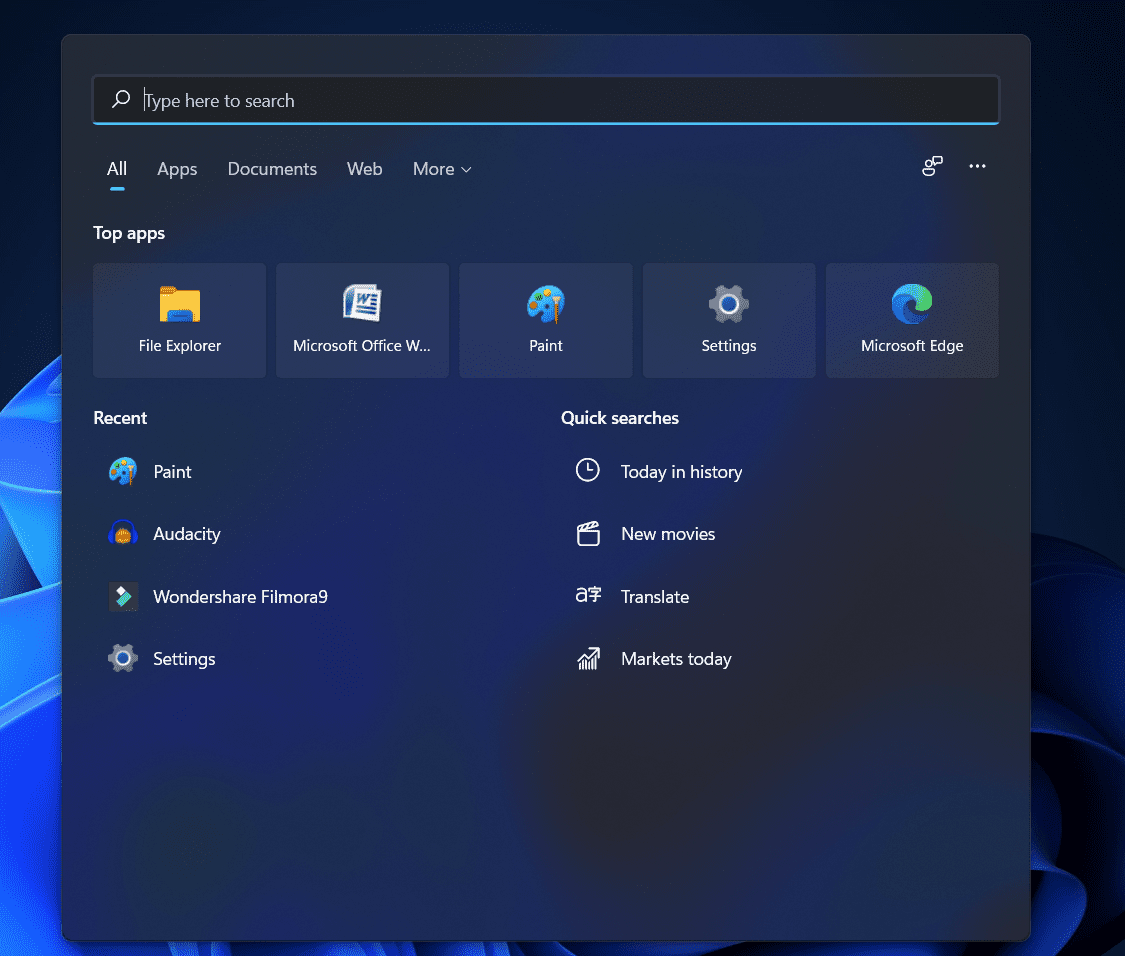
Another way to search in Windows 11 is by using the keyboard shortcut. You can press the Windows + S key combo to open the Search box in Windows 11. You can now search for apps, documents, files, or folders on your PC. This will display the related result, and you can click on it to open it.
Searching Using Search Icon
You can also search in Windows 11 using the Search icon on the taskbar. Click on the Search icon on the taskbar, and then from the new window that opens up, you will be able to search for the file you are looking for.
Searching Using File Explorer
You can also search for the files folder using File Explorer. To search using File Explorer, press the Windows + E key combo to open the File Explorer on your PC.
Now head to the partition where you think the file is. If you don’t know where the file is, you will have to search from the This PC option. Click on the Search box on the top right corner, and then search for the file/folder you are looking for.

This will display all the relevant search results related to what you search for. You can open the file/folder from the search result.
If you want to enhance your search, you can use the search options in File Explorer. To do so, click on the Search Options , and then you can set the criteria to get the search result. Given below are all the options that you may see-
- All Folders- This will search all the folders on the drive for the term you searched for.
- Current- This option will search for the file in the current folder that you are in.
- Date Modified- Selecting this option will let you sort the search result based on their creation time.
- Kind- You can select the type/kind of file you are looking for, like calendar, communication, contact, etc., and you will get similar search results only.
- Size- Using this option, you can search for the file depending on its size.
Final Words
These are all the ways to search in Windows 11. If you want to search in Windows 11, you can do so by following the steps in this article. We have discussed how to search in Windows 11, which you can follow to search for the file you are looking for on your PC.
RELATED GUIDES:
Disable Show More Options In Windows 11 Context Menu
Fix SmartByte Network Service Telemetry On Windows 11
Fix Fingerprint Sensor Not Working in Windows 11
How To Fix Nvlddmkm.Sys Error On Windows 11
Fingerprint sensors on Windows 11 make sign-ins faster and more secure, but sometimes they stop working — often due to dirt, bugs, or outdated drivers.
Simple fixes like cleaning the sensor and restarting the PC can help with minor glitches, while updating Windows and the fingerprint driver often solves deeper issues.
If nothing else works, reinstalling the fingerprint driver in Windows 11 may be the final step needed to get it working again.
These days, most Windows PCs come with a fingerprint sensor for added security and quick sign-in without needing to type your PIN every time. It’s all part of Windows Hello, which is Microsoft’s built-in security system. While fingerprint sensors on Windows 11 are meant to make things more secure and convenient, they don’t always work smoothly.
On some laptops, the fingerprint sensors just aren’t as reliable as the ones on smartphones. Users have been reporting that the sensor doesn’t always detect their fingerprint, or it takes multiple tries before unlocking. For a lot of people, the Windows 11 fingerprint sensor not working has become a common and frustrating issue.
Fingerprint Sensor Not Working in Windows 11
If you have made your way to this article, you were probably facing issues with the fingerprint sensor on your PC. Well, you need not worry about it if your Windows 11 fingerprint sensor is not working. In this article, we will be discussing how you can fix Windows 11 fingerprint sensor not working.
Why You May Face This Issue?
There are many reasons as to why you may face Windows 11 fingerprint sensor not working issue. You may face this issue due to a dirty fingerprint sensor. When the fingerprint sensor on your PC is dirty, it may not be easy to recognize fingerprints, and it may not work.
Another reason for you to face this issue is because of the temporary bugs. There may be certain temporary bugs that may interrupt the well functioning of the fingerprint sensor and may cause an issue with it. Also, due to outdated fingerprint drivers or corrupted drivers, you are most likely to face this issue.
Fixing Windows 11 Fingerprint Sensor Not Working
Now that you know what is causing the issue, we can continue fixing the Windows 11 fingerprint sensor not working.

Try Basic Fixes
Firstly, you should try cleaning the fingerprint sensor of your PC. As we have already discussed, you may face this issue due to the dirt and grease stuck on the fingerprint sensor. You should clean the fingerprint sensor and then check if you still encounter the same error or not. You can use a cleaning solution to clean the fingerprint sensor.
However, if cleaning the fingerprint sensor didn’t work, then you should try restarting your PC. You may face this problem due to temporary bugs. These temporary bugs can easily be solved by restarting your PC. Restart your PC and check if the fingerprint sensor is working now or not. If the fingerprint sensor does not work after doing so, you should move to the next troubleshooting step.
Remove And Add Fingerprint
If you face a problem with the fingerprint, you should try removing the fingerprint from your PC and then add it again. To remove and add the fingerprint, follow the steps given below-
- Open the Settings on your PC by pressing the Windows + I key combo.

- Head to the Accounts section from the left sidebar in the Settings. Now click on the Sign-in options from the right side of the screen.
- Here, expand the Fingerprint recognition section. Click on Remove to remove the fingerprint. You will be asked to confirm removing the fingerprint.

- Now click on add a finger to add the fingerprint on your PC.
- Follow the on-screen instructions, and you will have successfully added a new fingerprint.
This should solve the issue for you. However, if you still face the same issue, you should move ahead to the next step.
Update Windows 11
If Windows 11 fingerprint sensor is not working, then it may be because of the outdated Windows. You should try updating the Windows and then check if the fingerprint works or not. To update the Windows , follow the steps given below-
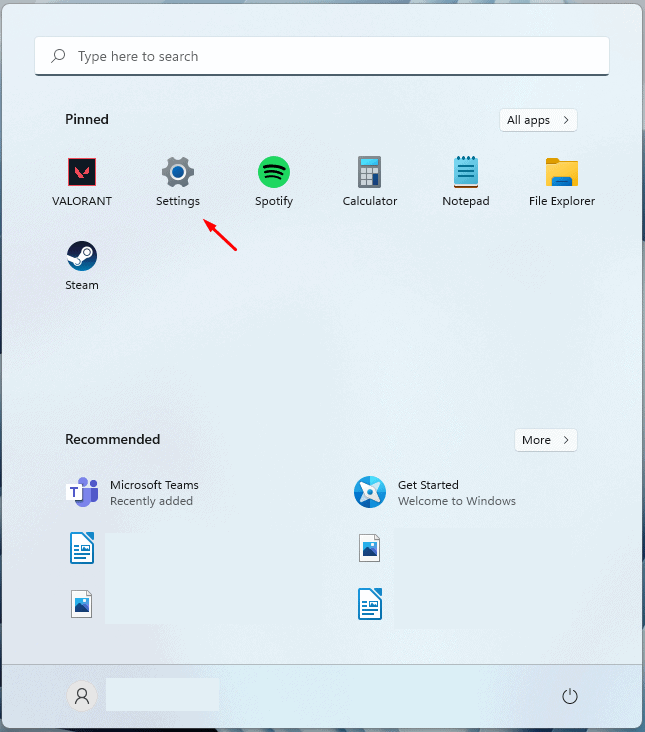
- Head to the Settings app on your PC. Search for Settings in the Start Menu and open it.
- In the Settings, click on the Windows update option that you will find on the left sidebar.

- Now on the right side, click on Check for updates.

- Now download and install all the updates that your PC finds.
- After installing the updates, restart your PC, and the issue should be fixed.
Update The Fingerprint Driver
You may also face this issue due to outdated drivers. If this is the reason, you may try updating the fingerprint sensor driver, and the issue will be solved.
- In the Start menu , search for Device Manager and open it.

- In the Device Manager, expand the Biometric devices by double-clicking on them.
- Now, select the fingerprint driver, and right-click on it. Click on Update driver to update the fingerprint driver.

- After updating the driver, restart your PC, and try signing in with the fingerprint.
Reinstall Fingerprint Driver in Windows 11
If any of the above steps didn’t help you fix the issue, it might be because the fingerprint drivers on your PC are corrupted. You may try reinstalling the fingerprint driver to solve the issue. To reinstall the fingerprint driver, follow the steps given below-
- Open the Device Manager on your PC.
- Here, double-click on the Biometric devices to expand it.
- Right-click on the fingerprint driver, and click on Uninstall device.

- After uninstalling the driver, restart your PC.
- The drive will be reinstalled, and you will be able to check it from Device Manager.
- Now you can download your OEM Fingerprint driver and can install it. If you are not aware of driver installation then you can check our guide on How To Update Drivers In Windows 11 Properly and Safely.
RELATED GUIDES:
- How To Change Public VPN To Private In Windows 11
- How To Install Bluetooth Driver Windows 11
- How To Fix Windows 11 Keyboard Not Working
This is how you can fix Windows 11 Fingerprint sensor not working. We hope this article helps to fix the issue.
