- If the text message notification badge on your Mac won’t disappear, it can be due to sync issues between your devices or software glitches.
- You can fix this by sending a message to yourself, asking Siri to read unread messages, or clearing notifications from the Notification Center to force a sync.
- Other solutions include logging out and back into the Messages app, restarting your Mac, updating macOS, or toggling message badges in settings to reset notification preferences.
If you’re using a Mac and noticing that the text message notification badge won’t disappear even after reading all your messages, you’re not alone. Many users face the issue where the message badge won’t go away on Mac , and it can be frustrating. This persistent issue can occur due to syncing problems between devices, or sometimes, it’s a result of a small software glitch in macOS. In this guide, we’ll discuss various simple steps on how to remove the text message badge on Mac and help you get rid of the annoying text message notification badge stuck on Mac .
We’ll explore multiple methods to fix the message app badge stuck on macOS, including refreshing the iMessage app, resetting your Mac’s notification settings, and syncing iMessage with iCloud. These solutions are easy to follow and should help you clear unread message badges on Mac.
Why won’t my message badge disappear on my Mac?
The message notification stuck on Mac often happens because of a sync issue between your Apple devices, like your iPhone, iPad, and Mac, all connected to the same Apple ID. In some cases, the text message notification badge stuck on Mac is triggered when messages are read on one device but not reflected correctly on another.
Other times, it’s simply a software bug in the message app on Mac, or even a glitch in the MacOS notification settings. If your message app badge is stuck on macOS, you might also be dealing with outdated software or misconfigured settings that prevent the badge count from updating properly. Luckily, these issues can usually be resolved with a few quick steps.
Simple Fixes for Text Message Notification Badge Stuck on Mac
Send a Message to Yourself
One of the simplest ways to clear message unread messages on Mac is to send a message to yourself. Here’s how it works:
- Open the iMessage app on your Mac .
- Send a text message to your own phone number or Apple ID.
- Now, open that message on your iPhone or iPad.
- Once the message is read, check your Mac. The message badge won’t go away on Mac. The issue should now be resolved.
This quick trick forces a sync between iMessage and iCloud across all your devices, helping to reset the iMessage badge on Mac .
Ask Siri to Read Unread Messages
Another effective solution to the badge count not updating on Mac is using Siri. Here’s how you can use Siri to clear the badge notification:
- Ensure Siri is enabled on your Mac.
- Ask Siri, “Read my unread messages.”
- Siri will start reading any unread messages, and the badge should update once Siri finishes.
If you don’t want Siri to read the full messages, you can cancel the process after Siri starts reading, and it will still help clear unread message badges on Mac .
Use Siri to Decrement Message Count Without Listening
If you want to avoid hearing Siri read all the messages, there’s a shortcut:
- Ask Siri to read the unread messages, but as soon as it starts, cancel Siri by clicking away or pressing the cancel button.
- Repeat this process until the Message notification stuck on Mac disappears.
This trick helps Siri reduce the unread message count without having to listen to all the messages, allowing you to refresh the Message badge on Mac quickly.
Clear Notification from Notification Center
Sometimes, the text message notification badge stuck on macOS is a result of a lingering notification in the Notification Center. To fix this:
- Swipe to open your Mac’s Notification Center .
- Find the message notification and swipe to dismiss it.
- After clearing it from the Notification Center, check if the persistent Message badge notification on Mac is gone.
Clearing the notification often helps in resetting the Message badge on Mac when nothing else works.
Log Out and Log Back into Messages
If the Message notification stuck on Mac still persists, logging out and back into the Messages app can refresh the system and clear the unread message badge on Mac .
- Open the Messages app on your Mac.
- In the top menu, click on Messages and then Settings .
- Go to the iMessage tab and click Sign Out .
- Wait for a few moments, then sign back in with your Apple ID .
This forces iMessage to resync with iCloud and may help resolve the message app badge stuck on macOS .
Restart Your Device
A simple restart can work wonders when dealing with badge notification issues on Mac . Restarting refreshes the system and can clear any temporary glitches causing the text message notification stuck on MacOS .
- Click on the Apple logo in the top left corner of your screen.
- Select Restart .
- Once your Mac restarts, check if the Message badge won’t go away on Mac issue is resolved.
This method is a quick way to reboot Mac to fix badge issues and refresh the Message badge on Mac .
Toggle Message Badges in Settings
If restarting doesn’t solve the problem, you can try toggling the badge notifications for Messages in your macOS notification settings . Here’s how:
- Go to System Settings on your Mac.
- Click on Notifications .
- Scroll down to Messages and toggle off Badges under the Alerts section.
- Restart your Mac, then go back to System Settings > Notifications and toggle Badges back on.
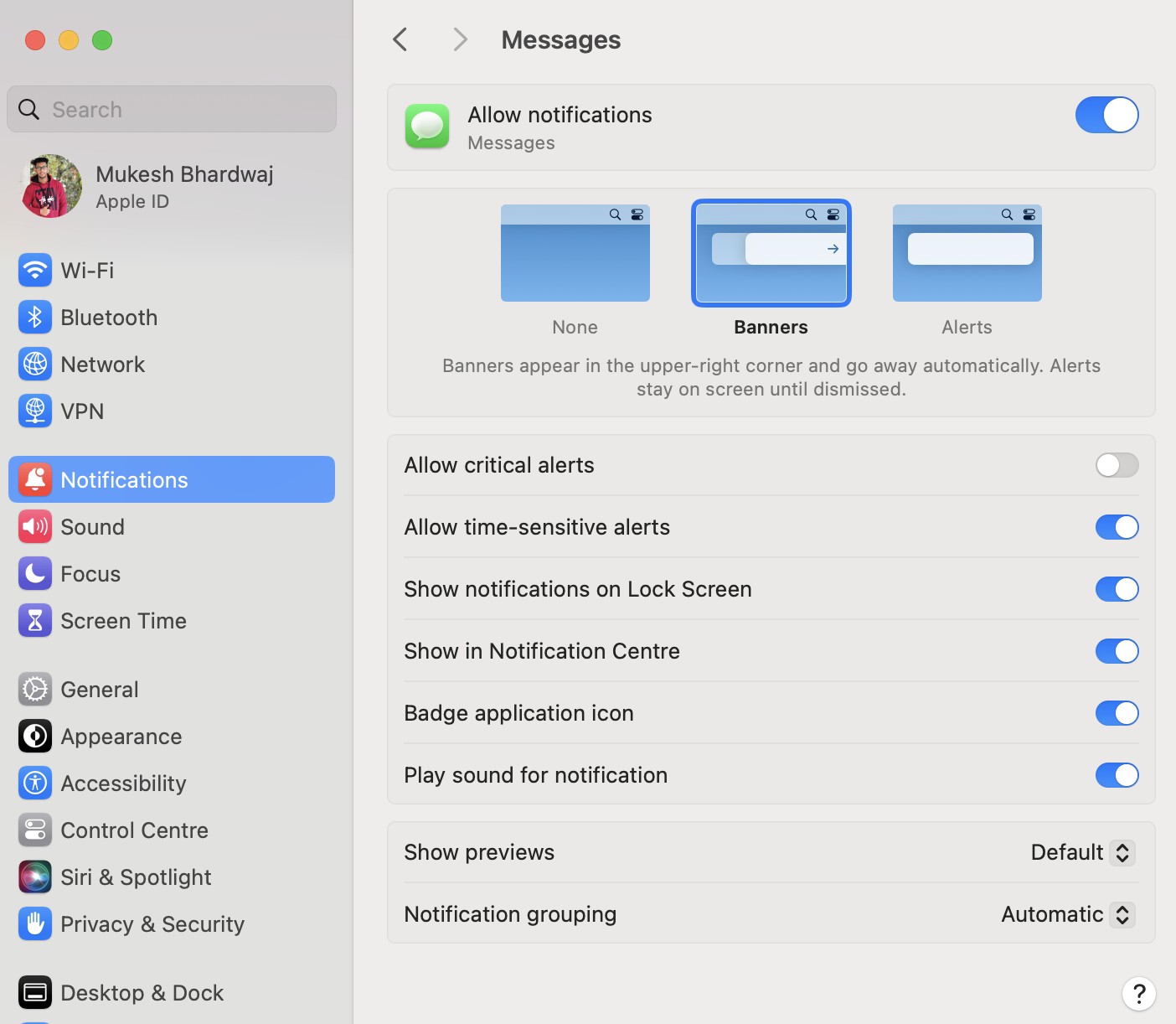
This method helps reset the system’s notification settings and can fix the persistent iMessage badge notification on Mac .
Update macOS
Outdated software can often cause issues like the Mac message app showing unread badges . Apple regularly releases updates to fix bugs, so it’s important to keep your macOS updated.
- Click on the Apple logo in the top left corner of your screen.
- Select System Settings .
- Click on Software Update .
- If an update is available, follow the on-screen instructions to install the latest version.
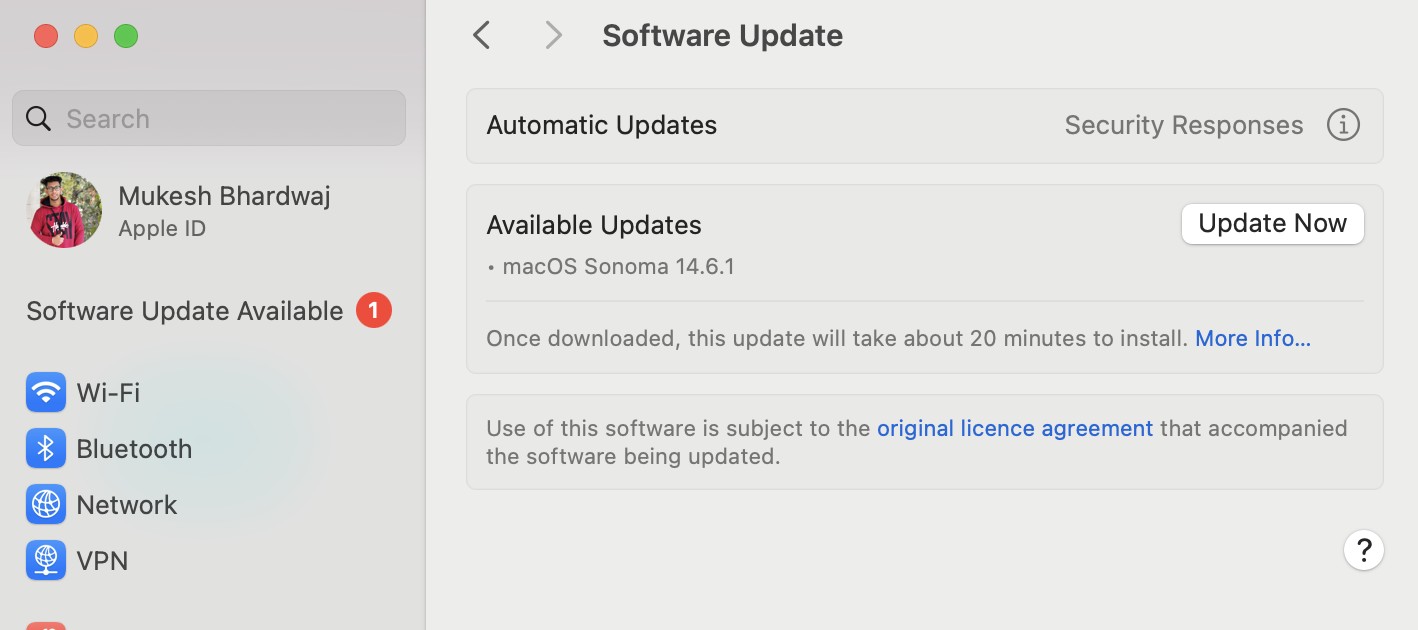
Updating macOS ensures you have the latest bug fixes and can help resolve the iMessage notification stuck on Mac .
Reset All Settings on iPhone
Sometimes the issue lies in how your iPhone communicates with your Mac. If nothing seems to work, you can reset all settings on your iPhone to fix any misconfigured settings that might be causing the badge issue on your Mac.
- Open the Settings app on your iPhone.
- Tap on General .
- Scroll down and select Transfer or Reset iPhone .
- Tap Reset , then choose Reset All Settings .
This won’t delete any data but will reset system preferences, which can help clear the text message notification stuck on macOS if it’s related to device synchronization.
Clear Message App Cache
For more stubborn cases, clearing the app cache on your Mac might help. Unfortunately, there isn’t a direct way to do this in macOS, but you can try resetting preferences manually:
- Quit the Messages app .
- Open Finder , then press Command + Shift + G to open the “Go to Folder” window.
- Type in ~/Library/Messages/ and delete the chat.db files (this won’t delete your messages, but make sure to back up just in case).
- Restart the Messages app .
This can help resolve cache issues and may fix the badge count not updating on Mac .
Sync iMessage with iCloud
Lastly, you can force iMessage to sync with iCloud to help clear any unread messages in iMessage on Mac . Here’s how:
- Open Messages on your Mac.
- Go to Messages > Settings > iMessage .
- Make sure the “Enable Messages in iCloud” box is checked.
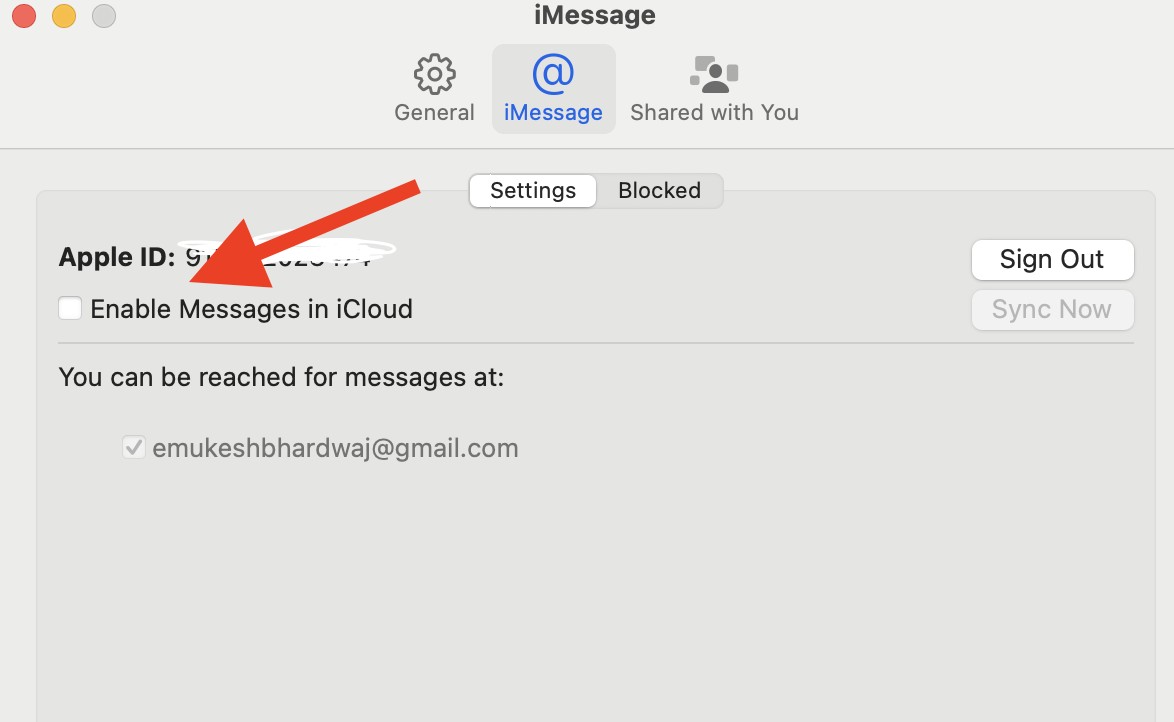
This will ensure your messages are synced across all Apple devices, which can resolve the text message notification badge stuck on Mac .
Conclusion
In summary, dealing with a text message badge that won’t go away on Mac can be frustrating, but with these simple steps, you can easily fix the iMessage badge issue on Mac . Whether it’s sending a message to yourself, asking Siri to read unread messages, or even toggling notification settings, these solutions should help you troubleshoot and clear iMessage unread messages on Mac .
If none of these fixes work, you may need to contact Apple Support for further assistance. But rest assured, these methods will help most users to quickly resolve badge notification issues on Mac .
Fixed: Internet Connection Not Working After macOS Update
Fix HP Printer Connection Issues After Upgrading to macOS Sonoma
WallpaperVideoExtension High RAM and CPU Usage in macOS
Slow Login After macOS Sequoia Update: 9 Ways to Fix it
Top 10 Ways to Fix macOS Error Code 10000
After updating to macOS Sonoma, many users face problems with HP printers because there are no updated drivers for macOS 14 yet.
If your printer does not support AirPrint or still has issues, try resetting the printer’s settings to clear any old configurations that might be causing problems.
After upgrading to macOS Sonoma, many users have reported issues with their HP printers not working or failing to connect. This is a common problem because HP has not yet released updated drivers compatible with macOS 14, leaving users stuck with non-functional printers. Whether you’re facing issues with printing, scanning, or connecting your HP LaserJet or OfficeJet printer, it can be frustrating to find a solution.
If you’ve been wondering, “Where can I find drivers for HP printers compatible with Sonoma?” , you’re not alone. While there may not be official drivers available for some HP models yet, there are several practical solutions you can try to get your printer back up and running.
How to Fix HP Printer Connection Issues After Upgrading to macOS Sonoma
Let’s dive into the solutions and get your printer up and running smoothly on your new macOS Sonoma!
1. Verify AirPrint Compatibility
One of the simplest ways to avoid driver-related issues with your HP printer after upgrading to macOS Sonoma is to check if your printer supports AirPrint . AirPrint allows you to print wirelessly from your Mac without the need for manufacturer-specific drivers or software. Many newer HP printers come with AirPrint support, which can make the setup process seamless and prevent compatibility problems when the operating system updates.
Why Use AirPrint?
When macOS is updated, some printer manufacturers like HP may not release updated drivers right away, causing printers to stop working. However, if your printer supports AirPrint, it can bypass the need for drivers, allowing you to print directly from your Mac without additional setup.
Steps to Check AirPrint Compatibility:
- Open System Settings: Click the Apple Menu in the top-left corner of your screen and select System Settings .
- Navigate to Printers & Scanners: On the left sidebar, find and click on Printers & Scanners .
- Check for Your Printer: If your printer is not already listed, click the + button to add a new printer.
- Select AirPrint: When your printer shows up in the list, select it. In the Use dropdown menu, check if AirPrint is available as an option. If it is, select AirPrint to set it up.
If AirPrint is Available:
- Your HP printer should work without any additional drivers, and you can start printing right away using macOS Sonoma.
2. Reset Printer Preferences
If your HP printer isn’t working after the macOS Sonoma upgrade and it’s not AirPrint-compatible, resetting your printer preferences is a helpful next step. This can clear any lingering issues caused by outdated drivers or conflicts from the macOS update, allowing you to reconnect your printer as if it were brand new.
Why Reset Printer Preferences?
When you update your Mac’s operating system, it can sometimes cause problems with printer settings. Resetting printer preferences will remove any previous configurations that might be causing issues and help establish a fresh connection between your printer and macOS Sonoma.
- Open System Settings: Click the Apple Menu () in the top-left corner of your screen and choose System Settings .
- Go to Printers & Scanners: In the left-hand sidebar, click on Printers & Scanners .
- Reset Printing System: Right-click (or Control + click) anywhere in the list of printers, and select Reset Printing System from the drop-down menu. A warning will appear asking if you want to reset the printing system. Click Reset to confirm.
- Re-add Your Printer: After the reset, your list of printers will be empty. Click the + button to re-add your HP printer.
- Select Printer from List: Choose your HP printer from the list of available devices and add it. If your printer is connected to the network or via USB, it should appear in the list automatically.
- Install the Correct Driver: If prompted, select the correct driver (if one is available) or opt for the Generic PostScript Printer option, which we will cover in more detail in the next section.
3. Use a Generic PostScript Printer Driver
If resetting your printer preferences didn’t solve the problem and your HP printer isn’t AirPrint-compatible, using a Generic PostScript Printer Driver can be an effective workaround. This option allows you to print basic documents, even if the full range of your printer’s features (like scanning or color printing) isn’t available.
- Open System Settings: Click the Apple Menu and choose System Settings .
- Go to Printers & Scanners: Click on Printers & Scanners in the left-hand sidebar.
- Add a Printer: Click the + button to add a new printer.
- Select Your HP Printer: Your HP printer should appear in the list. Select it.
- Choose a Driver: In the Use dropdown menu, select Generic PostScript Printer . This option allows you to print, although some advanced features like duplex printing or scanning may not be supported.
- Add the Printer: After selecting the driver, click Add to finalize the setup.
4. Download HP Drivers Manually
If using a generic driver doesn’t give you the desired functionality, you can try manually installing older drivers. Many HP printers don’t have updated drivers for macOS Sonoma, but you can often use the drivers for macOS 13 Ventura or earlier. This method can restore full functionality to your printer, including features like color printing and scanning.
- Visit HP’s Support Website: Go to the HP Printer Support Page . Enter your printer model (e.g., HP LaserJet or OfficeJet) in the search box.
- Find the Latest Drivers: HP may only offer drivers for macOS 13 Ventura or older versions. Download the most recent driver available, even if it’s not specifically for macOS 14 Sonoma.
- Install the Drivers: Open the downloaded driver file and follow the installation instructions. Once installed, go to System Settings > Printers & Scanners .
- Add the Printer: Click the + button to add your printer. Your printer should now appear with the installed driver, restoring more advanced functions like scanning and color printing.
Potential Drawback:
You may receive a message like, “This update requires macOS version 13.0 or earlier” when installing the driver, but in many cases, the drivers will still work once installed.
5. Use Pacifist to Force Driver Installation
For more stubborn cases where HP drivers won’t install, you can use Pacifist , a third-party tool, to force drivers to work on macOS Sonoma. Pacifist allows you to open installer packages and manually install specific files, bypassing compatibility issues.
Pacifist is a free app that helps users manage and extract files from installation packages. It can be used to install printer drivers that would otherwise not work with macOS Sonoma, especially for older printers.
- Download Pacifist: Go to Pacifist’s website and download the app.
- Download HP Printer Software: Download the latest HP Printer Software Update from HP’s support page or directly from Apple. If Sonoma drivers are unavailable, download macOS Ventura or Monterey drivers.
- Open the Driver File with Pacifist: Open Pacifist and select Open Package . Navigate to the downloaded HP printer driver package (usually a .pkg file) and open it.
- Install the Drivers: In Pacifist, select HewlettPackardPrinterDrivers.pkg . Click Install at the top of the window to force the installation of the driver.
- Add Your Printer: Once the installation is complete, go to System Settings > Printers & Scanners . Add your printer using the + button.
Note of Caution:
Using Pacifist may not work for every printer model, but it’s a great option for those who are tech-savvy and willing to try additional steps to force drivers to work.
6. Update Printer Firmware
Sometimes, outdated firmware on your printer can cause compatibility issues with macOS updates like Sonoma. Updating your printer’s firmware ensures that it works smoothly with the latest features and security protocols introduced by macOS.
- Go to the HP Support Page .
- Enter your printer model and check for available firmware updates.
- Download the firmware update if available.
- Follow the instructions provided by HP to install the firmware update on your printer.
- After the firmware update, restart both your printer and your Mac.
- Go to System Settings > Printers & Scanners , and re-add your printer if necessary.
7. Reconnect Printer to Wi-Fi and Reset Network Settings
For wireless printers, ensuring your printer and Mac are connected to the same network is crucial. Sometimes, after a macOS update, network settings can get mixed up, causing communication issues between your Mac and printer. Reconnecting your printer to the Wi-Fi network and resetting network settings on your Mac can resolve these issues.
- Go to your printer’s Network Settings (usually through the control panel) and disconnect it from the Wi-Fi.
- Reconnect the printer to the correct Wi-Fi network.
- Go to System Settings > Network > Wi-Fi .
- Click on the i icon next to your current network and choose Forget This Network .
- Reconnect your Mac to the same Wi-Fi network as the printer.
- Go to System Settings > Printers & Scanners .
- Click the + button and add your printer.
8. Use HP Smart App for Easy Setup
If you’re still facing issues after trying other methods, the HP Smart App can simplify the process of setting up and managing your printer. It helps you find your printer on the network and can automatically install necessary drivers and updates.
- Open the Mac App Store and search for HP Smart .
- Download and install the app on your Mac.
- Open the HP Smart App and follow the on-screen prompts to find and connect your HP printer.
- The app will guide you through adding the printer to your network or Mac.
- If necessary, the HP Smart App will prompt you to download and install any missing drivers or firmware updates.
9. Temporary Workaround: Print Using an iPhone or iPad
If you’re unable to get your printer working with macOS Sonoma, using AirPrint on an iPhone or iPad can be a quick and easy workaround to print documents. This method is especially useful for printing from the same network without needing to fully fix the printer issue on your Mac right away.
- On your Mac, save the document you want to print to iCloud Drive or another cloud service accessible from your iPhone or iPad.
- Use the Files app to locate and open the document on your mobile device.
- Tap the Share icon (a square with an arrow pointing up), and select Print .
- Your printer should appear in the list if it’s connected to the same Wi-Fi network.
- Adjust the print settings if needed, and tap Print to send the job to your HP printer.
Conclusion
By following these methods, you should be able to resolve most HP printer connection issues after upgrading to macOS Sonoma. Whether you’re checking for AirPrint compatibility, resetting printer preferences, installing drivers manually, or using tools like Pacifist and HP Smart App, there are multiple ways to get your printer up and running again. If all else fails, using AirPrint from an iPhone or iPad can be a handy temporary workaround.
- External Hard Drives SSD Keeps Disconnecting macOS Sonoma, but Accessible on iPhone
- WallpaperVideoExtension High RAM and CPU Usage in macOS
- Slow Login After macOS Sequoia Update: 9 Ways to Fix it
- Top 10 Ways to Fix macOS Sonoma Battery Draining Fast Issues
- Top 10 Ways to Fix macOS Error Code 10000
