- Guide on how to view Xbox clips on Mac
- Use browser to login Xbox account on Mac to view recorded clips
- Additional methods like GamesClips.io and XboxClips.co to access and download Xbox game clips on Mac.
Do you want to view Xbox game clips on your Macbook ? If so, then this guide is for you. Today here, you will learn some easy ways which help you view the clips from your fantastic PUBG or COD gameplay on Mac using Xbox Clips. Yeah! It is possible that the reason for viewing the clips is different. So, whatever the reason, you must follow the guide until the end.
How to View or See Saved Xbox Clips on Mac

1. Use Browser To Login Xbox
This is our first recommendation: You can easily view Xbox game clips on your Macbook. Yes, you heard it right! You can use your default browser or any browser to access your Xbox or Microsoft account. So, you must visit the official website and follow these steps:
- Initially, tap the Sign In button at the screen’s top-right corner.
- From the dropdown menu on the Xbox site, select view Xbox profile after you have signed in on your Mac.
- On your Mac, you will now see your recorded Xbox clips once you get to your Xbox profile page.
But Microsoft’s / Xbox’s official site does not support downloading videos to your Mac hard drive. That’s the only drawback. So, if you want more, read this guide, as we have more methods for you. Therefore, let’s check them out.
2. GamesClips.io
In the same way that Xbox clips works, Gameclips works the same way. It’s as simple as typing in your Xbox Gamertag and pressing enter. Once again, you can download or embed your Xbox clips using Gameclips in your Mac browser.
3. XboxClips.co
Since 2014, GameClips.io has helped Xbox users find and share their best game clips. You can search for your Gamertag to find your latest screenshots and clips using the top bar. You can also view the top watched clips on GameClips.io and browse the latest released games.
- Initially, go to the website and enter your Gamertag.
- It should now be possible for you to view your videos and screenshots.
- Once you have selected a video, you can view it, download it, or share it.
From Author’s Desk
So, that’s how you can view Xbox game Clips on Mac. We hope that this guide has helped you. But, in case you know more about this topic, comment below and let us know.
How to Get Printer Online Issue on Mac
How To Change Your AirDrop Name on iPhone, Mac, iPad
How to Download Android USB Drivers for Windows and Mac
How to Download YouTube App For MacBook | Installation Guide
How to Lower WindowServer CPU Usage on Mac
Printer Offline error is a common issue on Mac and Windows, preventing document printing.
Method 1 involves accessing System Preferences, selecting the offline printer, and clicking ‘Resume Printer’.
Method 2 requires removing and re-adding the offline printer in System Preferences, while Method 3 suggests restarting the MacBook or iMac if previous methods fail.
When using a printer, you will come across several errors. One of the most frequently occurring errors while printing documents remotely is the Printer Offline error which is on Windows as well as on Mac. In this error, your printer will not print any document and a ‘Printer offline‘ message will be displayed on your screen. Recently we shared how to fix printer offline issues on Windows 10 . And in this tutorial, we have shared a simple guide by which you can fix printer online issues on your Macbook or iMac.
How to Get Printer Online Error on Mac
Method 1: Resume Printer.
Step 1- Open System Preferences on your Mac PC with the help of its icon in the Dock.
Step 2- Click on the ‘ Printers & Scanners ‘ option which you will find under the Hardware category.
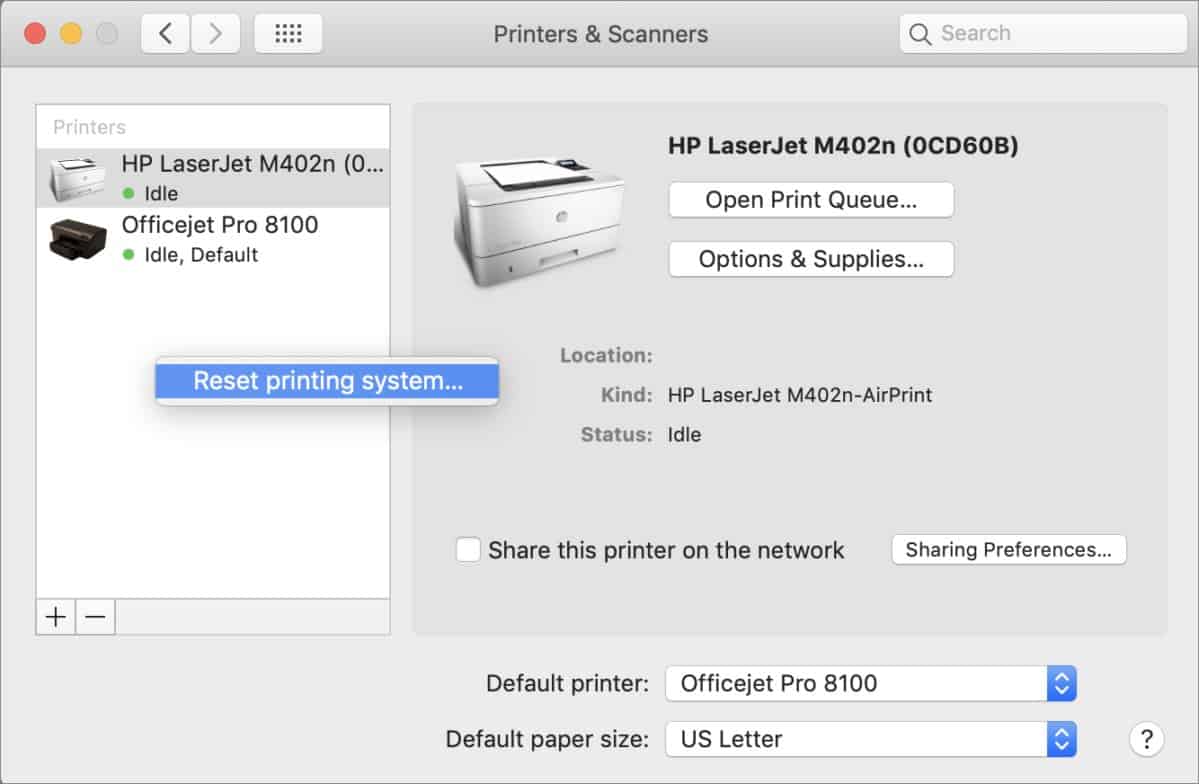
Step 3- Now, select the printer which is offline and right-click on it. Then, select the ‘ Open Print Queue ‘ option to open the queue window of your Printer.
Step 4- At the top of the queue window, you will find a ‘ Resume Printer ‘ option. Click on it to turn your Printer online.
If your printer does not turn online, go to the next method listed below.
Method 2: Re-Add your Printer.
Step 1- Open System Preferences on your Mac PC with its icon in the Dock.
Step 2- Click on the ‘ Printers & Scanners ‘ option which you will find under the Hardware category.
Step 3- Now, select the printer which is offline and right-click on it. Then, select the ‘ Reset printing system ‘ option to remove that particular printer.
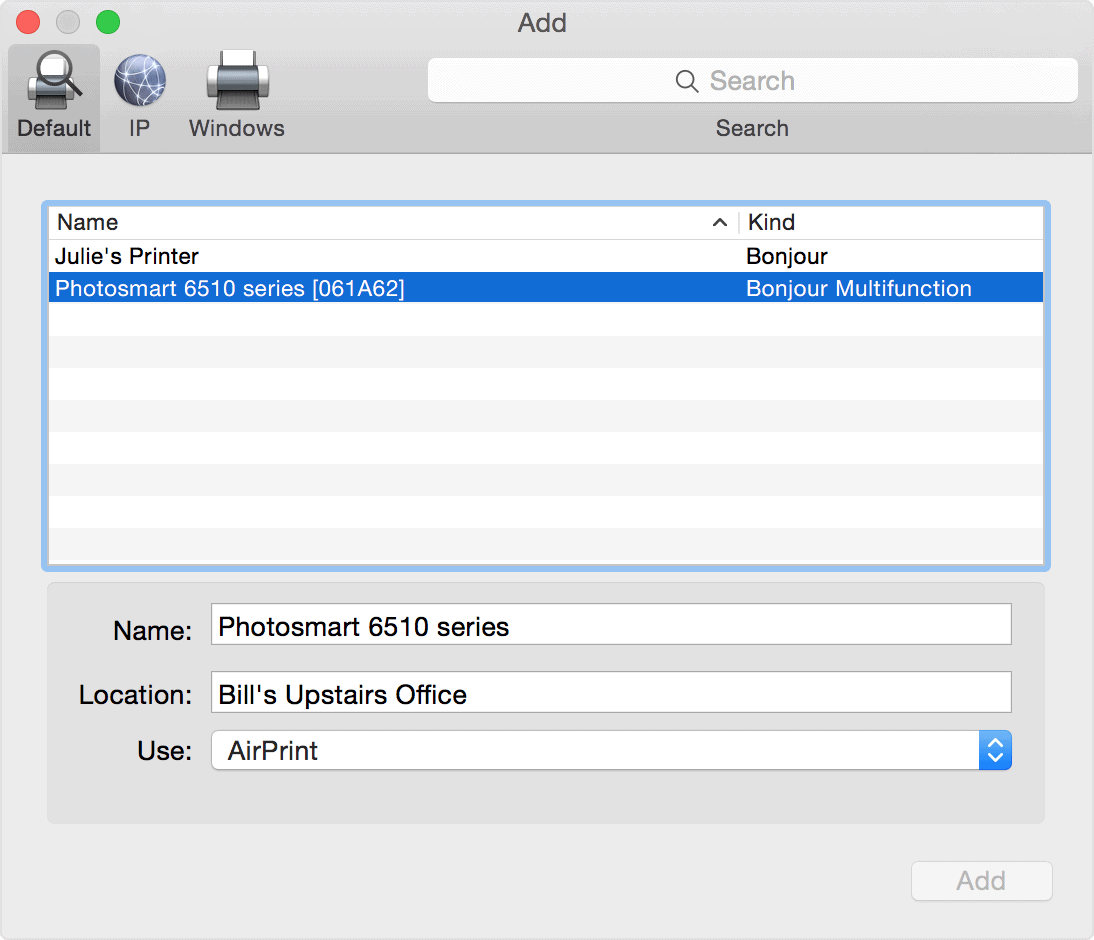
Step 4- To re-add your printer, click on the ‘ + ‘ button located at the bottom of the same window.
Method 3: Restart your MacBook or iMac.
If none of the above-listed methods help you in turning your printer online, try restarting your PC. Check if your printer is back online after restarting your PC.
The Verdict:
These were some of the most useful ways which you can use to make your Printer online on your Macbook or iMac MacOS. The steps involved in these methods are easy to execute. We are confident that one of the above-listed methods will help your turn your Printer online. Start executing the methods from the top and work your way down the list till the error is fixed on your PC.
