- Messenger Kids is a child-friendly messaging and calling app created as an alternative to regular social media platforms.
- Parents can set up Messenger Kids for children under 13, control their contacts, and manage the app from their own Facebook account.
- The app features group chats, sleep mode, filters, games, and account control, providing a safe and interactive online environment for kids.
Around the world, many children use social media platforms regularly. However, Facebook Messenger has child-friendly features and modes are a great surprise. The kids-friendly version of Facebook Messenger was launched as an alternative to the regular sharing and messaging app in 2017.
And the app that was created for iPhone and iPad is now available on Android too. And by using it, you can make Messenger safer for your child by adding a few security measures. So, this article aims to explain how to use Messenger Kids and its features.
How To Setup Facebook Messenger For Kids

Messenger Kids is a free messaging and calling platform. Children can use the app to make audio and video calls. It has multiple kid-friendly features and parental controls.
And it is designed for children to be able to communicate safely online in a controlled environment. Messenger Kids is a service set up by parents.
There are no hidden loopholes, in-app purchases, or tie-ins. There are also no unwanted ads or distractions, and the overall experience is safe and interactive.
The app is intended for children younger than 13 years of age. And, parents can set up an account for their children. Also, parents can even connect the account to their Facebook accounts to manage it.
How to Set up Messenger Kids
Messenger Kids can be downloaded to an iOS device, Android device, or Fire tablet by parents. It can then be used to manage their contact list and changes on Facebook via their own device. As a result, parents remain in complete control.
Follow these steps:
- Install Messenger Kids on your child’s smartphone or tablet. Then open it.
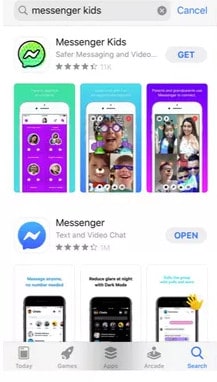
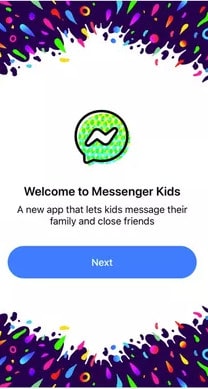
- Click the Next button.
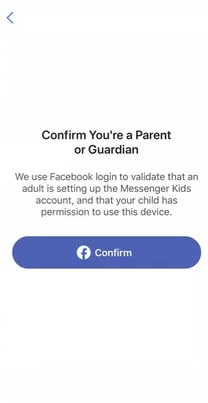
- Now, Confirm that you are a parent or guardian by tapping Confirm.
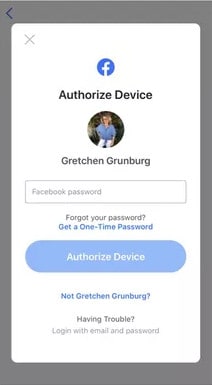
- Authorize the device by entering your Facebook password.
- Then, enter the first and last name of your child. And, click Continue.
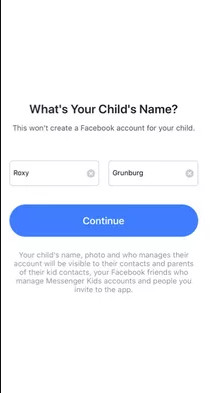
- Now, enter the birthday of your child. And, click Continue.
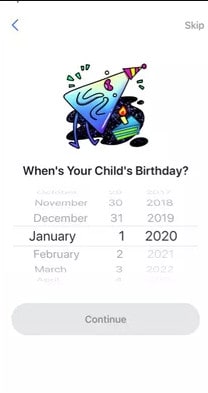
- Then, please take a moment to read through the ‘ Things We Want You to Know ‘ list. And, click on Create Account.
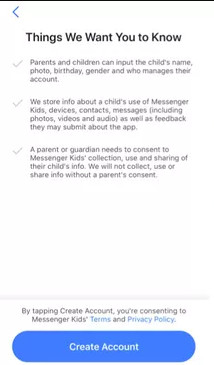
- Now, choose other kids profiles with whom your child can chat. However, this step can also be skipped.
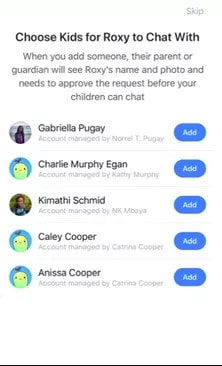
- You can invite the parents of the kids your child may become friends with. But, you can skip this step if you prefer.
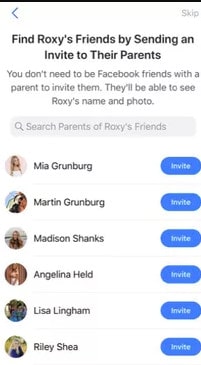
You can now select adults with whom your child can chat. This step can also be skipped.
Now, if you wish, you can add another parent or guardian
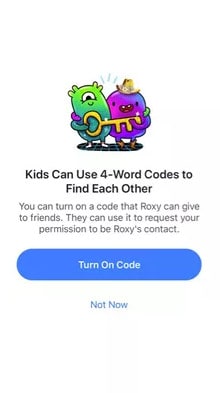
You can also set up a code that your child can use to easily ask friends for permission to be a contact. Choose to turn on the code or not now.
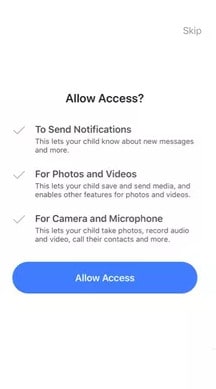
- Now, click Allow Access to send notifications. You can also allow the app to save and send photos and videos. And, you can also allow the app to access the camera and microphone.
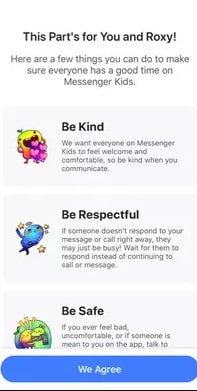
- Lastly, select ‘We agree to accept Messenger Kids’ terms and conditions related to safety, kindness, and respect.
That’s it.
How to Personalize Messenger Kids App
If your child is responsible enough for completing the next steps, he or she should do so. Otherwise, you can help.
- Press the Take a Photo button to take a picture of your kid. You can also select a picture from the gallery.
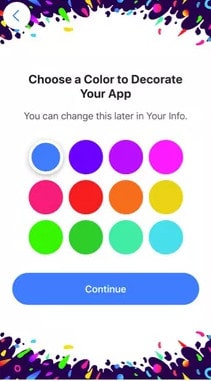
- Then, pick a color to decorate your app. Then, click Continue.
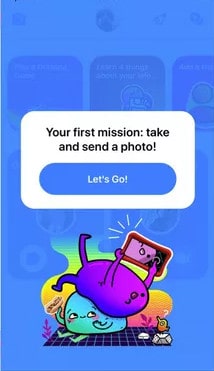
- Now, the Messenger Kids app can be explored by tapping Next.
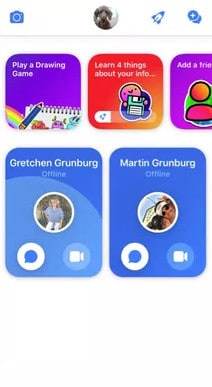
- And, the app has been set up. Your kid’s friends can now be added and your kid can begin playing games. Also, get to know the app better.
Manage Messenger Kids App
The best feature of the Messenger Kids app is that from their own Facebook accounts, parents can manage their children’s Messenger Kids accounts.
Here’s how:
Log into your Facebook account via your mobile device.
Open the menu by tapping the three horizontal lines.
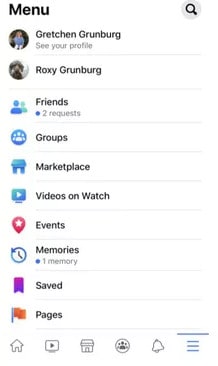
- Then, tap the profile of your child.
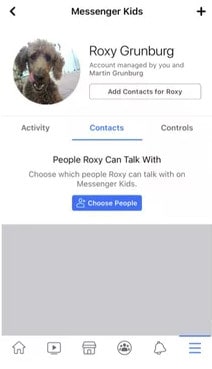
- You can view your child’s recent contacts, groups, reports, blocked contacts, and chat images by tapping Activity.
And, you can add and remove contacts by tapping Contacts.
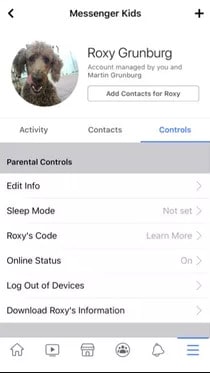
You can also access parental controls by tapping Controls. And, you can also add additional guardians.
Messenger Kids App Features
These features of Messenger Kids can make a significant difference in the way you interact with your child.
Group Chats
A group chat is an excellent way to interact with several people at the same time.
Messenger Kids allows children to participate in group chats. Through group chats, children can communicate with multiple friends at once.
This feature allows kids to interact with each other. Therefore, many educational platforms and teachers chose it for educational activities during the times of Covid-19.
Sleep Mode
Addiction to social media can develop in children who spend excessive time on it. And, fortunately, you can limit the amount of time they spend on this app with Sleep Mode.
After the specified time has passed, the app goes into sleep mode and can no longer be accessed. The sleep mode can be controlled in the Messenger Kids Parent Control Center.
Filters and Games
A video call with filters can also be exciting and fun. Also, there is no inappropriate material on the video call.
In addition to these filters, kids can even play games like tic-tac-toe. You can also play these games solo or with a friend.
Account Control
With Messenger Kids, parents have total control over their children. And, with this feature, they can set up accounts for their children and block people like in normal Messenger.
So, if someone seems inappropriate, they can also report the account and delete it.
Children’s security is monitored through parental controls. And, by using this feature, harassment and bullying can be avoided.
Final Words
The Messenger Kids sign-up process is a simple one that you can complete on your own account. These features make interactions more enjoyable than ever thanks to group chats, video calls, GIFs, and emojis. Additionally, the app can be disabled and screen time reduced. So, children under 13 can stay in the digital world safely and without worrying about spam with Messenger Kids if appropriately controlled. Facebook updates its privacy policies continually. And, children will enjoy the experience more as it is safe and simple.
- How To Fix Facebook Dating Not Showing Up
- Fix Facebook Not Working on Chrome
- What is m.facebook com and Is it Legit?
- How to Make a Post Shareable on Facebook
- How To Share Wordle Results on Facebook or Instagram
