- YouTube has age restrictions that limit access to certain videos, but users can bypass them easily.
- On Android and iOS devices, users can disable age restrictions by accessing the settings in the YouTube app.
- On desktop, users can turn off age restrictions by navigating to the account settings on YouTube and disabling the restricted mode.
Who doesn’t love watching videos on YouTube, right? YouTube is the best platform that allows users to stream videos. But there are many videos people aren’t allowed to stream due to some restrictions. There are various methods you can follow to bypass YouTube age restriction easily.
Due to a considerable variation among the audience, YouTube has imposed certain restrictions on who can access specific content. Adult content is restricted on YouTube, but some videos are still inappropriate for young viewers. Here the YouTube age restriction comes into play. In this post, we have mentioned how you can Bypass YouTube Age Restriction on Android, macOS, and Windows systems.
Ways to Bypass YouTube Age Restriction
YouTube Age Restriction is very useful but sometimes could be a little annoying when people search for a specific video and find they cannot view it. Here is how you can bypass it:
On Android and iOS
- Open the YouTube app on your smartphone.
- Click on the Account icon at the top right corner and open Settings .
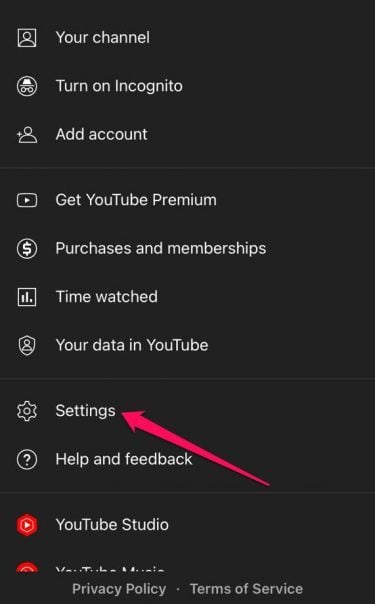
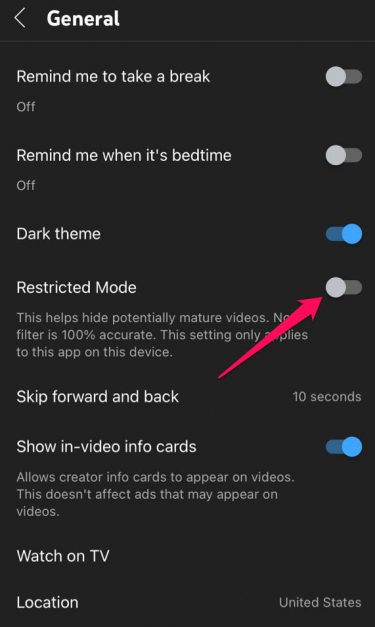
- Click on General .

- Besides Restricted mode , turn the toggle switch off .
On YouTube Desktop
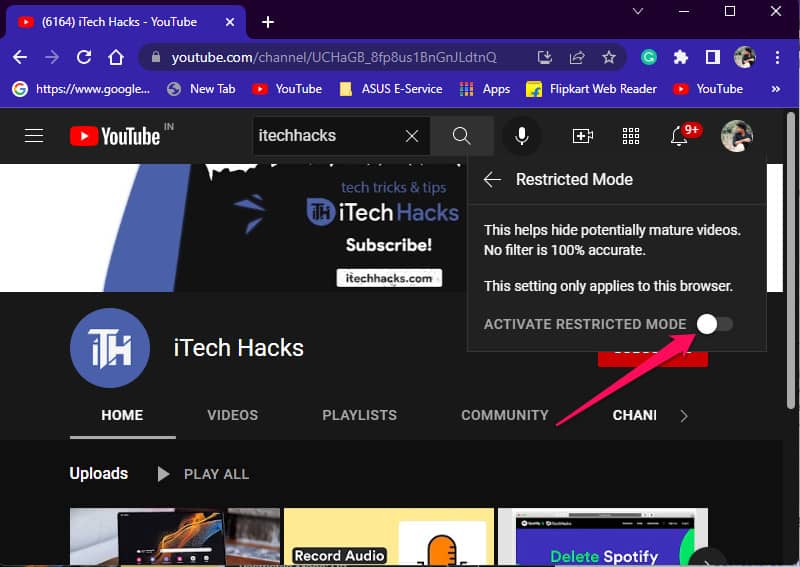
- Open YouTube on your desktop and click on the Account icon at the top right corner.
- Click on Restricted mode at the bottom.

- Turn the toggle switch off.
Wrapping Up
This was how you could bypass YouTube age restrictions on your mobile phone and desktop. We hope that the steps mentioned above able to help you. If you still have any issues, feel free to drop a comment below.
RELATED GUIDES:
- How To Recover & Watch Deleted YouTube Videos Online
- YouTube.com/Activate | Guide to YouTube Activation
- How To Fix YouTube Audio Renderer Error On Windows 11
- How To Cancel YouTube TV Subscription
