- Migrating PST files to Office 365 allows users to access their email data from anywhere with an internet connection by storing it in the cloud. Several methods can be used for this migration, including specialized tools, network upload, and drive shipping.
- Using a tool like Stellar Migrator for Outlook simplifies the process of transferring PST files to Office 365 directly, ensuring original folder structures and secure migration. It is a straightforward solution without needing special permissions or complex steps and requires you to configure Office 365 profiles in Outlook beforehand.
Office 365 or Microsoft 365, a cloud-based platform, offers a variety of features and benefits that compel users and organizations to migrate to this platform. One of the benefits to migrate to Office 365 is that it stores mailbox data on the cloud. This means that the users can access their mailbox data from anywhere, with a stable internet connection.
If you’re moving from on-premises or desktop-based email platform to Office 365 (Microsoft 365), you need to migrate the PST files of the users to mailboxes on Office 365. There are different ways to migrate PST files to Office 365. Read this article to get detailed explanation of these PST to Office 365 migration methods.
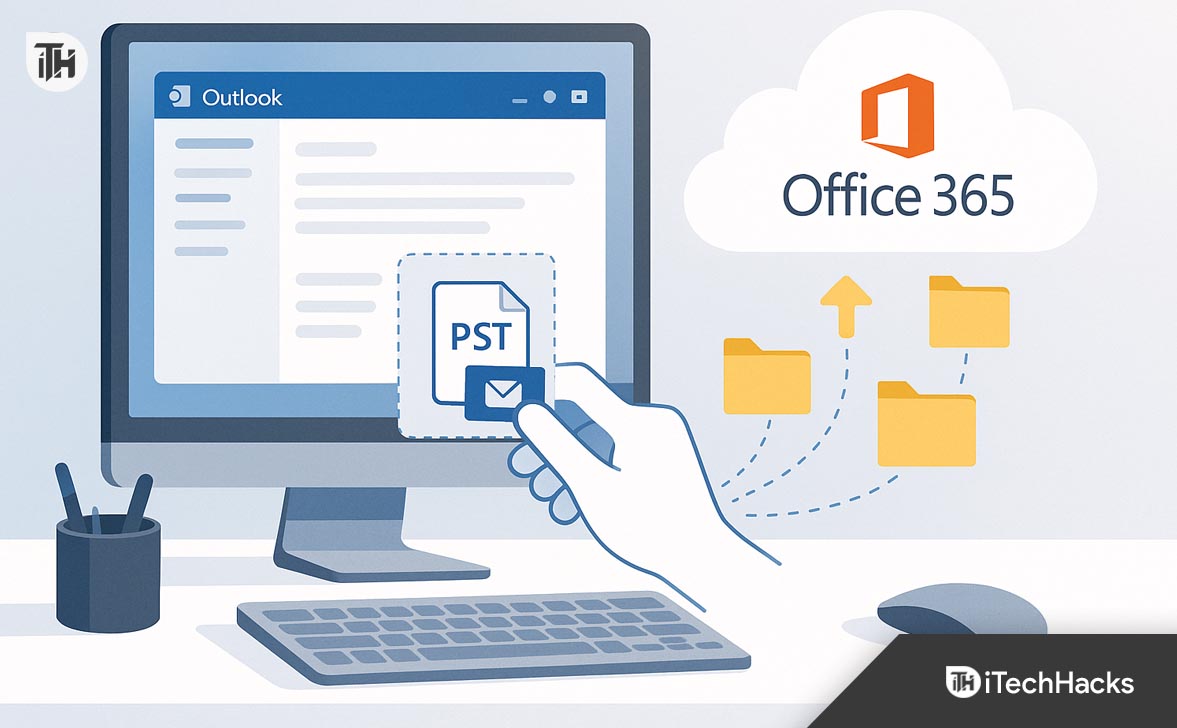
Ways to Migrate PST Files to Office 365
Below, we will be explaining three methods to migrate or import PST files into Office 365. You can choose the one which is convenient and suitable for your requirements.
Method 1: Use a Specialized PST to Office 365 Migration Tool
The simplest way to migrate PST files to Office 365 is by using a specialized PST to Office 365 migrator tool, like Stellar Migrator for Outlook . It is a DIY tool that lets you migrate PST files of any size to user mailboxes in Office 365 without any hassle. The tool has advanced data processing algorithms that ensure that the original folder structure and hierarchy is preserved after the migration.
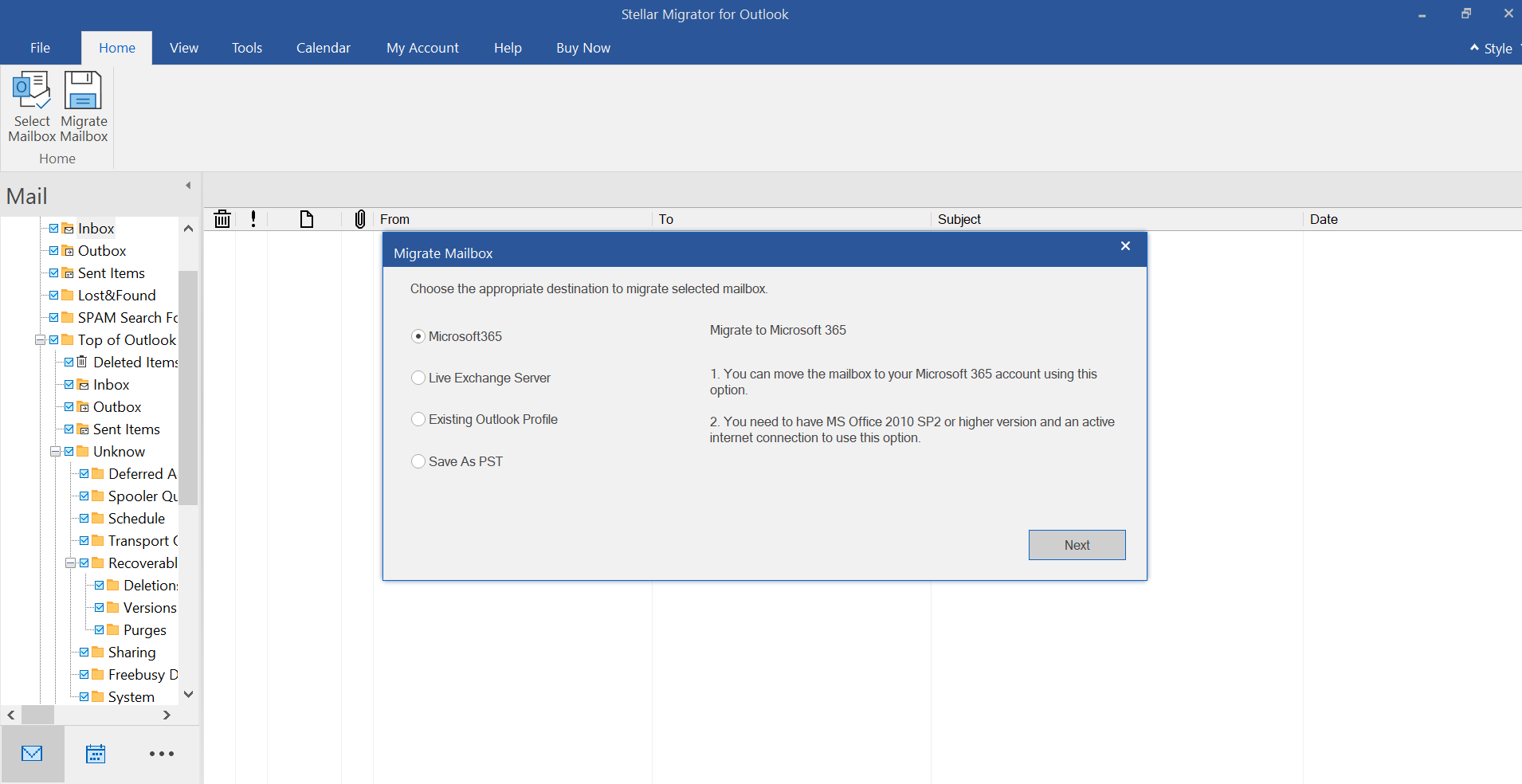
The tool utilizes the Microsoft Modern Authentication protocol to establish a secure connection with Office 365, thus ensuring safe and secure migration of PST files to Office 365. Additionally, you can use this tool to export PST file data to a live Exchange Server, an existing Outlook profile, or a new PST file.
Stellar Migrator for Outlook comes with a pay-per-use plan, which means you will have to pay only for the number of PST files or mailboxes you want to migrate to Microsoft 365.
Here is how to use the tool to migrate PST files to Office 365:
Note: Configure Office 365 profile/s in Outlook before using the software.
Install the software on your Windows PC.
Launch the software.
Click on the Profile List to see all the PST files configured with your profile. You can also use the Choose Mailbox Manually option to manually select the PST file.
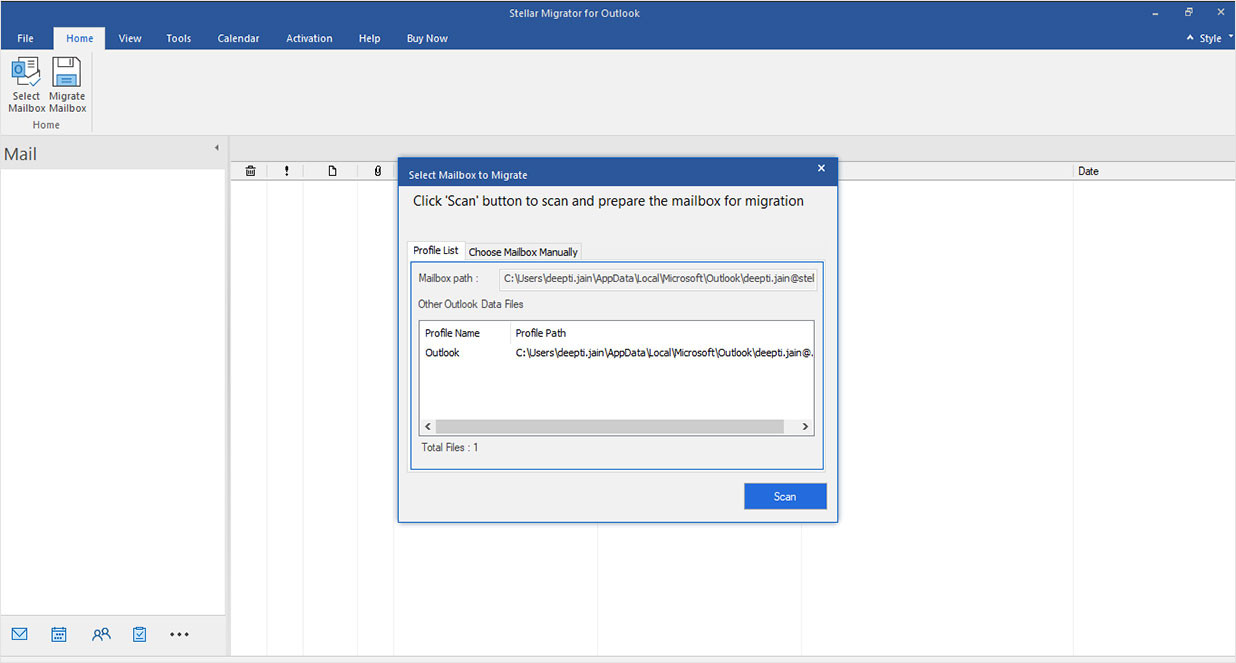
After selecting the PST file, click on Scan .
Once the scan is finished, the software will display all the contents of the selected PST file.
Select the mailbox items that you want to migrate to Office 365 and click the Migrate Mailbox
Enter the software licensing credentials and click Connect .
Note : The software will prompt you to enter credentials for the licensing account the first time you launch the software after installation.
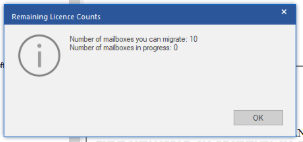
The software will display the Remaining License Counts dialog box showing the number of mailboxes that can be migrated and the number of mailboxes in progress. Press OK to proceed.
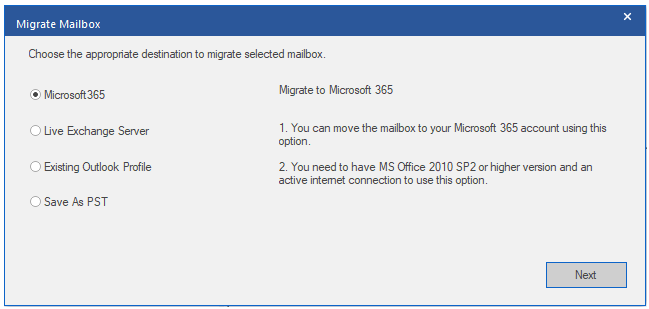
Then, select Microsoft 365 and click Next .
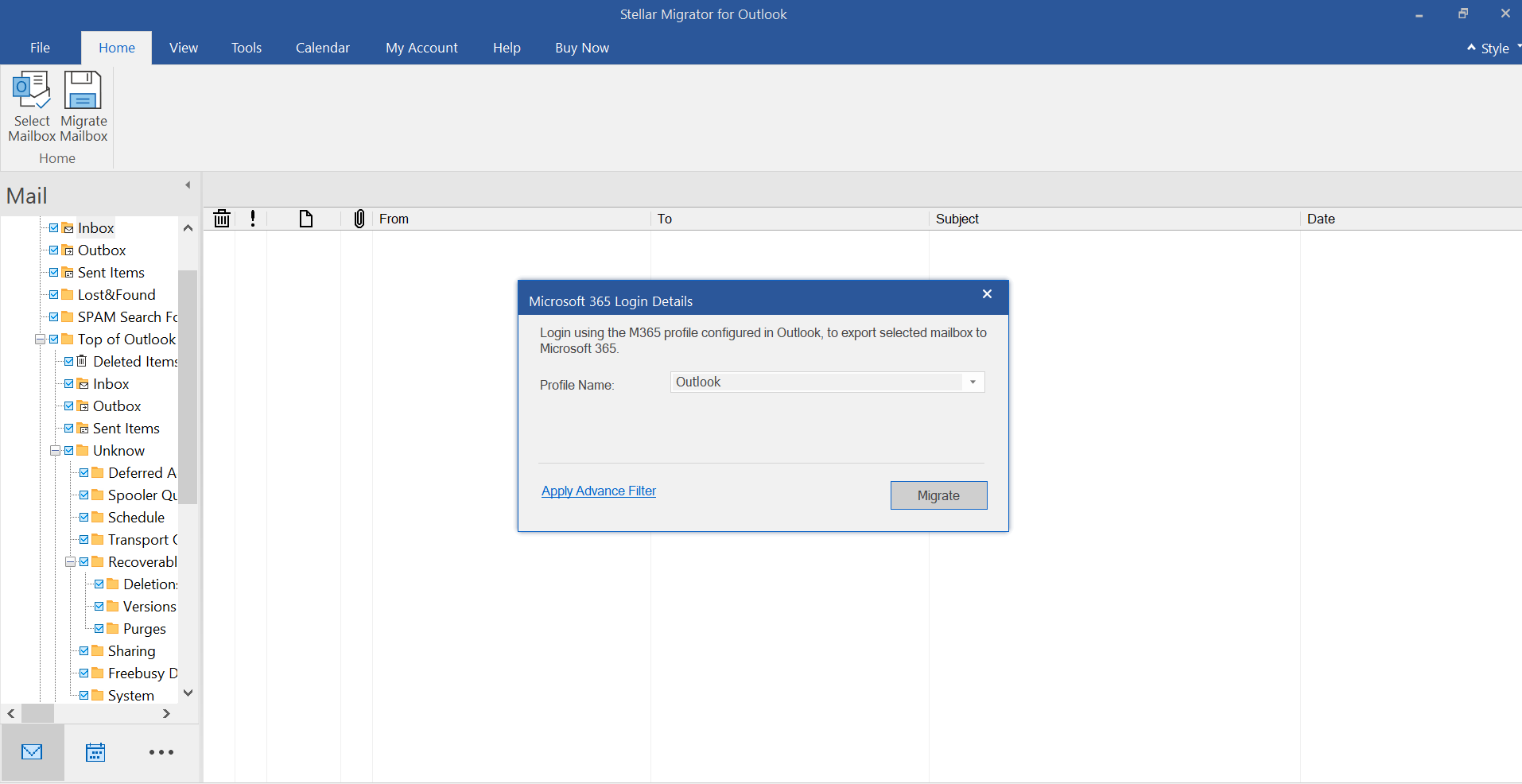
It will show the Microsoft 365 Login window. Select the M365 profile configured in Outlook and click on Migrate .
The software will start migrating the PST file data to the selected Office 365 account. Once the process is complete, click OK .
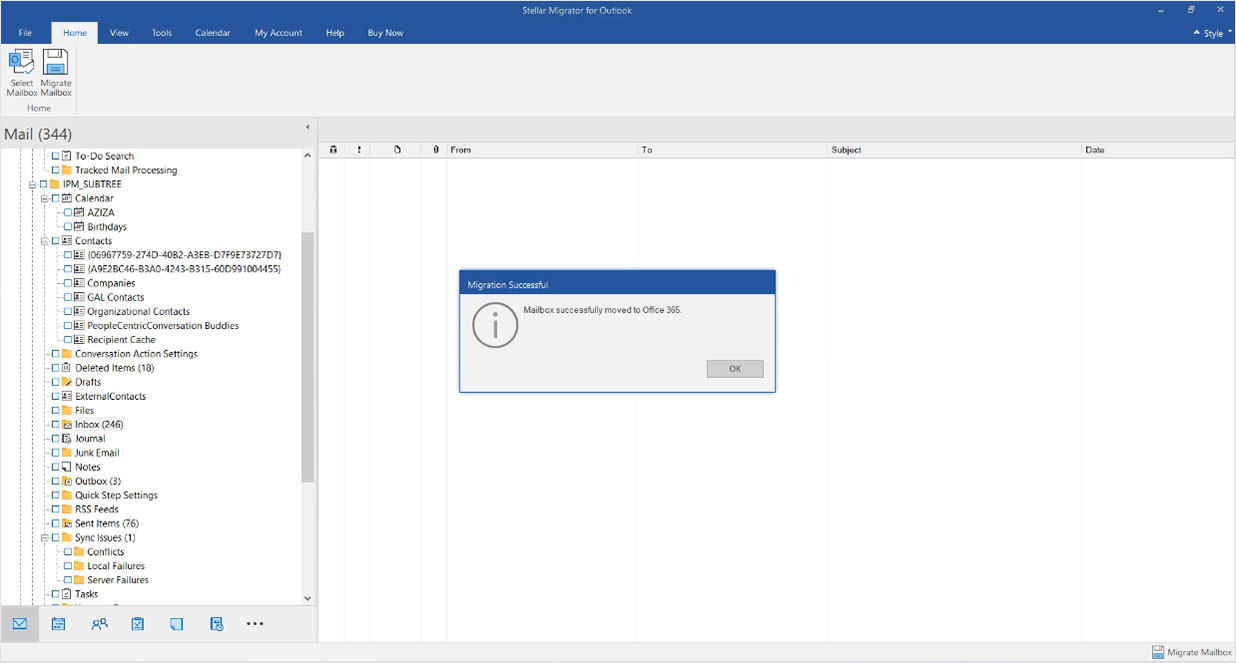
You can check the Office 365 account for the migrated PST file data.
Method 2: Network Upload using AzureAZCopy Tool
Network Upload method involves downloading the AZCopy tool, uploading the PST files on Azure storage location on Microsoft cloud, creating the mapping file, and then create an import job for importing the files into Office 365. To use this method, make sure that the PST files are not larger than 20 GB as this can impact performance of the import process and each PST file should have a unique name.
Now, follow the below steps to use the Network Upload method to migrate PST files to Office 365.
Step 1: Assign the Required Roles
You need to first assign the required roles and permissions to the user you will be using to import the PST files into Office 365. Follow the below steps:
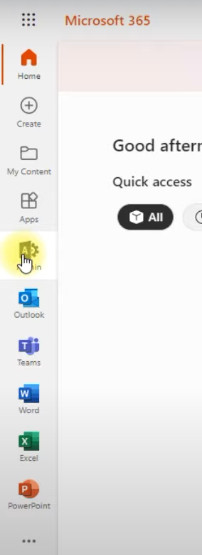
Log in to Office 365 and click on Admin in the left pane to open the Exchange Admin Center .
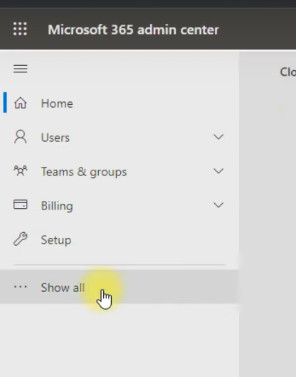
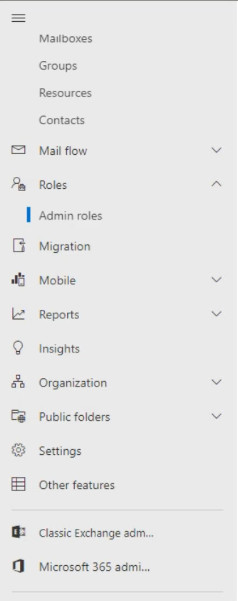
In the Exchange Admin Center , click on Show all in the left pane.
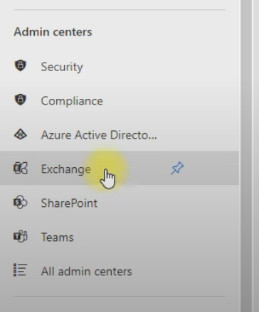
Scroll down to the Admin centers section and click on Exchange .
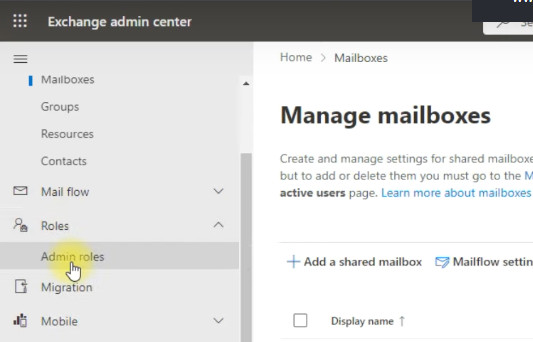
In the window that opens, click Roles > Admin Roles in the left pane.
Next, search for Organization Management and select it.
On the Organization Management screen, select the Permission tab and scroll down to the Mailbox import export Select it and click Save .
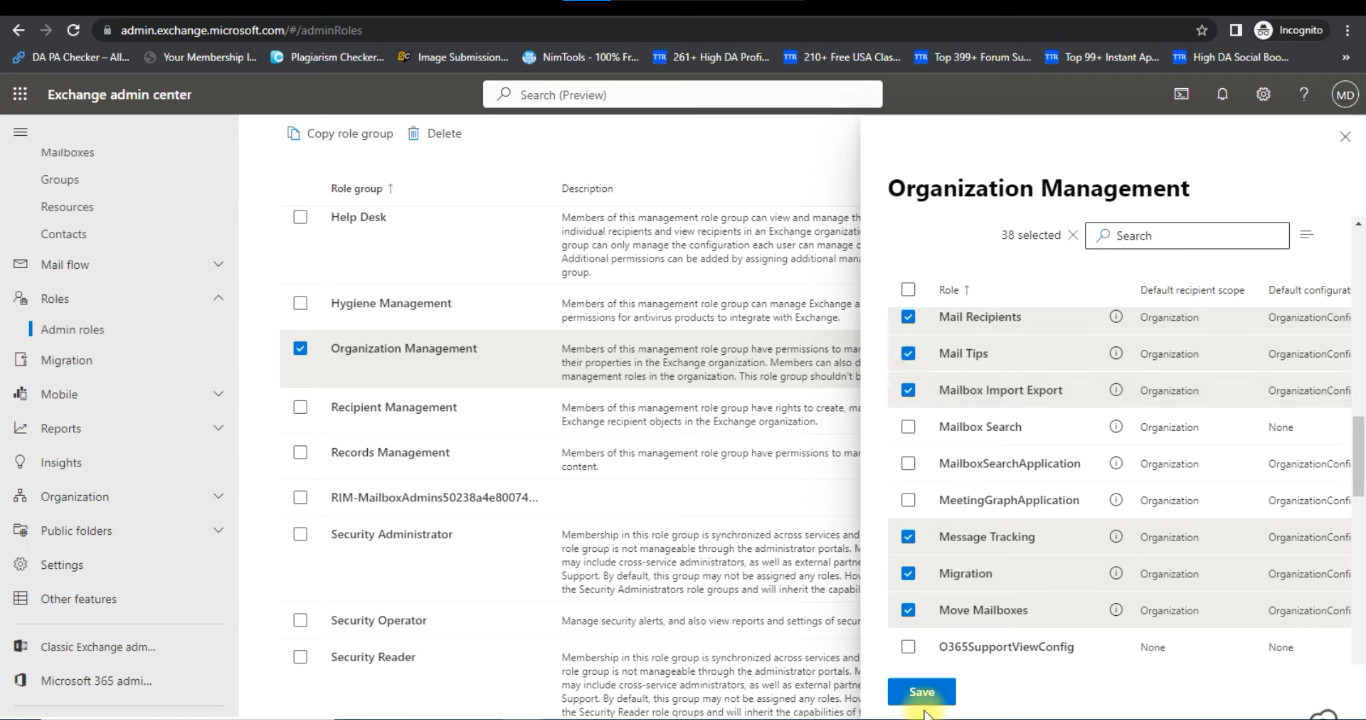
It will return to the previous Organization Management screen. Click on the Assigned tab.
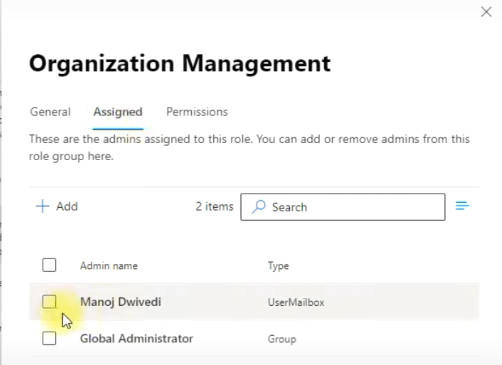
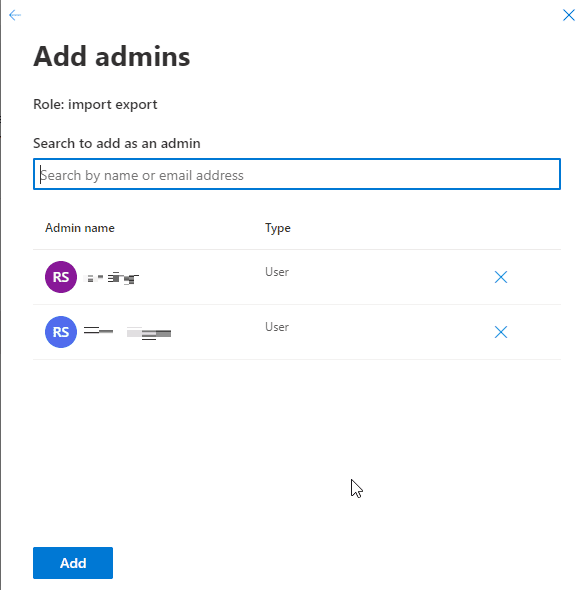
Now, click on the + Add button and choose the user you want to assign the role for importing the PST files.
Search the user, select it, and click Add .
Step 2: Create PST Import Job in Microsoft 365 and Download Azure AzCopy Tool
The next step is to create PST import job in Microsoft 365 and download the Azure AzCopy Tool. Here is how to do it:
Click on Microsoft 365 admin center in the left panel.
On the Microsoft 365 admin center home page, click on Show all .
Click on Compliance, under the Admin centers
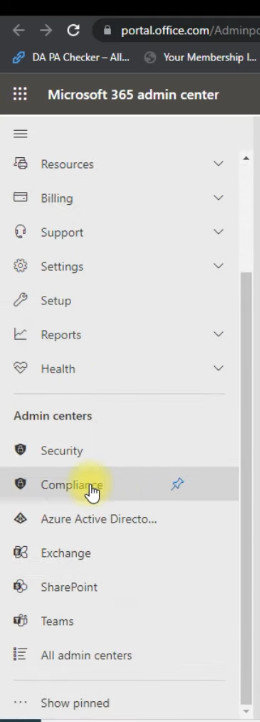
It will open the Microsoft Purview compliance portal window .
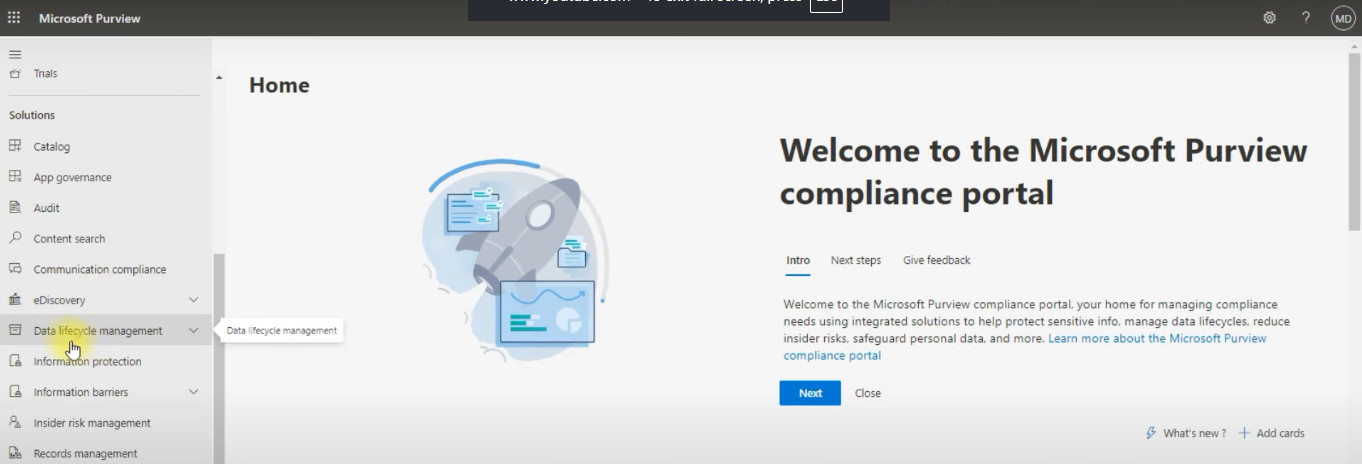
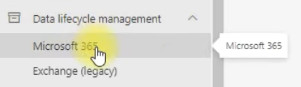
In the left pane, click on Data lifecycle management and select Microsoft 365 .
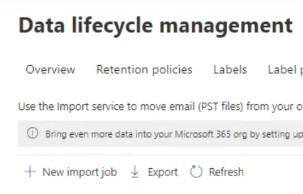
In the Data lifecycle management window, click on the Import
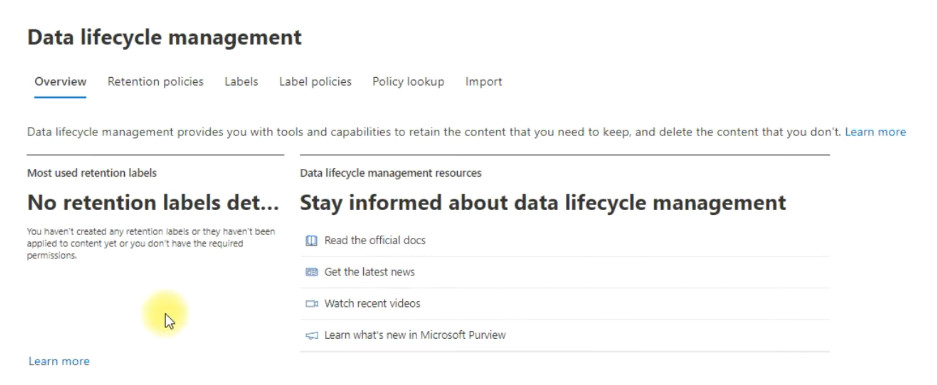
Next, click on + New import job to add a new import job.
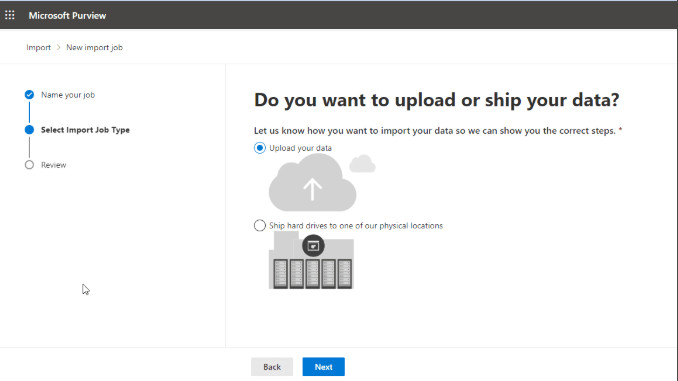
Enter the job name and click Next .

In the Select Import Job Type window, choose Upload your data and click Next .
In the Import data window, click on Show network upload SAS URL to view the SAS URL.
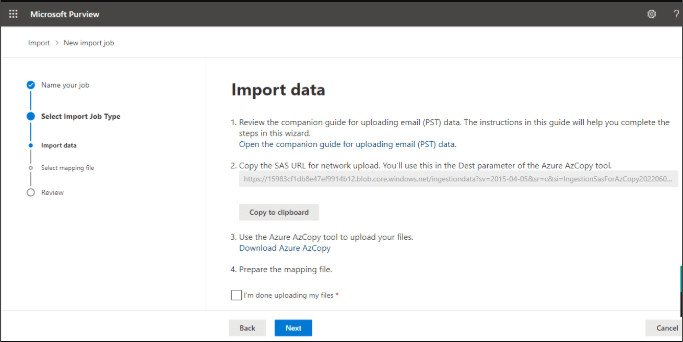
Click on Copy to clipboard to copy the URL and paste it on a Notepad file.
Next, click on Download Azure AzCopy to download the tool. It will redirect you to a page with various available versions. Select and download the version that is compatible with your system.
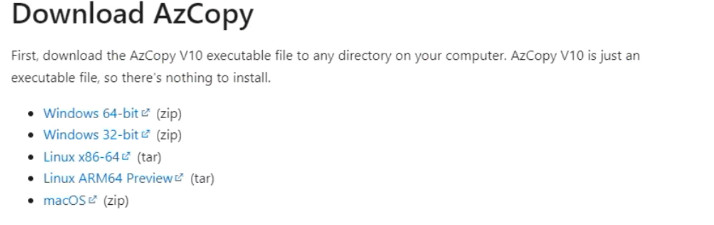
Note: Do not close this window until the PST files are uploaded to Azure Storage.
Step 3: Upload PST Files to Azure Storage
Follow the steps below to upload the PST files to Azure Storage:
Once the download is finished, extract the Azure AzCopy tool from the downloaded zip file.
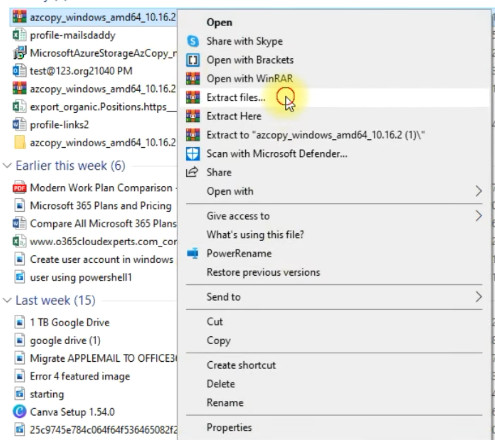
Open the extracted folder, copy its path, and paste it into the same Notepad file created above.

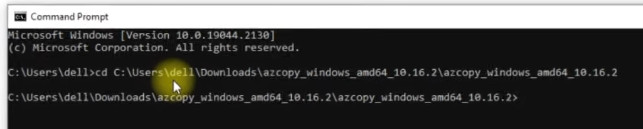
Now, launch the Command Prompt and type cd , followed by the path of the AzCopy tool. Press Enter .
Then, run the following command to upload the PST files to Azure Storage:
Azcopy copy “Folder/FilePathContainingPST” “SAS URL” –recursive=true
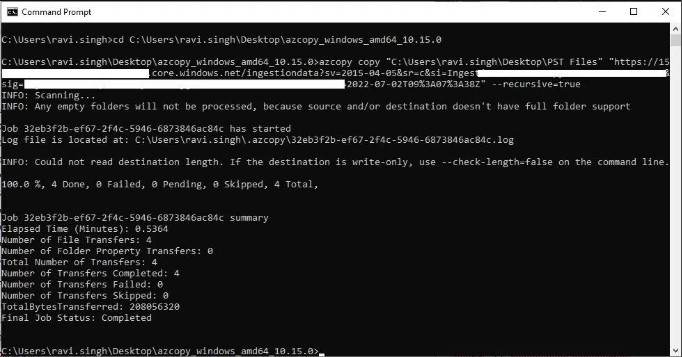
Wait for the PST files to upload. This may take a while, depending on the internet speed, bandwidth, and size of the PST files.
Step 4: Verify Uploaded Outlook PST Files (Optional)
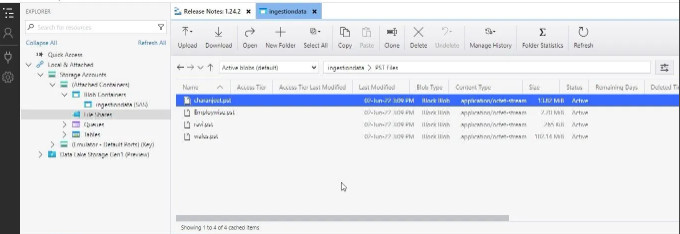
Once the PST files have been uploaded successfully to the Azure storage space, you can verify them using Azure Storage Explorer . Here is how to use this tool to verify the uploaded PST files:
Once you have downloaded the tool, launch the installer and click Install for me only .
Complete the installation and launch Azure Storage Explorer .
Select Blob container > Shared access signature URL (SAS) and paste the SAS URL you had copied in the Blob container SAS URL:
Click Next > Connect .
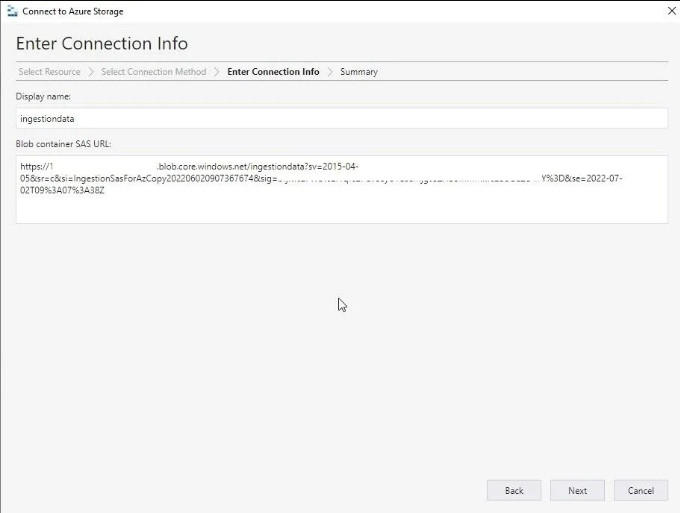
Under File Shares , you can see the PST folder. Open it to check if the PST files are there.
Step 5: Create Mapping File
The next step is to create PST import mapping file in CSV format. You can download a sample copy of the PST Import Mapping file from the Microsoft website.

Enter the FilePath (folder name), Name, Mailbox, and TargetRootFolder where mail items will be imported. You may leave other fields empty. After adding all the details, save the file as a CSV file.
Step 6: Start PST Import Job
After creating the Import Job, go back to the Import data screen and follow these steps:
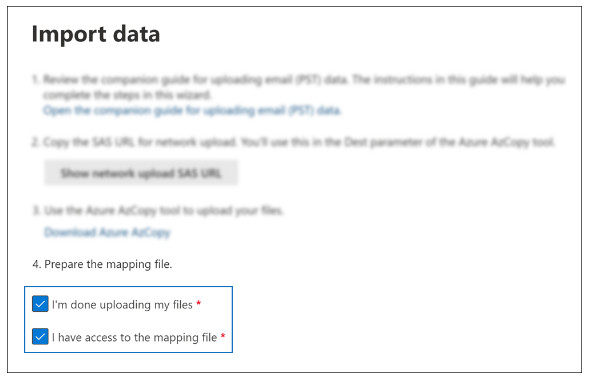
- Tick on I’m done uploading my files and I have access to the mapping file checkboxes, and click Next .
- Click + Select mapping file to upload it. Once it is done, click on Validate .
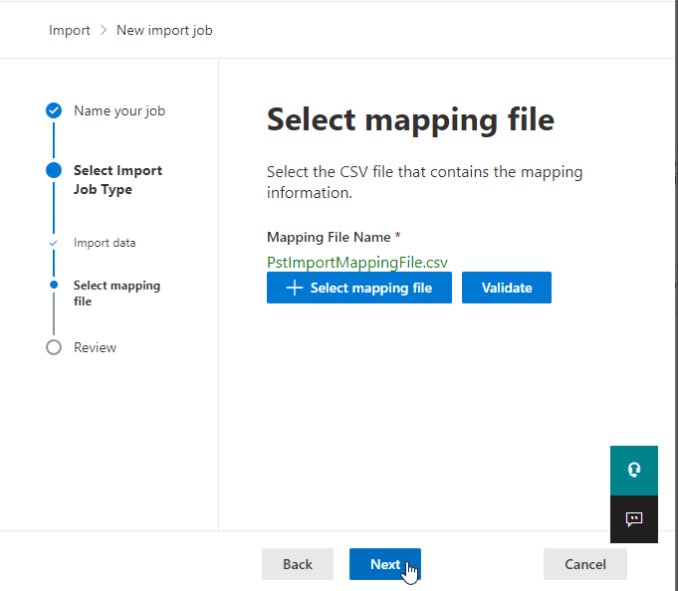
Note : If validation fails, download the logs and check the issue.
Once the mapping file is validated, click Next to review the PST import job.
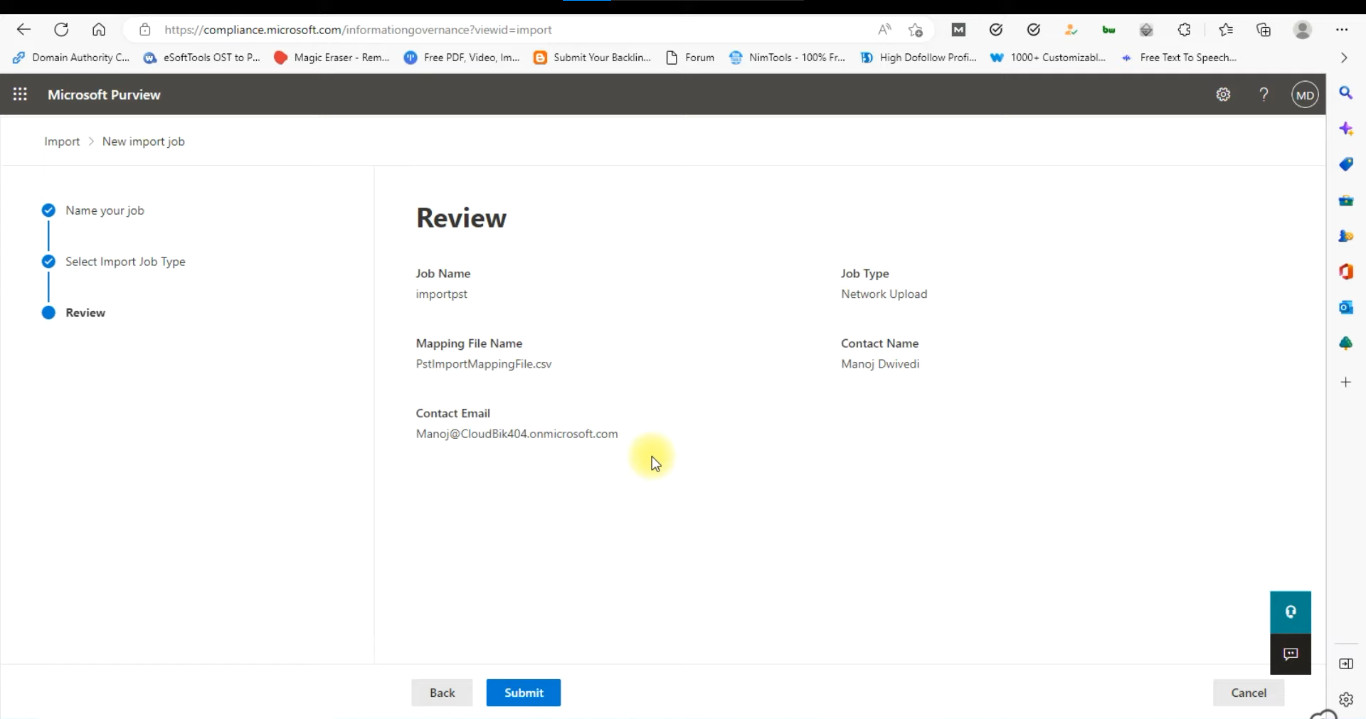
After reviewing the details, click on Submit and then click Done .
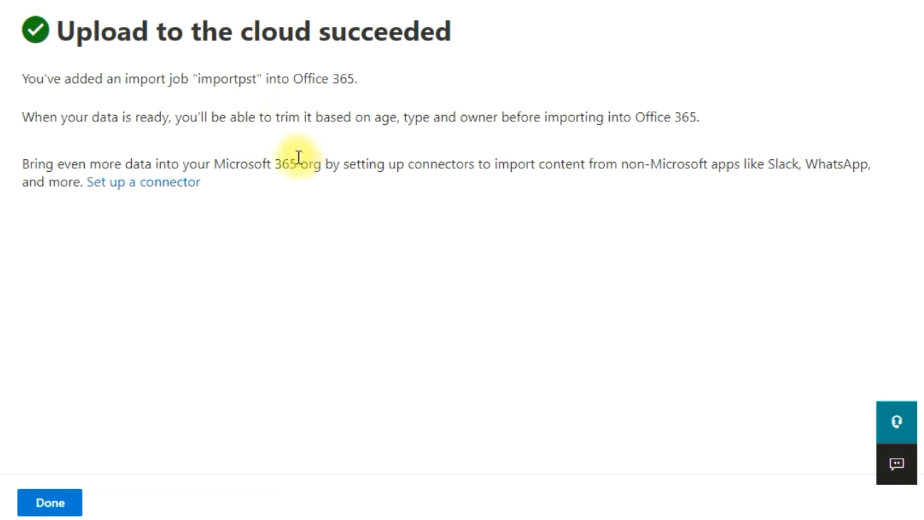
Once done, it will begin the import process. You can check the status in the Progress column under the Import tab on the Data lifecycle management
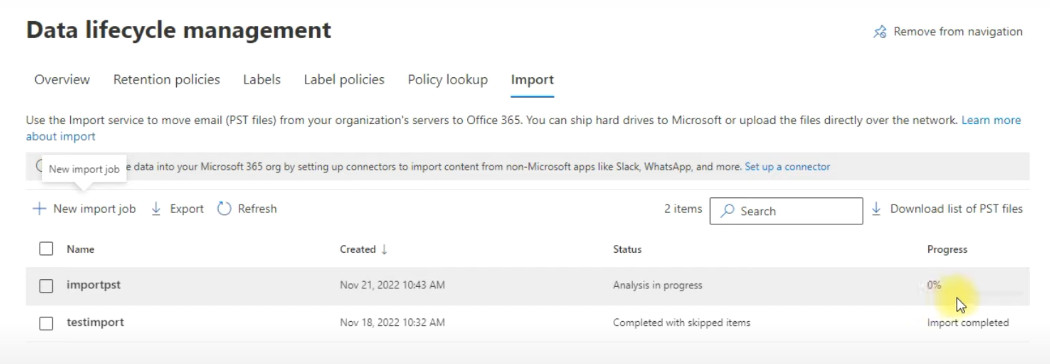
Once the import process is complete, the status will change to Import completed .

Method 3: Use the Drive Shipping Method
An alternative way is to migrate PST files to Office 365 by using the Drive Shipping method. Here, you need to first transfer all the PST files to a BitLocker-encrypted hard drive. Make sure that each PST file you add to the hard drive is not larger than 20 GB. Then, physically ship the hard drive to a Microsoft data center, where a professional at Microsoft will upload your PST files to Azure Storage. Microsoft will charge $2/GB or $2000/TB of data for uploading the PST files.
After they have successfully uploaded all the PST files to Azure Storage, you will have to create a PST Import Job, create a CSV mapping file, and start the PST import process to import PST files into Microsoft 365 (similar to Network Upload).
Conclusion
If you want to migrate PST files to Office 365, you can follow the methods mentioned above. The Network Upload and Drive Shipping methods are tedious, time-consuming, and resource- intensive. To simplify the process of migrating PST to Office 365, you can rely on a specialized PST to Office 365 migration tool, like Stellar Migrator for Outlook . This tool helps you directly migrate PST files to Office 365 without the need for additional permissions or complicated steps.
- How to Use and Fix Microsoft Teams AI Meeting Notes
- How to Mark a Message as Important in Teams
- How to Fix Microsoft Teams Error Tag 657rx in Windows 11/10
- How to Archive Emails in Outlook 365
- Fix PEAK Voice Chat Not Working on PC: Mic & Voice Mod Issues Solved
