- Printer drivers are essential for keeping your printer functional and bug-free.
- Update printer drivers through Windows update by accessing Settings, checking for updates, and installing the driver.
- Other methods include downloading drivers from the official website, using a disk to install drivers, or utilizing third-party driver updater software like Driver Booster.
If you are an office person, student or someone, whose main part of the job is printing, then you will need to have updated your printers drivers. Printer drivers are essential to keep your printer functional and updated with all the latest features. Updating the printer drivers ensures that your printer functions and remains bug-free. There are various ways to update printer drivers, you can do it manually as well as with the help of a third-party driver updater.
How To Install Windows 11 Printer Drivers
In this article, we will be discussing how you can install Windows 11 printer drivers.
Updating Printer Drivers Through Windows Update
The very first way to update printer drivers is through the Windows update. Windows update not only brings the updates for Windows but it also brings all the drivers updates for the hardware installed on your PC. To install Windows 11 printer drivers through Windows update, follow the steps given below-
- Head to the Settings app on your PC. To do so, search for Settings in the Start Menu or press the Windows + I key combo. This is the shortcut key to open the Settings app.
- Now in the Settings, click on the Windows update on the left sidebar.
- On the right side of the Settings, click on Check for updates. You will see all the updates for your PC listed here. You will also see an Option updates section here. Click on it, and this is where you will see the driver update.

- Look for your printer drivers here. Download and install your printer drivers.
- After done, close the Settings app and then restart your PC to make the changes.
Download The Drivers From The Official Website
Another way to do this is by downloading the drivers from the official website of your printer’s manufacturer and then installing it. To do so, follow the steps given below-
- Firstly, visit the official website of your printer. For instance, if you are using the printer from Canon, Epson, HP, or any other website, then head to their official website for the printer.
- Now search for your model of printer, and open it. If you don’t know what is the model of your printer, then you can check for it on the printer box. Generally, the model is mentioned on the body of the printer, so you can check that as well.
- Here, you will see the download section, click on it. You will find the drivers for your printer here.
- Download the driver for your printer.
- Now head to the location where you have saved the file, and run the setup by double-clicking on the file.
- Follow the on-screen instructions to install the drivers for your printer.
Use The Disk To Install Drivers
Whatever printer you are using, will have a disk with all the essential drivers required. You should find it inside the box. To follow this step, you must ensure that your PC has a CD driver, else you won’t be able to install drivers using this method.
- Insert the disk into the disk drive of your PC.
- Now open the file explorer on your PC by pressing the Windows + E key combo. You can either search for File Explorer in the Start Menu and open it.
- Double-click on the Disk Drive icon on the File Explorer to run the setup.
- Follow the on-screen instructions to run the setup, and install the printer drivers on Windows 11.
Using Third-Party Driver Updater
Another way to do this is by using third-party driver updater software. There are various third-party driver updater software like Driver Booster or Driver Pack Solution. You can use either of this software to update or install Windows 11 printer drivers.
Download either the Driver Booster or the Driver Pack Solution from their official website. Download and install any of these apps on your PC. When you run the app, you will see the option to scan your PC for outdated or missing drivers. Click on this button. You will have to connect your PC to a stable internet connection.

After the software scans your PC for all the drivers required to be installed or updated, you will see a list of drivers. Select the printer driver, download it and install it. You will be asked to restart your PC. Restart to make the changes, and you will have successfully installed Windows 11 printer drivers.
RELATED GUIDES:
- How to Get Printer Online Issue on Mac
- How To Fix Windows 11 Printer Spooler Error
- How to Get Printer Online on Windows 10 (Offline to Online)
- How to Fix HP Printer Not Showing Up on Network
- How to Fix Error 740 While Adding Printer on Windows 10/11
This is how you can install Windows 11 printer drivers. We hope this article helps you with installing Windows 11 printer drivers.
- Printer Offline error is a common issue on Mac and Windows, preventing document printing.
- Method 1 involves accessing System Preferences, selecting the offline printer, and clicking ‘Resume Printer’.
- Method 2 requires removing and re-adding the offline printer in System Preferences, while Method 3 suggests restarting the MacBook or iMac if previous methods fail.
When using a printer, you will come across several errors. One of the most frequently occurring errors while printing documents remotely is the Printer Offline error which is on Windows as well as on Mac. In this error, your printer will not print any document and a ‘Printer offline‘ message will be displayed on your screen. Recently we shared how to fix printer offline issues on Windows 10 . And in this tutorial, we have shared a simple guide by which you can fix printer online issues on your Macbook or iMac.
How to Get Printer Online Error on Mac
Method 1: Resume Printer.
Step 1- Open System Preferences on your Mac PC with the help of its icon in the Dock.
Step 2- Click on the ‘ Printers & Scanners ‘ option which you will find under the Hardware category.
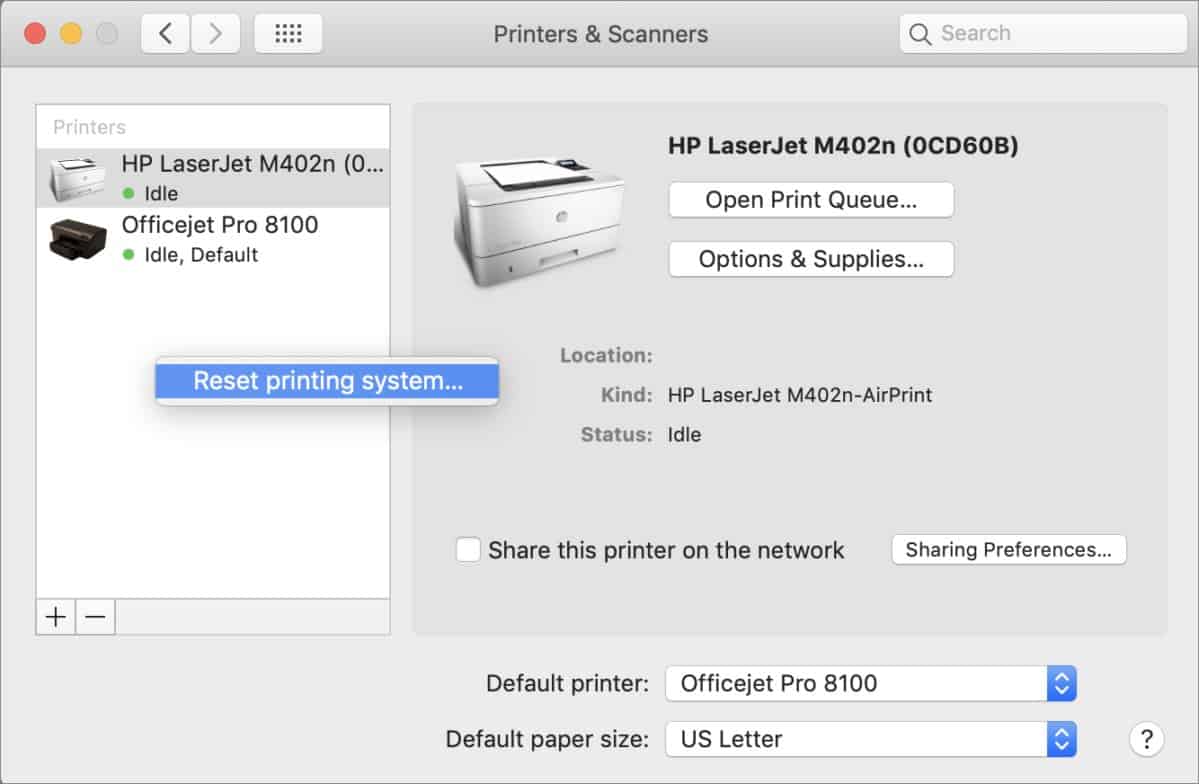
Step 3- Now, select the printer which is offline and right-click on it. Then, select the ‘ Open Print Queue ‘ option to open the queue window of your Printer.
Step 4- At the top of the queue window, you will find a ‘ Resume Printer ‘ option. Click on it to turn your Printer online.
If your printer does not turn online, go to the next method listed below.
Method 2: Re-Add your Printer.
Step 1- Open System Preferences on your Mac PC with its icon in the Dock.
Step 2- Click on the ‘ Printers & Scanners ‘ option which you will find under the Hardware category.
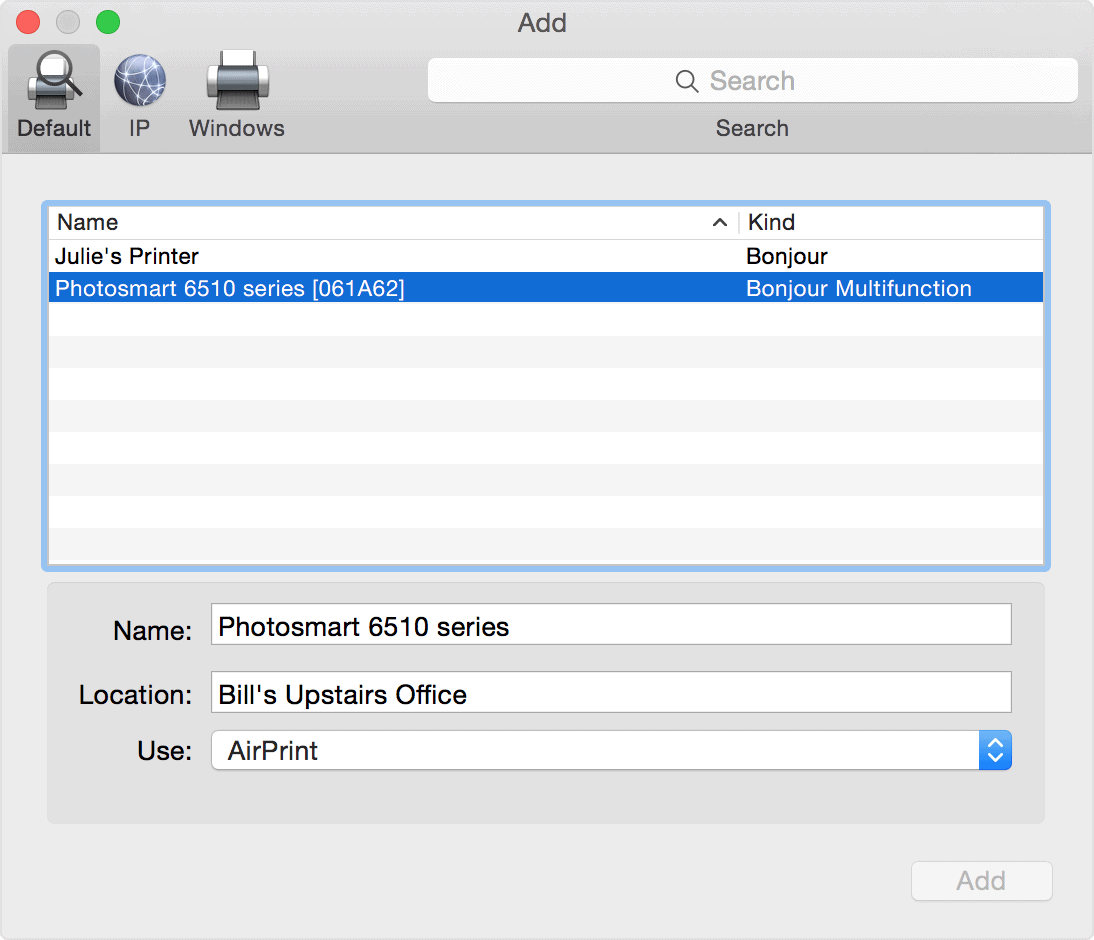
Step 3- Now, select the printer which is offline and right-click on it. Then, select the ‘ Reset printing system ‘ option to remove that particular printer.
Step 4- To re-add your printer, click on the ‘ + ‘ button located at the bottom of the same window.
Method 3: Restart your MacBook or iMac.
If none of the above-listed methods help you in turning your printer online, try restarting your PC. Check if your printer is back online after restarting your PC.
The Verdict:
These were some of the most useful ways which you can use to make your Printer online on your Macbook or iMac MacOS. The steps involved in these methods are easy to execute. We are confident that one of the above-listed methods will help your turn your Printer online. Start executing the methods from the top and work your way down the list till the error is fixed on your PC.
- Printer spooler error in Windows 11 is a common issue caused by an overloaded spooler with printing tasks.
- Solutions to fix the error include restarting your PC, updating Windows, running the printer troubleshooter, clearing the printer queue, using a different printing app, and reinstalling the printer.
- Additional fixes involve fixing print spooler services, clearing the printer queue, and using the command prompt to stop and restart the spooler.
Many times when wanting to take a printout from the printer, you may get a certain error that may cancel the print. This can be frustrating when you have to take a printout, but due to certain errors, you are not able to do so. Printer spooler error is a common error in Windows 11 that you may encounter. The printer spooler organizes the printing tasks. Moreover, it queues them for being sent to other printers and printing services. When the printer spooler is overloaded with tasks then you may face this error.
Fix Printer Spooler Errors in Windows 11
If you are facing Printer Spooler Errors in Windows 11, then there is nothing to worry about it. In this article, we will be discussing how you can fix Printer Spooler Errors in Windows 11.

Fix 1: Restart Your PC
Many times this error may be associated with random and temporary bugs on your system. Such errors can easily be solved by restarting your PC. You should try restarting your PC, and then check if you still get the error or not.
Fix 2: Update Your Windows
You should try updating your Windows 11. If this is a bug in Windows 11, then it will get fixed in the latest update of Windows 11. You should try updating your PC, and then check if you still get the Printer spooler errors in Windows 11 download .
Fix 3: Run The Printer Troubleshooter
The next thing that you can do is running the printer troubleshooter. The printer troubleshooter will identify any problems with your printer and will fix them. To run the printer troubleshooter, follow the steps given below-
- Open the Settings on your PC by pressing the Windows + I key combo.
- By default, you will be headed to the System section in Settings. If you are not on the System section, then you can click on System in the left sidebar in the settings.

- Here, click on troubleshoot and then click on other troubleshooters. Now click on the run option next to the printer. This will run the printer troubleshooter.
- Follow the on-screen instructions to scan your printer for any problem and fix it.
Fix 4: Clear The Printer Queue
As we have discussed, you may encounter this issue when the Printer Spooler is overloaded with various printing jobs. To fix this issue, you must try clearing the printer queue. After you clear the printer queue, the Printer Spooler will no longer be overloaded, and you will not face the issue.
Fix 5: Use Another App And Remove All Other Printers
If you still face this issue, then you should try using any other printing app. You may face this error due to some bug in the app you are using. Try using any other app for printing and the issue should be fixed.
You may also face this issue if multiple printers are connected to your PC. Multiple printers may conflict with the PC and may cause Printer Spooler errors in Windows 11. You may try removing all the other printers that may be causing the error, and check if the error persists or not. If you still get the Printer Spooler error, then you should move to the next step.
Fix 6: Reinstall The Printer
You should try removing the printer that you are using for printing. Remove the printers along with the drivers, and the software. Once done, reinstall the printer, and try printing again. You should now not face the issue.
Fix 7: Fix Print Spooler Services
Another thing that you can try doing is fixing the Print Spooler Services. To do so, follow the steps given below-
- Press the Windows + R key combo on your keyboard. In the run dialog box, type services.msc and hit Enter.
- This will open Services windows on your PC.
- Here search for Print Spooler services. Right-click on it, and then click on the Properties option.

- Head to the General tab in the properties, and then click on Stop.
- After doing so, press the Windows + R key combo, and type C:\Windows\System32\spool\printers, and hit Enter.
- Now select everything in the printers folder, and delete them.

- Now head back to the Print Spooler Properties window in the Services.
- Now click on the start button to start the service again. Once done, click on OK.
Now try printing from the printer, and you should now not encounter the Printer Spooler errors in Windows 11.
Fix 8: Fixing Print Spooler Using Command Prompt
If the above methods didn’t help you fix the issue that you were facing, then you should try using the Command prompt to fix it. Follow the steps given below to fix the issue-
- In the start menu, search for CMD . Right-click on the command prompt and then click on run as administrator.

- Now in the command prompt, type the following commands, and execute them- net stop spooler del /Q /F /S “%systemroot%\System32\Spool\Printers*.*” net start spooler
Once done, you should now no longer face the issue. This method is the same as the previous method. Instead of the Services app, you will be using the command prompt here to fix the issue.
RELATED GUIDES:
- Fix Xbox One That Won’t Connect To Live in Windows 11
- How to Fix Critical Process Died Error in Windows 11
- How To Fix Stuck Airplane Mode In Windows 11
Final Words
If you are facing Printer Spooler errors in Windows 11, then you can follow the steps given in this article. Following the above steps mentioned in this article, you will be able to troubleshoot the error.
- Printer Offline error is a common issue while printing remotely, causing the printer to not print and display an offline message.
- To get the printer back online on Windows 10, check network connectivity, run a printer power cycle, clear the print queue, restart the print spooler, remove and reinstall the printer, or restart the PC.
- Changing the printer from offline to online involves accessing settings, navigating to Printers and Scanners, and unchecking the “Offline” option in the Printer menu.
When using a printer, you will come across several errors. One of the most frequently occurring errors while printing documents remotely is the Printer Offline error. In this error, your printer will not print any document and a ‘ Printer offline ‘ message will be displayed on your screen.

To resume printing documents remotely, you need to get your printer back online. Thus, here we are with some of the best methods which you can use to turn your printer online.
How to Get Printer Online on Windows PC?
Method 1: Check Network Connectivity.
Before we start with any of the technical methods, let us make some basic checks. A stable network connection is a must for a printer to remain online.
1. Connect your Printer to the internet.
Use an Ethernet wire to connect your printer to your Printer. Also, make sure that your internet connection is up and running.
2. Connect your PC and your Printer to the same network.
If you have a wireless printer, make sure that your PC and Printer are connected to the same WiFi network. If they are connected to different networks, your PC will not be able to communicate with your printer.
Method 2: Run a Printer Power Cycle.
It has been observed that Power Cycling a Printer turns it online. Follow the steps listed below to run a Printer Power Cycle.

Step 1- Turn off your printer and unplug it.
Step 2- Wait for 30 seconds before plugging it back into the power socket.
Step 3- Now, turn on your Printer.
Once your Printer is turned on, check if it is back online. If not, go ahead with the next method.
Method 3: Clear the Print Queue.
If there are a lot of corrupt print requests in the Print Queue of your PC, you might face this error on your PC. Follow the steps listed below to clear the print queue.
Step 1- Launch ‘ Control Panel ‘ on your Windows PC.
Step 2- Here, search for the ‘ Devices and Printers option and click on it.
Step 3- In the Devices and Printers window, right-click on the printer whose queue you wish to clear and select ‘ See what’s printing from the drop-down box.
Step 4- You will get a list of all the print requests in a queue. Right-click on each and every print request and select ‘ Cancel ‘ from the drop-down box.
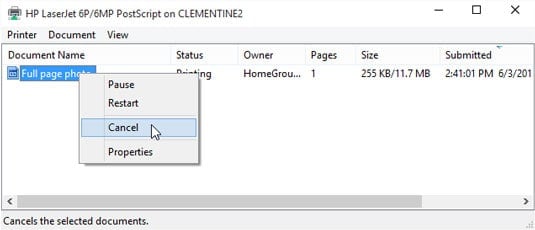
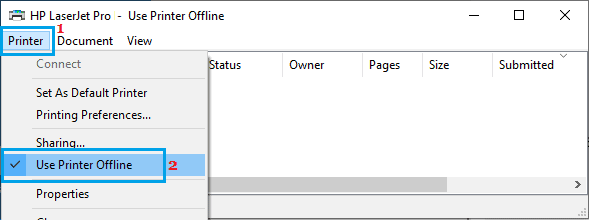
Also, uncheck the checkbox for ‘ Use Printer Offline ‘ if it is checked on this window. Then, check if your printer turns online.
Method 4: Restart Print Spooler.
Step 1- Launch ‘ Run ‘ on your Windows PC by simultaneously pressing the Windows and R keys on your keyboard.
Step 2- Type ‘ services.msc ‘ in the text box and hit Enter .
Step 3- A list containing all the services on your Windows PC will appear on your screen. Search for ‘ Print Spooler ‘ and right-click on it.
Step 4- Now, select ‘ Restart ‘ from the drop-down box.
Check if your printer turns online. If not, go ahead with the next method.
Method 5: Remove and Reinstall your Printer.
Step 1- Launch ‘ Control Panel ‘ on your Windows PC.
Step 2- Here, search for the ‘ Devices and Printers option and click on it.
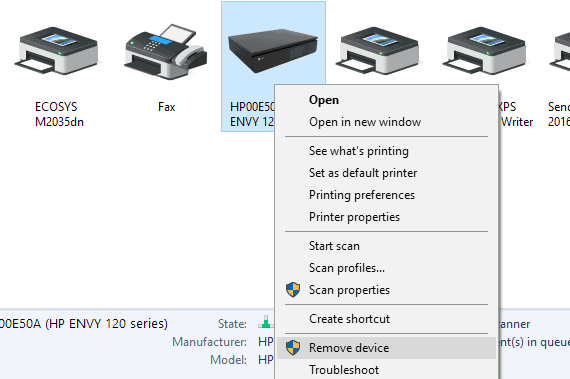
Step 3- In the Devices and Printers window, right-click on the printer which is offline and select the ‘ Remove Device ‘ option from the drop-down box.
Step 4- Now, click on the ‘ Add a printer or scanner option in the same window to reinstall your Printer.
Now, check if your Printer is back online. If not, go ahead with the next method.
Method 6: Restart your PC.
If none of the above-listed methods help you in turning your printer online, try restarting your PC. Check if your printer is back online after restarting your PC.
How to Change Printer from Offline to Online
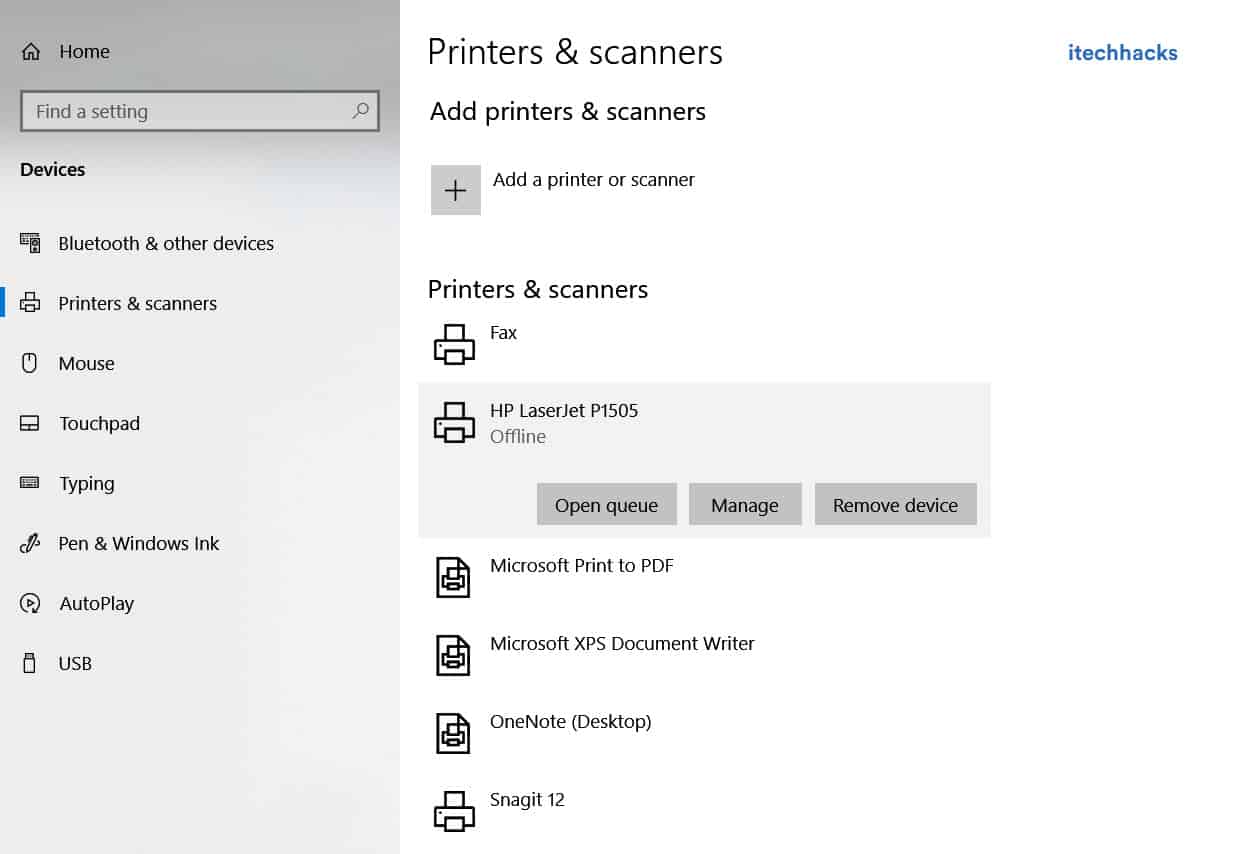
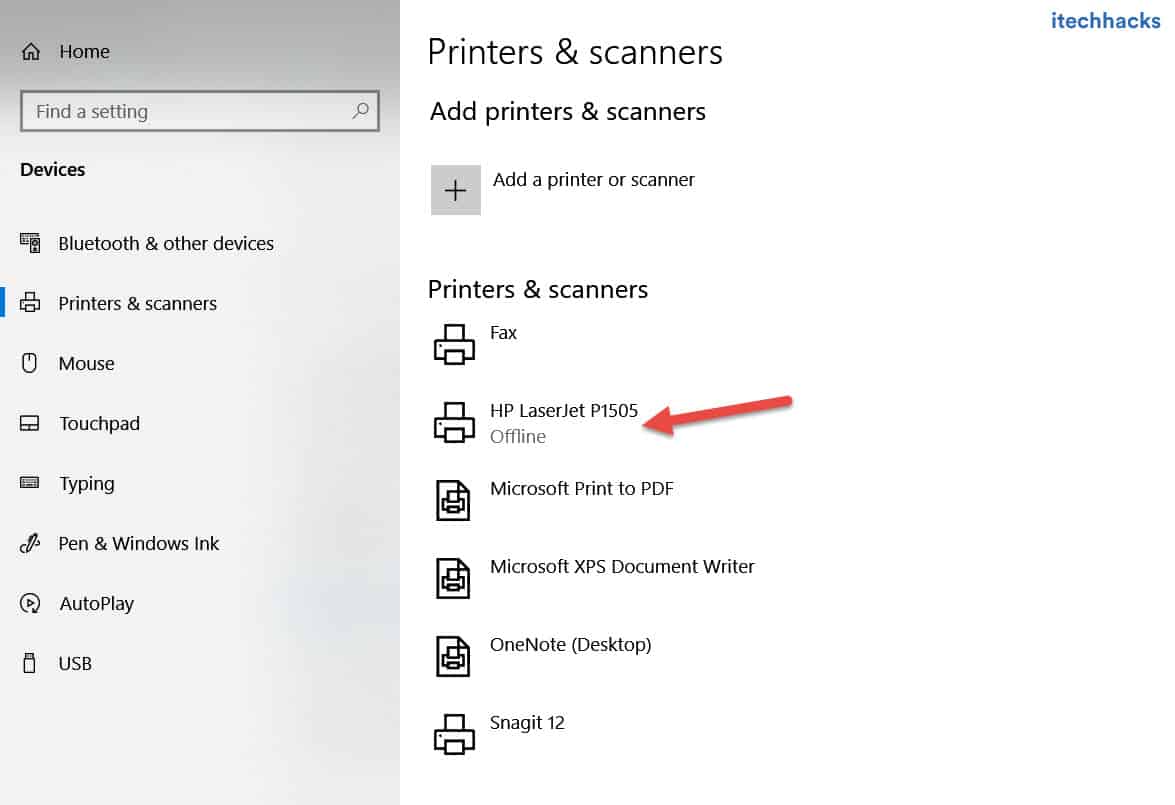
Step 1: Open “Settings” and go to “Devices: Printers, Bluetooth, etc”
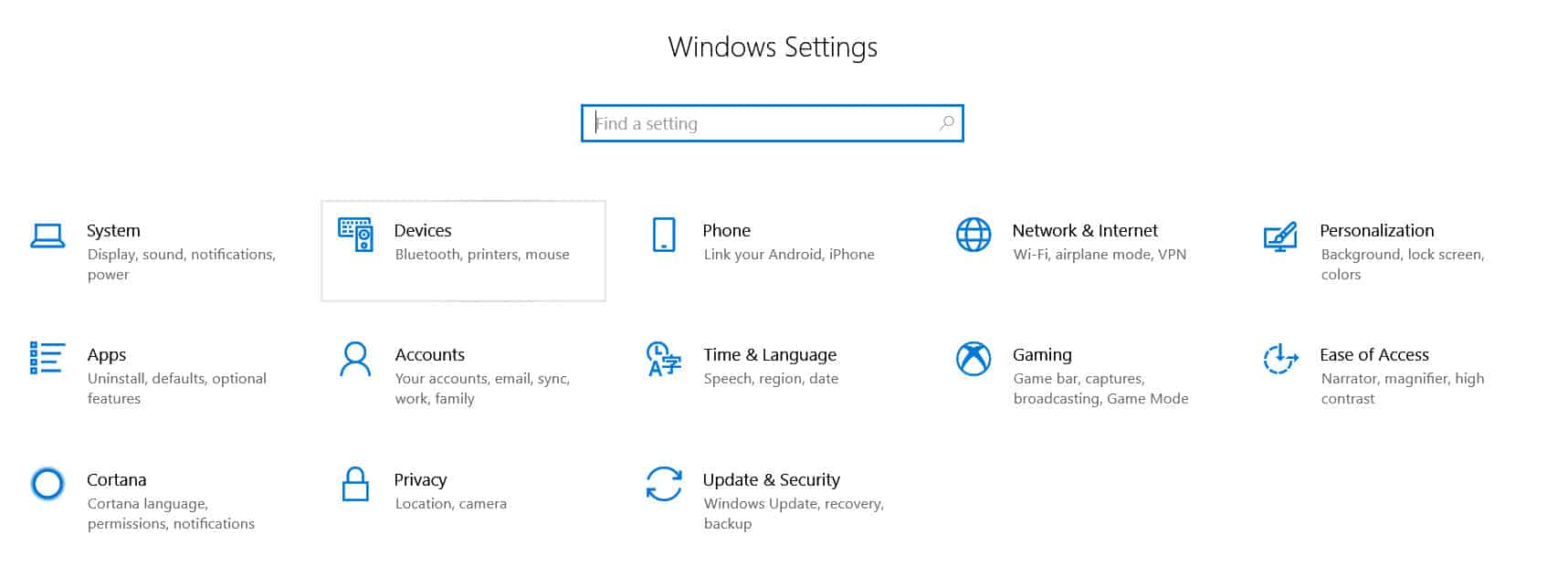
Step 2: Click on “Printers and Scanners”
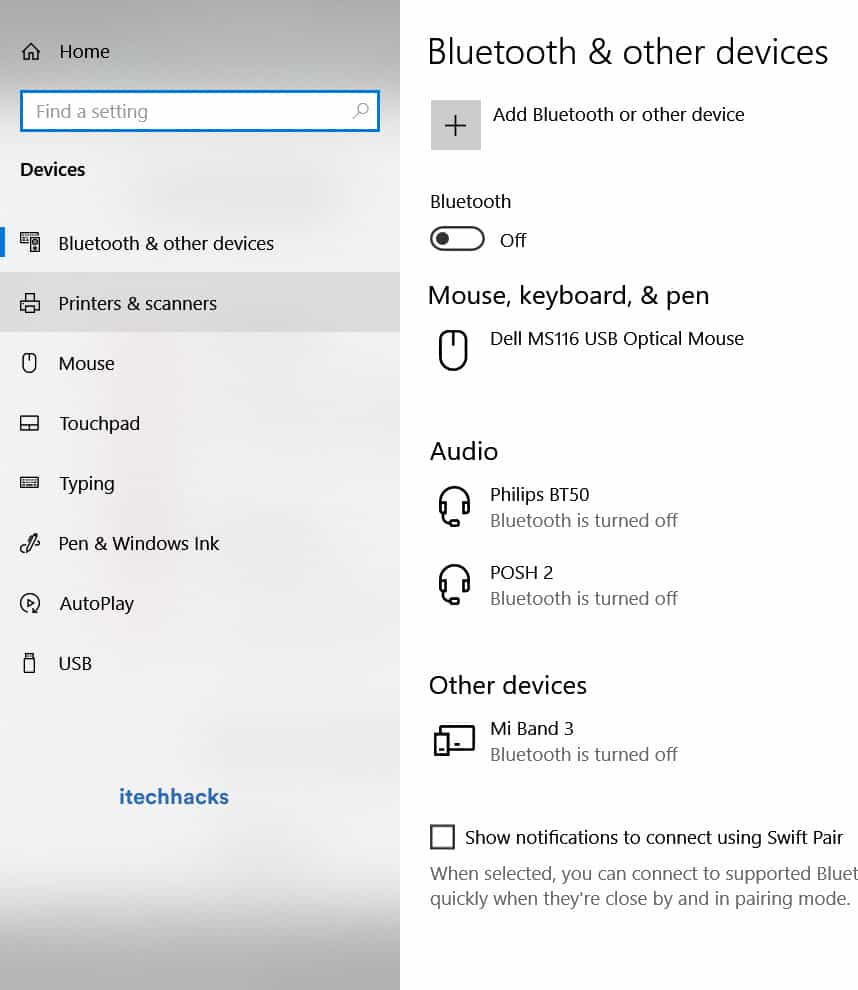
Step 3: Now, Click on “Printer Offline” and the Printer menu will appear.
Step 4: Click on “Printer” in the menu bar and uncheck “Offline.”
<img loading=“lazy” src=“https://itechhacks.com/wp-content/uploads/2021/03/printer-offline-online.jpg" onerror=“this.onerror=null;this.src=‘https://blogger.googleusercontent.com/img/a/AVvXsEhe7F7TRXHtjiKvHb5vS7DmnxvpHiDyoYyYvm1nHB3Qp2_w3BnM6A2eq4v7FYxCC9bfZt3a9vIMtAYEKUiaDQbHMg-ViyGmRIj39MLp0bGFfgfYw1Dc9q_H-T0wiTm3l0Uq42dETrN9eC8aGJ9_IORZsxST1AcLR7np1koOfcc7tnHa4S8Mwz_xD9d0=s16000';" alt=“Click on “Printer: Offline” and the Printer menu will appear. Click on “Printer” in the menu bar and uncheck “Use Printer Offline.” This action will change the printer from offline to online. - 37”>
<img loading=“lazy” src=“https://itechhacks.com/wp-content/uploads/2021/03/printer-offline-online.jpg" onerror=“this.onerror=null;this.src=‘https://blogger.googleusercontent.com/img/a/AVvXsEhe7F7TRXHtjiKvHb5vS7DmnxvpHiDyoYyYvm1nHB3Qp2_w3BnM6A2eq4v7FYxCC9bfZt3a9vIMtAYEKUiaDQbHMg-ViyGmRIj39MLp0bGFfgfYw1Dc9q_H-T0wiTm3l0Uq42dETrN9eC8aGJ9_IORZsxST1AcLR7np1koOfcc7tnHa4S8Mwz_xD9d0=s16000';" alt=“Click on “Printer: Offline” and the Printer menu will appear. Click on “Printer” in the menu bar and uncheck “Use Printer Offline.” This action will change the printer from offline to online. - 38”>
Conclusion:
These are some of the most effective methods which you can use to make your Printer online on Windows 10 and MacOS. The steps involved in these methods are easy to execute.
- HP INC. is a leading information technology company known for manufacturing printers, desktops, laptops, and more.
- HP printers on a network allow multiple users to access the same printer without reconnecting, saving time.
- To fix HP Printer Not Showing Up on Network, troubleshoot by power cycling, uninstalling devices, performing factory resets, updating drivers, and connecting devices to the same network.
HP INC. is one of the well-known multinational information technology companies based in America that manufactures personal desktops, laptops, computer peripherals, printers, printer-related supplies, 3D printing solutions, and more. Talking about the HP Printers for both Home and Business are exceptionally good in terms of price-to-performance ratio. However, the HP Printer Not Showing Up on the Network on the computer is somehow frustrating.
A Network Printer can be any standard or AIO printer from HP, which can easily be accessible by the same network connection on the Windows desktop/laptop. So that other users can use the same printer, which will be connected to the same network. In that case, users in the same office or store or home desk won’t have to disconnect and reconnect the printer, which saves time & effort.
Obviously, the network printer might use a specific internet connection (local network) to perform such actions. But somehow, the HP printer can’t show up on the network that the computer is using due to multiple reasons. It can be a different network connection, an outdated printer driver , not supporting dual-band Wi-Fi , incorrect setup configuration, print spooler service not running, and more.

Fix HP Printer Not Showing Up on Network
If your HP Printer is not visible or recognizable on the computer’s connected network during the setup process that means there is some glitch or networking connectivity issue. Make sure to first disconnect the printer cable from the router and the computer then reset the HP printer to its default factory settings. Then you’ll need to re-configure the printer on the network.
Let us explain all the troubleshooting methods below. You should follow all methods individually to resolve such an issue.
1. Power Cycle the HP Printer and the PC
Always try to perform the power cycle method on your computer as well as other problematic devices to verify if the issue still bothers you or not. Power Cycle basically an advanced version of restarting the device which helps refresh the system glitch without any major troubleshooting. As this kind of method already helped a lot of users, you shouldn’t avoid it.
- First, shut down both the computer and HP Printer.
- Then unplug the power cord from both devices.
- Wait for around 5 minutes and then reconnect the power cord again.
- Now, turn on both devices and check for the issue.
2. Uninstall the HP Printer Device via Control Panel
Sometimes any kind of unknown third-party device application can be installed on your computer in the name of HP Printer, which can also interfere with the printer connectivity or its operations. It’s better to uninstall the HP Printer Device or similar application from your PC via Control Panel (if found).
- Go to the Start menu and search for Task Manager .
- Now, go to Processes , and single-click on HPDriver.exe .
- Click on End Process to close the task.
- Once done, go to the Start menu and search for Control Panel .
- Then open Control Panel and go to Programs .
- Next, click on Programs and Features .
- Search for the HP Printer Device application in the list.
- Right-click on the HP Printer Device app and select Uninstall .
- Follow the on-screen prompts and complete uninstallation.
3. Perform the Factory Reset on the HP Printer
Additionally, you’ll have to perform a factory reset on the HP Printer to avoid incorrect configuration or settings. Remember that restoring the factory default will remove all custom settings from the printer.
- Open the Setup menu on your HP printer’s interface.
- Click on Tools and select the Restore Factory Default option.
- If your printer does not have a screen then long-press the Cancel button and network (Wi-Fi) button for around 10 seconds until the Wi-Fi and Power indicators start blinking.
- Now, you can reconfigure the HP Printer again with the setup process.
4. Reconfigure the HP Printer to the Network
Whenever your HP Printer gets added to the Devices and Printers list, only then your connected printer will be shown on the computer. Once detected by the Windows system, the device drivers will also get installed automatically these days. So, you’ll need to add the HP printer to the network before doing anything else.
- Open the Start menu then search for Control Panel .
- Open Control Panel and go to Hardware and Sound .
- Click on Devices and Printers .
- Now, click on Add a printer .
- You’ll receive a popup and select your specific printer model there.
- If your PC doesn’t detect your printer automatically, click on The printer that I want isn’t listed .

- Click on Select a shared printer by name .
- Type in your printer name in the text box and click on the Next button.
- Your PC will connect to the printer. Now, check if your network printer is recognizable on the PC or not.
5. Connect the Same Network for Both Devices
You should also connect both PC and Printer to the same network to avoid the network printer connectivity or recognization issue.
6. Update the HP Printer Driver
Another thing you should do is to update the HP Printer Driver on the Windows computer by following the steps below. It’ll help in fixing the outdated printer driver. A new device driver mostly brings stability and improvements to its previous version.
- Open the Start Menu and search for Device Manager .
- Now, launch Device Manager then double-click on Print Queues .
- Right-click on the printer device driver.
- Select Update driver and choose Search automatically for drivers .
- It’ll search for available updates and automatically start downloading.
- Once installed, the system will automatically reboot the system to apply changes.
In case, your PC doesn’t have the required printer driver version or no updates are available then make sure to visit the official website of the HP Software & Driver Downloads webpage to get the latest drivers for the particular model. Next, you can install the driver.
7. Ensure the HP Printer and PC are Connected to a Single-Band Wi-Fi
You should also ensure that the HP Printer and the PC are connected to a single-band Wi-Fi network so that the Windows system can detect the printer. The chances are possible that your HP printer has 2.4GHz single-band Wi-Fi support. So, don’t connect the printer and computer to a 5GHz dual-band Wi-Fi network.
8. Restart and Enable the Print Spooler Service
You should try restarting and enabling the print spooler service on the Windows system manually by following the steps below to ensure there is no issue with the print spooling or queuing. If this service isn’t running or not active yet then make sure to restart and enable it.
- Go to the Start menu and search for Services.
- Open the Services app and locate Print Spooler .
- Now, double-click on the Print Spooler service to open its properties.

- Under the General tab, select Automatic from the Startup type .
- Click on Apply and then click on Start .
- Then click on OK to save changes and reboot the PC.
9. Run the Printer Troubleshooter
The troubleshooter method can also help you find and resolve multiple unknown issues you might not generally find as a warning or error notice. If you’ve already tried out all of the above methods, then you should run the printer troubleshooter by following the steps below.
- Press the Windows+I shortcut keys to open Settings .
- From the System tab, click on Troubleshoot .
- Click on Other troubleshooters .

- Click on the Run button next to the Printer .
- Then follow the on-screen prompts and complete the process.
- It’ll help in fixing the HP printer network connectivity issue with the computer.
10. Contact HP Customer Support
Finally, you should contact HP Customer Support and submit all details regarding the HP Printer not showing up on the network with your computer to fix this issue. If nothing helps you, try to raise the ticket to get dedicated help.
How to Fix HP Laptop Won’t Turn On Problem
How to Hard Reset/Factory Reset HP Laptop Windows 7/8/10/11
How To Take a Screenshot On HP Laptop
How to Update BIOS on HP Windows 10,11 Desktop/Laptop
How to Fix HP Scanner Not Working in Windows 11
How to Fix Error 740 While Adding Printer on Windows 10/11
How To Delete Printer Driver In Windows 11
Windows Users encountering Error 740 while trying to add printers on Windows 10/11
Users facing issues related to network privileges, administrative authorities, and printer drivers
Solutions include checking printer connectivity, cables, disabling User Account Control, running Printer Troubleshooter, updating drivers, and checking for Windows updates.
The Windows Users are frustrated with a new issue that is not letting them add the printer on Windows 11 or 10. Whenever they try to add the printer on Windows 10 or 11, they get Error 740. Even after a lot of new updates, Windows 11 is still not free from bugs and issues. The users are complaining about various issues in the Windows Community, which shows that many users are stuck with different issues on Windows.
The users who have the printer have reported getting Error 740 and will add the printer to the Printer Wizard Menu. They cannot determine why this error comes to them when they add the printer on Windows 10 or 11. Some users who have Windows 10 have also reported the issue. We are here with a guide on How To Fix the Error 740 Adding Printer issue. We will also explain the reasons why you are getting this issue. So, let’s start with the guide to learn how to resolve the issue.

What is Error 740 on Windows 11 Add Printer?
The users who are trying to add the printer on their Windows 11 have reported that they are getting Error 740 Adding Printer . If you are also getting the same issue, you might have seen the message elaborating on the network privileges or administrative authorities. There are chances that the issue might be occurring due to various reasons. We will list the common reasons for the cause of the issue below. You can check them, as it will help you resolve the issue without hassle.
- The printer is not connected properly.
- There are some network driver issues with Windows 11.
- The printer driver is not installed on the device properly.
- The printer wizard is not getting administrative privileges.
- There are some problems with the printer.
Fix Error 740 While Adding Printer on Windows 10/11
Many of you are frustrated with the Error 740 Adding Printer issue. The issue is not very complex to resolve. You can easily resolve it with the help of the methods we will list below. You must ensure you implement them on your system without any issues.
Check the Connectivity of the Printer
The users must ensure that the printer they try to add is appropriately connected to their system. If you don’t know, sometimes the cables provided by the printer are loose, so it cannot make proper connections with the system. Also, if you are using any cable that is physically damaged or there are some issues with it, then it’s likely that the issue of error 740 adding printer will occur. We suggest you check the printer’s connectivity on your system before starting the printer wizard. You can quickly check it from the Devices and Printers available in the Control Panel.
Check For Cables
We suggest you check the cables that are provided with the printer. You also have to check whether the power cable is working properly. Sometimes the printer is not getting a properly stabilized power supply due to any fault of the power outlet or cable, and the users get the error 740 adding printer issue. Thus, we will suggest you check the printer cables and ensure they are in working condition. If there is any physical damage to it, then you have to get it repaired.
Disable The User Account Control
You can also disable the User Account Control on your Windows while installing the printer. The User Account Control manages the apps from making changes, so there are chances that it might be causing conflicts in adding the printer. Thus, we suggest you disable the User Account Control with the steps listed below to check whether the issue has been resolved.
- Press Windows + R Key to Open Run .
- Now, type useraccountcontrolsettings and click Enter .
- After it, drag the slider to Never Notify and press the OK button to save the changes.
- Check whether the issue has been resolved by adding the printer again.
- Once the printer has been added, set the slider to normal settings again.

Run The Windows Printer Troubleshooter
You can also try running the Windows Printer Troubleshooter to evaluate if there are any hardware or software issues with the printer. Windows gives a feature through which users can troubleshoot the printer independently. The steps will be going to be very simple for you. The user only has to run the Windows Printer Troubleshooter; after it, the troubleshooter will start looking for possible issues. If any issues are detected, the troubleshooter will show it on the screen. It will also resolve the issue if it is a software problem. If it is a hardware problem, you must contact the service center. You can follow the steps which are listed below to run the Windows Printer Troubleshooter.
- Press Windows + I Key to open Settings .
- Now, click on Troubleshoot after scrolling down in the System section.
- Select the Other Troubleshoot option .
- After it, click on the Run option just near the Print option .
- Follow the on-screen instructions and wait for the process to get completed.

Check The Printer Drivers
There are chances the printer that you are trying to use might not be working due to the driver’s issue. We expect the printer drivers might not have been installed on your system, so you are getting such issues. We suggest you check the printer drivers by going to the device manager. If you have not updated it for a long time, then update it. However, if it is updated, uninstall the driver and reconnect the printer to install the driver again to ensure there are no software issues. After uninstalling or updating the printer’s driver, restart the system and check again.
Check For Windows Update
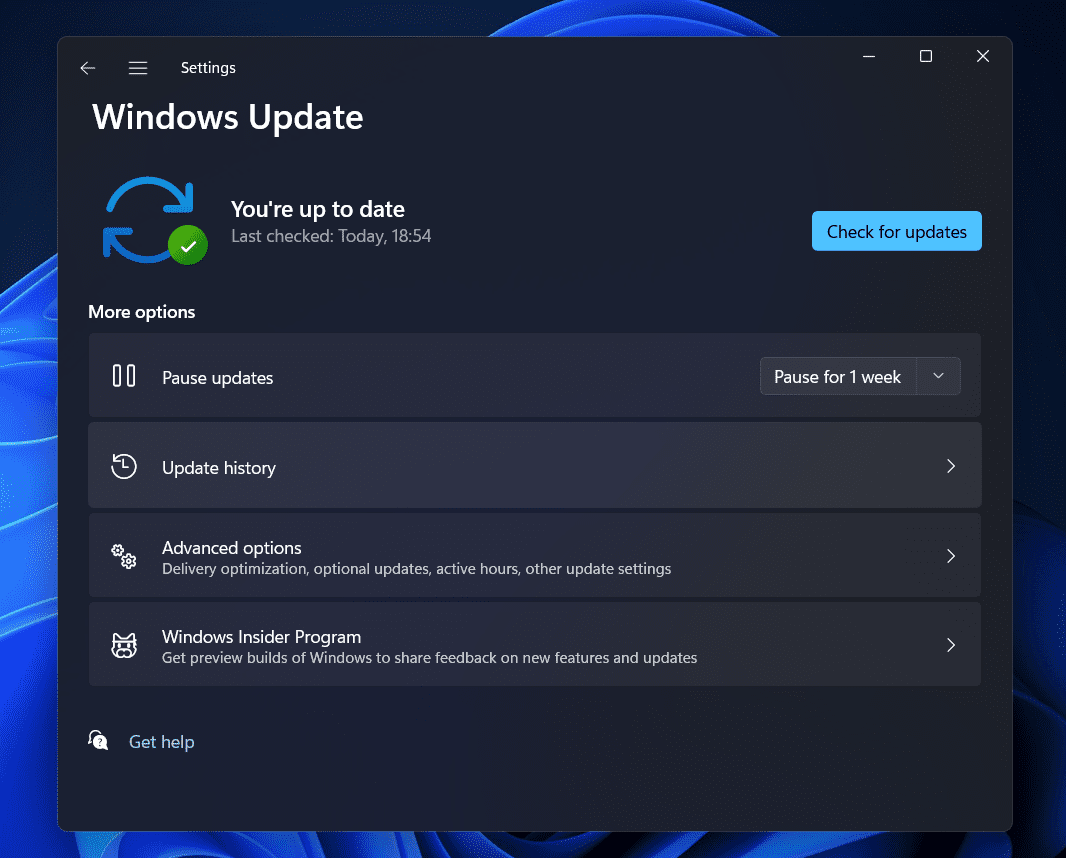
Sometimes, your outdated Windows version can also cause issues in adding a printer. We all know that all the software and hardware rely on Windows to work properly. If you are not using the latest Windows version on your PC, you will likely be facing issues with it. We suggest you check for the Windows update on your system to ensure you are using the latest Windows version. If any updates are available for the system, download and install it. After it, try to connect and add the printer to your system again.
Wrapping Up
Users are frustrated with getting the Error 740 Adding Printer on the Windows. Many users have searched for a guide to fix the issue and add the printer to their Windows without any issues. However, they were not able to do so even after a lot of tries. In this guide, we have listed the methods that will help you resolve your problem.
How To Add Wireless Printer In Windows 11
How to Get Online Printer Issue on Mac
Get Printer Online on Windows 10 (Offline to Online)
How To Fix Windows 11 Printer Spooler Error
How To Install Windows 11 Printer Drivers Easily
How To Delete Printer Driver In Windows 11
Delete Restore Point In Windows 11
Printer drivers are essential for keeping your printer functional and bug-free.
Update printer drivers through Windows update by accessing Settings, checking for updates, and installing the driver.
Other methods include downloading drivers from the official website, using a disk to install drivers, or utilizing third-party driver updater software like Driver Booster.
If you are an office person, student or someone, whose main part of the job is printing, then you will need to have updated your printers drivers. Printer drivers are essential to keep your printer functional and updated with all the latest features. Updating the printer drivers ensures that your printer functions and remains bug-free. There are various ways to update printer drivers, you can do it manually as well as with the help of a third-party driver updater.
How To Install Windows 11 Printer Drivers
In this article, we will be discussing how you can install Windows 11 printer drivers.
Updating Printer Drivers Through Windows Update
The very first way to update printer drivers is through the Windows update. Windows update not only brings the updates for Windows but it also brings all the drivers updates for the hardware installed on your PC. To install Windows 11 printer drivers through Windows update, follow the steps given below-
- Head to the Settings app on your PC. To do so, search for Settings in the Start Menu or press the Windows + I key combo. This is the shortcut key to open the Settings app.
- Now in the Settings, click on the Windows update on the left sidebar.
- On the right side of the Settings, click on Check for updates. You will see all the updates for your PC listed here. You will also see an Option updates section here. Click on it, and this is where you will see the driver update.
- Look for your printer drivers here. Download and install your printer drivers.
- After done, close the Settings app and then restart your PC to make the changes.
Download The Drivers From The Official Website
Another way to do this is by downloading the drivers from the official website of your printer’s manufacturer and then installing it. To do so, follow the steps given below-
- Firstly, visit the official website of your printer. For instance, if you are using the printer from Canon, Epson, HP, or any other website, then head to their official website for the printer.
- Now search for your model of printer, and open it. If you don’t know what is the model of your printer, then you can check for it on the printer box. Generally, the model is mentioned on the body of the printer, so you can check that as well.
- Here, you will see the download section, click on it. You will find the drivers for your printer here.
- Download the driver for your printer.
- Now head to the location where you have saved the file, and run the setup by double-clicking on the file.
- Follow the on-screen instructions to install the drivers for your printer.
Use The Disk To Install Drivers
Whatever printer you are using, will have a disk with all the essential drivers required. You should find it inside the box. To follow this step, you must ensure that your PC has a CD driver, else you won’t be able to install drivers using this method.
- Insert the disk into the disk drive of your PC.
- Now open the file explorer on your PC by pressing the Windows + E key combo. You can either search for File Explorer in the Start Menu and open it.
- Double-click on the Disk Drive icon on the File Explorer to run the setup.
- Follow the on-screen instructions to run the setup, and install the printer drivers on Windows 11.
Using Third-Party Driver Updater
Another way to do this is by using third-party driver updater software. There are various third-party driver updater software like Driver Booster or Driver Pack Solution. You can use either of this software to update or install Windows 11 printer drivers.
Download either the Driver Booster or the Driver Pack Solution from their official website. Download and install any of these apps on your PC. When you run the app, you will see the option to scan your PC for outdated or missing drivers. Click on this button. You will have to connect your PC to a stable internet connection.
After the software scans your PC for all the drivers required to be installed or updated, you will see a list of drivers. Select the printer driver, download it and install it. You will be asked to restart your PC. Restart to make the changes, and you will have successfully installed Windows 11 printer drivers.
RELATED GUIDES:
- How to Get Printer Online Issue on Mac
- How To Fix Windows 11 Printer Spooler Error
- How to Get Printer Online on Windows 10 (Offline to Online)
- How to Fix HP Printer Not Showing Up on Network
- How to Fix Error 740 While Adding Printer on Windows 10/11
This is how you can install Windows 11 printer drivers. We hope this article helps you with installing Windows 11 printer drivers.