- Kindle Paperwhite 10th Gen E-Reader available in India for 7999 rupees, compact in size with large storage for books.
- Kindle White Screen issue blamed on Amazon reported by users, potential causes include overload, freezing, low battery, firmware issues.
- Solutions for fixing Kindle White Screen problem include restarting, force reboot, charging, updating firmware, factory reset, or contacting Amazon Kindle Customer Support.
With Kindle, you never have to worry about losing your Agatha Christie mysteries, or Shakespeare plays again. But what if it does not work properly while you are reading your favorite noble?
What Causes a Kindle White Screen Issue?
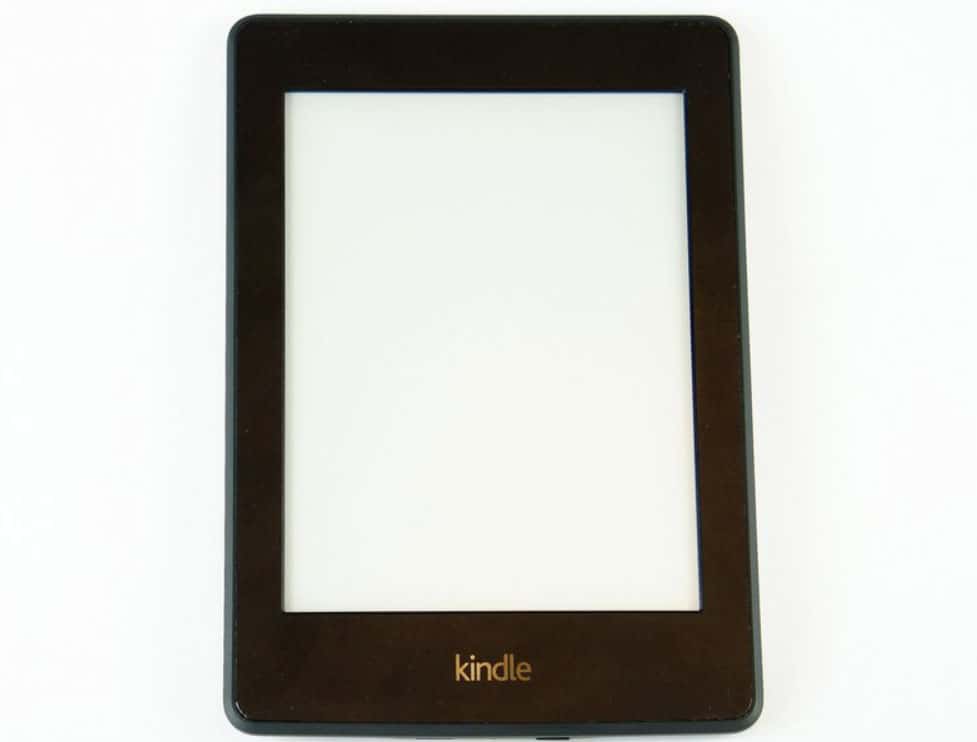
Kindle White screens and unresponsive devices are usually caused by one of the following problems:
- Since Kindles have limited processing power, it’s easy to overload them. In most cases, this occurs when visiting web pages using the browser.
- If too much data is loaded on a Kindle, it can freeze, leading to the Kindle white screen issue. The same thing usually happens when using a web browser.
- Kindles may freeze if the battery is low because it reduces power to the processor.
- The white screen may occur because of problems in the firmware or if the feature you’re trying to use isn’t supported.
How to Fix Kindle White Screen Problem
Here are some solutions that have the potential to resolve the Kindle White Screen issue. Therefore, let’s check them out:
Restart the Kindle
In order to solve a problem with your Kindle, it is best to restart it. In any case, resetting is a quick and easy process that doesn’t erase any data. You can give it a couple of minutes to unfreeze, but you don’t have to wait for it to unfreeze.
If your Kindle is unresponsive, press and hold the power button until you see the screen flash, then release it. It will restart, and you can start reading again.
Force Reboot Device
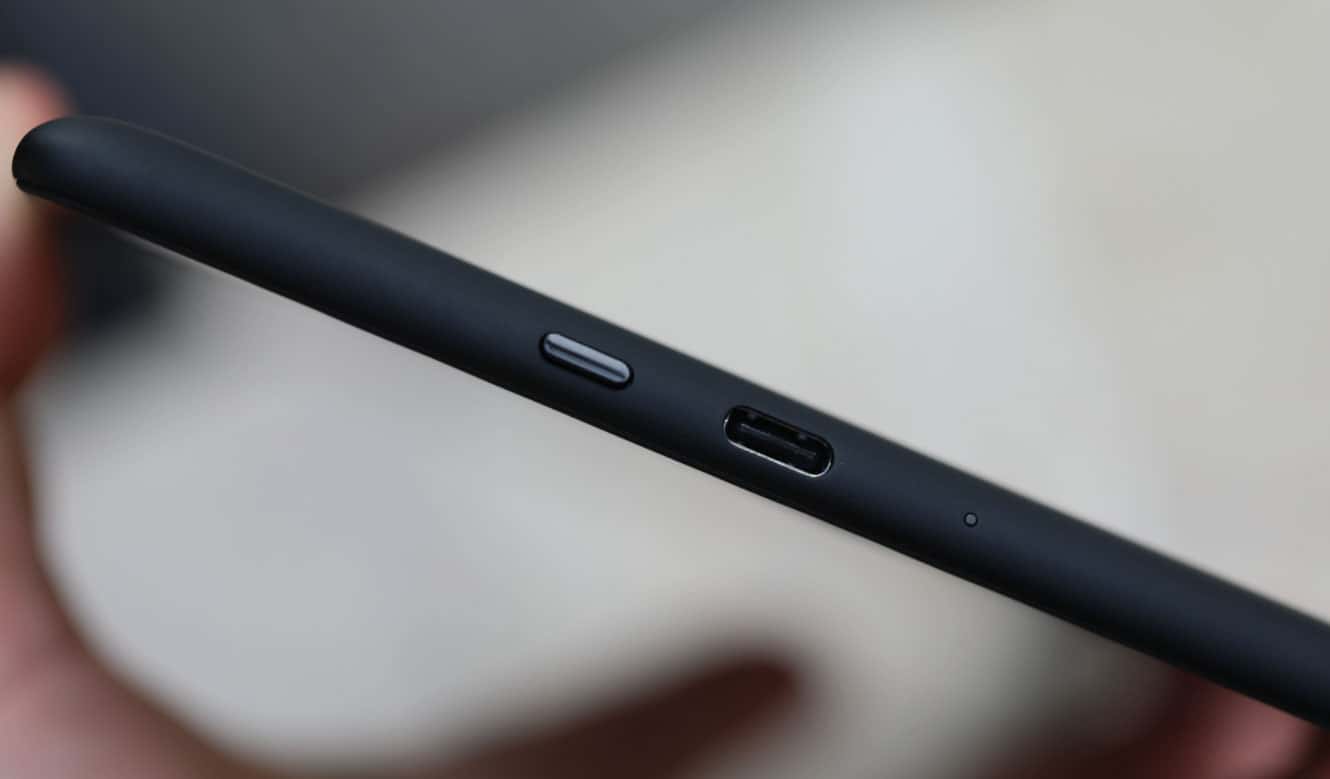
It only takes three steps to force restart your Kindle so that it can get back to working order. This method applies to all models and will restore your device to full functionality.
For a restart, flip your Kindle over and hold the power button for about 15 seconds, or you will see a dialogue box appearing on the screen. Whenever the screen white-out or a dialogue box appears, press the power button for 40 seconds. After you have performed these steps, your Kindle should reboot automatically.
Charge Kindle
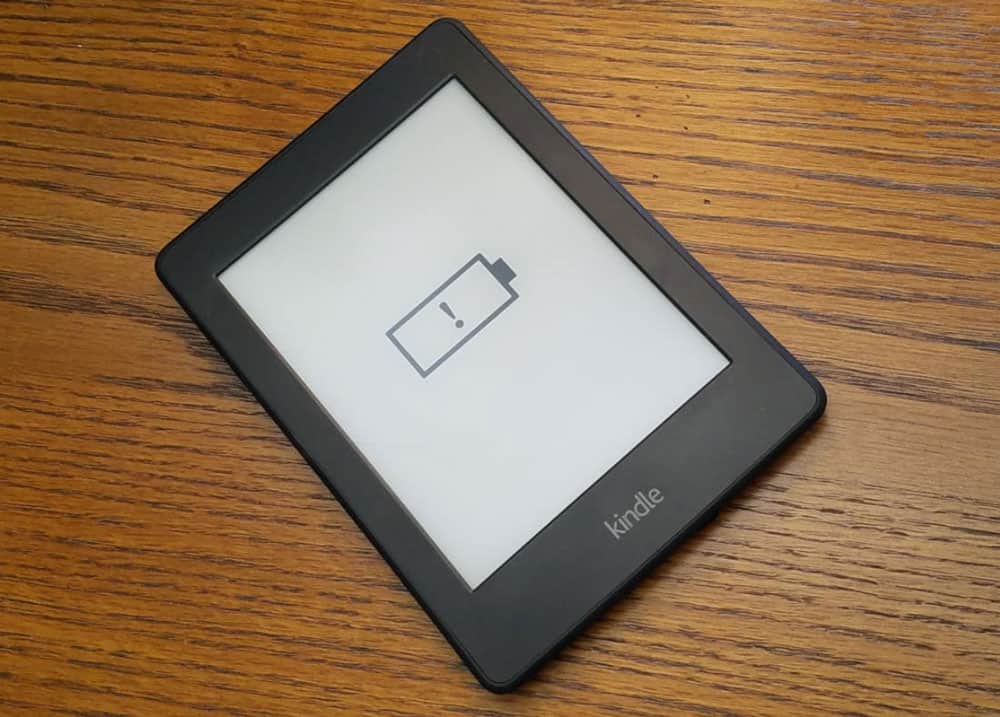
In some cases, the Kindle battery may have shorted out and must be fully recharged before it will turn back on. If your Kindle won’t turn on or displays a blank white screen, try charging the device until it’s fully charged. After charging for about 3 hours, hold down the power button for ten seconds to restart the Kindle and power it on.
Update the Firmware
Your device may be experiencing repeated white screen issues due to outdated firmware. Then, we suggest you restart your Kindle and try updating the firmware if none of the above-mentioned methods works.
- Tap the Menu (three vertical dots) .
- Then, hit Settings > Menu (three vertical dots).
- Finally, hit Update Your Kindle .
Factory Reset the Kindle
Swipe down and tap the Quick Actions or Menu .
After that, hit the Settings or All Settings button.
Now, go to Device Options or Menu > Reset (for older devices, select Reset Device again).
Finally, click YES .
Visit Amazon.com and log in.
Check out Amazon’s support page.
Choose a Kindle, Fire, or Alexa Device .
Select your device type.
Choosing an issue is the next step; choose any issue you want
In answer to your question, you will see a button that says, I need more help . Click on this button.
You will see a screen that offers chat or phone support.
You can chat with a robot and eventually reach a real person in customer service if you choose the chat option. However, when you select the phone open, enter your number, and you’ll be contacted immediately.
Sum Up
So, that’s all we have for you on how to fix the Kindle White Screen issue . We hope the troubleshooting steps mentioned earlier in this article have helped you. If you need more help, comment below and let us know.
- How To Fix White Screen of Death on Windows 11 Startup
- How To Fix TV Static – Screen, Noise, Overlay, Effect
- How to Remove Scribbles on a Screenshot iPhone
- How To Fix Windows 11 Blue Screen of Death Errors
- Fix Hogwarts Legacy Black Screen After Startup on Windows 10/11
- How to Fix Samsung TV Half Screen Dark on One Side
