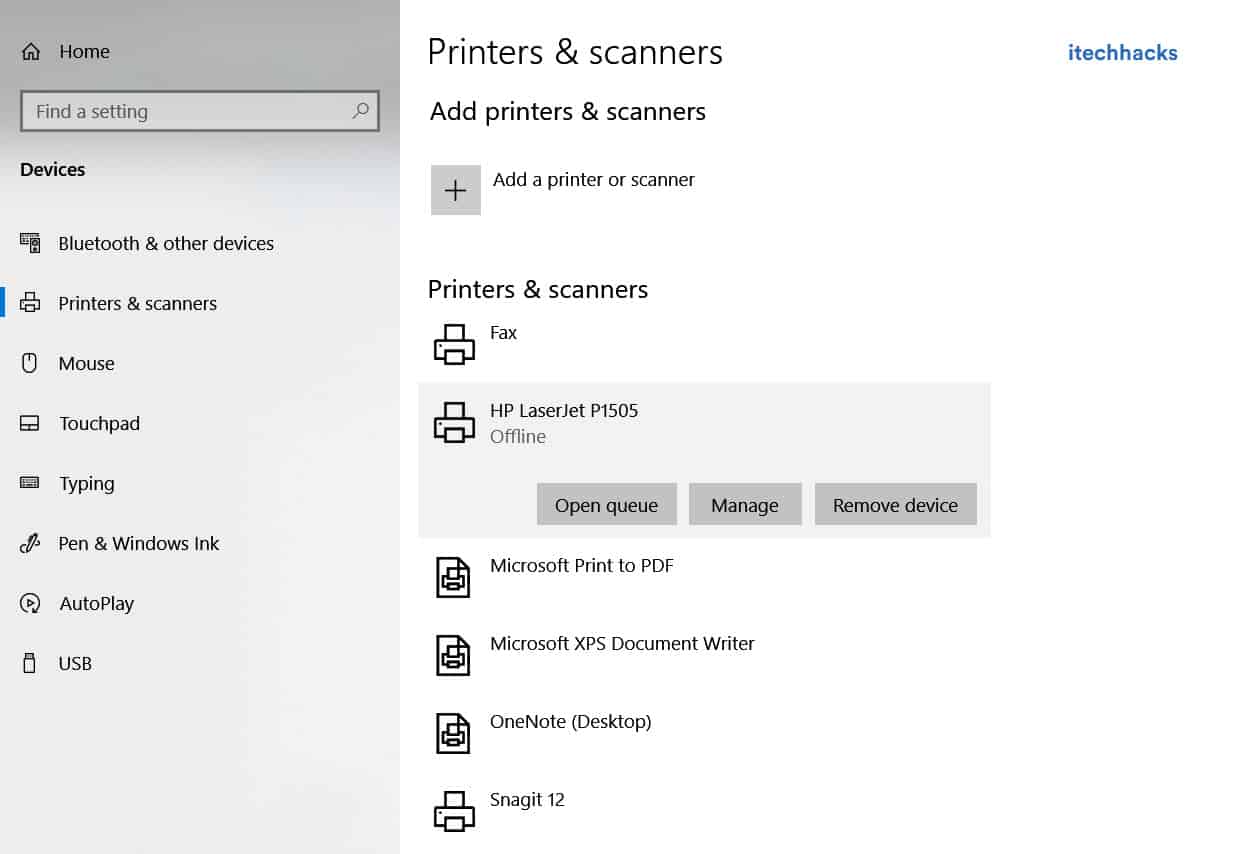
- KB5003173 Error causing 0x800f0922 may occur due to uninstalling the new Microsoft Edge from Windows 10, resulting in update installation issues.
- Microsoft Edge must be reinstalled to resolve the error and successfully install the update, as reported by affected users.
- Additional problems and fixes related to the KB5003173 update include OLE security enhancement, system certificates issues, slower game performance, and audio distortions.
According to some reports, the update does not install when the new Microsoft Edge has been uninstalled from Windows 10 . Microsoft has been forcing Windows 10 devices to install the new Microsoft Edge since September. Nevertheless, users can manually remove the Edge browser if they wish. All associated files are deleted when Microsoft Edge is uninstalled. There are a few empty folders left behind, however.
Here’s how to solve KB5003173 Error.
Fix KB5003173 Error causing 0x800f0922
Some people seem to be experiencing problems with it. This includes what appears to be a bug in Microsoft Edge that interferes with Windows Update itself.
As a result, Microsoft will roll back the update, and the update will fail to install.
It has been reported that many users have encountered a mysterious error message “0x800f0922” when installing the KB5003173 mandatory update. As a result, Windows initiates a rollback automatically.
We heard from one affected user that the DISM approach didn’t work. If they reinstall Microsoft Edge, the update will be installed successfully.
Microsoft Edge has been manually removed from some Windows 10 devices to restore the legacy Microsoft Edge, according to reports.
Chromium Edge is also installed when you install KB5003173. But, it fails to install the update when it detects an empty Edge folder on the system drive (C:\Program Files (x86)\Microsoft\Edge).
Windows initiates an automatic rollback as a result. And, within the Settings app, an error message appears.
Uninstalling Microsoft Edge can cause this problem if you use an incorrect command. It wasn’t removed properly, and leftover folders were left behind.
Updates on kb5003173 Problems
To make Windows 10 more secure when performing basic operations.
It has developed its own object linking and embedding technology called OLE (Object linking and embedding). A document or other object can be embedded or linked to it.
As a result of this update, OLE security will also be improved. It is common for speakers, smart TVs, and external devices to be connected through Bluetooth and Wireless technology.
The proper installation of drivers is essential once you connect your Bluetooth soundbar or any other device. Drivers for Bluetooth have been updated to improve their security.
System and User Certificates being Lost
If a user attempts to update to any new version after the previous update of 1809, such as 20H2 or 21H1.
And then uses a media such as CD/DVD or pen drive to upgrade to a higher version after installing LCU (latest cumulative update) on Sept 16, 2020, and this error occurs.
LCU update of October 13, 2020, should be included in the installation media. The issue can occur if you are using Windows Server Update Service (WSUS), which doesn’t have the LCU updates.
The previous version of Windows 10 can be rolled back within the specified time period. The number of days you have to wait before rolling back can also be increased.
If you are using Windows 10, then try the default Windows Update. This KB5003173 needs to be updated.
Slower Performance in Games
Following the KB5003173 update, a small group of gamers experiences this issue with games running in full screen or borderless window mode.
If you want to roll back to a previous system restore point, you can do so. You can improve the performance of your Windows 10 computer by restarting it.
Audio Play high Pitched Noise
There have been reports of distortions in music and noise after the installation of KB5003173.
This occurs when certain audio devices and Windows settings are used. Your Windows 10 computer usually experiences this problem when it is set to 5.1 Dolby Digital Audio.
In addition to using the app, you can browse the music using Edge or another browser.
The speaker’s system tray icon can be used to turn off Spatial Sound. You can right-click it. Then select OFF.
Final Words
This is all about how to fix the KB5003173 Error causing 0x800f0922. We hope that you found a working method for you after reading this article.
How to Install RSAT Tools on Windows 10 Version 1809 and Later
20 Latest Windows 10 Skins and Themes Pack 2022 (FREE)
How to Find and Access Windows 10 Startup Folder
How to Get Printer Online on Windows 10 (Offline to Online)
How to Fix Windows 10 Update Stuck and Failed
Printer Offline error is a common issue while printing remotely, causing the printer to not print and display an offline message.
To get the printer back online on Windows 10, check network connectivity, run a printer power cycle, clear the print queue, restart the print spooler, remove and reinstall the printer, or restart the PC.
Changing the printer from offline to online involves accessing settings, navigating to Printers and Scanners, and unchecking the “Offline” option in the Printer menu.
When using a printer, you will come across several errors. One of the most frequently occurring errors while printing documents remotely is the Printer Offline error. In this error, your printer will not print any document and a ‘ Printer offline ‘ message will be displayed on your screen.

To resume printing documents remotely, you need to get your printer back online. Thus, here we are with some of the best methods which you can use to turn your printer online.
How to Get Printer Online on Windows PC?
Method 1: Check Network Connectivity.
Before we start with any of the technical methods, let us make some basic checks. A stable network connection is a must for a printer to remain online.
1. Connect your Printer to the internet.
Use an Ethernet wire to connect your printer to your Printer. Also, make sure that your internet connection is up and running.
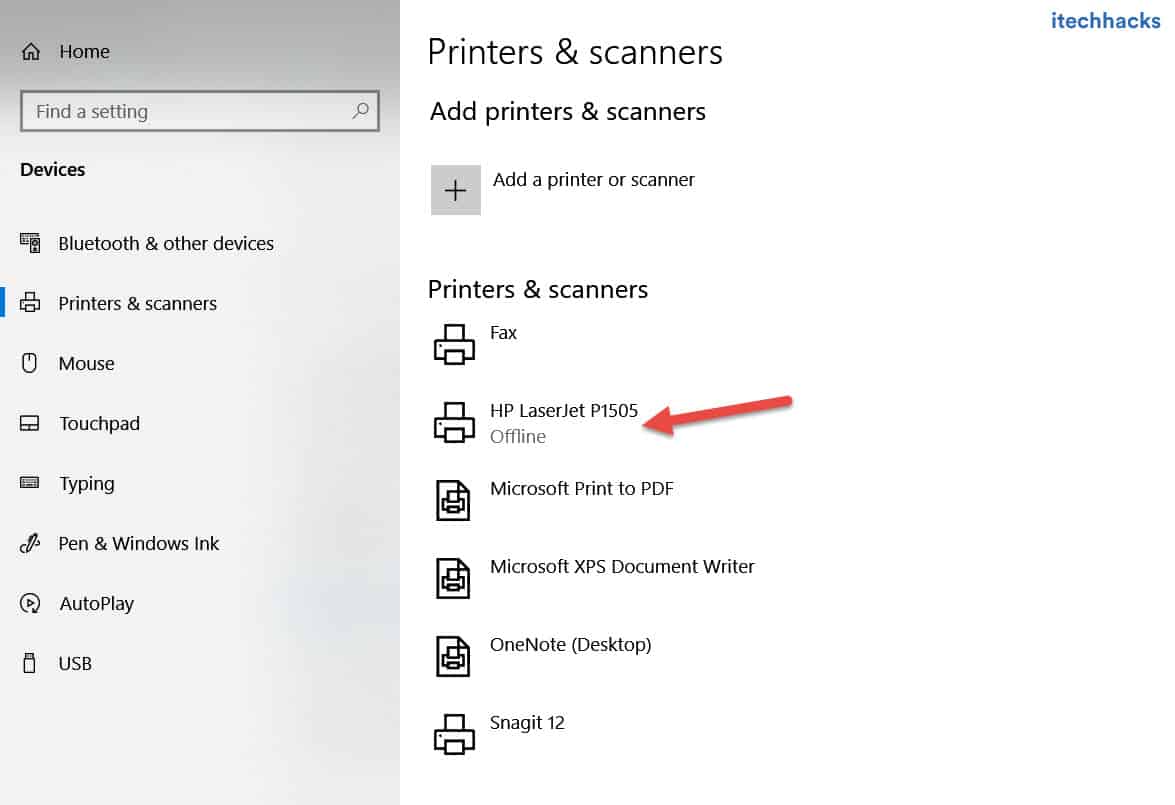
2. Connect your PC and your Printer to the same network.
If you have a wireless printer, make sure that your PC and Printer are connected to the same WiFi network. If they are connected to different networks, your PC will not be able to communicate with your printer.
Method 2: Run a Printer Power Cycle.
It has been observed that Power Cycling a Printer turns it online. Follow the steps listed below to run a Printer Power Cycle.

Step 1- Turn off your printer and unplug it.
Step 2- Wait for 30 seconds before plugging it back into the power socket.
Step 3- Now, turn on your Printer.
Once your Printer is turned on, check if it is back online. If not, go ahead with the next method.
Method 3: Clear the Print Queue.
If there are a lot of corrupt print requests in the Print Queue of your PC, you might face this error on your PC. Follow the steps listed below to clear the print queue.
Step 1- Launch ‘ Control Panel ‘ on your Windows PC.
Step 2- Here, search for the ‘ Devices and Printers option and click on it.
Step 3- In the Devices and Printers window, right-click on the printer whose queue you wish to clear and select ‘ See what’s printing from the drop-down box.
Step 4- You will get a list of all the print requests in a queue. Right-click on each and every print request and select ‘ Cancel ‘ from the drop-down box.
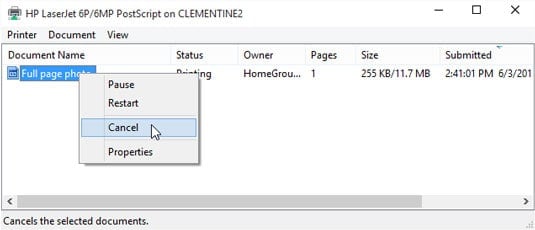
Also, uncheck the checkbox for ‘ Use Printer Offline ‘ if it is checked on this window. Then, check if your printer turns online.
Method 4: Restart Print Spooler.
Step 1- Launch ‘ Run ‘ on your Windows PC by simultaneously pressing the Windows and R keys on your keyboard.
Step 2- Type ‘ services.msc ‘ in the text box and hit Enter .
Step 3- A list containing all the services on your Windows PC will appear on your screen. Search for ‘ Print Spooler ‘ and right-click on it.
Step 4- Now, select ‘ Restart ‘ from the drop-down box.
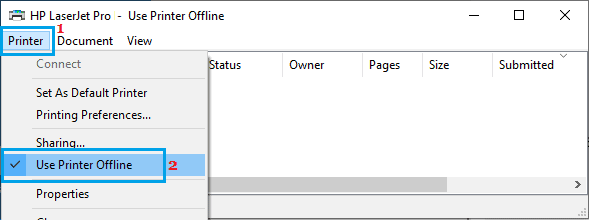
Check if your printer turns online. If not, go ahead with the next method.
Method 5: Remove and Reinstall your Printer.
Step 1- Launch ‘ Control Panel ‘ on your Windows PC.
Step 2- Here, search for the ‘ Devices and Printers option and click on it.
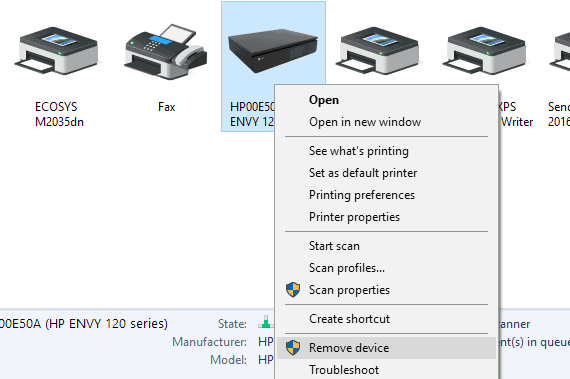
Step 3- In the Devices and Printers window, right-click on the printer which is offline and select the ‘ Remove Device ‘ option from the drop-down box.
Step 4- Now, click on the ‘ Add a printer or scanner option in the same window to reinstall your Printer.
Now, check if your Printer is back online. If not, go ahead with the next method.
Method 6: Restart your PC.
If none of the above-listed methods help you in turning your printer online, try restarting your PC. Check if your printer is back online after restarting your PC.
How to Change Printer from Offline to Online
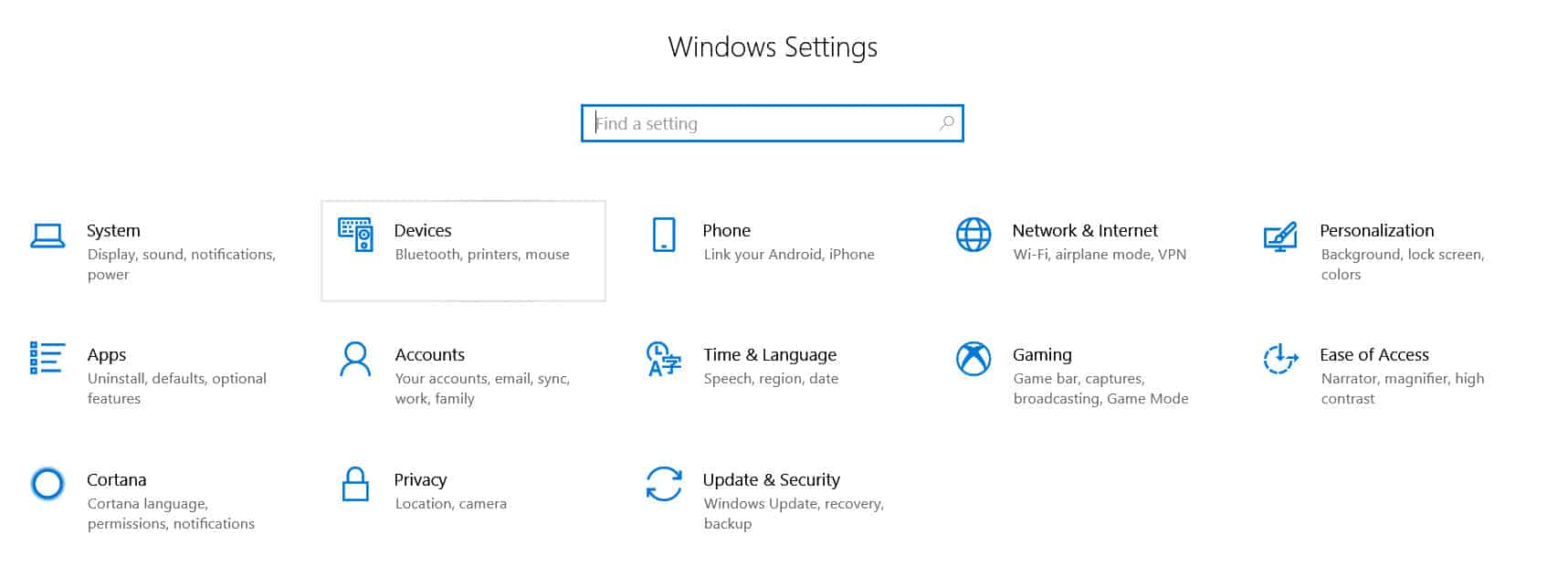
Step 1: Open “Settings” and go to “Devices: Printers, Bluetooth, etc”
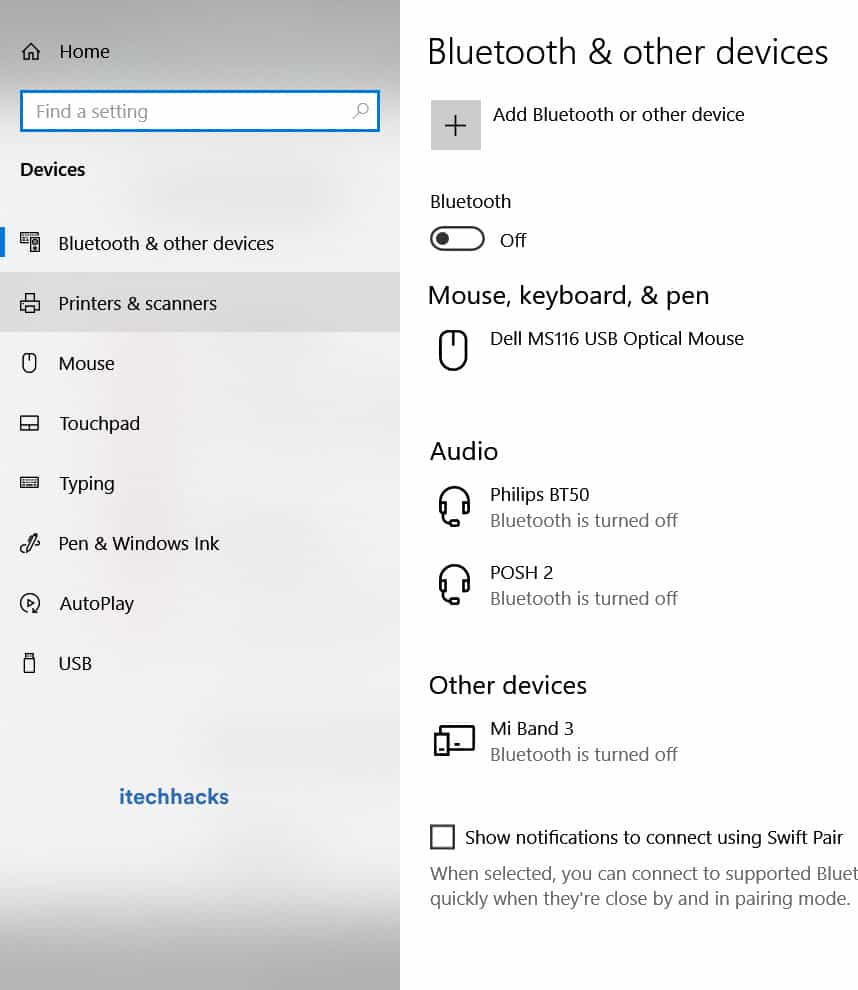
Step 2: Click on “Printers and Scanners”
Step 3: Now, Click on “Printer Offline” and the Printer menu will appear.
Step 4: Click on “Printer” in the menu bar and uncheck “Offline.”
<img loading=“lazy” src=“https://itechhacks.com/wp-content/uploads/2021/03/printer-offline-online.jpg" onerror=“this.onerror=null;this.src=‘https://blogger.googleusercontent.com/img/a/AVvXsEhe7F7TRXHtjiKvHb5vS7DmnxvpHiDyoYyYvm1nHB3Qp2_w3BnM6A2eq4v7FYxCC9bfZt3a9vIMtAYEKUiaDQbHMg-ViyGmRIj39MLp0bGFfgfYw1Dc9q_H-T0wiTm3l0Uq42dETrN9eC8aGJ9_IORZsxST1AcLR7np1koOfcc7tnHa4S8Mwz_xD9d0=s16000';" alt=“Click on “Printer: Offline” and the Printer menu will appear. Click on “Printer” in the menu bar and uncheck “Use Printer Offline.” This action will change the printer from offline to online. - 19”>
<img loading=“lazy” src=“https://itechhacks.com/wp-content/uploads/2021/03/printer-offline-online.jpg" onerror=“this.onerror=null;this.src=‘https://blogger.googleusercontent.com/img/a/AVvXsEhe7F7TRXHtjiKvHb5vS7DmnxvpHiDyoYyYvm1nHB3Qp2_w3BnM6A2eq4v7FYxCC9bfZt3a9vIMtAYEKUiaDQbHMg-ViyGmRIj39MLp0bGFfgfYw1Dc9q_H-T0wiTm3l0Uq42dETrN9eC8aGJ9_IORZsxST1AcLR7np1koOfcc7tnHa4S8Mwz_xD9d0=s16000';" alt=“Click on “Printer: Offline” and the Printer menu will appear. Click on “Printer” in the menu bar and uncheck “Use Printer Offline.” This action will change the printer from offline to online. - 20”>
Conclusion:
These are some of the most effective methods which you can use to make your Printer online on Windows 10 and MacOS. The steps involved in these methods are easy to execute.