- iPhone 14 Pro and 14 Pro Max may not turn on due to battery drain, high temperatures, software issues, or defects
- Solutions include pressing power button for 30 seconds, plugging in the phone for 2-3 hours, force restarting, waiting for temperatures to stabilize, or visiting Apple Store
- To prevent issues, thoroughly test and purchase Apple Care, make unboxing videos for online purchases, and approach Apple Store immediately if problems persist
Have you ever been excited to unbox your brand-new iPhone 14 or 14 Pro Max, only to find that it won’t power on? It’s a mix of frustration and disappointment that’s truly heartbreaking. Even though these models are the latest in Apple’s flagship lineup and come with many advanced features, some users still face issues where their device simply won’t turn on.

Why are My iPhone 14 Pro and 14 Pro Max Won’t Turn On
Your iPhone 14 Pro and iPhone 14 Pro Max are not turning on because the battery is drained. You can try charging the device for some time and then check to verify the issue. On the flip side, it is also possible that your iPhone is at a high temperature and not turning on.
Further, there are several other reasons why your iPhone 14 Pro or iPhone 14 Pro Max may not turn on at all. There can a software issue, a battery problem, a charging issue, or hardware damage.
Finally, up to some extent, there’s a problem with the iPhone itself. That means your iPhone is defective. In the later section, we will discuss how to avoid such issues when purchasing the iPhone.
How to Fix iPhone 14, 14 Pro and 14 Pro Max Won’t Turn On
If either your iPhone 14 Pro or iPhone 14 Pro Max is not turning on at all, the first way to fix the issue is to keep your mind calm and not panic under any circumstances. When you are ready, you can start applying the fixes below in the serial they are mentioned. Further, make sure that you don’t skip any of them.
Fix 1: Try Keeping the Power Button Pressed
Sometimes, the power button fails to respond to one click. As a result, you need to keep trying. However, we don’t mean that you have to keep trying hopelessly.
You have to press and hold the power button for as long as you would usually press it, say 30 seconds. You usually press the power button for 5 seconds, and the phone should turn on. However, if it is not turning on at all, it is now time to increase the duration of pressing to 30 seconds.
This should turn on your iPhone 14 Max or iPhone 14 Max Pro however, if it doesn’t, move on to the next fix.
Fix 2: Plug in the Phone
While Apple doesn’t provide an adapter nowadays, you have definitely purchased the adapter before purchasing the device. If you haven’t, it is now time to do so. Purchase the adapter and plug it into your iPhone.
Sometimes, iPhones are deep discharged due to shipment delays or weather conditions. Keep the phone charging for around 2 – 3 hours. After that, press and hold the power button. Repeat the fix while keeping the charger plugged in.
However, make sure that your phone has been charged for at least 2 hours before pressing the power button. Please don’t remove your iPhone from charging until it turns on. Keep increasing the power button, pressing duration slowly until it turns on.
If while charging, you aren’t able to see the Green Battery logo, it is time to take your iPhone to the Apple Store right away. However, if you are seeing the logo,
Fix 3: Force Restart Your Phone
Force restarting has proved to be very promising, especially in the case of iPhone 14 Pro and 14 Pro Max, which are not turning on at all. However, doing so is not that easy. First of all, you have to ensure you have charged your phone up to 80% at least and then tried the above fixes. Next, follow these steps for a force restart:
- Press and hold the Volume Up button.
- Simultaneously, leave the Volume-Up button and press the Volume-Down Key.
- Keep doing that simultaneously, and then immediately press and hold the Power Button for 5 seconds.
- Don’t leave the volume buttons until you see the Apple Logo appear.
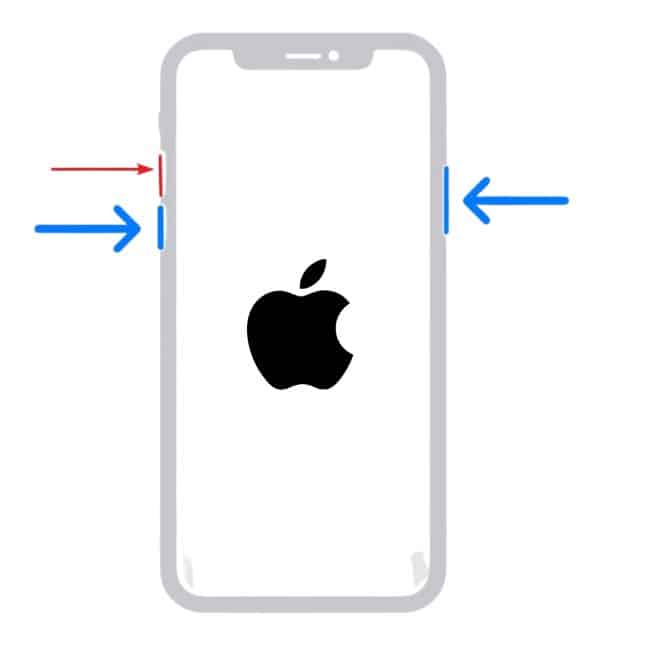
When the Apple logo appears, your phone has started. However, even if the Apple logo appears and doesn’t start, that’s another problem. There have been many issues reported that iPhone 14 stuck on Apple logo but we have fixed that successfully.
Fix 4: Wait for Some Time
Fix 5: Visit Apple Store
Now that you have tried everything, it is time to immediately go to the nearest Apple Store or to where you purchased the iPhone. If you purchased your iPhone online, schedule the return the same day your phone stops turning on.
How to Prevent Apple iPhone 14 Pro That Won’t Turn On
Incidents like the iPhone 14 Pro and 14 Pro Max Not Turning On At All are quite rare because Apple products are near perfect. However, if this happens, you should approach the Apple Store immediately.
Moreover, if you buy the phone from a Physical Store, make sure that you test the phone thoroughly before billing. This way, you will stay protected from such incidents. Also, make sure you purchase the Apple Care plan because if anything like this happens, you will be safeguarded against it.
The Bottom Line
Well, that’s all we have here about how you can start an iPhone 14 Pro or iPhone 14 Pro Max if it is not turning on at all. We hope this guide has helped you. If you are still having any issues, make sure to comment below.
- How To Turn On/off Apple iPhone 14 Pro Dynamic Island
- How to Fix Apple iPhone 14 and 14 Pro Stuck on Apple Logo
- How to Fix iPhone 14 Flashlight Not Working on iOS 16
- How to Use Crash Detection on iPhone 14 and Apple Watch 8
- How to Activate eSIM in iPhone 14: Using Dual SIM with an eSIM
- Fix iMessage and FaceTime Issue after iPhone 14 Activation
- How to Enable 4K Cinematic Mode on iPhone 14 Series
