- Reasons for Bose SoundSport earbuds not turning on include drained battery, technical glitch, or outdated firmware.
- To fix the issue, check the headset temperature, charge the device, update the firmware, reset the earbuds, or contact customer service.
- Follow the troubleshooting steps provided to address the problem and enjoy uninterrupted use of your Bose SoundSport earbuds.
Are Bose SoundSport earbuds not turning on? Facing such issues can ruin your workout session or your mood to listen to soothing music. Bose SoundSport earbuds are one of the best in the range they come in, and no one expects to face such issues with them.
There are various reasons that may be the reason behind your Bose SoundSport earbuds not turning. You may encounter this issue because of a drained battery, technical glitch/big, or outdated firmware.
Fix Bose SoundSport Wireless Headphones Not Turning On
Nothing to worry about; we have listed various troubleshooting steps to fix Bose Wireless headset not turning on. Read ahead to know more-
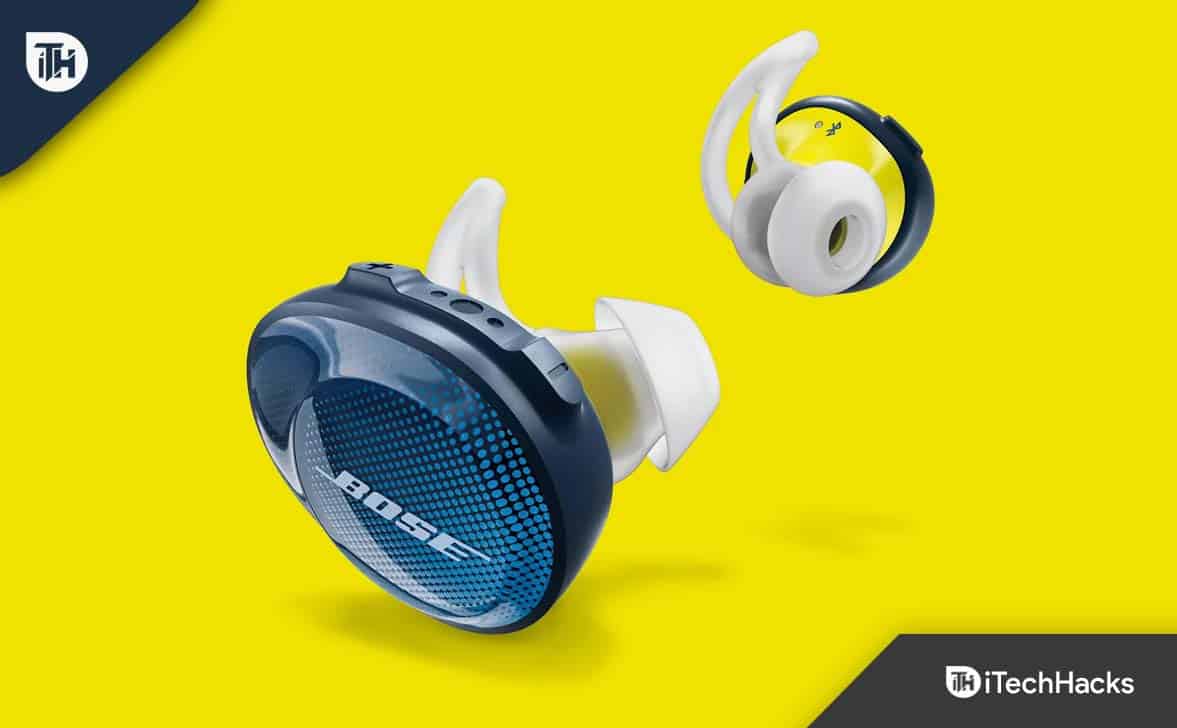
Check Your Headset Temperature
This is a lesser reason behind this issue, but you may face it due to unstabilized temperature. This generally happens when you have been using your headset outside for a very long time.
If your SoundSport earbuds are not turning on, take them inside and let them be for 10-15 minutes. This will stabilize the temperature, and you should be able to turn on the earbuds.
Charging Your Headset
A drained battery is the most common reason behind facing this issue. If you have been using your headset for a very long time and forgot to charge them, then chances are that battery might have drained out, and that’s why your headset is not turning on.
Charge your headset to the full and then turn on the headset. But what if the headset is not charging? If that’s the issue, then follow the steps given below-
- Reinsert the cable and then check if you can charge your Headset or not
- Check the port for dust and dirt. If there’s dirt in the port, then clean it and try charging your device.
- Replace your charging cable and then check whether you can charge your phone.
- If your Bose SoundSport Earbuds are still not, it may be because of faulty hardware. You can take the earbuds to the service center and get them checked.
Update Firmware Of Earbuds
Outdated firmware may also cause your Bose SoundSport earbuds to not turn on. You can update the firmware of the earbuds to fix the issue. Given below are the steps to update the firmware of the earbuds-
- First of all, download Bose Updater on your PC. You can click on this link to the download page and download the updater from there.
- Once you have downloaded the Bose updater, install it on your PC.
- Connect your earbuds to your PC using the USB cable.
- Once done, launch the updater on your PC.
- The updater will scan for any firmware updates available for your earbuds.
- Download and install the available firmware update and then check if the issue is still faced.
Reset Your Earbuds
Resetting your earbuds will refresh the firmware of the device. This will revert all the settings to the factory default and fix any issues you have faced. You can reset your Bose SoundSport earbuds by following the steps given below-
- Place the earbuds in the charging case.
- Now, eject the earbuds from the charging case after a few seconds.
- Now, put them on standby for a minute or two.
- Reboot the earbuds now.
This will reset the SoundSport earbuds. Once you finish it, check whether the earbuds are turning on.
Contact Customer Service
Contact Bose’s customer support if the issue still needs to be solved. The issue is often related to hardware and is not fixable from the user end. Contact customer service and explain to them the issue you have been facing. They will guide you with what can be done to fix this issue. To contact customer service, follow the steps given below-
- Click on this link to head to the service page of Bose earbuds.
- Here you will be asked to enter the 4-digit headphone code. You can either enter the 4-digit headphone code or the serial number.
- Once done with entering the code, click on Submit.
- Now, follow the on-screen instructions to raise a query about your product and get a way to fix the issue.
Final Words
That’s it with this guide to fix Bose SoundSport earbuds not turning on . The above steps should help fix the issue you have been facing with the Bose earbuds. If your earbuds are under warranty, then contacting the service center would be a better option. The service center will provide you with a fix to the issue or replace your earbuds if they are faulty.
RELATED GUIDES:
How to Fix Logitech Wireless Keyboard not Working
How To Add Wireless Printer In Windows 11
Top 10 Best Home Theatre Power Managers to Use
Top 5 Best Game Controllers For Pixel 3XL Gaming
How to Fix Hulu Error Code 2 (-998) in 8 Easy Ways
Wireless printers can be added to your Windows 11 PC for wireless printing convenience.
Follow steps to manually add a wireless printer in Windows 11: Open Settings, go to Bluetooth & devices, click on Printers & scanners, and Add device.
If the printer isn’t listed, add it manually by selecting Add a Bluetooth, wireless, or network discoverable printer and following the prompts to successfully add the printer.
Today’s printers have both wired and wireless connections that you can use to connect them to your computer. After connecting the wireless printer to your wireless network, you can print wirelessly from anywhere in your house. You may want to add your wireless printer to your PC if you have a new printer or if you have recently installed Windows 11 on your system. If you wish to install a wireless printer to Windows 11 without know-how, this article will guide you through the process.
How To Add a Printer to Windows 11
This article will go through how to set up a wireless printer in Windows 11.
Adding Wireless Printer In Windows 11
Most probably, Windows 11 should find the wireless printer once your PC and the printer are connected to the same Wi-Fi network. However, if the wireless printer is not added automatically in Windows, then you can follow the steps given below to add the wireless printer in Windows PC manually-
- Open the Settings app on your PC by pressing the Windows + I key combo. Then, you can either search for the Settings app in the Start Menu or hit Enter to open the Settings app.

- Head to the Bluetooth & devices section from the left sidebar of the Settings app, and then on the right side, click on Printers & scanners.
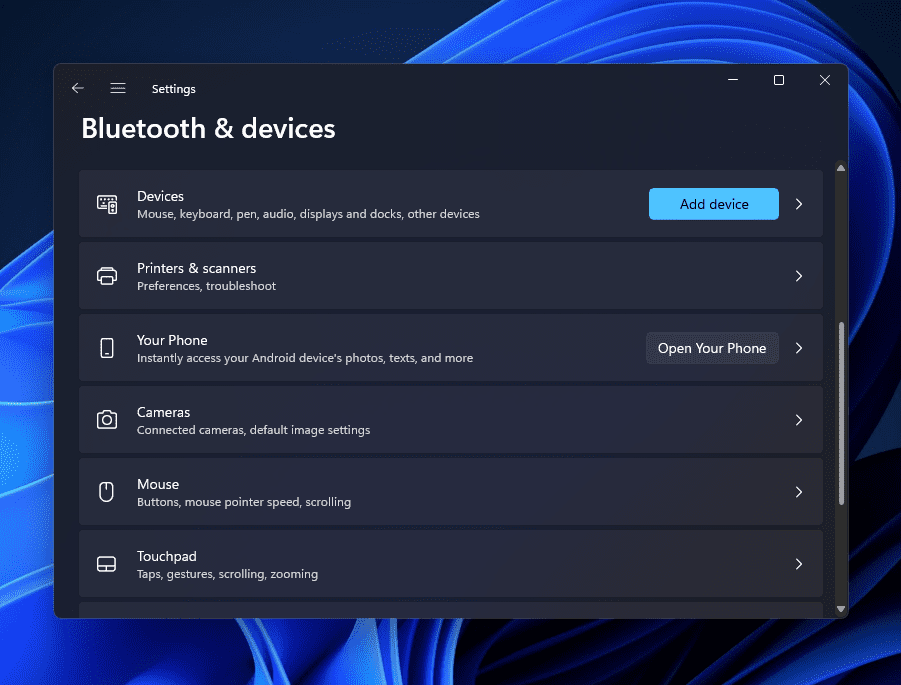
- Click on the Add device button next to the Add a printer or scanner option.
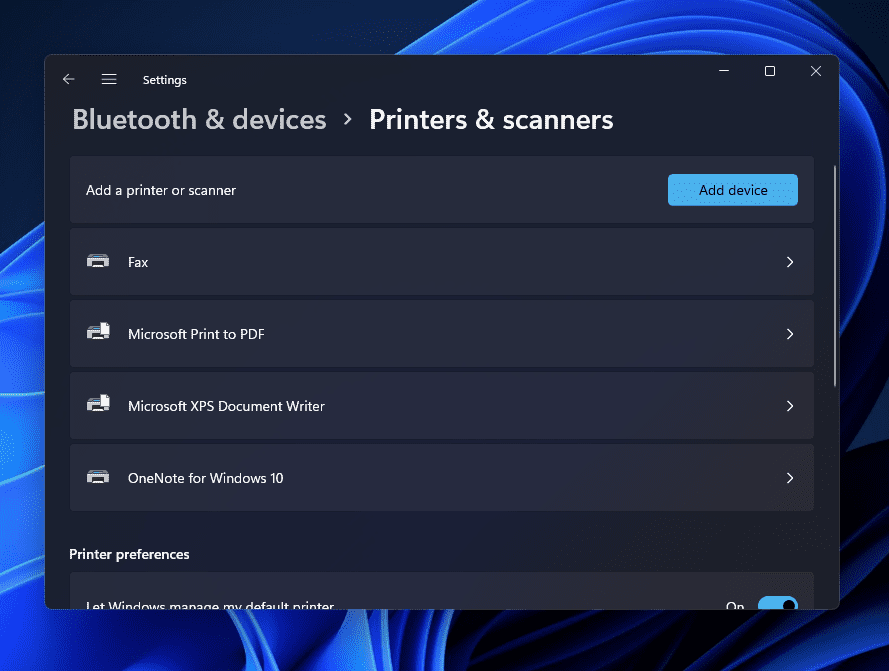
- You should now find the printer listed here. If you get a message saying ‘The printer that I want isn’t listed , then click on Add Manually button.
- Select the Add a Bluetooth, wireless, or network discoverable printer and then click on the Next button on the next window.
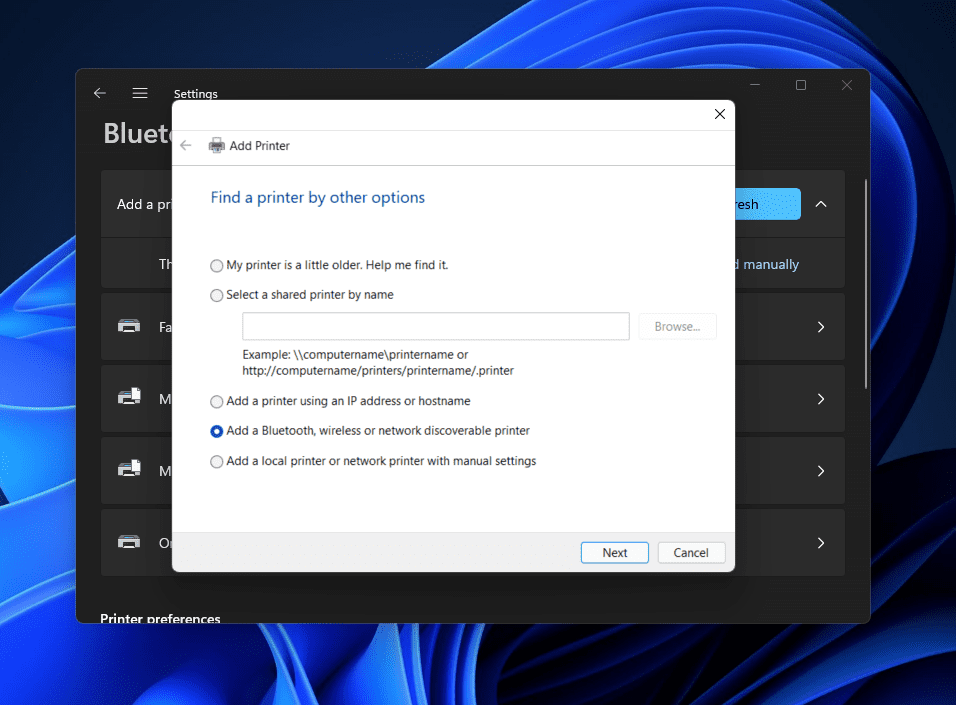
- Next, you will see your printer listed. Select the printer you want to add to your PC from the list and click on Next.
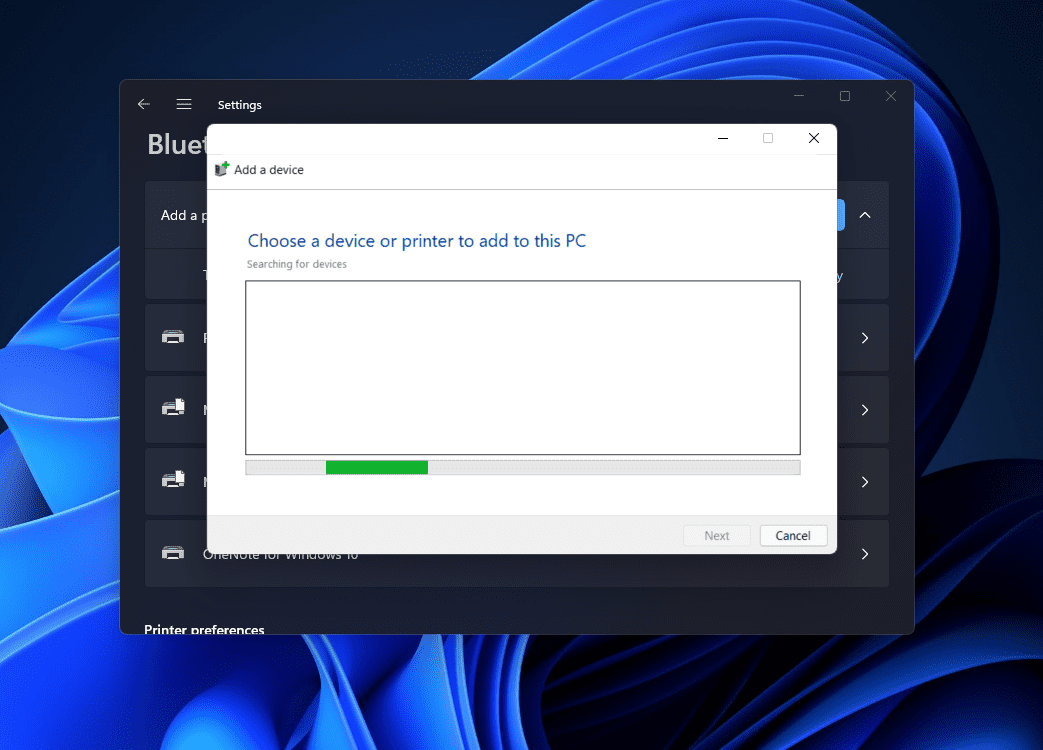
- If Windows 11 locates the printer through the IP address but cannot get the driver’s location, then click on Have Disk button to install the printer software manually.
- Once done, the printer will be added to Windows 11 successfully.
Suppose no printer is found even after trying all the above steps. In that case, you should probably try downloading the printer software/driver from the internet.
RELATED GUIDES:
- How To Delete Printer Driver In Windows 11
- How To Install Windows 11 Printer Drivers Easily
- Top 10 Best Audio Voice Recorder for Windows 11 PC
- How To Fix Windows 11 Printer Spooler Error
- How to Get Printer Online Issue on Mac
Bottom Line
If you have a wireless printer that you want to add to Windows 11, this article might prove helpful. In this article, we have discussed the complete step-by-step process to add a wireless printer to your PC. You can follow the steps given above to add a wireless printer to Windows PC.
