- Amazon app crashing issues can be frustrating for users relying on it for online shopping
- To fix the issue, restart the app or device, check internet connection, update the app, clear cache files, update device firmware, or reinstall the app
- Following these steps can help resolve the “Amazon shopping app not working” problem and get the app running smoothly again.

The first thing that you should do is restart the app. Crashing issues are still mostly caused by minor glitches or temporary bugs. Just closing the app fully from the recent apps or multitasking menu and re-opening it can work in many cases. If not, move on to the next thing.
Restart Your Device
If restarting the app didn’t help, then just restart your phone. Seriously, a lot of times, just rebooting clears whatever system bugs or background issues were messing things up. It stops all services and gives everything a clean refresh. Works more often than you’d think.
Check Your Internet
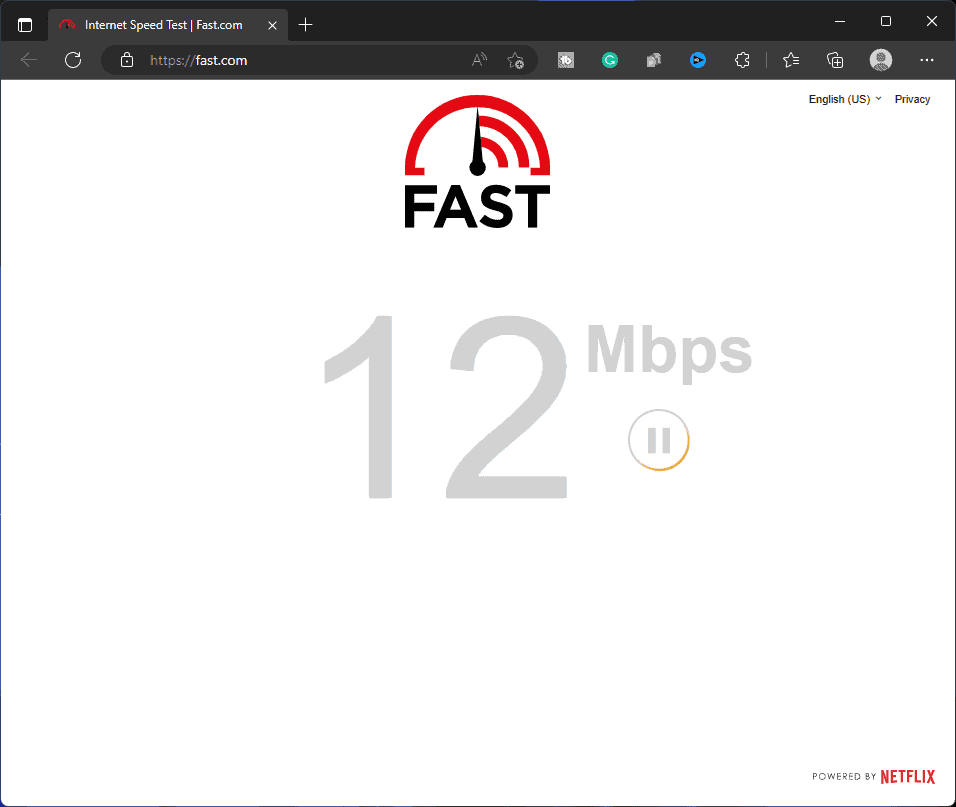
If your internet is down or unstable, then that may also cause this issue. You can visit this guide to check your internet speed. If your internet is unstable, then you can troubleshoot it by following the steps given below-
Close all the apps from the background that might be using your data.
If you have a mobile hotspot turned on, then turn it off.
If you are connected to Wi-Fi, then disconnect all the other devices connected to that Wi-Fi.
If you use your mobile data, turn it off and enable it again.
If the previous step didn’t work, you can enable airplane mode on your phone for a few seconds and disable it.
For mobile data users, try connecting to a Wi-Fi network . If you were already connected to the Wi-Fi, switch to any other network or use mobile data.
If you are using an Android phone, then open Play Store . If you are an iPhone user, open the App Store on your iPhone.
Tap on the search bar here, type Amazon , and tap on the relevant option from the search results.
You will see the Update button if any update is available. Tap on the Update button to update the app.
Once the app has been updated, launch it, and it should be working fine now.
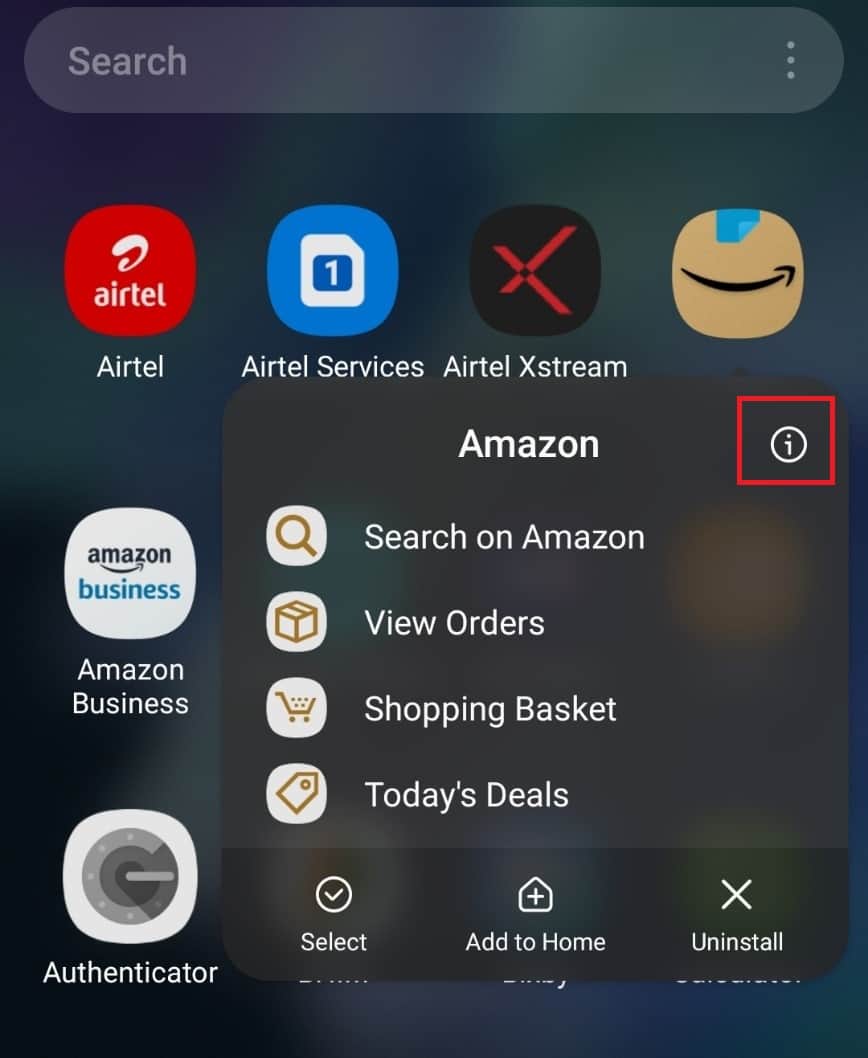
Press the Amazon icon and tap the i button to open the App info screen.
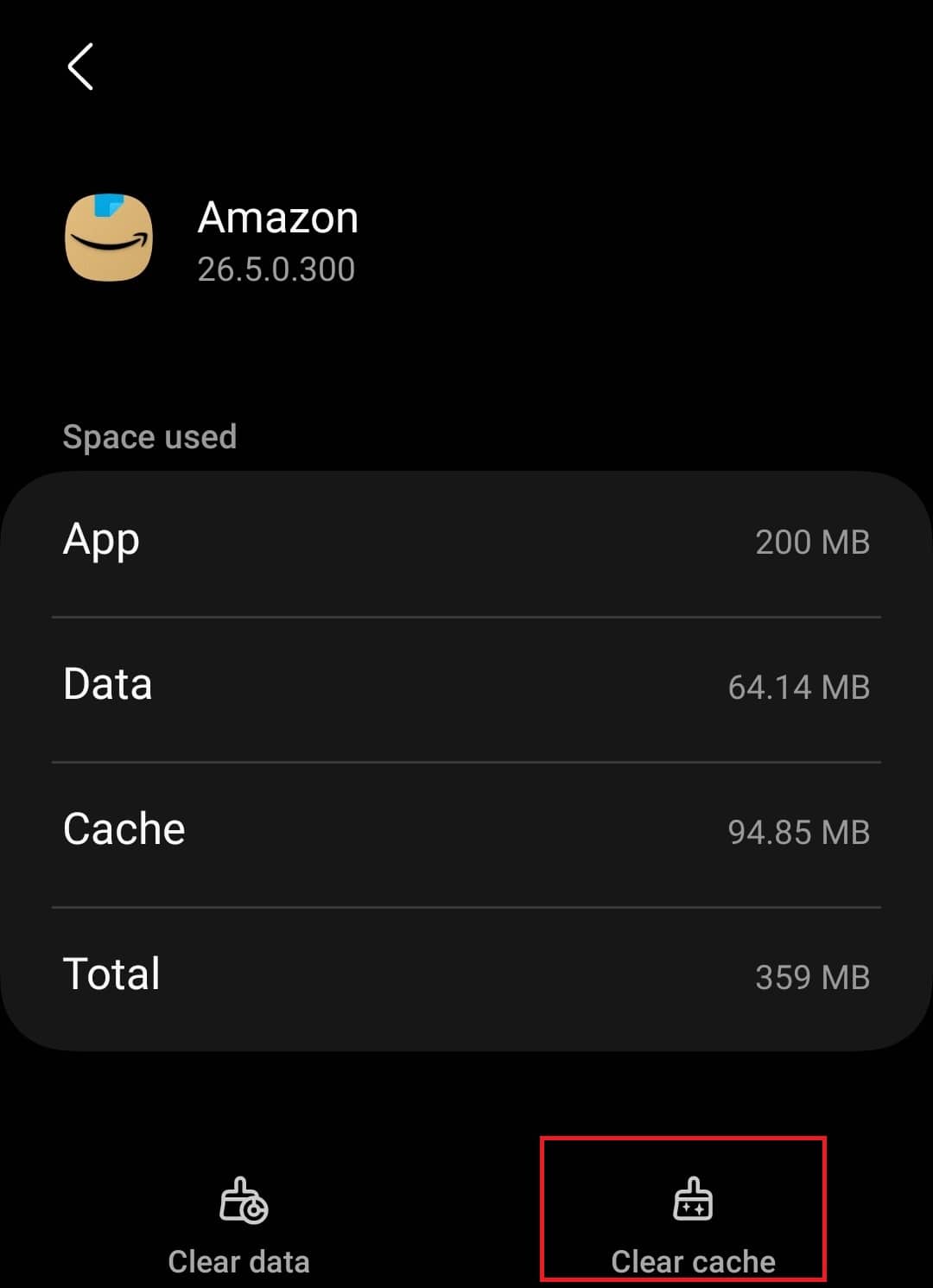
- Now in the App Info , lookout for Storage and tap on it.

- You will see Clear Cache and Clear Data buttons here. Tap on Clear Cache, and that will clear the cache of the app.
Update Your Device Firmware
On Android
- Tap on the Settings app icon on your Android phone.
- Now, tap on the Software Update option.

- Next, tap on Download and Install to search for the firmware updates.

- Install any update available and see if you are still facing the issue.
On iOS
- Open the Settings of your iOS device.
- Head to the General section here.
- Now, tap on the Software Update option.
- Next, tap on Install Now button to install the update.
On iOS
- Tap and hold the Amazon app icon and then tap on Delete .
- Tap on Delete again to confirm deleting the app.
- Now, open the App Store on your iOS device.
- Search for Amazon and tap on the first option in the search result.
- Now, tap on the Get button to install the app.
- After installing the app, sign into your account, and the issue should be fixed.
On Android
- Long press the Amazon app from the app drawer and then tap on Uninstall . Tap on OK to uninstall the app.

- Now, open the App Drawer on your device, and tap on Play Store to open it.
- Tap on the search bar at the top, type Amazon , and search for it.
- Open the relevant search result, and tap on Install to install the app.

- Open the Amazon app once installed and login into your account.
Conclusion
- Register Device at amazon com/mytv Enter Code Login Amazon MyTV
- How To Fix Amazon Fire TV Keeps Restarting
- How to Fix Amazon Cart Not Working Error
- Change Country on Amazon Shopping App and Website
- How to Pay with Apple Pay on Amazon
- What is Amazon Hub Counter? Amazon Hub Counter Near Me
- How to Use PayPal On Amazon
- How to Pay with Apple Pay on Amazon
