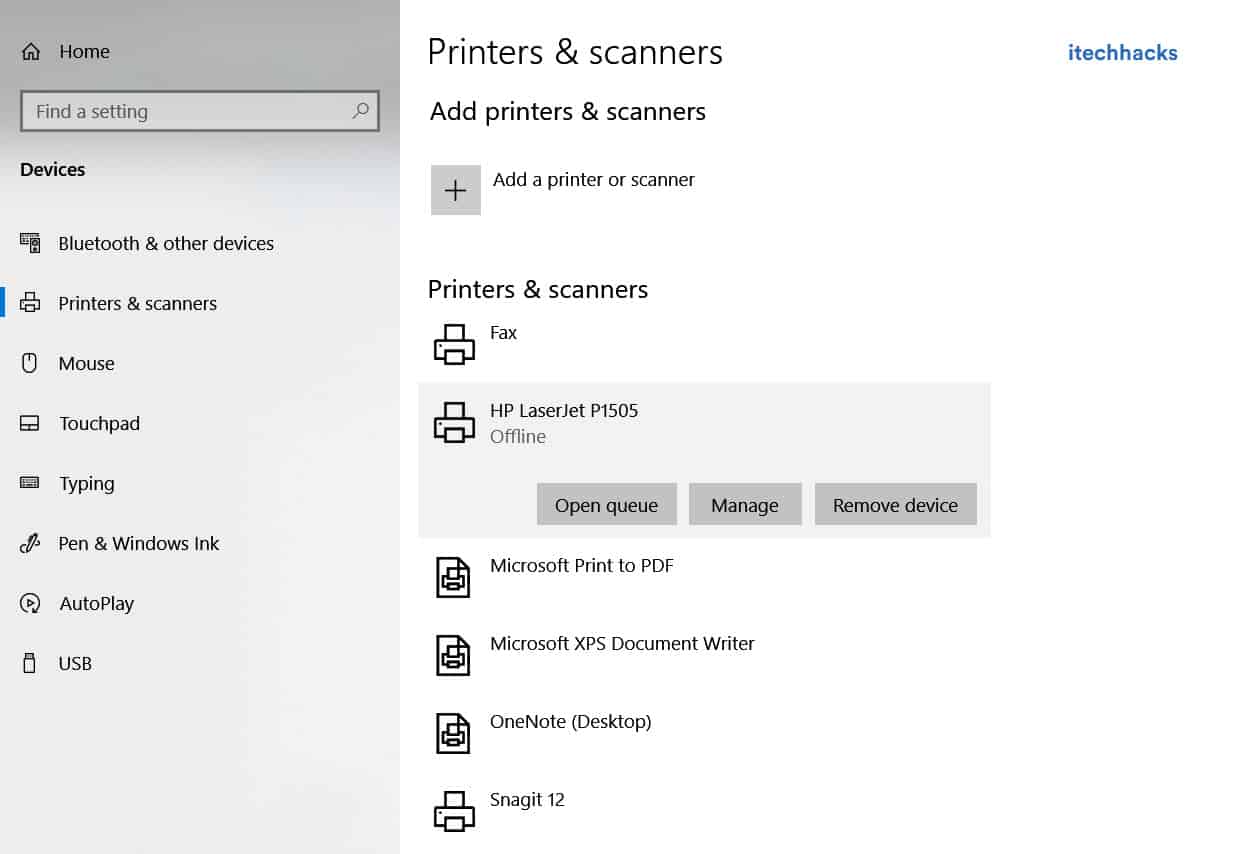
- Printer queue may get stuck due to corrupt print requests, necessitating its clearance on Windows PC before new printing
- Method 1: Control Panel - Access Devices and Printers, select printer, click “See what’s printing” and cancel print requests
- Method 2: Command Prompt - Stop spooler, delete print queue files, start spooler; Method 3: Run - Stop Print Spooler service, delete files from specific location, restart service; Printer queue can hinder printing and requires clearing for smooth operations.
If you are using a printer, there can be situations where it gets hanged. This situation can arise due to a number of corrupt print requests. In such situations, you need to clear the print queue on your Windows PC before making a fresh request.
Thus, here we are with some of the best methods which you can use to clear your print queue.
How to Clear Print Queue on Windows?
Method 1: Clear the Print Queue through Control Panel.
Step 1- Launch ‘ Control Panel ‘ on your Windows PC.
Step 2- Here, search for the ‘ Devices and Printers option and click on it.
Step 3- In the Devices and Printers window, right-click on the printer whose queue you wish to clear and select ‘ See what’s printing from the drop-down box.
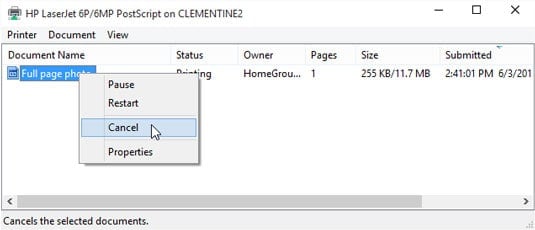
Step 4- You will get a list of all the print requests in a queue. Right-click on each and every print request and select ‘ Cancel ‘ from the drop-down box.
You can cancel all the requests at once by clicking on Printer » Cancel All Documents on the same window. The Printer option is located at the top left corner of the window.
If you are unable to clear the print queue by following this method, go to the next method listed below.
Method 2: Clear the Print Queue Using Command Prompt.
Step 1- Launch ‘ Command Prompt ‘ on your Windows PC as an administrator .
Step 2- Type ‘ net stop spooler in this window and hit Enter .
Step 3- Now, type ‘ del %systemroot%\System32\spool\printers* /Q ‘ and hit Enter .
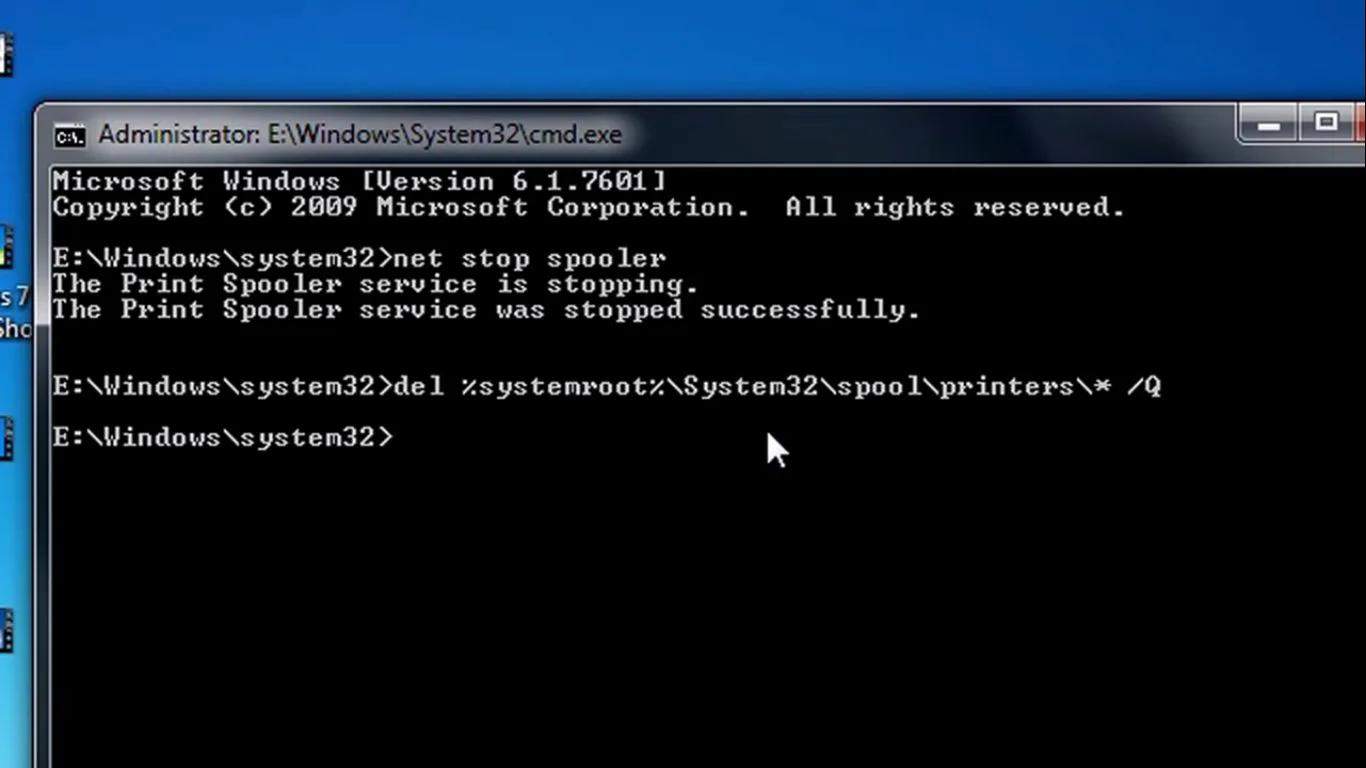
Step 4- Then, type ‘ net start spooler in the same window and hit Enter .
Step 5- Exit the command prompt on your Windows PC.
The print list on your Windows PC should now be cleared. If not, try using the method listed below.
ALSO CHECK: How to Get Printer Online on Windows 10 (Offline to Online)
Method 3: Clear the Print Queue Using Run.
Step 1- Launch ‘ Run ‘ on your Windows PC by simultaneously pressing the Windows and R keys on your keyboard.
Step 2- Type ‘ services.msc ‘ in the text box and hit Enter .
Step 3- A list containing all the services on your Windows PC will appear on your screen. Search for ‘ Print Spooler ‘ and right-click on it.
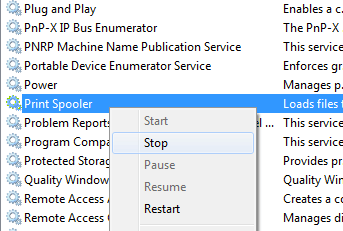
Step 4- Now, select ‘ stop ‘ from the drop-down box.
Step 5- Navigate to the location listed below.
C:\Windows\System32\spool\PRINTERS .
Step 6- Select and delete all the files visible in this folder.
Step 7- Now, go back to the Services window by repeating steps 1, step 2, and step 3.
Step 8- Select ‘ Start ‘ from the drop-down box of the ‘ Print Spooler ‘ service.
Now that the print queue is cleared on your Windows PC, you can make a fresh print request.
Q1. Why is my printer not printing?
If your print queue is filled with corrupt print requests, the printer will be unable to print any of the requests made by you. In such a case, you need to clear your print queue and make a fresh print request.
Q2. How to clear Print Queue?
There are several methods that you can use to clear the print queue on your PC. Some of the best methods have been listed above. The steps involved in these methods are easy to understand and execute.
Q3. What should I do if Print Queue is not getting cleared?
If you have executed all the above-listed methods but unable to clear the print queue on your Windows PC, you might need to update your printer drivers or get your printer checked by its manufacturer.
Q4. What is Print Queue on Windows?
Whenever you command your Windows PC to print a particular file, it gets added to a list. If you add multiple files to this list, they are arranged in a queue. This queue is known as the Print Queue on Windows PC.
ALSO CHECK: How to Convert EXE to APK Easily on Android and PC
Conclusion:
These are some of the easiest methods which you can use to clear the print queue on your Windows 10/8/7 PC . The steps involved in these methods are easy to understand and execute.
- Printer queue may get stuck due to corrupt print requests, necessitating its clearance on Windows PC before new printing
- Method 1: Control Panel - Access Devices and Printers, select printer, click “See what’s printing” and cancel print requests
- Method 2: Command Prompt - Stop spooler, delete print queue files, start spooler; Method 3: Run - Stop Print Spooler service, delete files from specific location, restart service; Printer queue can hinder printing and requires clearing for smooth operations.
If you are using a printer, there can be situations where it gets hanged. This situation can arise due to a number of corrupt print requests. In such situations, you need to clear the print queue on your Windows PC before making a fresh request.
Thus, here we are with some of the best methods which you can use to clear your print queue.
How to Clear Print Queue on Windows?
Method 1: Clear the Print Queue through Control Panel.
Step 1- Launch ‘ Control Panel ‘ on your Windows PC.
Step 2- Here, search for the ‘ Devices and Printers option and click on it.
Step 3- In the Devices and Printers window, right-click on the printer whose queue you wish to clear and select ‘ See what’s printing from the drop-down box.
Step 4- You will get a list of all the print requests in a queue. Right-click on each and every print request and select ‘ Cancel ‘ from the drop-down box.
You can cancel all the requests at once by clicking on Printer » Cancel All Documents on the same window. The Printer option is located at the top left corner of the window.
If you are unable to clear the print queue by following this method, go to the next method listed below.
Method 2: Clear the Print Queue Using Command Prompt.
Step 1- Launch ‘ Command Prompt ‘ on your Windows PC as an administrator .
Step 2- Type ‘ net stop spooler in this window and hit Enter .
Step 3- Now, type ‘ del %systemroot%\System32\spool\printers* /Q ‘ and hit Enter .
Step 4- Then, type ‘ net start spooler in the same window and hit Enter .
Step 5- Exit the command prompt on your Windows PC.
The print list on your Windows PC should now be cleared. If not, try using the method listed below.
ALSO CHECK: How to Get Printer Online on Windows 10 (Offline to Online)
Method 3: Clear the Print Queue Using Run.
Step 1- Launch ‘ Run ‘ on your Windows PC by simultaneously pressing the Windows and R keys on your keyboard.
Step 2- Type ‘ services.msc ‘ in the text box and hit Enter .
Step 3- A list containing all the services on your Windows PC will appear on your screen. Search for ‘ Print Spooler ‘ and right-click on it.
Step 4- Now, select ‘ stop ‘ from the drop-down box.
Step 5- Navigate to the location listed below.
C:\Windows\System32\spool\PRINTERS .
Step 6- Select and delete all the files visible in this folder.
Step 7- Now, go back to the Services window by repeating steps 1, step 2, and step 3.
Step 8- Select ‘ Start ‘ from the drop-down box of the ‘ Print Spooler ‘ service.
Now that the print queue is cleared on your Windows PC, you can make a fresh print request.
Q1. Why is my printer not printing?
If your print queue is filled with corrupt print requests, the printer will be unable to print any of the requests made by you. In such a case, you need to clear your print queue and make a fresh print request.
Q2. How to clear Print Queue?
There are several methods that you can use to clear the print queue on your PC. Some of the best methods have been listed above. The steps involved in these methods are easy to understand and execute.
Q3. What should I do if Print Queue is not getting cleared?
If you have executed all the above-listed methods but unable to clear the print queue on your Windows PC, you might need to update your printer drivers or get your printer checked by its manufacturer.
Q4. What is Print Queue on Windows?
Whenever you command your Windows PC to print a particular file, it gets added to a list. If you add multiple files to this list, they are arranged in a queue. This queue is known as the Print Queue on Windows PC.
ALSO CHECK: How to Convert EXE to APK Easily on Android and PC
Conclusion:
These are some of the easiest methods which you can use to clear the print queue on your Windows 10/8/7 PC . The steps involved in these methods are easy to understand and execute.
- Printer Offline error is a common issue while printing remotely, causing the printer to not print and display an offline message.
- To get the printer back online on Windows 10, check network connectivity, run a printer power cycle, clear the print queue, restart the print spooler, remove and reinstall the printer, or restart the PC.
- Changing the printer from offline to online involves accessing settings, navigating to Printers and Scanners, and unchecking the “Offline” option in the Printer menu.
When using a printer, you will come across several errors. One of the most frequently occurring errors while printing documents remotely is the Printer Offline error. In this error, your printer will not print any document and a ‘ Printer offline ‘ message will be displayed on your screen.

To resume printing documents remotely, you need to get your printer back online. Thus, here we are with some of the best methods which you can use to turn your printer online.
How to Get Printer Online on Windows PC?
Method 1: Check Network Connectivity.
Before we start with any of the technical methods, let us make some basic checks. A stable network connection is a must for a printer to remain online.
1. Connect your Printer to the internet.
Use an Ethernet wire to connect your printer to your Printer. Also, make sure that your internet connection is up and running.
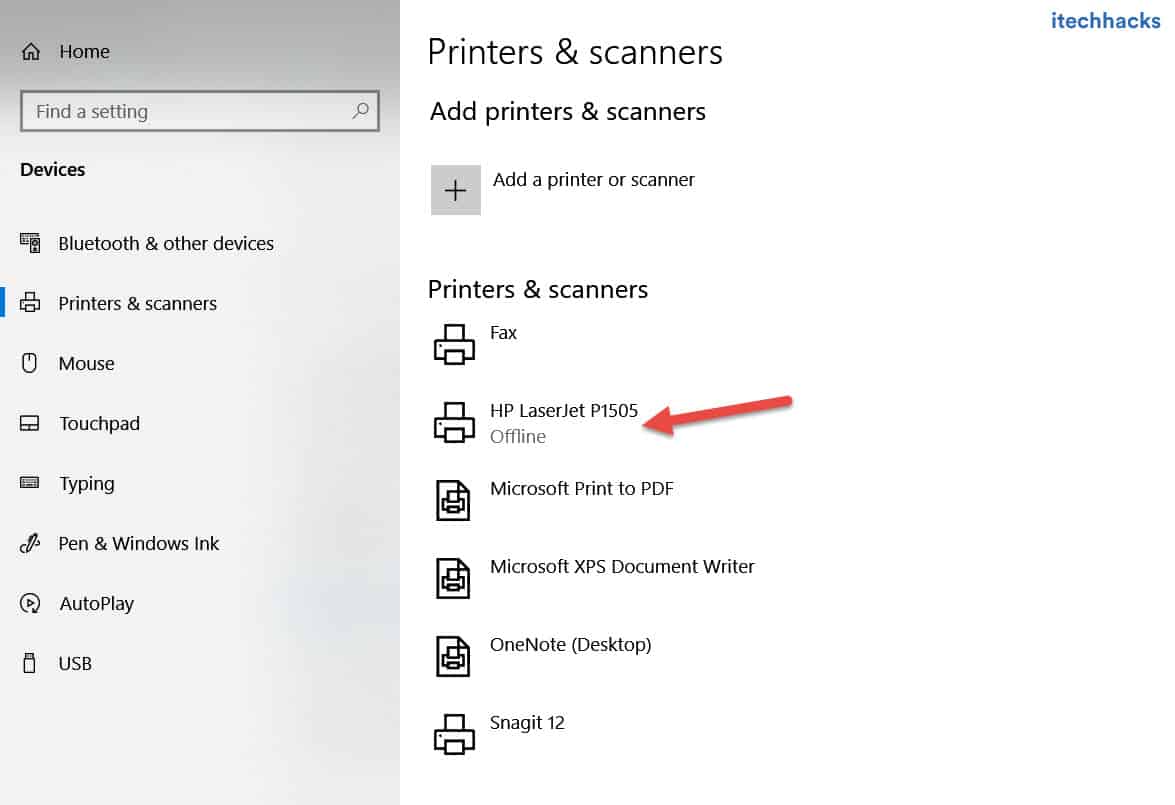
2. Connect your PC and your Printer to the same network.
If you have a wireless printer, make sure that your PC and Printer are connected to the same WiFi network. If they are connected to different networks, your PC will not be able to communicate with your printer.
Method 2: Run a Printer Power Cycle.
It has been observed that Power Cycling a Printer turns it online. Follow the steps listed below to run a Printer Power Cycle.

Step 1- Turn off your printer and unplug it.
Step 2- Wait for 30 seconds before plugging it back into the power socket.
Step 3- Now, turn on your Printer.
Once your Printer is turned on, check if it is back online. If not, go ahead with the next method.
Method 3: Clear the Print Queue.
If there are a lot of corrupt print requests in the Print Queue of your PC, you might face this error on your PC. Follow the steps listed below to clear the print queue.
Step 1- Launch ‘ Control Panel ‘ on your Windows PC.
Step 2- Here, search for the ‘ Devices and Printers option and click on it.
Step 3- In the Devices and Printers window, right-click on the printer whose queue you wish to clear and select ‘ See what’s printing from the drop-down box.
Step 4- You will get a list of all the print requests in a queue. Right-click on each and every print request and select ‘ Cancel ‘ from the drop-down box.
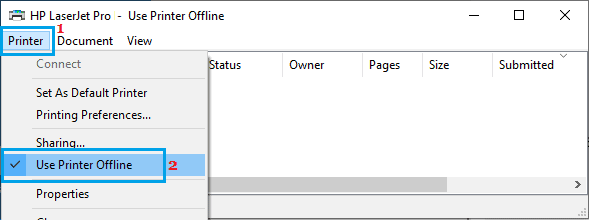
Also, uncheck the checkbox for ‘ Use Printer Offline ‘ if it is checked on this window. Then, check if your printer turns online.
Method 4: Restart Print Spooler.
Step 1- Launch ‘ Run ‘ on your Windows PC by simultaneously pressing the Windows and R keys on your keyboard.
Step 2- Type ‘ services.msc ‘ in the text box and hit Enter .
Step 3- A list containing all the services on your Windows PC will appear on your screen. Search for ‘ Print Spooler ‘ and right-click on it.
Step 4- Now, select ‘ Restart ‘ from the drop-down box.
Check if your printer turns online. If not, go ahead with the next method.
Method 5: Remove and Reinstall your Printer.
Step 1- Launch ‘ Control Panel ‘ on your Windows PC.
Step 2- Here, search for the ‘ Devices and Printers option and click on it.
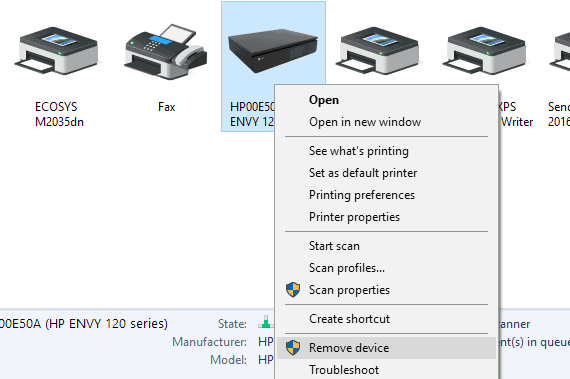
Step 3- In the Devices and Printers window, right-click on the printer which is offline and select the ‘ Remove Device ‘ option from the drop-down box.
Step 4- Now, click on the ‘ Add a printer or scanner option in the same window to reinstall your Printer.
Now, check if your Printer is back online. If not, go ahead with the next method.
Method 6: Restart your PC.
If none of the above-listed methods help you in turning your printer online, try restarting your PC. Check if your printer is back online after restarting your PC.
How to Change Printer from Offline to Online
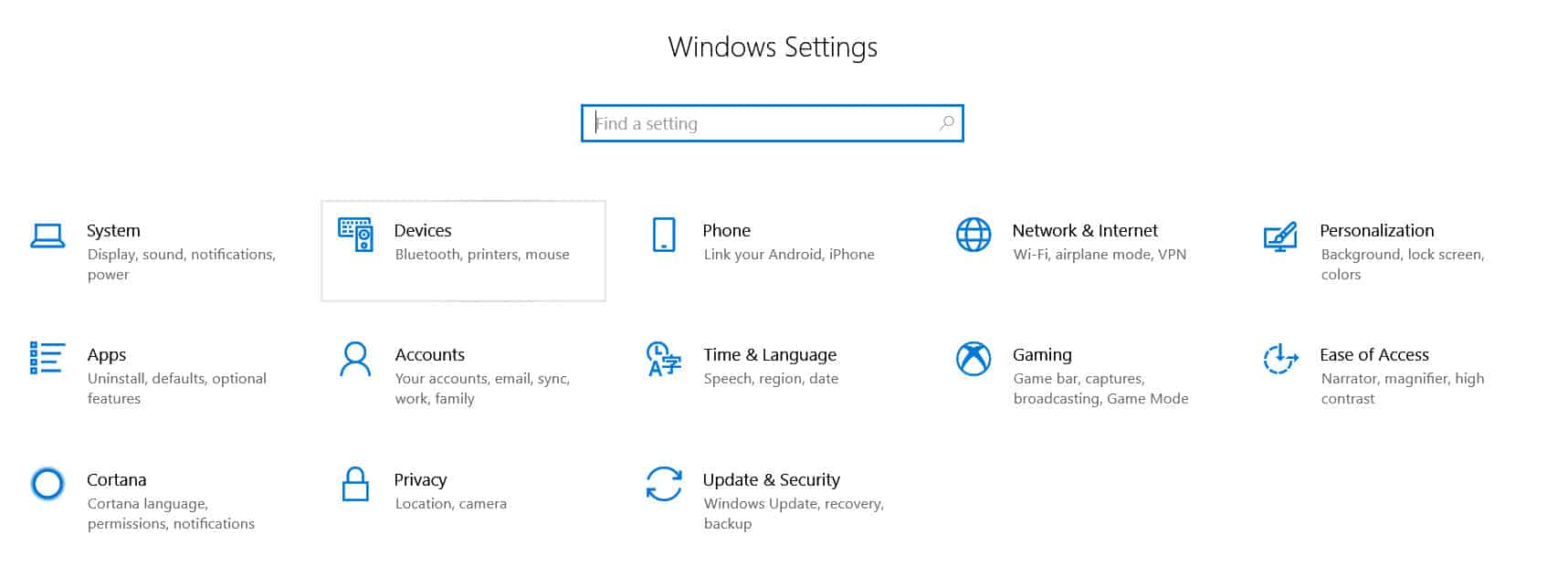
Step 1: Open “Settings” and go to “Devices: Printers, Bluetooth, etc”
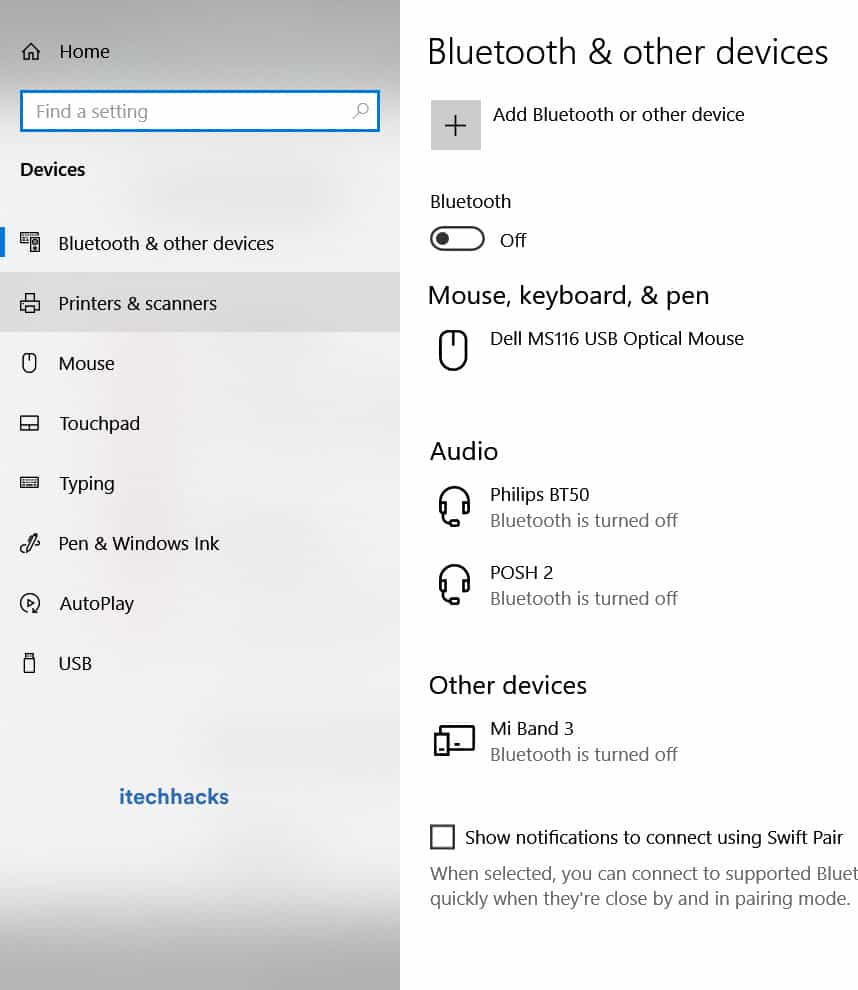
Step 2: Click on “Printers and Scanners”
Step 3: Now, Click on “Printer Offline” and the Printer menu will appear.
Step 4: Click on “Printer” in the menu bar and uncheck “Offline.”
<img loading=“lazy” src=“https://itechhacks.com/wp-content/uploads/2021/03/printer-offline-online.jpg" onerror=“this.onerror=null;this.src=‘https://blogger.googleusercontent.com/img/a/AVvXsEhe7F7TRXHtjiKvHb5vS7DmnxvpHiDyoYyYvm1nHB3Qp2_w3BnM6A2eq4v7FYxCC9bfZt3a9vIMtAYEKUiaDQbHMg-ViyGmRIj39MLp0bGFfgfYw1Dc9q_H-T0wiTm3l0Uq42dETrN9eC8aGJ9_IORZsxST1AcLR7np1koOfcc7tnHa4S8Mwz_xD9d0=s16000';" alt=“Click on “Printer: Offline” and the Printer menu will appear. Click on “Printer” in the menu bar and uncheck “Use Printer Offline.” This action will change the printer from offline to online. - 33”>
<img loading=“lazy” src=“https://itechhacks.com/wp-content/uploads/2021/03/printer-offline-online.jpg" onerror=“this.onerror=null;this.src=‘https://blogger.googleusercontent.com/img/a/AVvXsEhe7F7TRXHtjiKvHb5vS7DmnxvpHiDyoYyYvm1nHB3Qp2_w3BnM6A2eq4v7FYxCC9bfZt3a9vIMtAYEKUiaDQbHMg-ViyGmRIj39MLp0bGFfgfYw1Dc9q_H-T0wiTm3l0Uq42dETrN9eC8aGJ9_IORZsxST1AcLR7np1koOfcc7tnHa4S8Mwz_xD9d0=s16000';" alt=“Click on “Printer: Offline” and the Printer menu will appear. Click on “Printer” in the menu bar and uncheck “Use Printer Offline.” This action will change the printer from offline to online. - 34”>
Conclusion:
These are some of the most effective methods which you can use to make your Printer online on Windows 10 and MacOS. The steps involved in these methods are easy to execute.
- Printer queue may get stuck due to corrupt print requests, necessitating its clearance on Windows PC before new printing
- Method 1: Control Panel - Access Devices and Printers, select printer, click “See what’s printing” and cancel print requests
- Method 2: Command Prompt - Stop spooler, delete print queue files, start spooler; Method 3: Run - Stop Print Spooler service, delete files from specific location, restart service; Printer queue can hinder printing and requires clearing for smooth operations.
If you are using a printer, there can be situations where it gets hanged. This situation can arise due to a number of corrupt print requests. In such situations, you need to clear the print queue on your Windows PC before making a fresh request.
Thus, here we are with some of the best methods which you can use to clear your print queue.
How to Clear Print Queue on Windows?
Method 1: Clear the Print Queue through Control Panel.
Step 1- Launch ‘ Control Panel ‘ on your Windows PC.
Step 2- Here, search for the ‘ Devices and Printers option and click on it.
Step 3- In the Devices and Printers window, right-click on the printer whose queue you wish to clear and select ‘ See what’s printing from the drop-down box.
Step 4- You will get a list of all the print requests in a queue. Right-click on each and every print request and select ‘ Cancel ‘ from the drop-down box.
You can cancel all the requests at once by clicking on Printer » Cancel All Documents on the same window. The Printer option is located at the top left corner of the window.
If you are unable to clear the print queue by following this method, go to the next method listed below.
Method 2: Clear the Print Queue Using Command Prompt.
Step 1- Launch ‘ Command Prompt ‘ on your Windows PC as an administrator .
Step 2- Type ‘ net stop spooler in this window and hit Enter .
Step 3- Now, type ‘ del %systemroot%\System32\spool\printers* /Q ‘ and hit Enter .
Step 4- Then, type ‘ net start spooler in the same window and hit Enter .
Step 5- Exit the command prompt on your Windows PC.
The print list on your Windows PC should now be cleared. If not, try using the method listed below.
ALSO CHECK: How to Get Printer Online on Windows 10 (Offline to Online)
Method 3: Clear the Print Queue Using Run.
Step 1- Launch ‘ Run ‘ on your Windows PC by simultaneously pressing the Windows and R keys on your keyboard.
Step 2- Type ‘ services.msc ‘ in the text box and hit Enter .
Step 3- A list containing all the services on your Windows PC will appear on your screen. Search for ‘ Print Spooler ‘ and right-click on it.
Step 4- Now, select ‘ stop ‘ from the drop-down box.
Step 5- Navigate to the location listed below.
C:\Windows\System32\spool\PRINTERS .
Step 6- Select and delete all the files visible in this folder.
Step 7- Now, go back to the Services window by repeating steps 1, step 2, and step 3.
Step 8- Select ‘ Start ‘ from the drop-down box of the ‘ Print Spooler ‘ service.
Now that the print queue is cleared on your Windows PC, you can make a fresh print request.
Q1. Why is my printer not printing?
If your print queue is filled with corrupt print requests, the printer will be unable to print any of the requests made by you. In such a case, you need to clear your print queue and make a fresh print request.
Q2. How to clear Print Queue?
There are several methods that you can use to clear the print queue on your PC. Some of the best methods have been listed above. The steps involved in these methods are easy to understand and execute.
Q3. What should I do if Print Queue is not getting cleared?
If you have executed all the above-listed methods but unable to clear the print queue on your Windows PC, you might need to update your printer drivers or get your printer checked by its manufacturer.
Q4. What is Print Queue on Windows?
Whenever you command your Windows PC to print a particular file, it gets added to a list. If you add multiple files to this list, they are arranged in a queue. This queue is known as the Print Queue on Windows PC.
ALSO CHECK: How to Convert EXE to APK Easily on Android and PC
Conclusion:
These are some of the easiest methods which you can use to clear the print queue on your Windows 10/8/7 PC . The steps involved in these methods are easy to understand and execute.