- Advertisements online are intrusive, consuming device space and hindering user experience.
- uBlock Origin is a popular ad-blocker for various web browsers, helping users block ads effectively.
- Methods like Element Picker and Network Logger can be used to efficiently block ads on desktop browsers using uBlock Origin.
How to Block Ads with uBlock Origin

Before you start executing the methods listed below, make sure that you have the uBlock Origin extension added to your web browser.
Method 1: Using Element Picker.
To block ads using Element Picker, follow the steps listed below.
Step 1- Right-click on the ad you wish to block and then, select the ‘ Block element… ‘ option with the uBlock Origin icon from the drop-down box which appears on your screen.
Step 2- You will notice an overlay popup at the bottom of your webpage. Here, a suggested network filter and a number of suggested cosmetic filters will be listed.

Click on the suggested cosmetic filters and verify which section of the webpage is highlighted. The highlighted section will be affected by that cosmetic filter.
Step 3- The top suggestions will block a single element while the suggestions towards the bottom might block entire columns or most of the webpage.
Press the Ctrl button and click on multiple suggested cosmetic filters to highlight all similar elements in the webpage.
Step 4- If none of the suggested cosmetic filters highlight the section of the webpage you wish to block, click outside the overlay popup to enter the Element Picker mode.
Then, click on the part of the page you wish to block. You can also press the Ctrl button and make multiple selections.
Step 5- Now that you have selected the sections of the webpage you wish to block from the suggested cosmetic filters or using Element Picker, click on the ‘ Create ‘ button on the overlay popup to instantly apply it as a rule.

Method 2: Through Network Logger.
To block ads through Network Logger, follow the steps listed below.
Step 1- Click on the uBlock Origin icon from the list of extensions added to your web browser.
Step 2- Now, click on the ‘ Open the Logger ‘ option from the pop-up window which appears on your screen.

Step 4- A list of all requests made by the webpage after refreshing it will appear in the Network Logger window.
Unaltered requests will be highlighted in White, requests blocked by a filter in Red, cosmetic filters in Yellow, and explicitly allowed items in Green.
Step 5- Now, click on the second, third, and fifth columns from the left of this entry in the Network Logger to open a new window.
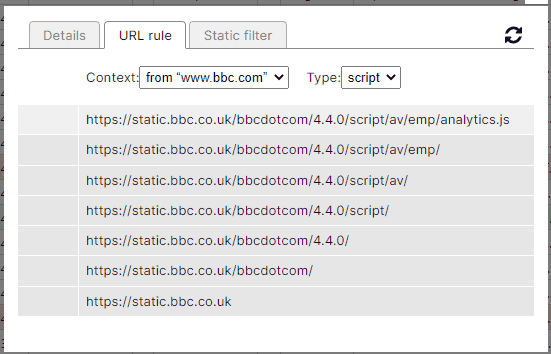
Step 7- Use the column to the left of the URLs to specify whether you want to allow or block the resource. Here, Green indicates allow, Red indicates block, Gr ey indicates no-operations.
Step 8- Once you have set up the URL rule, click on the reload icon on this window to apply the changes. If the ads are not blocked, try doing it again. This is a trial and error method. Thus, you need to keep trying till you get it right.
Step 9- Once the ads are successfully blocked, click on the lock icon on this window to save the changes made by you in the URL rule tab.
Method 3: uBlock Origin Mobile
It’s an open-source desktop tool, but if you know how to code or program, you can tweak it and make one for your Android. Aside from that, you won’t be able to use it on your Android or iOS device because it’s only available in the desktop browser version.
