- “Kmode_exception_not_handled” error on Windows 11 indicates possible hardware or software communication problems, necessitating prompt action to avoid further damage.
- Reasons for the error include outdated GPU drivers, failing RAM modules, faulty USB devices, and overclocked CPUs or GPUs.
- Solutions involve updating all drivers, including GPU drivers, and disabling services like Elan to troubleshoot and resolve the error.
Windows 11 might be the newest OS from Microsoft, but yep, it’s still carrying over some of the annoying issues from older versions. One common problem a lot of users still run into is the “Kmode_Exception_Not_Handled” error. It’s not just some random glitch either — this one can be serious if you ignore it.
Usually, this error shows up when there’s something wrong going on with your system, like driver conflicts or faulty hardware. And if you don’t deal with it soon, it could even lead to hardware damage or more system crashes down the road.
So if your Windows 11 PC is throwing this error at you, don’t panic — but definitely don’t ignore it. Let’s go over what causes the Kmode Exception Not Handled error and what you can do in 2025 to fix it for good.
Why do I keep getting KMODE EXCEPTION NOT HANDLED Blue Screen?
When this error shows up, Windows is basically warning the admin that something triggered a crash to prevent deeper hardware-level damage. It usually means hardware and software aren’t syncing right, and it needs your attention.
GPU Drivers
Windows 11 dropped support for a lot of old hardware. If your motherboard or GPU is outdated, the system might crash.
Fix: Install updated GPU drivers that work with Windows 11. If your current GPU is too old, swap it with a low-end card like GT 1030 or RX 540 — they still get driver support.
RAM Issues
RAM sticks fail with time, dust, or poor contact.
Fix: Clean the RAM and slots, reseat them, and test. If the error keeps showing, try new RAM.
USB Devices or Drivers
Bad USB devices or corrupted drivers can trigger the crash.
Fix: Disconnect all USB devices and restart. Reconnect one by one. Update USB drivers if needed.
Overclocked CPU or GPU
Overclocking can cause instability and blue screens.
Fix: Go to BIOS and reset to stock clock speeds.
Missing Motherboard Drivers
Missing chipset or motherboard drivers cause communication errors.
Fix: Use the original driver CD or download the latest Windows 11 drivers from your motherboard’s website.
These are the usual suspects behind the KMODE_EXCEPTION_NOT_HANDLED error in 2025. Fix them early to avoid system damage. Let me know if you want a version with step-by-step commands or screenshots.
Fix Kmode Exception Not Handled Error Windows 11
Microsoft designed the operating system to create logs, so you can check out which file caused the error, and investigate the matter.

Update All Drivers
Windows 11 is built on new code, and it requires updated drivers to function properly .
- I recommend the users to find the driver’s CD and install them all again and let Windows Update do the job.
- Or, you can manually look for the newer drivers on the official laptop or motherboard website.
Of course, I chose manual work because you can find out the drivers faster and have more control over what’s being installed in the machine. Make sure to remove the old drivers before updating them in the machine.
Update GPU Drivers
Let me show you how you can update the display drivers manually in the machine. The instructions may differ in your case, but the concept will remain the same, and it will help you in looking for Intel, Nvidia, and AMD drivers.
- Search for drivers in the search engine. Search “ Nvidia graphics drivers download ” and replace “ Nvidia ” with the machine’s GPU vendor.

- Choose the GPU series.

- I have a GTX 1050 card, and I have selected everything according to it, and then click on “ Search ” to continue.

- Click on “ Supported Products ” to confirm the GPU compatibility with the driver and then click on “ Download .”

I recommend the users uninstall the display drivers with the assistance of Display Driver Uninstaller (DDU) because it will remove remnants from the system. Watch any YouTube tutorial for instructions, but I implore you to do this, and I do this personally.
Disable Elan Service in Windows 11 PC
Disable Elan Service published by Elan Microelectronics Corporation. Do not worry about the adverse effects of disabling the service because you can repeat the same instructions and enable it back again. We have to boot into Windows Safe Mode to disable the Elan Service.
Step 1: Restart Windows PC, while holding the shift key.
It will boot up the troubleshooting menu on the screen.
Step 2: Choose “ Troubleshoot ” to continue.

Step 3: Choose “ Advanced ” to continue.

Step 4: Choose “ Startup repair ” to continue.

Step 5: Choose “ Advanced options ” to continue.

Step 6: Click on the “ Restart ” button.

Step 7: Press the 5 key on the keyboard after the bootup.

Step 8: You have entered into Safe Mode and press Windows key + R together.
Step 9: Search for “ msconfig ” and click on “ OK ” to open it.

Step 10: Choose “ Services ” from the top menu.

Step 11: Unselect “ Elan Service ” and then click on “ Apply ” and then “ OK ” to save changes.

Step 12: Click on “ Restart ” to save the changes in the Windows 11 machine.

Your PC will restart and will boot you in normal mode, so you don’t have to get out of the safe mode anymore. In case, if this didn’t resolve anything, then revert the changes to normal by following the same tutorial.

Failing RAM Stick
The RAM module in the motherboard might be failing, which is causing the Windows to crash and end up with BSOD. Now, the challenge is to identify, whether the RAM slot is failing or if it is the stick itself.
Step 1: Press the Start key.
Step 2: Search for “ Windows Memory Diagnostic ” and press enter key to open it.

Step 3: Choose an option.

The PC will restart and launch the diagnose the memory or RAM stick for hardware failures. You can remove the RAM from the board and clean the slot with a dry cotton fiber cloth. The memory diagnostic tool will show you, if there are any hardware errors or not.
RELATED GUIDES:
- How To Increase Internet Connection Speed on Windows 11
- Fix When Fingerprint Sensor Not Working
- How To Fix NVIDIA Control Panel Not Showing
- How to Setup & Enable Windows 11 Text-To-Speech Voice Typing
- Fix Windows 11 Multi Monitor Taskbar Not Working Properly
Conclusion
Drivers are a major reason behind the KMODE_EXCEPTION_NOT_HANDLED error in Windows 11, and in most cases, updating them can fix the issue. A lot of desktops also collect dust over the years, and that buildup can cause hardware to act up, leading to errors like this.
- Fingerprint sensors on Windows 11 make sign-ins faster and more secure, but sometimes they stop working — often due to dirt, bugs, or outdated drivers.
- Simple fixes like cleaning the sensor and restarting the PC can help with minor glitches, while updating Windows and the fingerprint driver often solves deeper issues.
- If nothing else works, reinstalling the fingerprint driver in Windows 11 may be the final step needed to get it working again.
These days, most Windows PCs come with a fingerprint sensor for added security and quick sign-in without needing to type your PIN every time. It’s all part of Windows Hello, which is Microsoft’s built-in security system. While fingerprint sensors on Windows 11 are meant to make things more secure and convenient, they don’t always work smoothly.
On some laptops, the fingerprint sensors just aren’t as reliable as the ones on smartphones. Users have been reporting that the sensor doesn’t always detect their fingerprint, or it takes multiple tries before unlocking. For a lot of people, the Windows 11 fingerprint sensor not working has become a common and frustrating issue.
Fingerprint Sensor Not Working in Windows 11
If you have made your way to this article, you were probably facing issues with the fingerprint sensor on your PC. Well, you need not worry about it if your Windows 11 fingerprint sensor is not working. In this article, we will be discussing how you can fix Windows 11 fingerprint sensor not working.
Why You May Face This Issue?
There are many reasons as to why you may face Windows 11 fingerprint sensor not working issue. You may face this issue due to a dirty fingerprint sensor. When the fingerprint sensor on your PC is dirty, it may not be easy to recognize fingerprints, and it may not work.
Another reason for you to face this issue is because of the temporary bugs. There may be certain temporary bugs that may interrupt the well functioning of the fingerprint sensor and may cause an issue with it. Also, due to outdated fingerprint drivers or corrupted drivers, you are most likely to face this issue.
Fixing Windows 11 Fingerprint Sensor Not Working
Now that you know what is causing the issue, we can continue fixing the Windows 11 fingerprint sensor not working.

Try Basic Fixes
Firstly, you should try cleaning the fingerprint sensor of your PC. As we have already discussed, you may face this issue due to the dirt and grease stuck on the fingerprint sensor. You should clean the fingerprint sensor and then check if you still encounter the same error or not. You can use a cleaning solution to clean the fingerprint sensor.
However, if cleaning the fingerprint sensor didn’t work, then you should try restarting your PC. You may face this problem due to temporary bugs. These temporary bugs can easily be solved by restarting your PC. Restart your PC and check if the fingerprint sensor is working now or not. If the fingerprint sensor does not work after doing so, you should move to the next troubleshooting step.
Remove And Add Fingerprint
If you face a problem with the fingerprint, you should try removing the fingerprint from your PC and then add it again. To remove and add the fingerprint, follow the steps given below-
- Open the Settings on your PC by pressing the Windows + I key combo.

- Head to the Accounts section from the left sidebar in the Settings. Now click on the Sign-in options from the right side of the screen.
- Here, expand the Fingerprint recognition section. Click on Remove to remove the fingerprint. You will be asked to confirm removing the fingerprint.

- Now click on add a finger to add the fingerprint on your PC.
- Follow the on-screen instructions, and you will have successfully added a new fingerprint.
This should solve the issue for you. However, if you still face the same issue, you should move ahead to the next step.
Update Windows 11
If Windows 11 fingerprint sensor is not working, then it may be because of the outdated Windows. You should try updating the Windows and then check if the fingerprint works or not. To update the Windows , follow the steps given below-
- Head to the Settings app on your PC. Search for Settings in the Start Menu and open it.
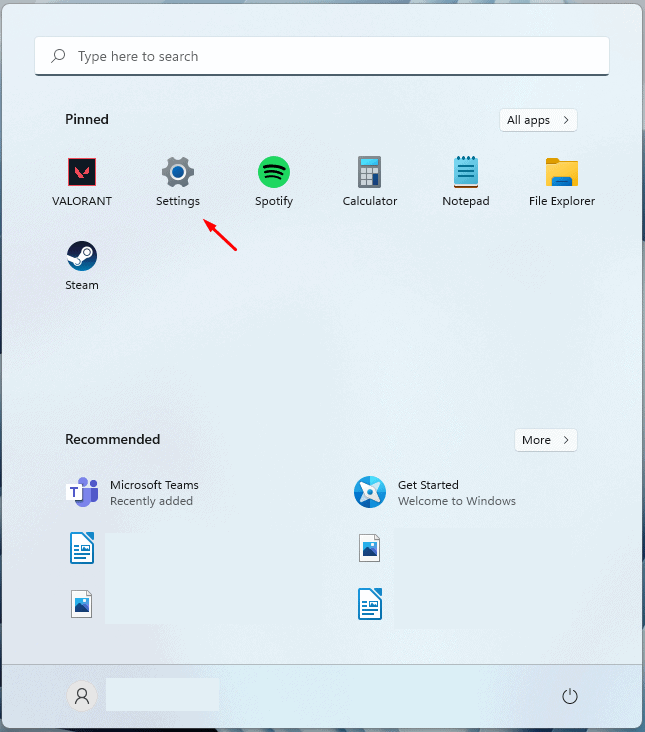
- In the Settings, click on the Windows update option that you will find on the left sidebar.

- Now on the right side, click on Check for updates.

- Now download and install all the updates that your PC finds.
- After installing the updates, restart your PC, and the issue should be fixed.
Update The Fingerprint Driver
You may also face this issue due to outdated drivers. If this is the reason, you may try updating the fingerprint sensor driver, and the issue will be solved.
- In the Start menu , search for Device Manager and open it.

- In the Device Manager, expand the Biometric devices by double-clicking on them.
- Now, select the fingerprint driver, and right-click on it. Click on Update driver to update the fingerprint driver.

- After updating the driver, restart your PC, and try signing in with the fingerprint.
Reinstall Fingerprint Driver in Windows 11
If any of the above steps didn’t help you fix the issue, it might be because the fingerprint drivers on your PC are corrupted. You may try reinstalling the fingerprint driver to solve the issue. To reinstall the fingerprint driver, follow the steps given below-
- Open the Device Manager on your PC.
- Here, double-click on the Biometric devices to expand it.
- Right-click on the fingerprint driver, and click on Uninstall device.

- After uninstalling the driver, restart your PC.
- The drive will be reinstalled, and you will be able to check it from Device Manager.
- Now you can download your OEM Fingerprint driver and can install it. If you are not aware of driver installation then you can check our guide on How To Update Drivers In Windows 11 Properly and Safely.
RELATED GUIDES:
- How To Change Public VPN To Private In Windows 11
- How To Install Bluetooth Driver Windows 11
- How To Fix Windows 11 Keyboard Not Working
This is how you can fix Windows 11 Fingerprint sensor not working. We hope this article helps to fix the issue.
