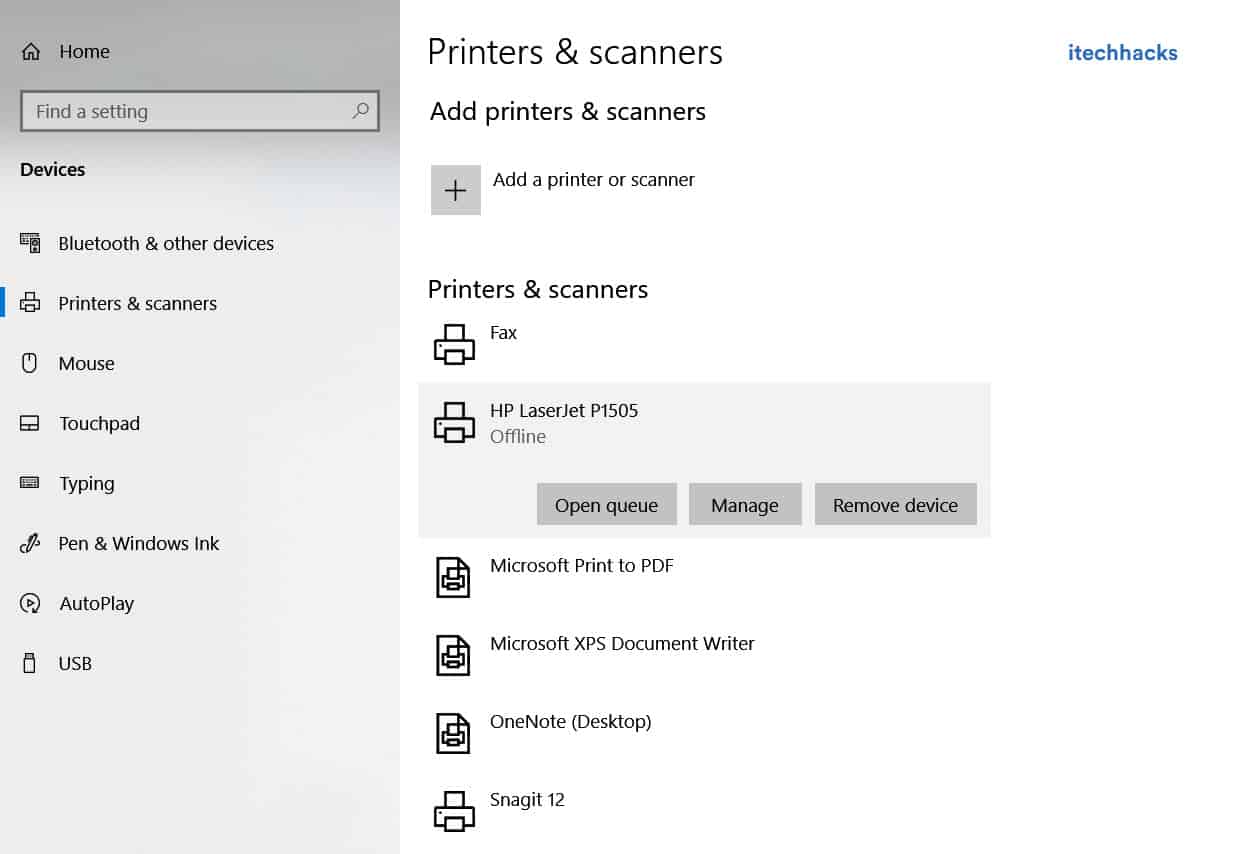
- Windows 10 users may encounter the keyboard not working error, causing inconveniences.
- Basic checks include looking for physical damage, trying different USB ports, and ensuring wireless keyboard functionality.
- Methods to fix the error include turning off Filter Keys, reinstalling/updating keyboard drivers, disabling power-saving options, and using the keyboard troubleshooter.
While using a Windows PC, you will come across several errors. The keyboard not working is one of the errors faced by several Windows 10 users. This error causes a lot of inconveniences as a keyboard is required to execute almost every task on a PC.

Thus, here we are with some of the best methods which you can use to fix keyboard not working error on Windows 10 .
Fix Windows 10 Keyboard Stopped Typing & Working
There are several reasons due to which this error occurs on your PC. Start executing the methods listed below and work your way down the list until the error is fixed.
Method 1: Some Basic Checks.
Before starting with the technical methods, let us make some basic checks to ensure that your keyboard is in working condition.
Look for any kind of physical damage to your keyboard or the connecting cables. If there is any damage, reach out to a technician.
Connect your keyboard to other USB ports on your PC and check if the error persists.
If you have a wireless keyboard, check if it is sufficiently charged and the wireless adapter is properly connected. Change the batteries on your wireless keyboard if required.
If all the points listed above are checked, try using your keyboard on a different Windows 10 PC. If your keyboard works fine on the other PC, start executing the methods listed below.
ALSO CHECK: Yourphone.exe in Windows 10 – Here’s How to Disable/Uninstall it
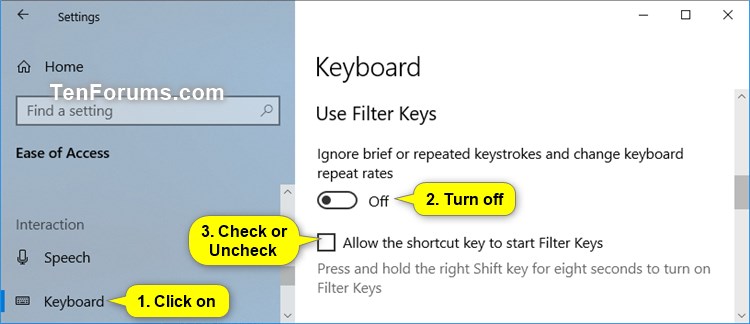
Method 2: Turn off the Filter Keys.
It has been reported by several Windows 10 users that the Keyboard Not Working error gets fixed on turning off the Filter Keys. Follow the steps listed below to do so.
Step 1- Click on the Start icon located at the bottom left corner of your desktop and click on ‘ Settings ‘ to open it.
Step 2- Here, click on the ‘ Ease of Access ‘ option from the grid.
Step 3- Now, click on ‘ Keyboard ‘ from the left pane of the window.
Step 4- In the Keyboard tab, search for the ‘ Use Filter Keys ‘ section and turn off its toggle.
Picture Credit: TenForums
Now, check if your keyboard starts working on your Windows 10 PC. If not, go ahead with the next method.
Method 3: Reinstall and Update your Keyboard Drivers.
The keyboard not working error is often caused due to outdated keyboard drivers. Follow the steps listed below to reinstall updated keyboard drivers on your Windows 10 PC.
Step 1- Launch Device Manager on your Windows 10 PC.
Step 2- Expand ‘ Keyboards ‘ by clicking on the arrow next to it.
Step 3- Right-click on your keyboard driver and select ‘ Uninstall Device ‘ from the drop-down box.
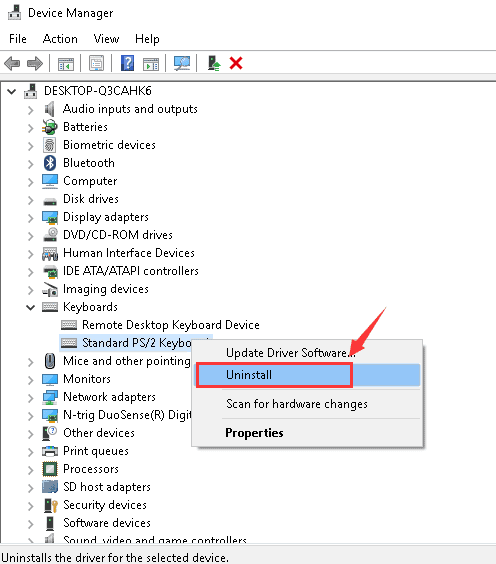
Step 4- Now, restart your PC. Your keyboard driver will be automatically installed.
Now, check if the keyboard not working error has been fixed. If not, try manually updating your keyboard driver.
To manually update your keyboard drivers, execute step 1 and step 2 from the method listed above.
Then, select the ‘ Update driver option from the drop-down box in step 3. Your PC will ask for permission to search automatically for updated driver software.
Allow this request and then, follow the on-screen instructions. Your PC must have access to the internet to automatically update its keyboard drivers.
Method 4: Disable the ‘Allow the computer to turn off this device to save power option.
In Windows 10, there is an option in Power Management Settings which allows it to disable the peripheral devices such as your keyboard. Follow the steps listed below to disable this option.
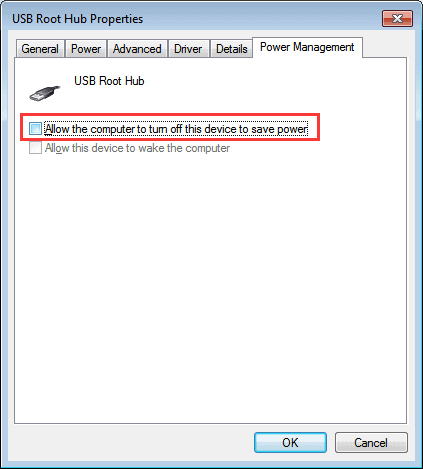
Step 1- Launch Device Manager on your Windows 10 PC.
Step 2- Expand the ‘ Universal Serial Bus controller ‘ by clicking on the arrow next to it.
Step 3- Double-click on the USB on which your keyboard is connected. It will open its Properties window.
Step 4- Here, go to the ‘ Power Management ‘ tab and uncheck the box for ‘ Allow the computer to turn off this device to save power and restart your PC.
The Keyboard Not Working error should get fixed on your Windows 10 PC. If not, go to the next method.
Method 5: Disable Fast Startup.
It has been reported by several Windows 10 users that disabling the Fast Startup can fix the keyboard not working error. Follow the steps listed below to execute this method.
Step 1- Launch Control Panel on your Windows PC.
Step 2- Search and click on Hardware and Sound » Power Options .
Step 3- Click on the ‘ Choose what the power buttons do ‘ option located on the left pane of this window.
Step 4- On the new window, search and click on the ‘ Change settings that are currently unavailable link.

Step 5- Now, uncheck the checkbox for ‘ Turn on fast startup ‘ and click on the ‘ Save Changes ‘ option.
Now, restart your device and check if your keyboard starts functioning normally.
Method 6: Use Keyboard Troubleshooter.
If none of the above-listed methods could fix the keyboard not working error on your Windows 10 PC, try using the inbuilt troubleshooter.
Step 1- Click on the Start icon located at the bottom left corner of your desktop and click on ‘ Settings ‘ to open it.
Step 2- Search and click on the ‘ Find and fix keyboard problems ‘ option. You can use the on-screen keyboard to type it in the search bar.

Step 3- Click on the ‘ Next ‘ button to initiate the keyboard troubleshooter.
Step 4- Any possible issue causing the keyboard not working error on your Windows 10 PC will be identified.
Follow the on-screen instructions to fix the identified issues and thereby fix the keyboard not working error.
ALSO CHECK: How to Get Printer Online on Windows 10
Conclusion:
These are some of the most useful methods which you can execute to fix keyboard not working error on your Windows 10 PC. If none of the above-listed methods prove to be useful, you can replace the keyboard or approach a technician. If we have missed out on anything or you still have any questions regarding this post feel free to ask them in the comment section.
- Printer Offline error is a common issue while printing remotely, causing the printer to not print and display an offline message.
- To get the printer back online on Windows 10, check network connectivity, run a printer power cycle, clear the print queue, restart the print spooler, remove and reinstall the printer, or restart the PC.
- Changing the printer from offline to online involves accessing settings, navigating to Printers and Scanners, and unchecking the “Offline” option in the Printer menu.
When using a printer, you will come across several errors. One of the most frequently occurring errors while printing documents remotely is the Printer Offline error. In this error, your printer will not print any document and a ‘ Printer offline ‘ message will be displayed on your screen.

To resume printing documents remotely, you need to get your printer back online. Thus, here we are with some of the best methods which you can use to turn your printer online.
How to Get Printer Online on Windows PC?
Method 1: Check Network Connectivity.
Before we start with any of the technical methods, let us make some basic checks. A stable network connection is a must for a printer to remain online.
1. Connect your Printer to the internet.
Use an Ethernet wire to connect your printer to your Printer. Also, make sure that your internet connection is up and running.
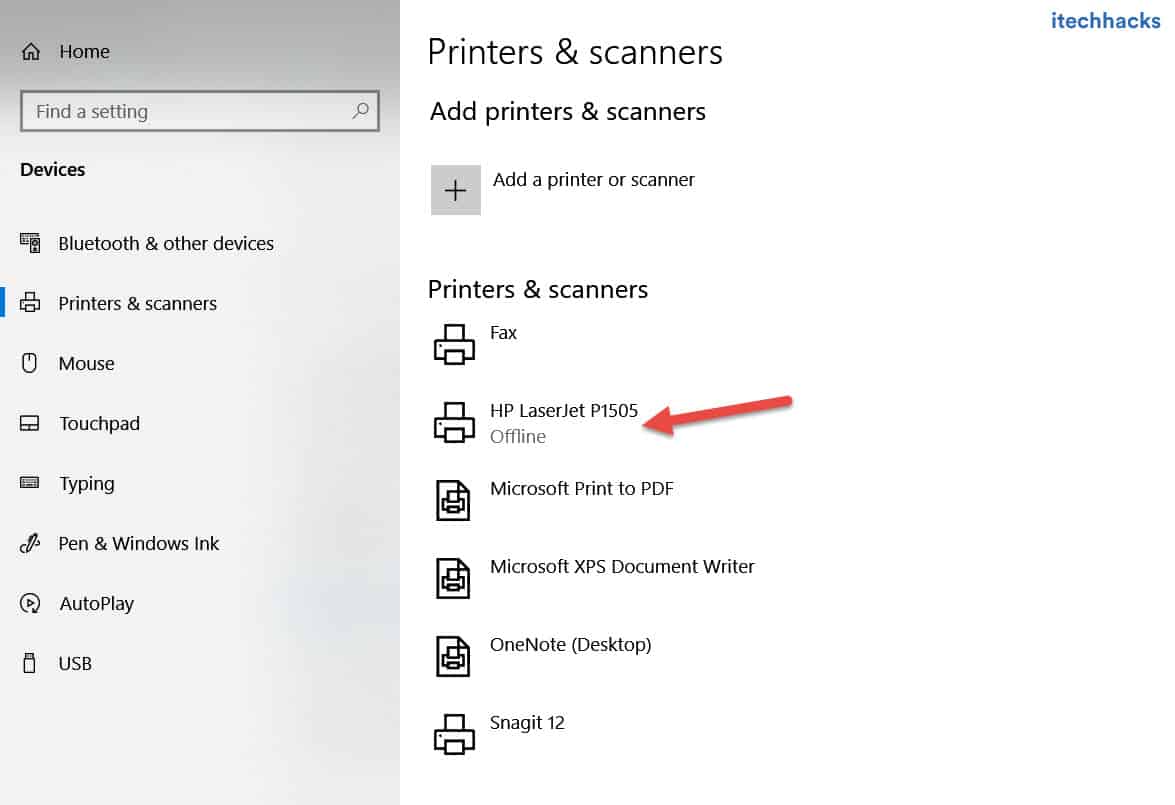
2. Connect your PC and your Printer to the same network.
If you have a wireless printer, make sure that your PC and Printer are connected to the same WiFi network. If they are connected to different networks, your PC will not be able to communicate with your printer.
Method 2: Run a Printer Power Cycle.
It has been observed that Power Cycling a Printer turns it online. Follow the steps listed below to run a Printer Power Cycle.

Step 1- Turn off your printer and unplug it.
Step 2- Wait for 30 seconds before plugging it back into the power socket.
Step 3- Now, turn on your Printer.
Once your Printer is turned on, check if it is back online. If not, go ahead with the next method.
Method 3: Clear the Print Queue.
If there are a lot of corrupt print requests in the Print Queue of your PC, you might face this error on your PC. Follow the steps listed below to clear the print queue.
Step 1- Launch ‘ Control Panel ‘ on your Windows PC.
Step 2- Here, search for the ‘ Devices and Printers option and click on it.
Step 3- In the Devices and Printers window, right-click on the printer whose queue you wish to clear and select ‘ See what’s printing from the drop-down box.
Step 4- You will get a list of all the print requests in a queue. Right-click on each and every print request and select ‘ Cancel ‘ from the drop-down box.
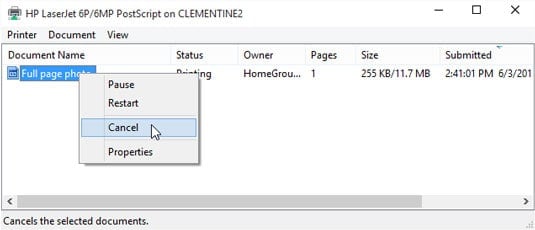
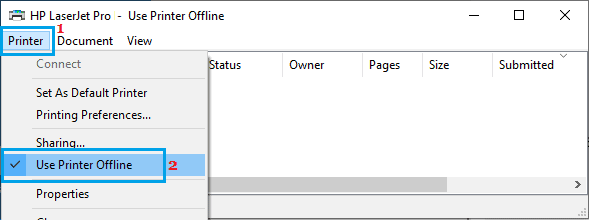
Also, uncheck the checkbox for ‘ Use Printer Offline ‘ if it is checked on this window. Then, check if your printer turns online.
Method 4: Restart Print Spooler.
Step 1- Launch ‘ Run ‘ on your Windows PC by simultaneously pressing the Windows and R keys on your keyboard.
Step 2- Type ‘ services.msc ‘ in the text box and hit Enter .
Step 3- A list containing all the services on your Windows PC will appear on your screen. Search for ‘ Print Spooler ‘ and right-click on it.
Step 4- Now, select ‘ Restart ‘ from the drop-down box.
Check if your printer turns online. If not, go ahead with the next method.
Method 5: Remove and Reinstall your Printer.
Step 1- Launch ‘ Control Panel ‘ on your Windows PC.
Step 2- Here, search for the ‘ Devices and Printers option and click on it.
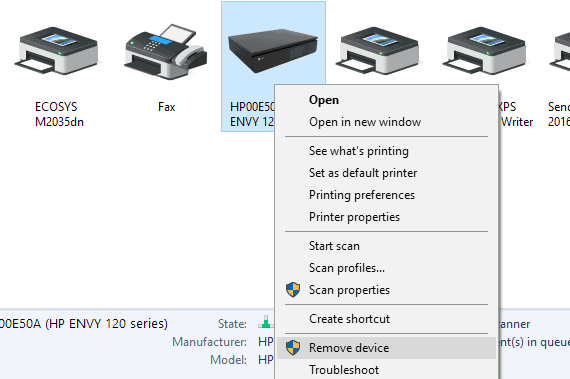
Step 3- In the Devices and Printers window, right-click on the printer which is offline and select the ‘ Remove Device ‘ option from the drop-down box.
Step 4- Now, click on the ‘ Add a printer or scanner option in the same window to reinstall your Printer.
Now, check if your Printer is back online. If not, go ahead with the next method.
Method 6: Restart your PC.
If none of the above-listed methods help you in turning your printer online, try restarting your PC. Check if your printer is back online after restarting your PC.
How to Change Printer from Offline to Online
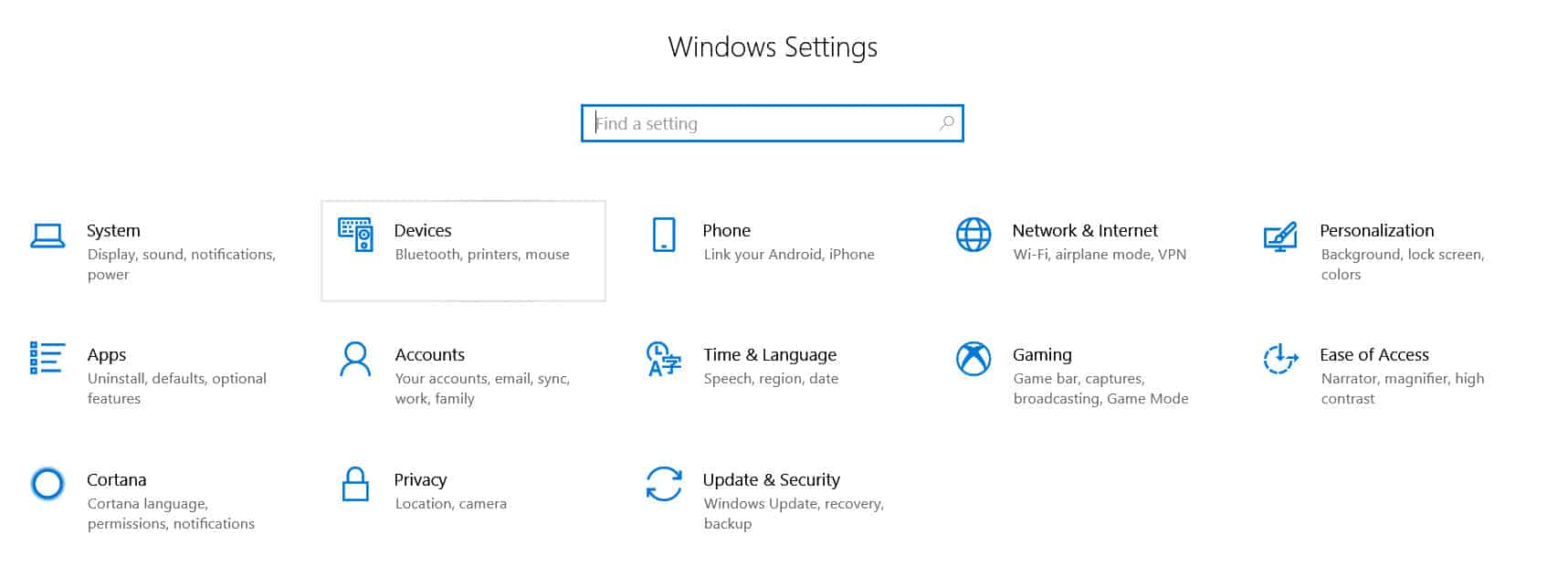
Step 1: Open “Settings” and go to “Devices: Printers, Bluetooth, etc”
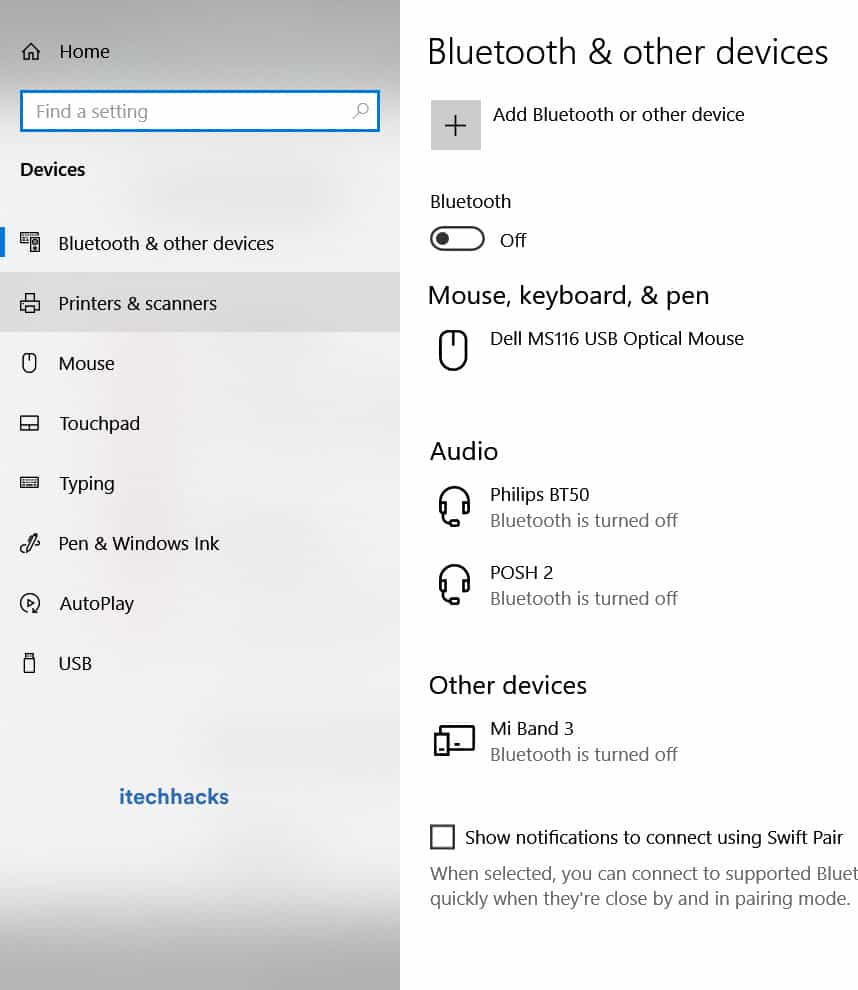
Step 2: Click on “Printers and Scanners”
Step 3: Now, Click on “Printer Offline” and the Printer menu will appear.
Step 4: Click on “Printer” in the menu bar and uncheck “Offline.”
<img loading=“lazy” src=“https://itechhacks.com/wp-content/uploads/2021/03/printer-offline-online.jpg" onerror=“this.onerror=null;this.src=‘https://blogger.googleusercontent.com/img/a/AVvXsEhe7F7TRXHtjiKvHb5vS7DmnxvpHiDyoYyYvm1nHB3Qp2_w3BnM6A2eq4v7FYxCC9bfZt3a9vIMtAYEKUiaDQbHMg-ViyGmRIj39MLp0bGFfgfYw1Dc9q_H-T0wiTm3l0Uq42dETrN9eC8aGJ9_IORZsxST1AcLR7np1koOfcc7tnHa4S8Mwz_xD9d0=s16000';" alt=“Click on “Printer: Offline” and the Printer menu will appear. Click on “Printer” in the menu bar and uncheck “Use Printer Offline.” This action will change the printer from offline to online. - 27”>
<img loading=“lazy” src=“https://itechhacks.com/wp-content/uploads/2021/03/printer-offline-online.jpg" onerror=“this.onerror=null;this.src=‘https://blogger.googleusercontent.com/img/a/AVvXsEhe7F7TRXHtjiKvHb5vS7DmnxvpHiDyoYyYvm1nHB3Qp2_w3BnM6A2eq4v7FYxCC9bfZt3a9vIMtAYEKUiaDQbHMg-ViyGmRIj39MLp0bGFfgfYw1Dc9q_H-T0wiTm3l0Uq42dETrN9eC8aGJ9_IORZsxST1AcLR7np1koOfcc7tnHa4S8Mwz_xD9d0=s16000';" alt=“Click on “Printer: Offline” and the Printer menu will appear. Click on “Printer” in the menu bar and uncheck “Use Printer Offline.” This action will change the printer from offline to online. - 28”>
Conclusion:
These are some of the most effective methods which you can use to make your Printer online on Windows 10 and MacOS. The steps involved in these methods are easy to execute.