- Opera GX is a browser specifically designed for gamers, with features like RAM and CPU limiters to prevent FPS drops while gaming.
- It offers resource controls, messenger app access, customization options, Twitch integration, and pop-up video controls.
- To download Opera GX for Windows PC, visit the official website, download the setup, run the installer, and launch the browser.
We have gaming laptops , gaming accessories, and even gaming phones for gamers. But what about gaming browsers? Opera GX is a gaming browser or, let’s say, a browser that is specifically designed for gamers. Not that might put you to question what this gaming browser do. Well, the worst nightmare of a gamer is facing FPS drops while playing games, especially if you are using any other app along with it, like a browser.
Fortunately, that won’t happen with this browser because of the features like RAM limited and CPU limiter. Designed for gamers means that you can use this browser while playing the games, and it won’t impact the performance of your PC even a bit. If you don’t know how to download Opera GX for Windows PC , this article should help you. Here’s how you can download and install Opera GX for Windows.
What Is Opera GX?
Opera GX is a gaming browser from Opera for Windows PC and macOS . This browser is preferred by many gamers because it is not heavy on your PC and has minimal to no impact if you use it while playing games. Some of the features that make Opera GX worth giving a shot are-
- It has built-in resource controls like memory limit, RAM limit, etc. This will limit the amount of CPU and RAM used by the browser.
- You can access the messenger apps like Telegram, Facebook Messenger, Telegram, etc, from the left sidebar of the browser.
- It has various customization options allowing you to personalize the browser per your needs.
- Apart from its features, you also get all the features that Opera offers.
- Opera GX has Twitch integration.
- You also get pop-up video controls to control the videos that start playing in the pop-up video player.
Download Opera GX for Windows PC
You can download the Opera GX browser from the official site and install it on your PC. Given below are the steps to download and install Opera GX for Windows PC-
- Open the browser on your Windows PC, and head to the Opera GX page.
- Now, click on the Download Opera GX button.

- This will download the Opera GX browser setup on your PC.
- Press Windows + E keyboard shortcut to start File Explorer .
- Head to the Downloads folder or wherever the file is downloaded.
- Double-click on the OperaGXSetup to run the setup.
- On the setup wizard, click on Accept and Install button.

- You will be asked to give permission to help make Opera Better; click on Accept to continue. If you want to restrict it, then click on Configure in Settings .

- This will start installing the Opera GX browser on your PC.
- After the browser is installed, press the Windows key to open the Start Menu .

- Here, type Opera GX Browser and press Enter to launch the browser.
Bottom Line
This is how you can download Opera FX for Windows PC. You can follow the above steps, and you will be able to install the Opera FX browser on your PC.
Is Opera GX Good For PC?
Yes, Opera GX is good for PC. It is fast and lightweight and does not impact the performance of your PC.
Does Opera GX Take More CPU Than Chrome?
Opera GX has a CPU and RAM limiter, which will limit the RAM and CPU usage. Simply put, Opera GX does not take up more CPU or RAM than Chrome or any of its competitors.
Can I Download Opera GX On My Windows PC?
Yes, you can download Opera GX on your Windows PC. We have discussed the steps in the article above, so you can follow them to download and install Opera GX.
8 Ways to Fix System_Application_Force_Next_0007 Error
Top 45 Sites Like123movies to Stream Movies Online for Free
Best Netflix Student Discount: How To Get, Offers Guide
How to Fix Apple CarPlay Not Working in iOS 16.6 (Guide)
Apple AirTag Not Updating its Location? Here’s How To Fix
Top 7 Ways to Fix Hulu Not Working on FireStick
Top 5 Ways to Fix Onn TV Won’t Turn On
Top 10 Best Wallet Or Cardholder Cases For iPhone 13/14
LG TV HDMI Ports Not Working? Here’s How to Fix
System_Application_Force_Next_0007 error is causing issues on Windows PC, disrupting workflow and application launches.
Causes include outdated Windows version, drivers, virus/malware, corrupted files, conflicting software, system changes, bugs, and glitches.
Troubleshooting steps include restarting the PC, updating Windows, running SFC scan, running DISM scan, scanning for viruses, reinstalling problematic applications, performing system restore, and resetting the PC as a last resort.
System_Application_Force_Next_0007 is a system error encountered by users recently on their Windows PC . If you are facing this issue, then that means there is something wrong with the application or Windows. This error message may interrupt your workflow, prevent you from launching the application, or cause issues like system crashes and lags. We will guide you with the troubleshooting steps to help fix the System_Application_Force_Next_0007 Error.
What Are The Causes Of System_Application_Force_Next_0007 Error?
If you are facing the System_Application_Force_Next_0007 error on your PC, then it can be due to the following reasons-
- This issue can be encountered when you are running an older version of Windows on your PC. Simply put, you can encounter this issue when you have a pending Windows update.
- Another reason for facing this issue is the outdated PC drivers .
- You can also face the issue if the virus /malware has infected your system.
- Corrupted system files can also cause this issue on Windows PC.
- Conflicting software on your PC is another reason that can cause this issue.
- You might also face this issue due to bugs and temporary glitches on your system.
- Another common reason that can be causing this issue is system changes. It can be anything from changing the system settings to updating the Windows that can lead to this issue.

Ways To Fix System_Application_Force_Next_0007 Error
There can be multiple reasons behind facing the System_Application_Force_Next_0007 error. Given below are the steps you can follow to fix this issue-
Restart PC
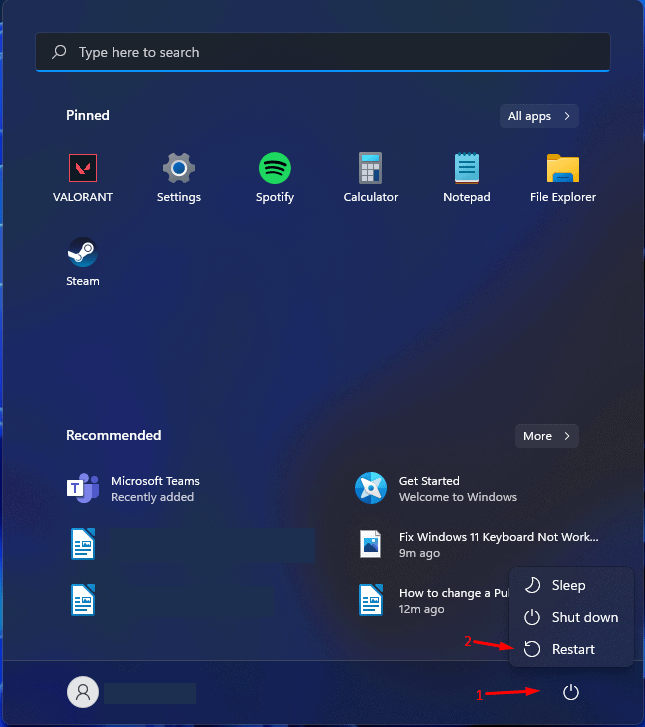
Before starting with the other troubleshooting steps listed in this article, try restarting your PC. If the System_Application_Force_Next_0007 error is being caused due to bugs and technical glitches, then a simple restart should help fix the issue. However, if you still encounter the issue after the restart, try the next step mentioned in this article.
Update Windows
This error can be encountered due to a pending Windows update . Updating your Windows to the latest version should help fix it. The steps given below should help you update Windows to the latest version-
- Press Windows + I key combo to open the Settings app.
- Click on the Windows Update option on the left sidebar.
- Click Check for Updates on the right side to scan for updates.

- Once all the updates are listed, download and install them.
Not only will this update the Windows, but it will also update the drivers on your PC.
Run SFC Scan
SFC can be used to scan for corrupted files and fix them. If the issue is caused due to corrupted files, then running the SFC scan should fix the issue. Here’s how you can run the SFC scan on your PC-
- Press the Windows key on your keyboard and type CMD .
- Select Command Prompt from the Start Menu and click Run As Administrators .

- You can now run the SFC scan by executing the command given below in the Command Prompt- sfc /scannow

- Wait till the process finishes, and then restart your PC.
Run DISM Scan
If running the SFC scan didn’t turn out to be useful, then you will have to run the DISM scan on your system. Given below are the steps to do it-
- Press Windows + R key combo to open the Run Dialog Box .
- Type CMD and press Ctrl + Shift + Esc to run the Command Prompt with administrative privileges.

- Now, execute the following commands one by one- DISM /Online /Cleanup-Image /CheckHealth DISM /Online /Cleanup-Image /ScanHealth DISM /Online /Cleanup-Image /RestoreHealth
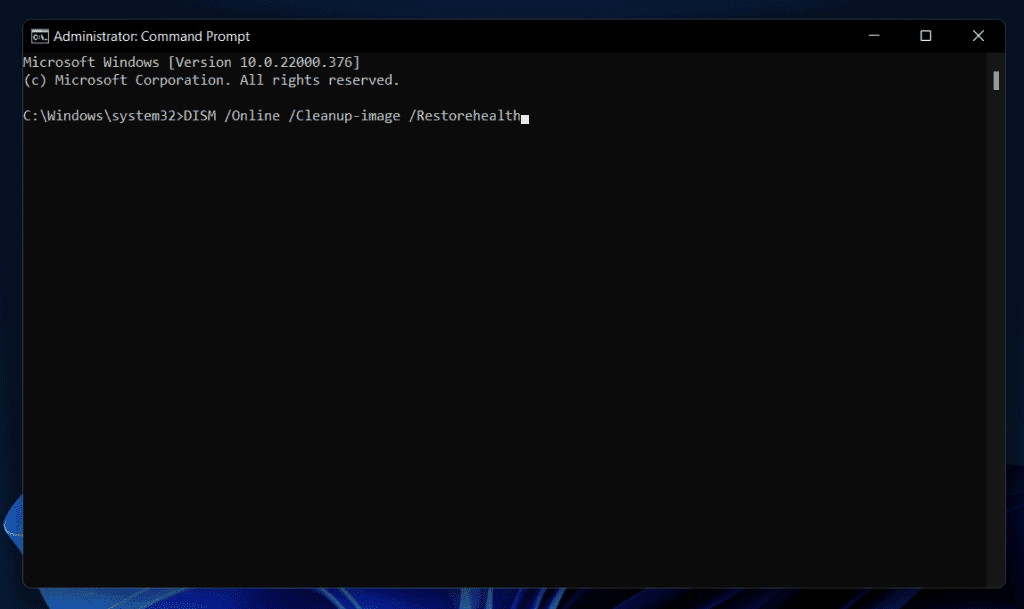
- Once you are done with the above commands, restart your PC.
Scan Your PC For Virus
You can also encounter the System_Application_Force_Next_0007 error due to the virus/malware infection on your PC. If you use any third-party antivirus, you will have to use it to scan your PC for viruses. If you don’t have any third-party antivirus, then run Windows Security scan-
- Click the Start icon at the bottom taskbar to open the Start Menu .
- In the Start Menu , type Windows Security and press Enter to open it.

- On the main screen on Windows Security, click on Virus & threat protection option.

- Here, click on Scan Options .

- From all the options you see here, select Full Scan and then click the Scan Now button.

- This will run the Windows Security scan and fix all the issues caused due to viruses.
Reinstall Application With The Issue
If you are facing this issue with a particular application or after installing an application, then probably that’s the cause of the issue. Reinstall the application you think is causing the issue and see if the error is still encountered. You can do this by following the steps given below-
- Open the Run Dialog Box through the Windows + R keyboard shortcut.
- In the Run Dialog Box, type Control and click on OK .

- Under the Programs section, click on Uninstall a program option.

- You will see all the software that is installed on your PC.
- Click on the software that is causing the issue, and click on Uninstall .

- Click on Uninstall again to confirm uninstalling the application and follow the on-screen instructions.
- Once the software is installed, restart your PC to clear the residual files.
- Now, run the setup again and install the application on your PC.
Perform System Restore
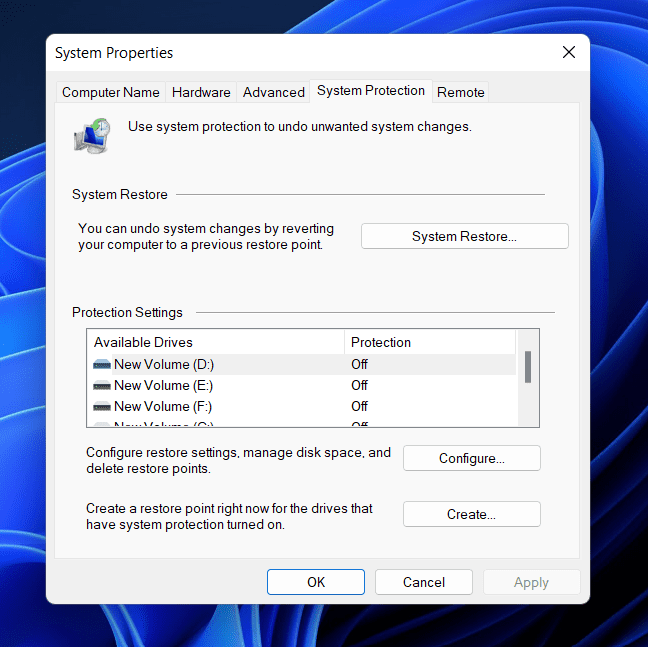
If you started facing the System_Application_Force_Next_0007 error after making some changes to your PC, like installing an update, updating the drivers, reinstalling the drivers, etc, then you should try performing a system restore. When you perform a system restore, your PC will be reverted to a certain time, and all the changes that you did will be undone.
To continue with this method, you must have a restore point created before the change to the system is made. You can follow our guide to perform system restoration on Windows . After performing the system restore, all the applications you installed and the changes after the restore point was created will be undone. You should now no longer face this issue on your PC.
Reset Your PC
If you have followed all the above steps and are still facing this issue, you must reset your PC. This is the last resort you should continue with, and you should only reset your PC if you have tried all the methods mentioned in this article. Before you go ahead resetting your PC, take a backup of everything on your PC. Factory reset will clear out all the settings, remove apps, and delete all the data, so it is important to have a backup of your data. You can follow our guide to factory reset your Windows PC .
Bottom Line
The issue should be solved now. If you have followed the above steps correctly, you shouldn’t face the System_Application_Force_Next_0007 error. If the issue is still encountered, you should try contacting your device’s customer support or Microsoft customer support .
- Top 10 Ways to Fix Winword.exe Application Error on Windows 11/10
- 9 Quick Ways to Get Help in Windows 10 and Windows 11
- How To Sign Out Other Users Out On Windows 11
- Windows 11 Installation Stuck? Here’s How to Fix
- Repair Windows 11 Using 4 Methods | Step-by-Step Guide
- 5 Ways to Change System Language Settings on Windows 11
- Change Default Search To Google in Start Menu Windows 11
